
Set up staff roles and permission packs
Create an editable role from a preset, choose its permission packs, and check the saved access before assigning staff.
Last updated
To set up staff access in Tutorbase, open Settings > Team & roles, create a role from the closest preset, and choose its permission packs. Packs control what people in that role can see and do.
Before you start
An Owner can manage all editable roles. A delegated role manager can manage only roles whose access fits within their own. Roles apply across the Organization; choosing a Brand view does not restrict the role to that Brand.
Evelyn Hart creates Senior teacher for experienced teachers who need to edit their own lessons and cancel students using the Policy's outcome. She starts with attendance-only access, keeps Billing off, and leaves existing staff assignments unchanged.
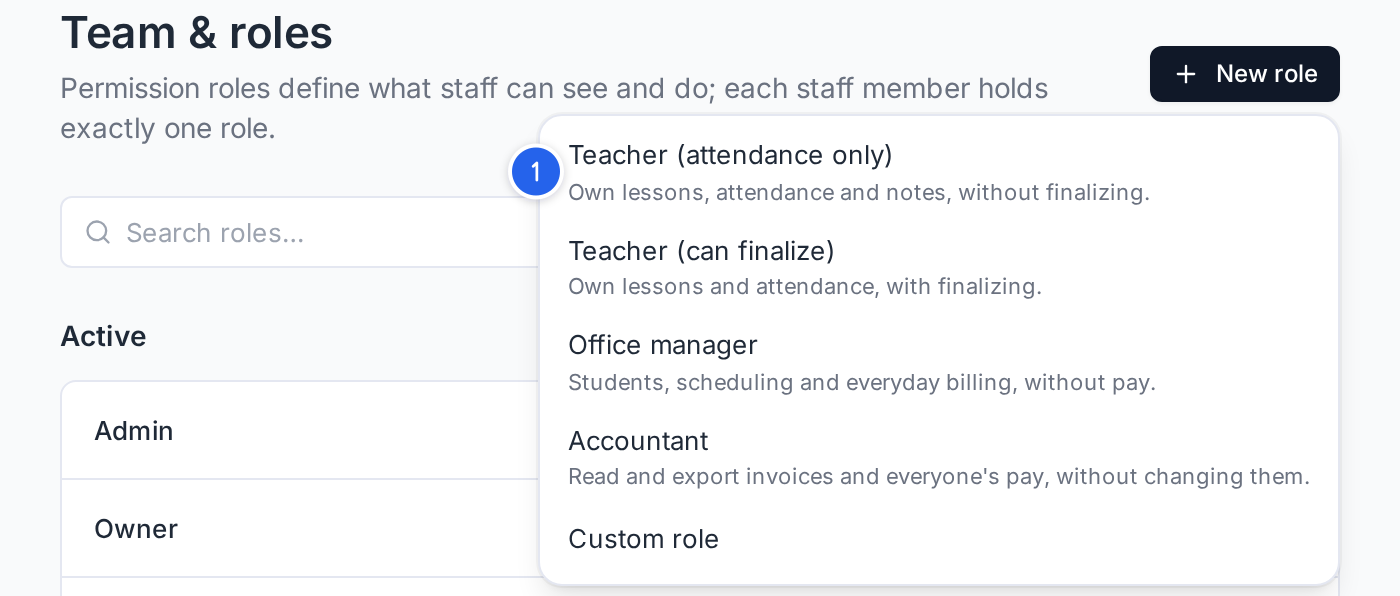
Start from the closest preset because it supplies a coherent set of packs. Choose Custom role when the job needs a different combination. A preset is an editable starting point; changing your role does not change the preset or other roles.
Create the role
Open the account menu, select Settings, then Team & roles. Select New role > Teacher (attendance only).
Change Role name to Senior teacher. Add a short Description explaining who should use it, or leave the description empty.
Under Lessons, keep Calendar on Own lessons, Attendance on and Finalize off. Keep attendance-only access when teachers should record presence and notes without completing the money step.
Switch on Edit own lessons and Cancel students in own lessons. Choose each independently: editing does not automatically allow cancellation. Keep Billing off when these teachers should follow the Policy rather than choose a different charge or cancellation outcome.
Select Create role. Open the saved role and check its access summary before assigning anyone. Reloading keeps the saved choices.
Creating the role does not assign staff or send invitations. To give an existing login this access, move that person into the saved role in Team & roles. To give someone a new login, use an invitation.
Complete access or chosen packs?
Keep Custom for bounded access because you choose what the job needs. Complete gives everything, including permissions added later; use it only for staff trusted with that access. A new pack reaches a role on chosen packs switched off until someone chooses it.
Owner is fixed. Admin starts with Complete access but is editable; an Owner can switch it to Custom. The ready-made Teacher can finalize: it has the same packs as the Teacher (can finalize) preset, so teachers mark attendance and finalize their own lessons, but cannot correct a finalized lesson. The other preset starting points are Teacher (attendance only), Office manager and Accountant.
To change an existing role, select it, choose Edit, change its name, description or packs, and select Save changes. Everyone assigned to that role uses its saved access.
Common questions
Why did Attendance or Finalize switch off?
Attendance needs Calendar, and Finalize needs Attendance. Switching Calendar off clears those dependent choices in the same edit. Restore the prerequisite first, then choose the access you intend to save.
Can a Senior teacher decide what to charge?
The example keeps Billing off. It allows cancellation with the Policy's outcome. A change that needs a money decision the person cannot make is stopped and shows Who can do this? Billing Work also needs Students & payers Full and Calendar other than Own lessons, which broadens this role’s access. Keep the example unchanged when own-lesson teaching is the intended boundary.
Is Job title the same as the permission role?
No. Job title describes the person's work and is edited on their Staff profile. Their permission role determines access. Give staff a useful job title so colleagues know whom to ask for help.
What can a Teacher see of students, payers and colleagues?
Only the people in their own lessons, and they open them from those lessons. A teacher gets no People, Students, Payers or Staff list page and no search results for people. Students and payers show no phone, email or address, and colleagues show name, photo, job title and teaching subjects without contact details. This holds for Teacher and Teacher (attendance only) while Calendar is on Own lessons.
Can I change Teacher without changing every preset copy?
Yes. Each saved role has its own choices. Editing Teacher does not update a Senior teacher role created from a preset.
Does creating or editing a role email staff?
Defining access does not submit an invitation or notify staff about a lesson. Invitations and lesson-email settings are different actions.