
A Guide to Fixing Google Calendar Sync Errors for Good
Published: January 5, 2026 by Amy Ashford


Key Takeaway: Most Google Calendar sync errors stem from simple issues like incorrect permissions, aggressive battery-saver settings, or a full data cache. You can usually fix these problems by systematically checking your device settings and ensuring your Google account is configured correctly. A centralized scheduling system can prevent these errors from happening in the first place.
Why Is My Google Calendar Not Syncing?
When new appointments fail to appear on your phone or updates from your laptop are missing, you are likely facing a sync error. This scheduling chaos often happens for a few common reasons. We will explore the most frequent culprits behind these frustrating Google Calendar sync errors.
What are the most common causes of sync failure?
From incorrect account permissions to an overly aggressive battery-saver mode, a lot can go wrong. Time zone mismatches and battery optimizations are responsible for many sync failures. Some reports show Android users have seen up to a 50% failure rate in app integrations due to these settings.
Most of the time, the problem is a simple misconfiguration. Before you attempt complex fixes, it is worth running through the basics. The official Google Calendar Help Center is a great place to start, as simple checks often solve the issue.
Common Causes of Google Calendar Sync Failures
Use this table to quickly diagnose the potential root cause of your sync issue. Match your symptom with the common causes and affected platforms to find a solution faster. The University of Illinois blog has great insights on these challenges.
Root Cause | Common Symptom | Affected Platforms |
|---|---|---|
Incorrect Account | Events appear on one device but are completely missing on another. | All (Mobile, Web, Desktop) |
Permissions Not Granted | A third-party app (like a scheduler) can't add or see events. | Third-Party Integrations |
Time Zone Mismatch | Events appear at the wrong time on different devices. | All |
Calendar Not Visible | A specific calendar's events are missing, but others show up fine. | All |
Aggressive Battery Saving | Events stop syncing on a mobile device, especially in the background. | Mobile (Android, iOS) |
Outdated App/Browser | The calendar works intermittently or has display errors. | All |
Corrupted Cache | Old or deleted events keep reappearing; new events won't save. | Mobile, Web Browser |
API/Quota Limits | For power users or businesses, syncs fail after many rapid updates. | G Suite/Workspace, API users |
By identifying your symptom, you can narrow down the cause and find the right solution. Let's start troubleshooting.
How Do I Fix Sync Errors on Any Device?
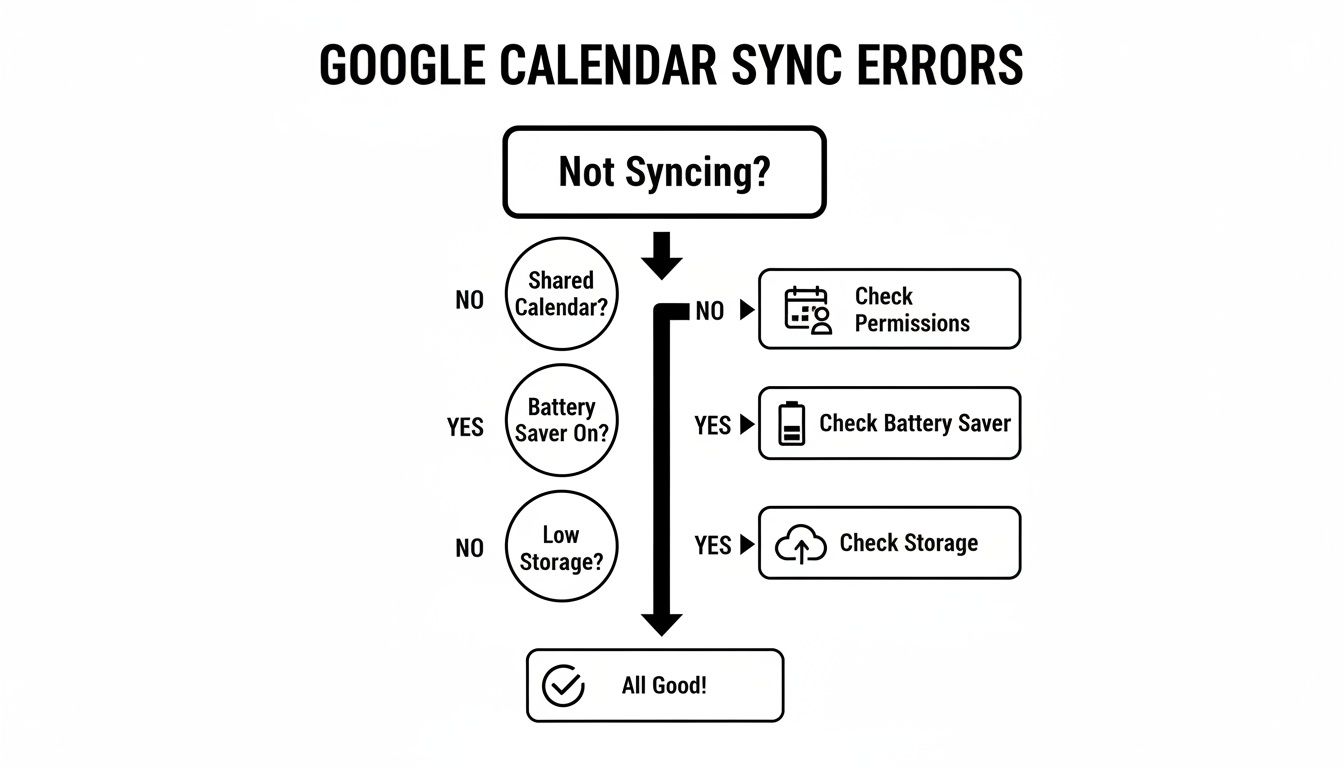
To get your calendar working again, start with universal checks that solve most Google Calendar sync errors. First, verify your internet connection. Then, make sure you are logged into the correct Google account on every device. A mismatched account is a surprisingly frequent culprit.
As the flowchart shows, simple things like app permissions, battery saver modes, and low storage are often the real source of sync headaches. If you want to go deeper on any of these points, check out our complete guide on syncing with Google Calendar.
Advanced Troubleshooting for Persistent Sync Problems
When the usual fixes do not work, the problem often runs deeper than a simple setting. Stubborn google calendar sync errors frequently trace back to tricky third-party app integrations or complex permission tangles. Issues can arise from misconfigured settings or system-level conflicts.
Investigating Permissions and System Failures
Tools like Outlook can cause issues, creating sync delays of up to 4 hours or complete failures. This gets messy when you juggle multiple accounts. You can read more about these widespread sync bugs that trip up many users.
For businesses using Google Workspace, start by checking the Google Admin Console. Misconfigured permissions for delegated or shared calendars are a classic culprit. Understanding the principles of chaos engineering also provides insight into why complex, interconnected systems sometimes fail unpredictably.
If you have exhausted all other options, try a forced re-sync. This involves removing the problematic Google account from the device or app and then re-adding it. This drastic step can clear out deep-seated conflicts and restore functionality.
Is it a bug or a feature?
Sometimes, what feels like a Google Calendar sync error is the platform working as designed. Knowing these built-in quirks can save you from spending hours troubleshooting a non-existent problem. For example, the Android app has a one-year sync limit for past events.
Many users get frustrated when they cannot find an appointment from 18 months ago on their phone. It is not a sync failure. The app is intentionally designed to display events from only the last 12 months. To see older appointments, you must log in to the web version of Google Calendar.
Google's own support documentation confirms this is an intentional feature, not a flaw. Other limitations, like sharing restrictions, can also cause confusion. Our guide on how to make Google Calendar private dives deeper into these related settings.
How a Centralized System Prevents Scheduling Errors
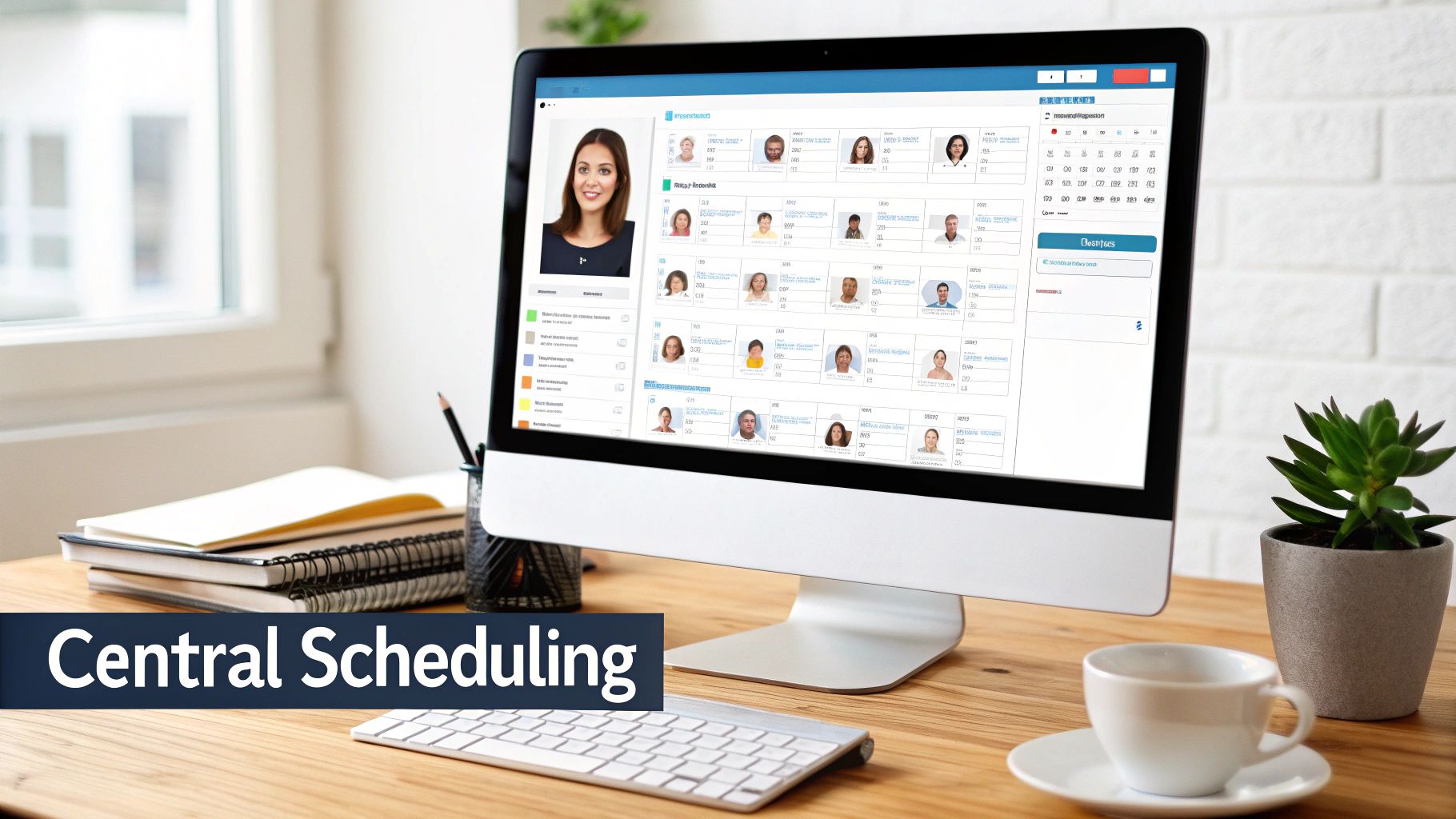
If you constantly fight with Google Calendar sync errors, the problem is likely your patchwork of tools, not the calendar itself. A dedicated management system that acts as a single source of truth for all scheduling is the permanent fix. This approach ensures data consistency across all platforms.
Platforms like Tutorbase are built to eliminate the root causes of sync failures. Features like real-time conflict detection prevent you from double-booking a tutor or a room. This automated approach is far more reliable than a fragile sync, saving you hours of administrative headaches and preventing lost revenue.
If you're curious about how different systems talk to each other, our tutoring software integrations guide breaks it down. Understanding how various database synchronization tools work also shows why one central hub is the most stable solution for your business in 2024.
Frequently Asked Questions About Google Calendar Sync Errors
Why do my calendar events appear an hour off?
This is almost always a time zone mismatch. Check the time zone settings in your Google Calendar, on your mobile device, and within any connected apps. Ensure they all match your current location. Daylight Saving Time changes are a common culprit for this issue.
How can I force Google Calendar to sync right now?
On the Google Calendar mobile app, open the menu (three lines), tap "Refresh," and wait a moment. On a desktop browser, a simple page refresh (F5 or Cmd+R) is usually enough to trigger a fresh sync with Google's servers. This action requests the latest data immediately.
Will clearing the cache delete my calendar events?
No, clearing the cache on your mobile app is safe and will not delete your events. This action only removes temporary data stored on your device that helps the app run faster. Your actual event data is stored on Google's servers and will reappear after the app re-syncs.
Can I recover unsynced calendar events?
If you created an event offline and it never synced, it may be lost if you clear app data or uninstall the app. Always try to reconnect to the internet and manually refresh first. For events that have vanished, check the Trash/Bin in Google Calendar on a desktop, as they stay there for 30 days.
What is the maximum number of calendars I can sync at once?
Google allows you to subscribe to and display up to 100 calendars at a time. However, for smooth performance, especially on mobile devices, it is best to keep the number of actively synced calendars to a minimum. Only sync what you truly need to see on a daily basis.
Why aren't my new events showing up on my computer?
If events created on your phone are not appearing on your desktop, first ensure both devices are connected to the internet. Then, confirm you are logged into the same Google account on both. Finally, try a manual refresh on your desktop browser by pressing F5 or Cmd+R.
How do I fix sync errors with a third-party app?
First, check the app's permissions within your Google account settings to ensure it has access to your calendar. If permissions are correct, try disconnecting and then reconnecting the app to your Google Calendar. This often resets the connection and resolves underlying sync problems.
Stop wasting hours on scheduling errors and manual admin. Tutorbase provides a single, reliable platform to manage everything from bookings to payroll, eliminating sync problems for good. See how it works at tutorbase.com/register.
A Guide to Fixing Google Calendar Sync Errors for Good
Published: January 3, 2026 by Amy Ashford


Key Takeaway: Most Google Calendar sync errors stem from simple issues like incorrect permissions, aggressive battery-saver settings, or a full data cache. You can usually fix these problems by systematically checking your device settings and ensuring your Google account is configured correctly. A centralized scheduling system can prevent these errors from happening in the first place.
Why Is My Google Calendar Not Syncing?

When new appointments fail to appear on your phone or updates from your laptop are missing, you are likely facing a sync error. This scheduling chaos often happens for a few common reasons. We will explore the most frequent culprits behind these frustrating Google Calendar sync errors.
What are the most common causes of sync failure?
From incorrect account permissions to an overly aggressive battery-saver mode, a lot can go wrong. Time zone mismatches and battery optimizations are responsible for many sync failures. Some reports show Android users have seen up to a 50% failure rate in app integrations due to these settings.
Most of the time, the problem is a simple misconfiguration. Before you attempt complex fixes, it is worth running through the basics. The official Google Calendar Help Center is a great place to start, as simple checks often solve the issue.
Common Causes of Google Calendar Sync Failures
Use this table to quickly diagnose the potential root cause of your sync issue. Match your symptom with the common causes and affected platforms to find a solution faster. The University of Illinois blog has great insights on these challenges.
Root Cause | Common Symptom | Affected Platforms |
|---|---|---|
Incorrect Account | Events appear on one device but are completely missing on another. | All (Mobile, Web, Desktop) |
Permissions Not Granted | A third-party app (like a scheduler) can't add or see events. | Third-Party Integrations |
Time Zone Mismatch | Events appear at the wrong time on different devices. | All |
Calendar Not Visible | A specific calendar's events are missing, but others show up fine. | All |
Aggressive Battery Saving | Events stop syncing on a mobile device, especially in the background. | Mobile (Android, iOS) |
Outdated App/Browser | The calendar works intermittently or has display errors. | All |
Corrupted Cache | Old or deleted events keep reappearing; new events won't save. | Mobile, Web Browser |
API/Quota Limits | For power users or businesses, syncs fail after many rapid updates. | G Suite/Workspace, API users |
By identifying your symptom, you can narrow down the cause and find the right solution. Let's start troubleshooting.
How Do I Fix Sync Errors on Any Device?

To get your calendar working again, start with universal checks that solve most Google Calendar sync errors. First, verify your internet connection. Then, make sure you are logged into the correct Google account on every device. A mismatched account is a surprisingly frequent culprit.
As the flowchart shows, simple things like app permissions, battery saver modes, and low storage are often the real source of sync headaches. If you want to go deeper on any of these points, check out our complete guide on syncing with Google Calendar.
Advanced Troubleshooting for Persistent Sync Problems
When the usual fixes do not work, the problem often runs deeper than a simple setting. Stubborn google calendar sync errors frequently trace back to tricky third-party app integrations or complex permission tangles. Issues can arise from misconfigured settings or system-level conflicts.
Investigating Permissions and System Failures
Tools like Outlook can cause issues, creating sync delays of up to 4 hours or complete failures. This gets messy when you juggle multiple accounts. You can read more about these widespread sync bugs that trip up many users.
For businesses using Google Workspace, start by checking the Google Admin Console. Misconfigured permissions for delegated or shared calendars are a classic culprit. Understanding the principles of chaos engineering also provides insight into why complex, interconnected systems sometimes fail unpredictably.
If you have exhausted all other options, try a forced re-sync. This involves removing the problematic Google account from the device or app and then re-adding it. This drastic step can clear out deep-seated conflicts and restore functionality.
Is it a bug or a feature?
Sometimes, what feels like a Google Calendar sync error is the platform working as designed. Knowing these built-in quirks can save you from spending hours troubleshooting a non-existent problem. For example, the Android app has a one-year sync limit for past events.
Many users get frustrated when they cannot find an appointment from 18 months ago on their phone. It is not a sync failure. The app is intentionally designed to display events from only the last 12 months. To see older appointments, you must log in to the web version of Google Calendar.
Google's own support documentation confirms this is an intentional feature, not a flaw. Other limitations, like sharing restrictions, can also cause confusion. Our guide on how to make Google Calendar private dives deeper into these related settings.
How a Centralized System Prevents Scheduling Errors

If you constantly fight with Google Calendar sync errors, the problem is likely your patchwork of tools, not the calendar itself. A dedicated management system that acts as a single source of truth for all scheduling is the permanent fix. This approach ensures data consistency across all platforms.
Platforms like Tutorbase are built to eliminate the root causes of sync failures. Features like real-time conflict detection prevent you from double-booking a tutor or a room. This automated approach is far more reliable than a fragile sync, saving you hours of administrative headaches and preventing lost revenue.
If you're curious about how different systems talk to each other, our tutoring software integrations guide breaks it down. Understanding how various database synchronization tools work also shows why one central hub is the most stable solution for your business in 2024.
Frequently Asked Questions About Google Calendar Sync Errors
Why do my calendar events appear an hour off?
This is almost always a time zone mismatch. Check the time zone settings in your Google Calendar, on your mobile device, and within any connected apps. Ensure they all match your current location. Daylight Saving Time changes are a common culprit for this issue.
How can I force Google Calendar to sync right now?
On the Google Calendar mobile app, open the menu (three lines), tap "Refresh," and wait a moment. On a desktop browser, a simple page refresh (F5 or Cmd+R) is usually enough to trigger a fresh sync with Google's servers. This action requests the latest data immediately.
Will clearing the cache delete my calendar events?
No, clearing the cache on your mobile app is safe and will not delete your events. This action only removes temporary data stored on your device that helps the app run faster. Your actual event data is stored on Google's servers and will reappear after the app re-syncs.
Can I recover unsynced calendar events?
If you created an event offline and it never synced, it may be lost if you clear app data or uninstall the app. Always try to reconnect to the internet and manually refresh first. For events that have vanished, check the Trash/Bin in Google Calendar on a desktop, as they stay there for 30 days.
What is the maximum number of calendars I can sync at once?
Google allows you to subscribe to and display up to 100 calendars at a time. However, for smooth performance, especially on mobile devices, it is best to keep the number of actively synced calendars to a minimum. Only sync what you truly need to see on a daily basis.
Why aren't my new events showing up on my computer?
If events created on your phone are not appearing on your desktop, first ensure both devices are connected to the internet. Then, confirm you are logged into the same Google account on both. Finally, try a manual refresh on your desktop browser by pressing F5 or Cmd+R.
How do I fix sync errors with a third-party app?
First, check the app's permissions within your Google account settings to ensure it has access to your calendar. If permissions are correct, try disconnecting and then reconnecting the app to your Google Calendar. This often resets the connection and resolves underlying sync problems.
Stop wasting hours on scheduling errors and manual admin. Tutorbase provides a single, reliable platform to manage everything from bookings to payroll, eliminating sync problems for good. See how it works at tutorbase.com/register.
More from the Blog

A Guide to Fixing Google Calendar Sync Errors for Good
Read Article
Read Article

A Guide to Fixing Google Calendar Sync Errors for Good
Read Article
Read Article

How to Write a Tutor Position Description That Attracts Top Educators
Read Article
Read Article

How to Write a Tutor Position Description That Attracts Top Educators
Read Article
Read Article

How a Parent Portal for Tutoring Can Transform Your Center
Read Article
Read Article

How a Parent Portal for Tutoring Can Transform Your Center
Read Article
Read Article


