
How to Integrate with QuickBooks Online for Tutoring Centers

Published: December 6, 2025 by Amy Ashford

Key Takeaway: Integrating your tutoring management software with QuickBooks Online automates your entire financial workflow. This connection syncs invoices and payments, reconciles transactions automatically, and eliminates manual data entry, giving you a real-time, accurate view of your business's financial health.

When you integrate Tutorbase with QuickBooks Online, you can achieve a completely automated financial workflow. The goal is to eliminate manual data entry and build a system where invoices create themselves, payments reconcile automatically, and your books are always up-to-date. This turns your financial admin from a chore into a strategic asset.

What is an Automated Financial Workflow?

An automated financial workflow means your tutoring business financials run on autopilot, freeing up hours each week. When you connect Tutorbase to QuickBooks Online, you create a direct pipeline between your day-to-day operations and your core accounting system. This setup handles the entire transaction journey from start to finish.

The process begins when a tutor marks attendance for a lesson and ends when the payment is reconciled in your books. Tutorbase automatically generates invoices, syncs them to QuickBooks, and marks them as paid once the transaction clears. This happens without your team manually entering data, which completely eliminates double-entry bookkeeping.

From Manual Chaos to Automated Clarity

The real value here is removing human error from repetitive tasks. Forget exporting CSV files or manually recreating invoices in QuickBooks; the integration handles it instantly. A recent QuickBooks survey found that 85% of small business owners use accounting software, showing how vital digital tools are. Automation is the next step.

A laptop on a wooden desk displays financial graphs, an open notebook, pen, and potted plants. Text says 'Automate Finances'.

This connection lets you build a tech stack perfectly suited to your tutoring center's needs. The result is not just saving time. You also get more accurate data and have a real-time view of your finances whenever you need it.

How does manual vs. automated accounting compare?

The difference between a manual and an automated process is significant. It affects everything from daily invoicing to your ability to pull accurate monthly reports. For example, manually creating invoices can consume hours each week. An integrated system does it in seconds. Our tutoring invoice generator shows how much simpler just one part of this can be.

To see the difference, let’s compare a few common tasks.

Task

Manual Process (Without Integration)

Automated Process (With Integration)

Invoice Creation

Manually create each invoice in QuickBooks, copying details from another system. Average time: 5-10 mins per invoice.

Tutorbase automatically generates and syncs invoices to QuickBooks when attendance is marked. Time: 0 mins.

Payment Reconciliation

Manually match bank deposits to open invoices, often with unclear payment references. Time: 2-4 hours per month.

Stripe payments automatically apply to the correct invoice in QuickBooks. Time: ~15 mins per month.

Customer Data Entry

Create new customer profiles in your management software and QuickBooks separately. This has a high risk of typos.

A new student profile in your software automatically creates a corresponding customer in QuickBooks.

Reporting Accuracy

Reports are only as accurate as the last manual update, often lagging by days or weeks.

Financial reports in QuickBooks are always up-to-date, providing a real-time view of cash flow and revenue.

Error Resolution

Finding a data entry error can require hours of manual auditing across multiple spreadsheets and systems.

Sync logs provide a clear record of data flow, making it easy to spot and resolve discrepancies quickly.

Automation does not just save a few minutes. It fundamentally changes how you run your business. By automating core accounting tasks, tutoring centers can reduce administrative overhead by up to 60%. This reclaimed time allows you to focus on student outcomes and business growth.

How do I prepare for a QuickBooks Online connection?

Successful integration starts with good preparation. A little housekeeping before you link Tutorbase and QuickBooks Online ensures your data syncs cleanly from the start. This saves you from headaches later. Think of it as laying a solid foundation for clean financial reporting.

First, make sure you have the right tools and permissions. You will need an active QuickBooks Online subscription. While any version works, we find the Plus or Advanced plans are highly recommended for most tutoring centers. These tiers have more robust features for tracking different income streams and running detailed reports.

You also must have administrator-level access to both your Tutorbase and QuickBooks Online accounts. This is non-negotiable. Admin access allows you to authorize the connection and configure all necessary settings without hitting permission roadblocks.

Why is my Chart of Accounts crucial?

If you do only one thing before connecting, organize your Chart of Accounts in QuickBooks. This is the single most important step. Your Chart of Accounts is the central filing system for every transaction in your business. Every tuition payment, payroll run, and textbook purchase gets categorized here. A messy Chart of Accounts guarantees messy reports.

A well-structured chart helps you see a clear breakdown of revenue from private tutoring versus group workshops. That is the kind of detail you need to make smart business decisions for 2026 and beyond.

Setting Up Income Accounts for Clear Reporting

Before you activate the integration, create specific income accounts in QuickBooks for each revenue stream. This ensures that when Tutorbase sends invoice data, it lands in the right bucket. Vague categories lead to confusing reports that offer zero actionable insight.

We recommend creating accounts like these:

  • Private Tutoring Income: For all revenue from one-on-one sessions.

  • Group Workshop Fees: To track earnings from group classes or special programs.

  • Registration & Material Fees: A separate account for one-time charges.

  • Online Course Sales: To distinguish digital product revenue from in-person services.

With this setup, you can run a Profit & Loss report and see instantly which parts of your business are driving profit. To learn more about how tools can work together, see our complete guide to tutoring software integrations. Properly categorizing your income helps you identify revenue trends with up to 95% greater accuracy.

Your Step-by-Step Guide to the QuickBooks Online Integration

Setting up your integration correctly is the most important step to unlocking an automated financial workflow. This guide walks you through the entire connection process, from authentication to data mapping. Following these steps ensures your systems communicate perfectly so you can integrate with quickbooks online and gain total control over your numbers.

This visual breaks down the three pillars of a successful setup.
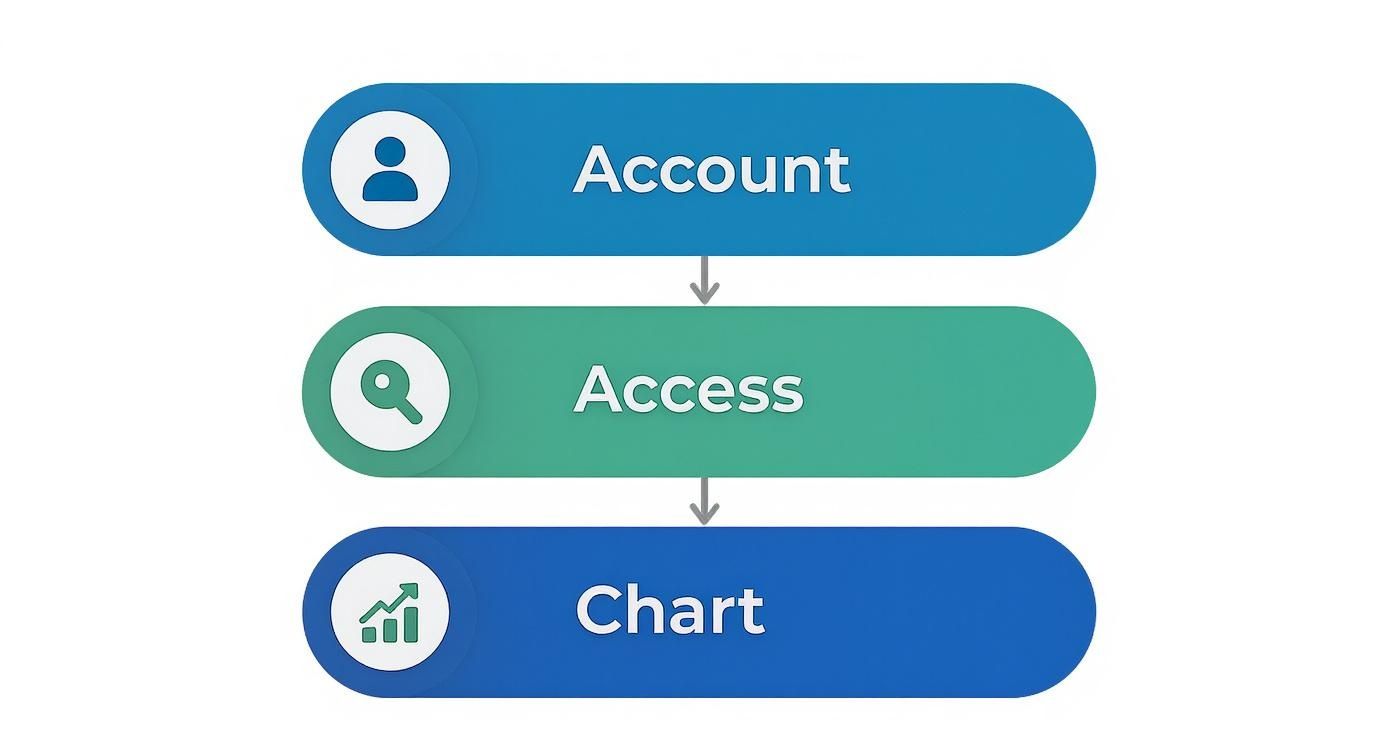
Flowchart illustrating a three-step process: Account, Access, and Chart, with corresponding icons.

A successful integration requires the right account credentials, proper admin access, and an organized Chart of Accounts.

How to start the connection from Tutorbase

You start the process directly from your Tutorbase dashboard. The secure, one-time setup is designed to be straightforward. The connection uses an authorization protocol called OAuth, which means you never share your actual QuickBooks Online login details with Tutorbase.

To begin, navigate to the "Integrations" section in your Tutorbase settings and find the QuickBooks Online option. Clicking "Connect" will redirect you to a secure Intuit login page. There, you will enter your QuickBooks username and password to authenticate your account.

Granting the Necessary Permissions

After you sign in to your Intuit account, QuickBooks will ask you to authorize the connection. This is a critical security step. You give Tutorbase permission to perform specific actions on your behalf, such as creating customers, generating invoices, and recording payments.

This permission is not a free-for-all. The connection is strictly limited to the data needed for the integration to work. You keep full control and can revoke this access anytime from your QuickBooks account settings, so your financial data always stays secure. The top QuickBooks integrations and their benefits show what is possible with a connected ecosystem.

The Critical Data Mapping Phase

After you authorize the connection, you return to Tutorbase to map your data. This is where you tell the two systems how to communicate. Proper mapping is the difference between clean, automated bookkeeping and a chaotic mess you will have to untangle later.

Think of it as creating a translation guide. You will link specific services in Tutorbase to the correct income accounts in your QuickBooks Chart of Accounts. For example, you map your "Private Tutoring" service to the "Private Tutoring Income" account you created earlier. Accurate data mapping ensures that 99% of your transactions are categorized correctly from the start.

What is Chart of Accounts Mapping?

Chart of Accounts mapping is the process of linking every billable item in Tutorbase to a specific income account in QuickBooks. This action tells the integration where to record revenue from each sale. This is what makes your financial reports detailed and accurate. Without good mapping, all your revenue might get dumped into a single, generic "Sales" account.

Mapping Services and Tax Codes

The Tutorbase setup wizard will walk you through mapping each service. You will see your tutoring services on one side and a dropdown menu of your QuickBooks income accounts on the other.

  • Service Mapping: Match each service (e.g., "Group SAT Prep") to its corresponding income account (e.g., "Test Prep Workshop Fees").

  • Tax Code Mapping: If you charge sales tax, you also map tax rates in Tutorbase to the matching tax codes in QuickBooks. This is key for correct tax calculation and reporting.

  • Payment Method Mapping: Link payment methods like "Stripe" to the right asset or clearing accounts in QuickBooks, such as your "Stripe Bank Account" or "Undeposited Funds."

Configuring Your Sync Preferences

The final step is to configure your sync settings. You decide how and when data flows between the two platforms. Most tutoring centers prefer an automatic, real-time sync, where invoices and payments appear in QuickBooks moments after they happen in Tutorbase.

However, you could opt for a daily or manual sync if you prefer to review transactions in batches. This flexibility lets you tailor the integration to your center's operations. Once your preferences are set, save the configuration, and your automated workflow is live.

Mastering Invoice Syncing and Payment Reconciliation

When you connect Tutorbase to QuickBooks Online, the goal is to make data flow from your tutoring operations straight into your accounting books. This means when you create an invoice in Tutorbase, an identical copy appears in QuickBooks. No more double-entry.

Let’s break down how this works for both invoices and payments to keep your financial records perfectly aligned.
A laptop screen displays 'Invoice Syncing' with a checkmark, on a wooden desk with a plant.

How does invoice syncing work?

Invoice syncing is the heart of this integration. The process begins when a tutor marks a lesson as complete in Tutorbase. Based on your billing rules, the system generates an invoice automatically. That new invoice is then instantly pushed to your QuickBooks Online account without you lifting a finger.

Every detail your accountant needs travels with it, including the customer's name, services rendered, quantities, rates, and taxes. Because you mapped everything during setup, revenue gets categorized correctly. As of 2025, QuickBooks Online holds a massive 62.23% share of the accounting software market because its cloud model is built for integrations like this.

What is Payment Reconciliation?

Payment reconciliation is the process of matching incoming payments to their open invoices. Doing this manually means cross-referencing bank statements with your sales records. The integration automates this entire process.

When a parent pays an invoice through their Tutorbase portal, the integration applies that payment to the correct invoice in QuickBooks Online. This marks the invoice as "Paid," closing it out in both systems instantly. Understanding data reconciliation is key here, as it ensures everything lines up perfectly. This automated matching can save you hours of admin work each month.

On average, tutoring centers that automate payment reconciliation cut their monthly bookkeeping time by 8-10 hours. That’s a full workday you get back to focus on students and staff instead of chasing payment details.

Real-Time vs. Scheduled Syncing

The integration settings let you decide how often data moves between Tutorbase and QuickBooks. You generally have two options: real-time or scheduled syncing. Knowing the difference helps you pick the workflow that fits your center’s rhythm. Choosing the right sync frequency is a key part of getting the most from your tutoring billing software.

Here is a quick comparison:

Sync Type

How It Works

Best For

Real-Time Sync

Data transfers almost instantly (within a few minutes) after an event, like an invoice creation or payment.

Tutoring centers that want up-to-the-minute financials and have a high volume of daily transactions.

Scheduled Sync

Data is sent in batches at a set time, such as once every hour or at the close of business each day.

Centers that prefer to review transactions in chunks or have a lower transaction volume.

For most tutoring centers, we recommend a real-time sync. It ensures the financial data in QuickBooks is always a perfect mirror of what is happening in Tutorbase. This gives you the most accurate and timely insights into your business's health.

How to Troubleshoot Common QuickBooks Sync Issues

https://www.youtube.com/embed/bU-eHJp2lhE

Even with a perfect setup, integrations can encounter issues. Knowing how to spot and solve common sync problems quickly is key to keeping your financial data accurate. The good news is that most issues are simple fixes once you know what to look for. This section breaks down frequent sync errors and provides clear steps to resolve them.

Why did my authentication fail?

An authentication failure is a common and easily resolved issue. It means that Tutorbase can no longer securely talk to your QuickBooks Online account. This is a security measure, not a broken feature.

The connection can drop for a few simple reasons:

  • Password Change: If you recently updated the QuickBooks Online password, the old connection token becomes invalid.

  • Permission Revoked: An admin might have accidentally revoked Tutorbase's access from the "My Apps" section in QuickBooks.

  • Token Expiration: Connection tokens sometimes expire for security, especially after long periods of inactivity.

To fix this, go to the integrations settings in Tutorbase and click "Reconnect." You will be prompted to log in to your QuickBooks account again, which re-authorizes the connection and generates a fresh, secure token.

How do I resolve duplicate customer records?

Seeing duplicate customer profiles in QuickBooks after a sync is a common headache, but it is avoidable. This usually happens when a customer's name in Tutorbase is slightly different from their name in QuickBooks. For example, "Jonathan Smith" in one system and "Jon Smith" in the other are treated as two different people.

To prevent this, establish a consistent naming convention for all new clients from day one. This simple habit can prevent over 90% of duplicate record issues. If you already have duplicates, you will need to merge them directly within QuickBooks. Go to the "Sales" tab, select "Customers," find the duplicates, and use the "Merge" tool.

How do I correct item mapping errors?

If you see an error like, "Sync failed: Item is not linked to an income account," it means an invoice from Tutorbase tried to sync but got stuck. This happens because a service on that invoice is not mapped to a specific income account in your Chart of Accounts. The system pauses the sync to prevent accounting mistakes.

Fixing it is straightforward:

  1. Go to your QuickBooks integration settings in Tutorbase.

  2. Find the "Service Mapping" or "Item Mapping" section.

  3. Locate the unmapped service.

  4. Choose the correct income account from the dropdown menu (e.g., "Test Prep Workshop Fees").

  5. Save your changes and re-run the sync for the failed invoice.

Fixing Tax Calculation Discrepancies

If QuickBooks calculates a different tax amount than Tutorbase did, the sync will likely fail to prevent a mismatch. This almost always comes down to a small difference in your tax settings. For instance, a tax rate in Tutorbase might be set to 8.25%, while the corresponding code in QuickBooks is configured for 8.0%.

A 2025 survey of accounting professionals showed that 41% cited integration challenges as a major pain point. To solve this, audit your tax settings in both platforms. Make sure the names and rates for all your tax codes are identical. To document your own fixes, you can learn how to create an effective troubleshooting guide.

Frequently Asked Questions (FAQ)

Here are answers to the most common questions we get from tutoring center owners about connecting with QuickBooks Online.

How often does data sync between Tutorbase and QuickBooks?

Data syncs in near real-time. When you create an invoice or log a payment in Tutorbase, it appears in QuickBooks Online within a few minutes. This instant connection ensures you are always looking at up-to-date financial data.

Can I sync historical invoices and payments?

Some systems offer a historical sync tool to import past transactions from a specific date forward. However, other integrations only sync new data created after the connection is made. You should verify this capability before you activate the integration if importing past data is a priority.

What happens if I edit an invoice directly in QuickBooks?

You should always make changes in your primary system, which is Tutorbase, and let them sync to QuickBooks. The data flow is typically one-way (from Tutorbase to QBO) to maintain a single source of truth. Editing an invoice directly in QuickBooks can cause sync conflicts and reconciliation problems.

Do I need to be an accountant to use this integration?

No, you do not. This integration is designed for business owners and administrators, not just accountants. The daily sync is fully automated and runs in the background. While an accountant's advice is helpful for the initial Chart of Accounts setup, ongoing management is hands-off.

Is connecting my financial data secure?

Yes, the connection is highly secure. The integration uses a standard security protocol called OAuth. This method allows Tutorbase to communicate with your QuickBooks account using authorized tokens without ever storing your actual password. You can revoke this access at any time from your QuickBooks settings.

Can I customize which data gets synced?

Yes, a good integration provides control over data mapping. During setup, you can configure rules to define how data is handled. You can typically decide which bank account payments deposit into, how services map to income accounts, and whether to exclude certain data from the sync.

Ready to stop wasting time on manual data entry? With Tutorbase, you can sync with the tools you already use, like QuickBooks Online, so you do not have to change how you work.

Start your free trial today at tutorbase.com/register.

How to Integrate with QuickBooks Online for Tutoring Centers

Published: December 6, 2025 by Amy Ashford

Key Takeaway: Integrating your tutoring management software with QuickBooks Online automates your entire financial workflow. This connection syncs invoices and payments, reconciles transactions automatically, and eliminates manual data entry, giving you a real-time, accurate view of your business's financial health.

When you integrate Tutorbase with QuickBooks Online, you can achieve a completely automated financial workflow. The goal is to eliminate manual data entry and build a system where invoices create themselves, payments reconcile automatically, and your books are always up-to-date. This turns your financial admin from a chore into a strategic asset.

What is an Automated Financial Workflow?

An automated financial workflow means your tutoring business financials run on autopilot, freeing up hours each week. When you connect Tutorbase to QuickBooks Online, you create a direct pipeline between your day-to-day operations and your core accounting system. This setup handles the entire transaction journey from start to finish.

The process begins when a tutor marks attendance for a lesson and ends when the payment is reconciled in your books. Tutorbase automatically generates invoices, syncs them to QuickBooks, and marks them as paid once the transaction clears. This happens without your team manually entering data, which completely eliminates double-entry bookkeeping.

From Manual Chaos to Automated Clarity

The real value here is removing human error from repetitive tasks. Forget exporting CSV files or manually recreating invoices in QuickBooks; the integration handles it instantly. A recent QuickBooks survey found that 85% of small business owners use accounting software, showing how vital digital tools are. Automation is the next step.

A laptop on a wooden desk displays financial graphs, an open notebook, pen, and potted plants. Text says 'Automate Finances'.

This connection lets you build a tech stack perfectly suited to your tutoring center's needs. The result is not just saving time. You also get more accurate data and have a real-time view of your finances whenever you need it.

How does manual vs. automated accounting compare?

The difference between a manual and an automated process is significant. It affects everything from daily invoicing to your ability to pull accurate monthly reports. For example, manually creating invoices can consume hours each week. An integrated system does it in seconds. Our tutoring invoice generator shows how much simpler just one part of this can be.

To see the difference, let’s compare a few common tasks.

Task

Manual Process (Without Integration)

Automated Process (With Integration)

Invoice Creation

Manually create each invoice in QuickBooks, copying details from another system. Average time: 5-10 mins per invoice.

Tutorbase automatically generates and syncs invoices to QuickBooks when attendance is marked. Time: 0 mins.

Payment Reconciliation

Manually match bank deposits to open invoices, often with unclear payment references. Time: 2-4 hours per month.

Stripe payments automatically apply to the correct invoice in QuickBooks. Time: ~15 mins per month.

Customer Data Entry

Create new customer profiles in your management software and QuickBooks separately. This has a high risk of typos.

A new student profile in your software automatically creates a corresponding customer in QuickBooks.

Reporting Accuracy

Reports are only as accurate as the last manual update, often lagging by days or weeks.

Financial reports in QuickBooks are always up-to-date, providing a real-time view of cash flow and revenue.

Error Resolution

Finding a data entry error can require hours of manual auditing across multiple spreadsheets and systems.

Sync logs provide a clear record of data flow, making it easy to spot and resolve discrepancies quickly.

Automation does not just save a few minutes. It fundamentally changes how you run your business. By automating core accounting tasks, tutoring centers can reduce administrative overhead by up to 60%. This reclaimed time allows you to focus on student outcomes and business growth.

How do I prepare for a QuickBooks Online connection?

Successful integration starts with good preparation. A little housekeeping before you link Tutorbase and QuickBooks Online ensures your data syncs cleanly from the start. This saves you from headaches later. Think of it as laying a solid foundation for clean financial reporting.

First, make sure you have the right tools and permissions. You will need an active QuickBooks Online subscription. While any version works, we find the Plus or Advanced plans are highly recommended for most tutoring centers. These tiers have more robust features for tracking different income streams and running detailed reports.

You also must have administrator-level access to both your Tutorbase and QuickBooks Online accounts. This is non-negotiable. Admin access allows you to authorize the connection and configure all necessary settings without hitting permission roadblocks.

Why is my Chart of Accounts crucial?

If you do only one thing before connecting, organize your Chart of Accounts in QuickBooks. This is the single most important step. Your Chart of Accounts is the central filing system for every transaction in your business. Every tuition payment, payroll run, and textbook purchase gets categorized here. A messy Chart of Accounts guarantees messy reports.

A well-structured chart helps you see a clear breakdown of revenue from private tutoring versus group workshops. That is the kind of detail you need to make smart business decisions for 2026 and beyond.

Setting Up Income Accounts for Clear Reporting

Before you activate the integration, create specific income accounts in QuickBooks for each revenue stream. This ensures that when Tutorbase sends invoice data, it lands in the right bucket. Vague categories lead to confusing reports that offer zero actionable insight.

We recommend creating accounts like these:

  • Private Tutoring Income: For all revenue from one-on-one sessions.

  • Group Workshop Fees: To track earnings from group classes or special programs.

  • Registration & Material Fees: A separate account for one-time charges.

  • Online Course Sales: To distinguish digital product revenue from in-person services.

With this setup, you can run a Profit & Loss report and see instantly which parts of your business are driving profit. To learn more about how tools can work together, see our complete guide to tutoring software integrations. Properly categorizing your income helps you identify revenue trends with up to 95% greater accuracy.

Your Step-by-Step Guide to the QuickBooks Online Integration

Setting up your integration correctly is the most important step to unlocking an automated financial workflow. This guide walks you through the entire connection process, from authentication to data mapping. Following these steps ensures your systems communicate perfectly so you can integrate with quickbooks online and gain total control over your numbers.

This visual breaks down the three pillars of a successful setup.

Flowchart illustrating a three-step process: Account, Access, and Chart, with corresponding icons.

A successful integration requires the right account credentials, proper admin access, and an organized Chart of Accounts.

How to start the connection from Tutorbase

You start the process directly from your Tutorbase dashboard. The secure, one-time setup is designed to be straightforward. The connection uses an authorization protocol called OAuth, which means you never share your actual QuickBooks Online login details with Tutorbase.

To begin, navigate to the "Integrations" section in your Tutorbase settings and find the QuickBooks Online option. Clicking "Connect" will redirect you to a secure Intuit login page. There, you will enter your QuickBooks username and password to authenticate your account.

Granting the Necessary Permissions

After you sign in to your Intuit account, QuickBooks will ask you to authorize the connection. This is a critical security step. You give Tutorbase permission to perform specific actions on your behalf, such as creating customers, generating invoices, and recording payments.

This permission is not a free-for-all. The connection is strictly limited to the data needed for the integration to work. You keep full control and can revoke this access anytime from your QuickBooks account settings, so your financial data always stays secure. The top QuickBooks integrations and their benefits show what is possible with a connected ecosystem.

The Critical Data Mapping Phase

After you authorize the connection, you return to Tutorbase to map your data. This is where you tell the two systems how to communicate. Proper mapping is the difference between clean, automated bookkeeping and a chaotic mess you will have to untangle later.

Think of it as creating a translation guide. You will link specific services in Tutorbase to the correct income accounts in your QuickBooks Chart of Accounts. For example, you map your "Private Tutoring" service to the "Private Tutoring Income" account you created earlier. Accurate data mapping ensures that 99% of your transactions are categorized correctly from the start.

What is Chart of Accounts Mapping?

Chart of Accounts mapping is the process of linking every billable item in Tutorbase to a specific income account in QuickBooks. This action tells the integration where to record revenue from each sale. This is what makes your financial reports detailed and accurate. Without good mapping, all your revenue might get dumped into a single, generic "Sales" account.

Mapping Services and Tax Codes

The Tutorbase setup wizard will walk you through mapping each service. You will see your tutoring services on one side and a dropdown menu of your QuickBooks income accounts on the other.

  • Service Mapping: Match each service (e.g., "Group SAT Prep") to its corresponding income account (e.g., "Test Prep Workshop Fees").

  • Tax Code Mapping: If you charge sales tax, you also map tax rates in Tutorbase to the matching tax codes in QuickBooks. This is key for correct tax calculation and reporting.

  • Payment Method Mapping: Link payment methods like "Stripe" to the right asset or clearing accounts in QuickBooks, such as your "Stripe Bank Account" or "Undeposited Funds."

Configuring Your Sync Preferences

The final step is to configure your sync settings. You decide how and when data flows between the two platforms. Most tutoring centers prefer an automatic, real-time sync, where invoices and payments appear in QuickBooks moments after they happen in Tutorbase.

However, you could opt for a daily or manual sync if you prefer to review transactions in batches. This flexibility lets you tailor the integration to your center's operations. Once your preferences are set, save the configuration, and your automated workflow is live.

Mastering Invoice Syncing and Payment Reconciliation

When you connect Tutorbase to QuickBooks Online, the goal is to make data flow from your tutoring operations straight into your accounting books. This means when you create an invoice in Tutorbase, an identical copy appears in QuickBooks. No more double-entry.

Let’s break down how this works for both invoices and payments to keep your financial records perfectly aligned.

A laptop screen displays 'Invoice Syncing' with a checkmark, on a wooden desk with a plant.

How does invoice syncing work?

Invoice syncing is the heart of this integration. The process begins when a tutor marks a lesson as complete in Tutorbase. Based on your billing rules, the system generates an invoice automatically. That new invoice is then instantly pushed to your QuickBooks Online account without you lifting a finger.

Every detail your accountant needs travels with it, including the customer's name, services rendered, quantities, rates, and taxes. Because you mapped everything during setup, revenue gets categorized correctly. As of 2025, QuickBooks Online holds a massive 62.23% share of the accounting software market because its cloud model is built for integrations like this.

What is Payment Reconciliation?

Payment reconciliation is the process of matching incoming payments to their open invoices. Doing this manually means cross-referencing bank statements with your sales records. The integration automates this entire process.

When a parent pays an invoice through their Tutorbase portal, the integration applies that payment to the correct invoice in QuickBooks Online. This marks the invoice as "Paid," closing it out in both systems instantly. Understanding data reconciliation is key here, as it ensures everything lines up perfectly. This automated matching can save you hours of admin work each month.

On average, tutoring centers that automate payment reconciliation cut their monthly bookkeeping time by 8-10 hours. That’s a full workday you get back to focus on students and staff instead of chasing payment details.

Real-Time vs. Scheduled Syncing

The integration settings let you decide how often data moves between Tutorbase and QuickBooks. You generally have two options: real-time or scheduled syncing. Knowing the difference helps you pick the workflow that fits your center’s rhythm. Choosing the right sync frequency is a key part of getting the most from your tutoring billing software.

Here is a quick comparison:

Sync Type

How It Works

Best For

Real-Time Sync

Data transfers almost instantly (within a few minutes) after an event, like an invoice creation or payment.

Tutoring centers that want up-to-the-minute financials and have a high volume of daily transactions.

Scheduled Sync

Data is sent in batches at a set time, such as once every hour or at the close of business each day.

Centers that prefer to review transactions in chunks or have a lower transaction volume.

For most tutoring centers, we recommend a real-time sync. It ensures the financial data in QuickBooks is always a perfect mirror of what is happening in Tutorbase. This gives you the most accurate and timely insights into your business's health.

How to Troubleshoot Common QuickBooks Sync Issues

https://www.youtube.com/embed/bU-eHJp2lhE

Even with a perfect setup, integrations can encounter issues. Knowing how to spot and solve common sync problems quickly is key to keeping your financial data accurate. The good news is that most issues are simple fixes once you know what to look for. This section breaks down frequent sync errors and provides clear steps to resolve them.

Why did my authentication fail?

An authentication failure is a common and easily resolved issue. It means that Tutorbase can no longer securely talk to your QuickBooks Online account. This is a security measure, not a broken feature.

The connection can drop for a few simple reasons:

  • Password Change: If you recently updated the QuickBooks Online password, the old connection token becomes invalid.

  • Permission Revoked: An admin might have accidentally revoked Tutorbase's access from the "My Apps" section in QuickBooks.

  • Token Expiration: Connection tokens sometimes expire for security, especially after long periods of inactivity.

To fix this, go to the integrations settings in Tutorbase and click "Reconnect." You will be prompted to log in to your QuickBooks account again, which re-authorizes the connection and generates a fresh, secure token.

How do I resolve duplicate customer records?

Seeing duplicate customer profiles in QuickBooks after a sync is a common headache, but it is avoidable. This usually happens when a customer's name in Tutorbase is slightly different from their name in QuickBooks. For example, "Jonathan Smith" in one system and "Jon Smith" in the other are treated as two different people.

To prevent this, establish a consistent naming convention for all new clients from day one. This simple habit can prevent over 90% of duplicate record issues. If you already have duplicates, you will need to merge them directly within QuickBooks. Go to the "Sales" tab, select "Customers," find the duplicates, and use the "Merge" tool.

How do I correct item mapping errors?

If you see an error like, "Sync failed: Item is not linked to an income account," it means an invoice from Tutorbase tried to sync but got stuck. This happens because a service on that invoice is not mapped to a specific income account in your Chart of Accounts. The system pauses the sync to prevent accounting mistakes.

Fixing it is straightforward:

  1. Go to your QuickBooks integration settings in Tutorbase.

  2. Find the "Service Mapping" or "Item Mapping" section.

  3. Locate the unmapped service.

  4. Choose the correct income account from the dropdown menu (e.g., "Test Prep Workshop Fees").

  5. Save your changes and re-run the sync for the failed invoice.

Fixing Tax Calculation Discrepancies

If QuickBooks calculates a different tax amount than Tutorbase did, the sync will likely fail to prevent a mismatch. This almost always comes down to a small difference in your tax settings. For instance, a tax rate in Tutorbase might be set to 8.25%, while the corresponding code in QuickBooks is configured for 8.0%.

A 2025 survey of accounting professionals showed that 41% cited integration challenges as a major pain point. To solve this, audit your tax settings in both platforms. Make sure the names and rates for all your tax codes are identical. To document your own fixes, you can learn how to create an effective troubleshooting guide.

Frequently Asked Questions (FAQ)

Here are answers to the most common questions we get from tutoring center owners about connecting with QuickBooks Online.

How often does data sync between Tutorbase and QuickBooks?

Data syncs in near real-time. When you create an invoice or log a payment in Tutorbase, it appears in QuickBooks Online within a few minutes. This instant connection ensures you are always looking at up-to-date financial data.

Can I sync historical invoices and payments?

Some systems offer a historical sync tool to import past transactions from a specific date forward. However, other integrations only sync new data created after the connection is made. You should verify this capability before you activate the integration if importing past data is a priority.

What happens if I edit an invoice directly in QuickBooks?

You should always make changes in your primary system, which is Tutorbase, and let them sync to QuickBooks. The data flow is typically one-way (from Tutorbase to QBO) to maintain a single source of truth. Editing an invoice directly in QuickBooks can cause sync conflicts and reconciliation problems.

Do I need to be an accountant to use this integration?

No, you do not. This integration is designed for business owners and administrators, not just accountants. The daily sync is fully automated and runs in the background. While an accountant's advice is helpful for the initial Chart of Accounts setup, ongoing management is hands-off.

Is connecting my financial data secure?

Yes, the connection is highly secure. The integration uses a standard security protocol called OAuth. This method allows Tutorbase to communicate with your QuickBooks account using authorized tokens without ever storing your actual password. You can revoke this access at any time from your QuickBooks settings.

Can I customize which data gets synced?

Yes, a good integration provides control over data mapping. During setup, you can configure rules to define how data is handled. You can typically decide which bank account payments deposit into, how services map to income accounts, and whether to exclude certain data from the sync.

Ready to stop wasting time on manual data entry? With Tutorbase, you can sync with the tools you already use, like QuickBooks Online, so you do not have to change how you work.

Start your free trial today at tutorbase.com/register.