
To record a payment in Tutorbase, open Billing > Payments, select Record payment, choose the payer and apply the money to their invoices. To record money you gave back, open the payment and select Record external refund. Both record money that already moved outside Tutorbase, such as a bank transfer or cash.
Before you start
To pay invoices, the payer needs published invoices. Check the amount, date and method against your bank statement or cash book.
In the example, Rachel Brooks pays US$550.00 by bank transfer for two invoices of US$240.00 and US$260.00, so US$50.00 is left over. Later the school cancels two piano lessons and transfers US$180.00 back: the US$50.00 left over and US$130.00 of the piano invoice.
Record the payment
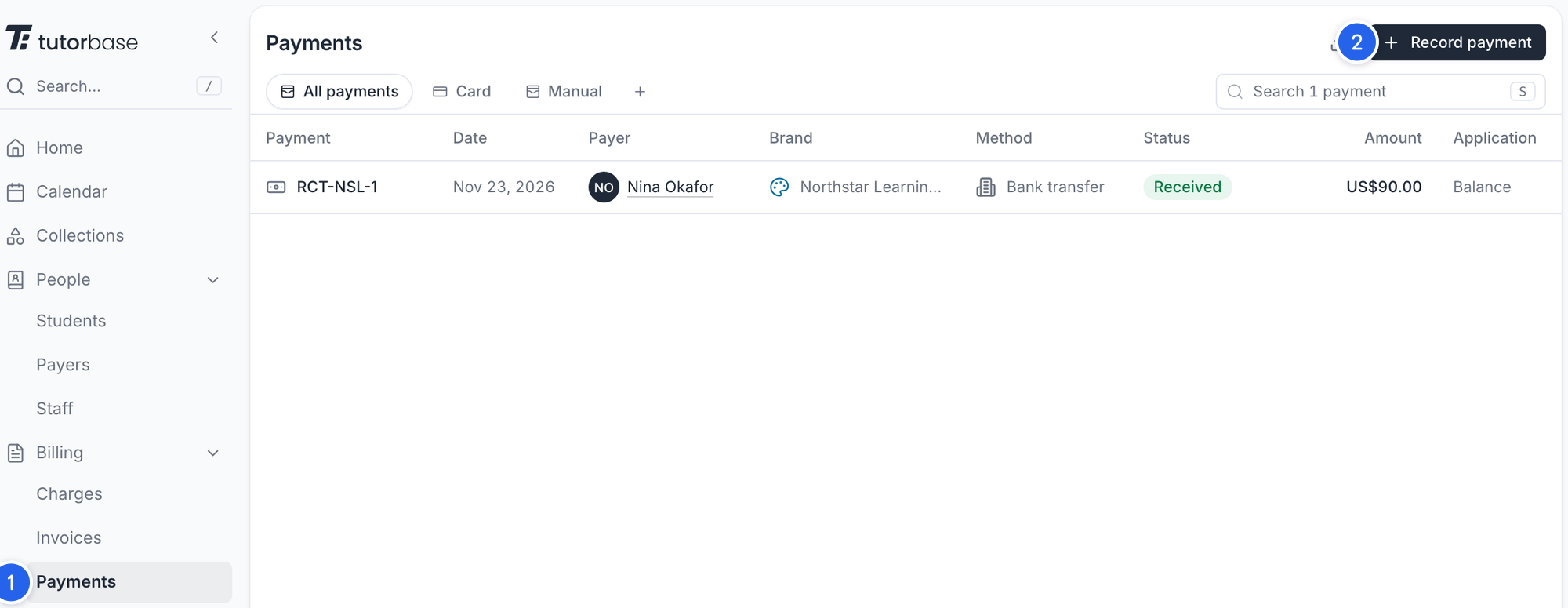
Open the payment window:
- In Billing, select Payments.
- Select Record payment.
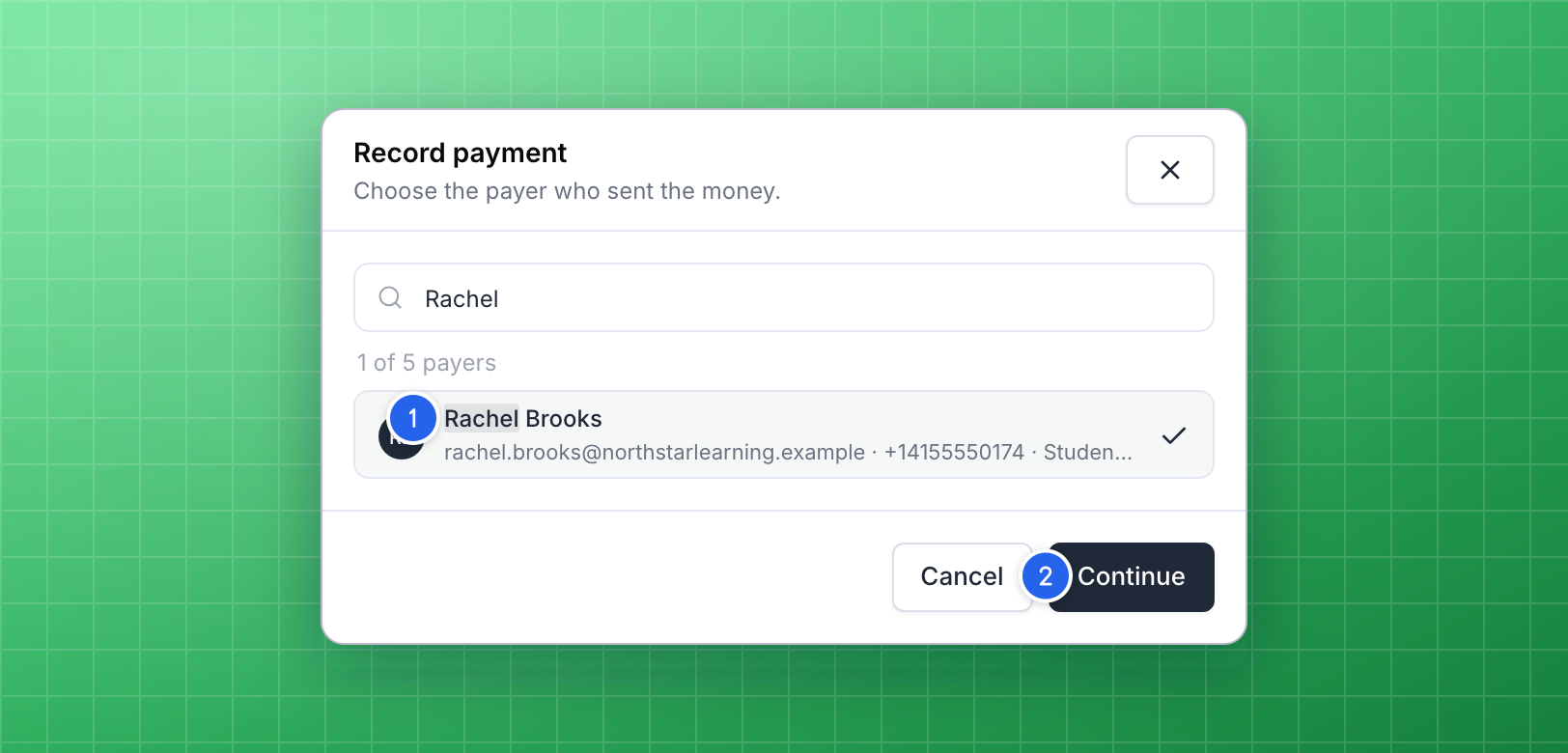
Choose who paid:
- Search for the payer and select them.
- Select Continue.
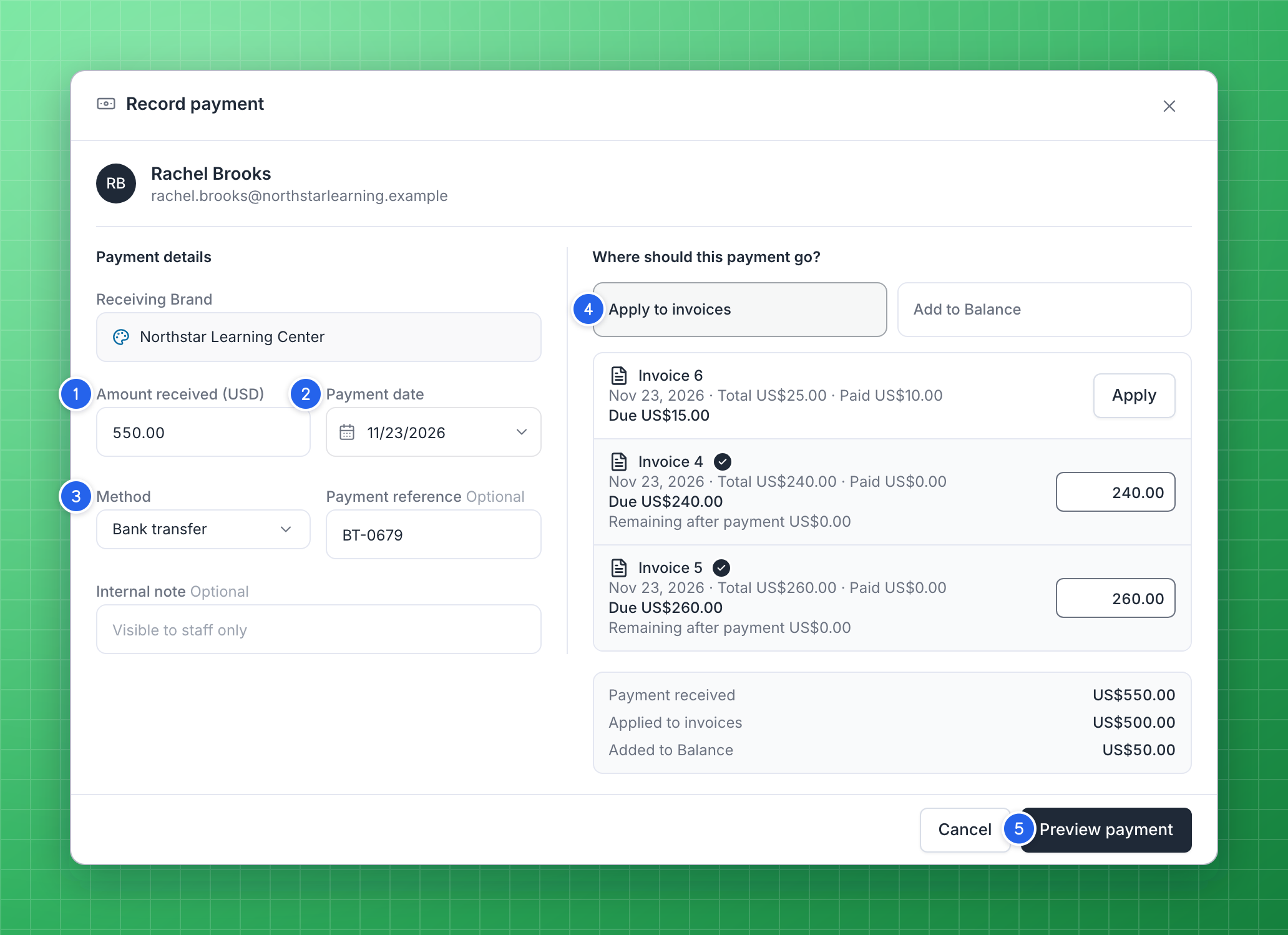
The payer's profile opens with the Record payment window, which lists the payer's unpaid invoices.
Enter what you received:
- Enter the Amount received.
- Check the Payment date. It starts at today; change it to the day the money arrived.
- Check the Method: Bank transfer (the starting choice), Cash or Cheque.
- Keep Apply to invoices and select Apply on each invoice the money pays. Apply fills in the invoice's amount due; you can change the amount.
- Select Preview payment.
Before you preview, add the bank reference in Payment reference if you have one; it and Internal note are optional, and the internal note is visible to staff only. Choose Add to Balance only when the payer paid in advance and there is no invoice yet: the whole payment then stays as Balance for that Brand's future invoices.
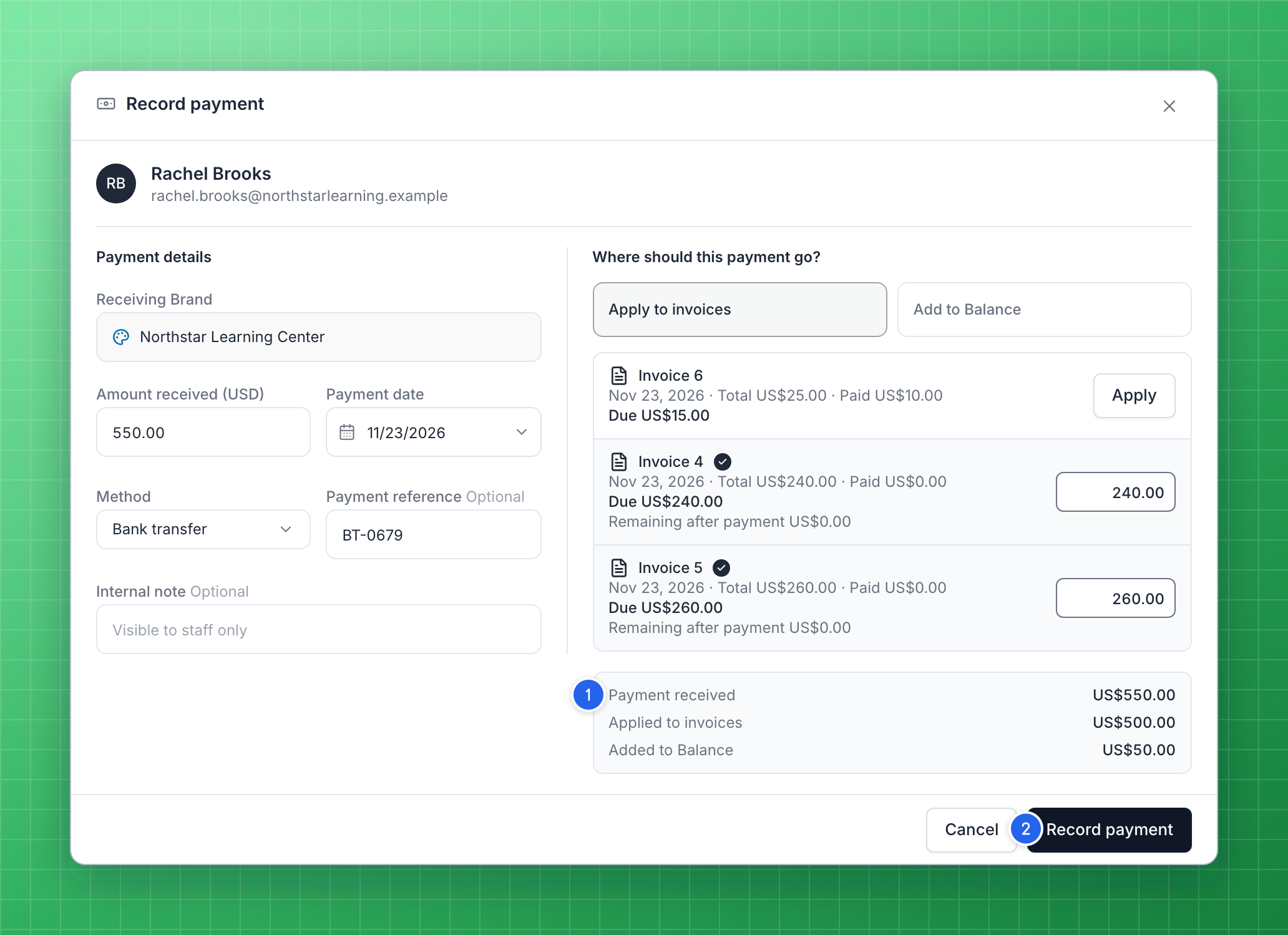
Check and record:
- Check the summary: Payment received, Applied to invoices and Added to Balance. Money you don't apply to an invoice is added to Balance.
- Select Record payment.
Payment recorded lists each invoice the money paid, the amount added to Balance and the receipt number. Select Done.
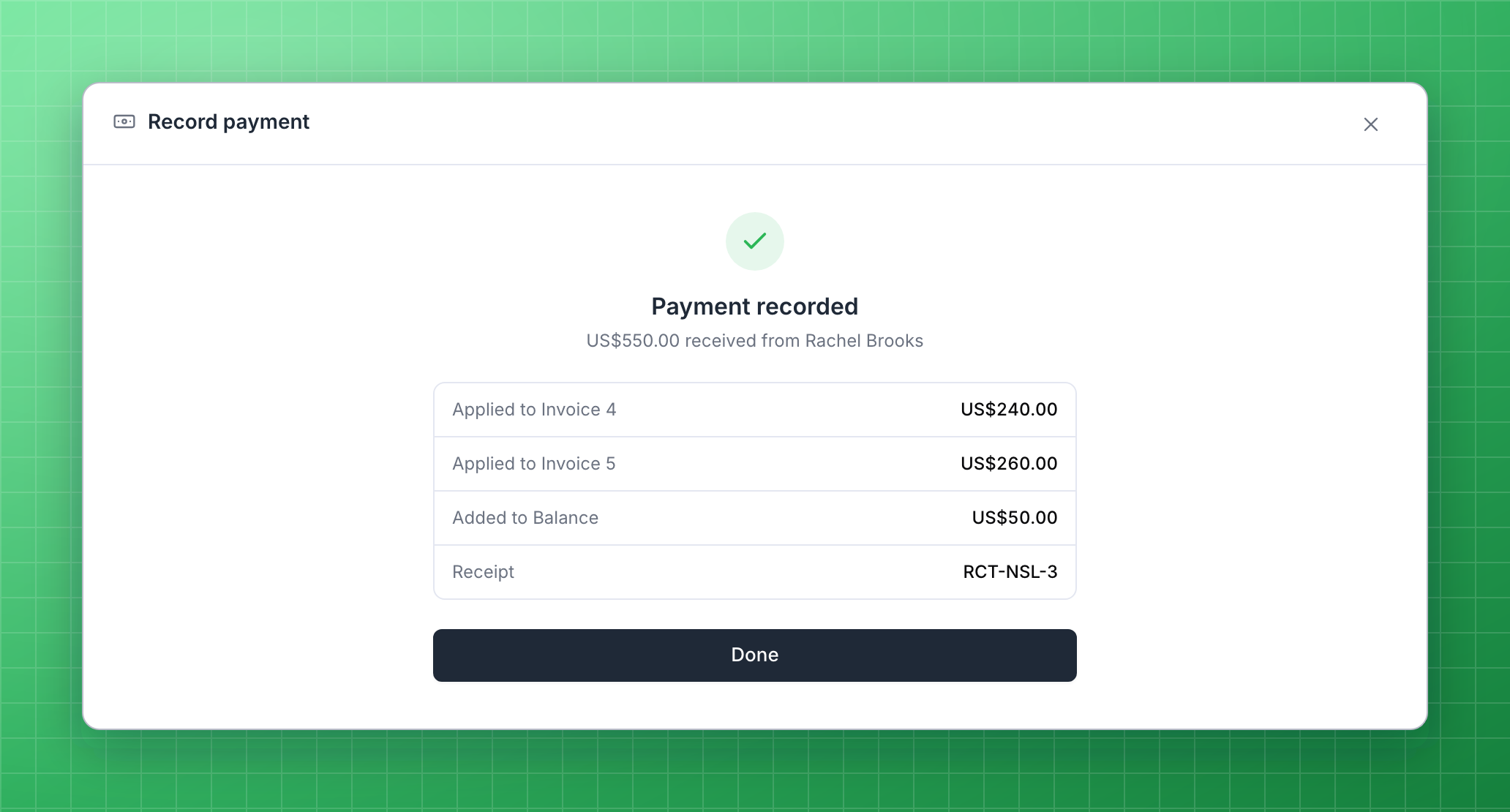
After you record a payment
An invoice the payment covers in full shows as paid, with nothing due. In Payments, the payment appears as Received, with where the money went, for example "US$260.00 → INV-NSL-5 · US$240.00 → INV-NSL-4 · US$50.00 → Balance". Recording a payment doesn't take money from the payer.
Record money you returned
Pay the money back first. Tutorbase records the return but doesn't move cash or send a bank transfer.
In Payments, open the payment.
Open the refund:
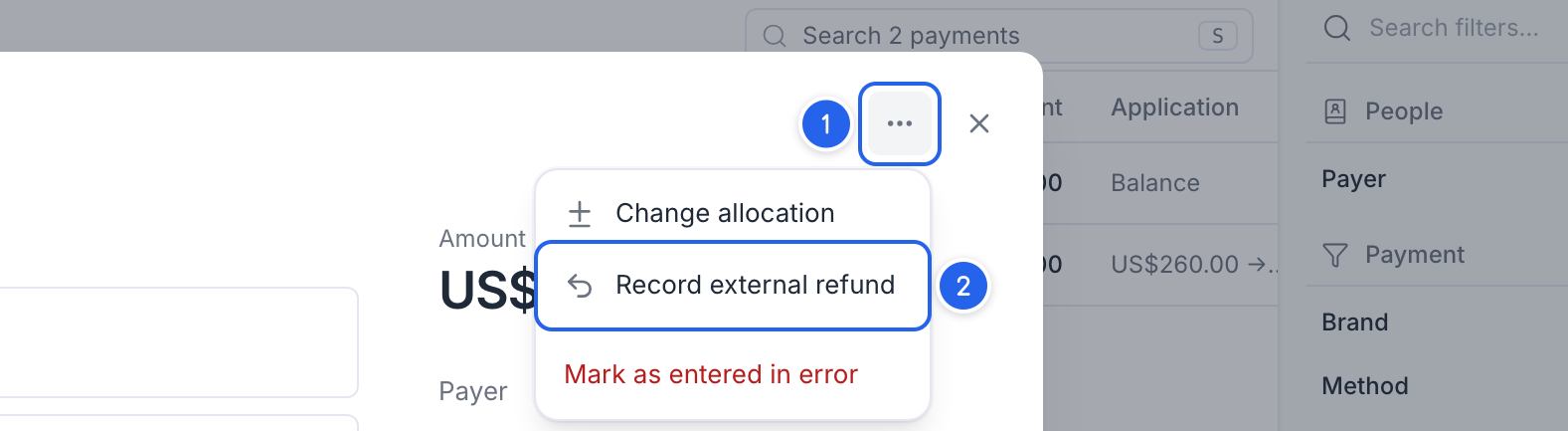
- Select More payment actions, the button with three dots.
- Select Record external refund.
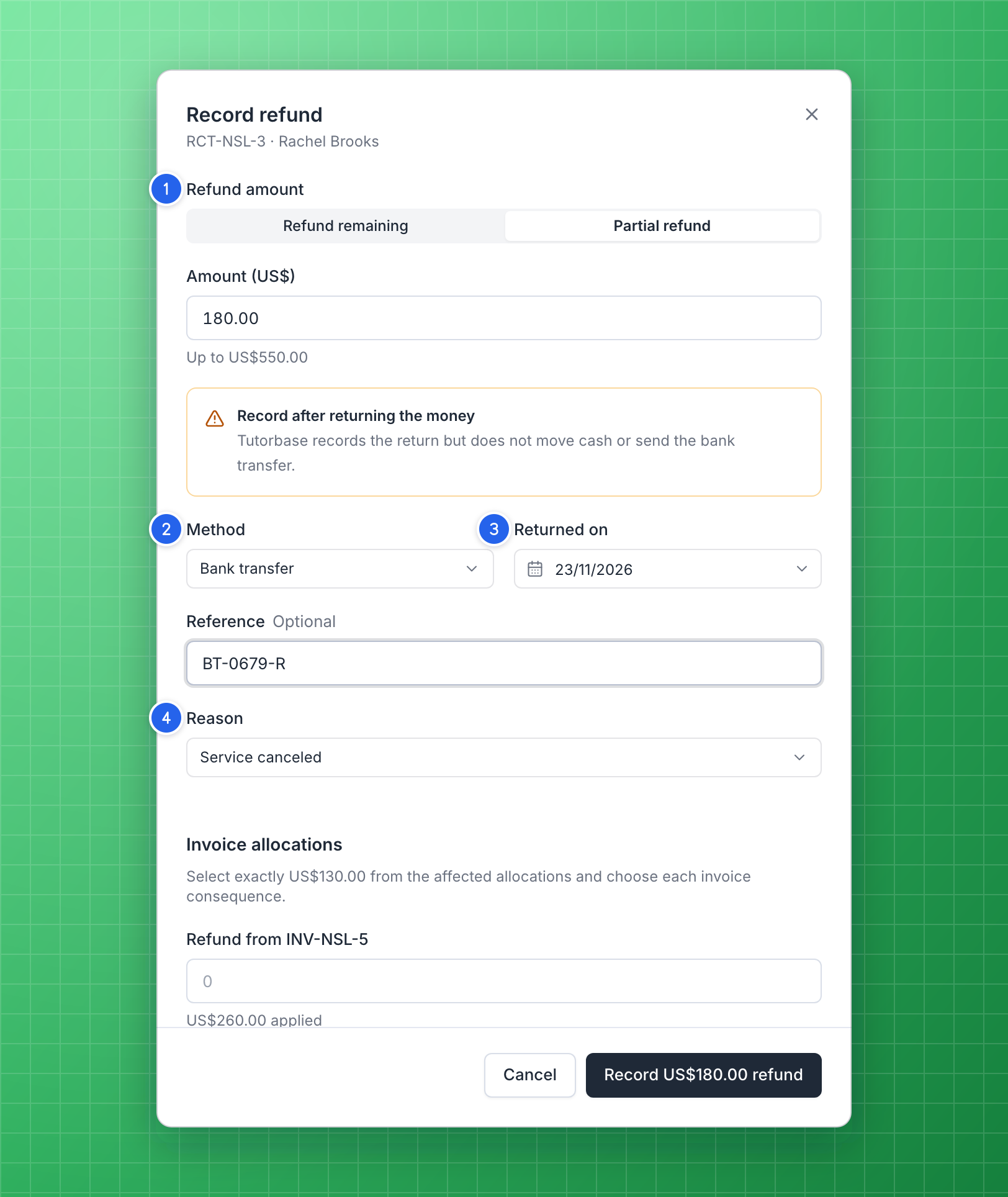
Describe the refund:
- Under Refund amount, keep Refund remaining or choose Partial refund and enter the amount.
- Check the Method: Bank transfer, Cash or Other.
- Check Returned on. It starts at today.
- Choose the Reason: Payer requested refund (the starting choice), Duplicate payment, Service canceled or Other.
Before you choose the reason, enter the bank or cash receipt reference in Reference (optional). Choose the Reason that explains the return, for example Service canceled when the school cancelled lessons, so the payment history shows why.
Decide what happens to the invoices:
- Under Invoice allocations, enter how much of the refund comes from each invoice. The total must match the amount the window asks for: the payment's Balance is used first.
- For each invoice, choose Reduce invoice or Keep amount due.
- Check What changes and select Record followed by the amount and refund.
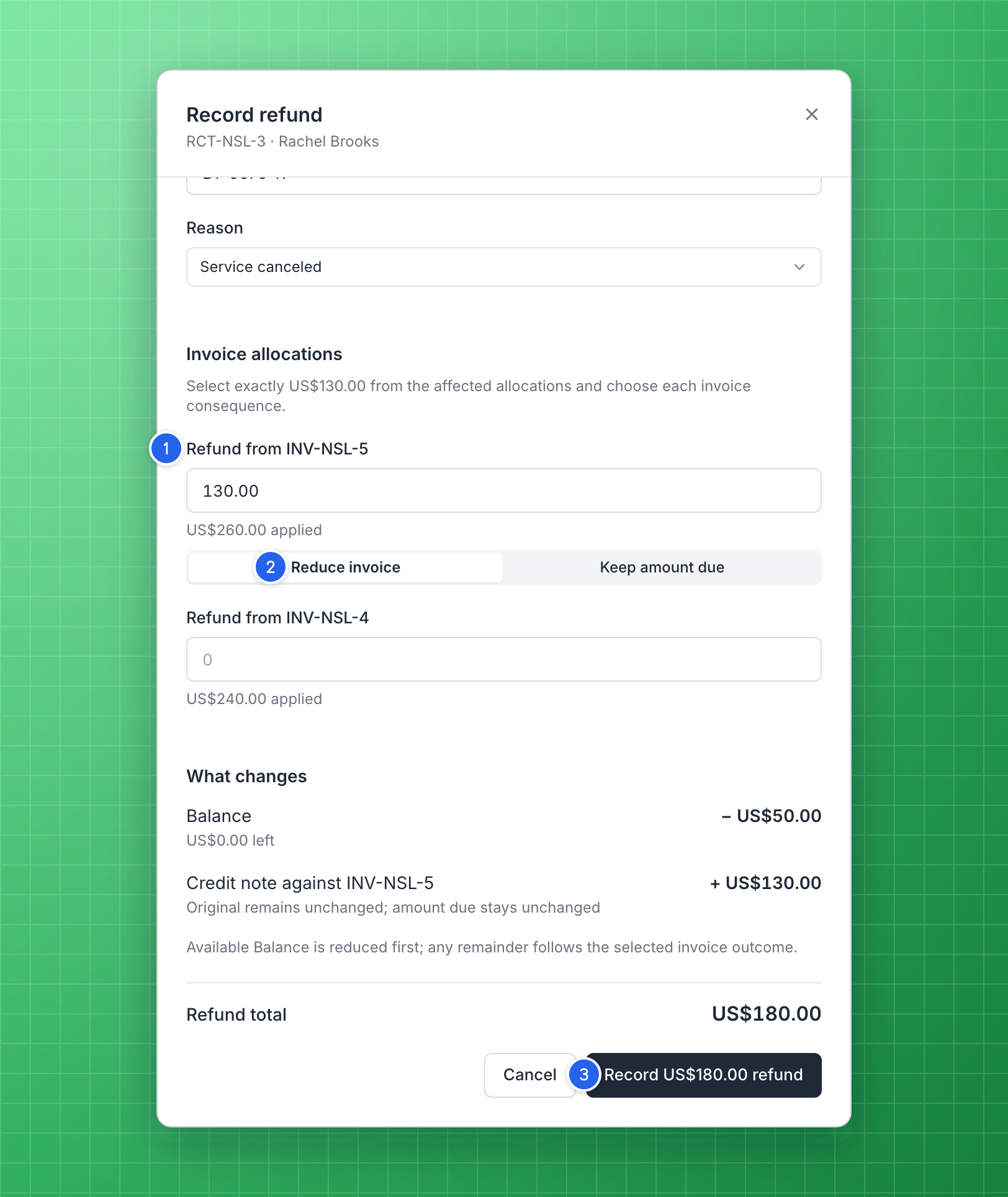
Choose Reduce invoice when the payer no longer owes that part, for example for lessons the school cancelled: Tutorbase issues a credit note for that part, so the invoice's amount due stays unchanged even though less of the payment now pays it. Choose Keep amount due when the payer still owes the money: What changes shows the invoice reopening with that amount due.
After you record a refund
After a partial refund, the payment shows Partially refunded, and under Refunds the refund's amount, method, reference, reason and Completed. Currently applied shows the amount still applied to each invoice, for example US$240.00 to the first invoice and US$130.00 to the piano invoice.
With Reduce invoice, the invoice lists the credit note under Related documents, with its amount and reason, and its amount due stays unchanged, for example Paid with US$0.00 due. The credit note says which invoice it is against; the original invoice remains unchanged.
Common questions
Does Record payment charge the payer's card or account?
No. Record payment records money the school already received outside Tutorbase.
What happens to an overpayment?
Money you don't apply to an invoice is added to Balance for that Brand.
Does Record external refund send the money back?
No. Pay the money back first, then record it with Record external refund. Tutorbase doesn't move cash or send a bank transfer.
When should I choose Reduce invoice?
Choose Reduce invoice when the payer no longer owes that part of the invoice, for example after the school cancelled lessons. Tutorbase issues a credit note for that part, and the invoice's amount due stays unchanged.
When should I choose Keep amount due?
Choose Keep amount due when the payer still owes the money you returned. What changes shows the invoice reopening by that amount.