
To add or remove a payer's stored credit in Tutorbase, open People > Payers, open the payer, select ⋯, then Manage balance. You end up with the new stored credit and a history line that says what changed, why and who made the change.
Stored credit (account credit) is money a payer holds with one Brand. You spend it on that Brand's unpaid invoices with Apply credit.
Before you start
You need the payer's profile. To remove credit, the payer must already hold stored credit. To remove credit you paid back, pay it back first in cash or by bank transfer: Tutorbase records the removal but doesn't send the money. A Correction fixes a wrong balance without any payment.
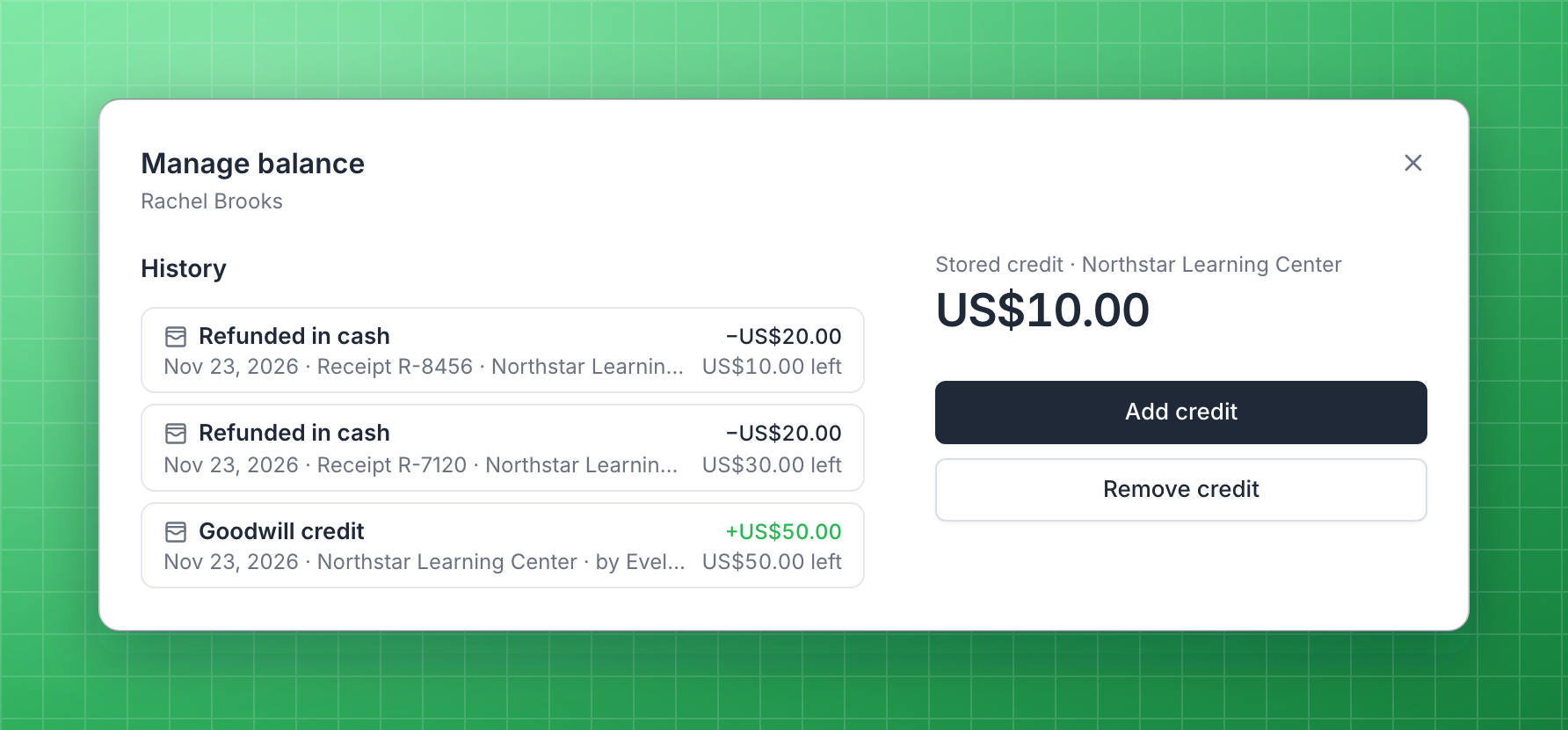
In the example, the school gives Rachel Brooks US$50.00 goodwill credit after it cancelled a lesson, then pays US$20.00 of it back in cash at reception twice, each time with the receipt number as the reference, which leaves US$10.00 of credit. Stored credit is separate from money left over from a payment.
Open Manage balance
Open the payer's balance:
- On the payer's profile, select ⋯.
- Select Manage balance.

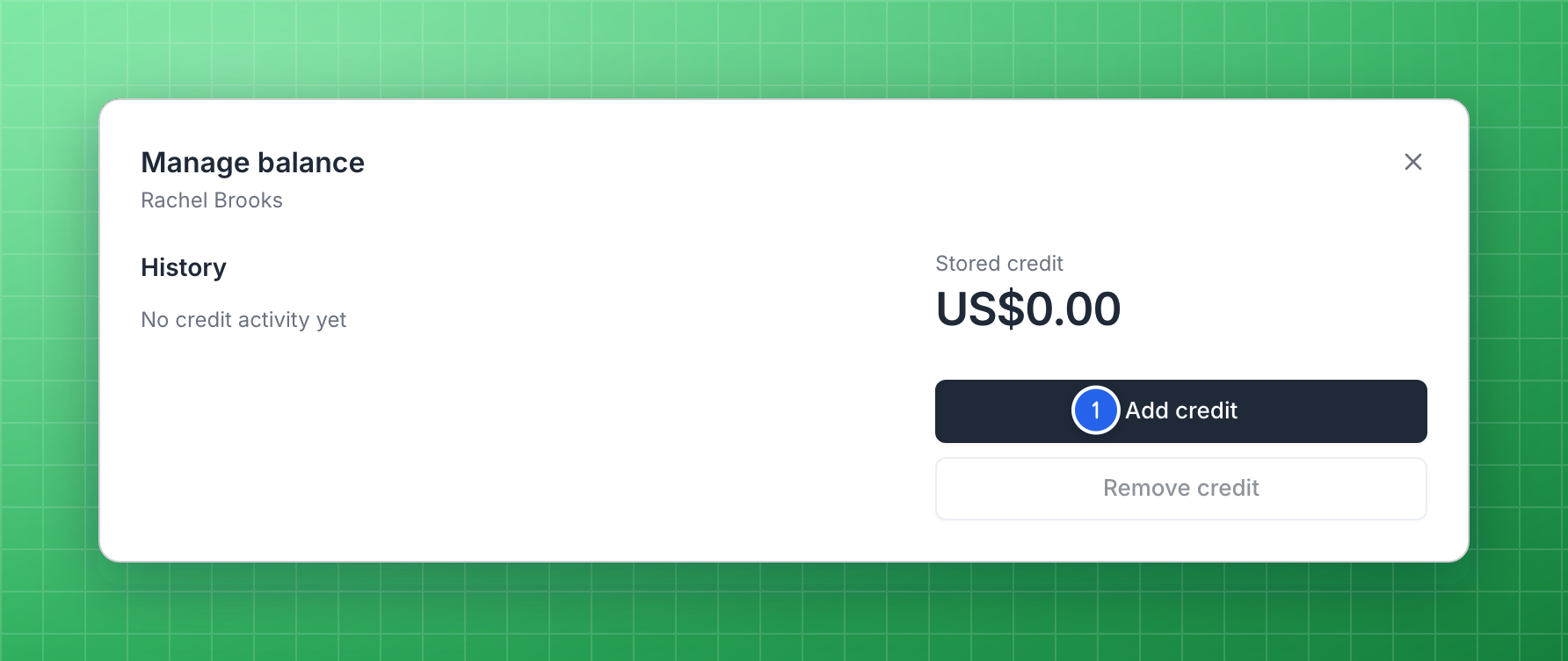
The Manage balance window shows the Stored credit and its History.
Add credit
Select Add credit. Remove credit stays greyed out while the stored credit is US$0.00.
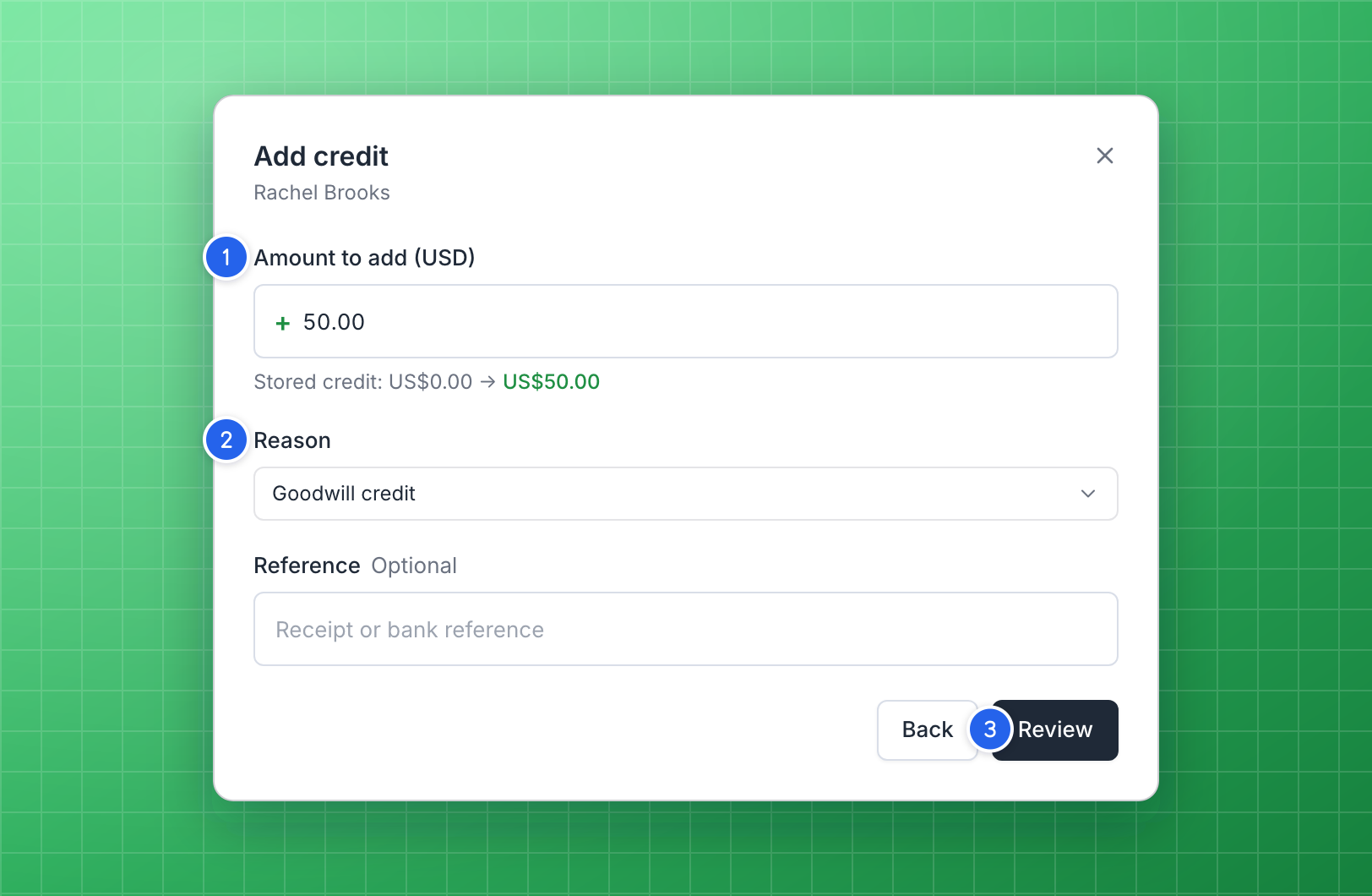
Describe the credit. Reference is optional; fill it in before you select Review.
- Enter the Amount to add. As you type, Tutorbase shows the stored credit before and after the change, for example Stored credit: US$0.00 → US$50.00.
- Choose the Reason: Goodwill credit or Correction.
- Select Review.
Choose Goodwill credit for credit you give as a gesture, and keep Correction for fixing a balance that was wrong, so the history explains why the credit exists.
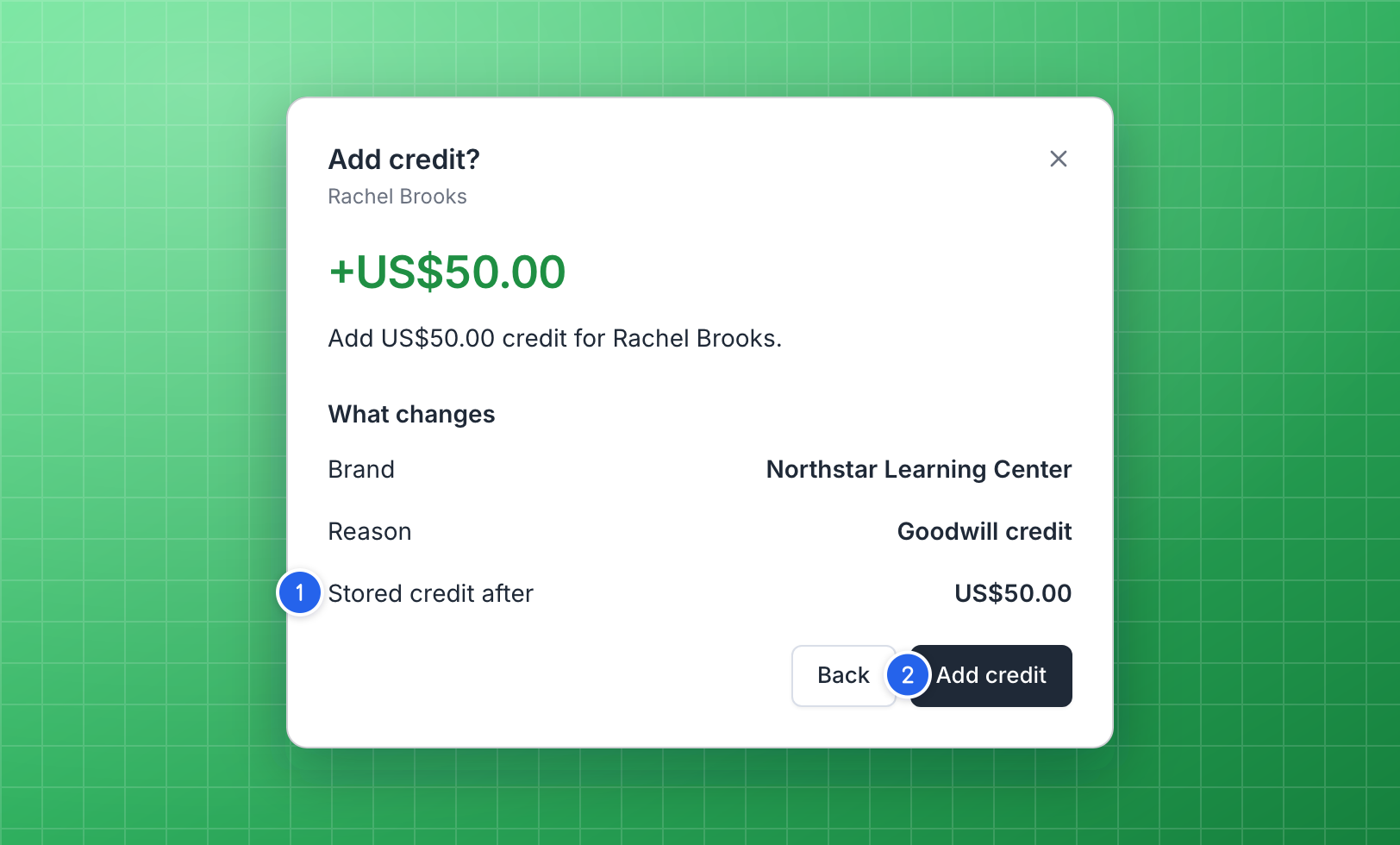
Confirm the change:
- Check Stored credit after.
- Select Add credit.
The window returns to the history, with the new line first.
Remove credit you paid back
In Manage balance, select Remove credit.
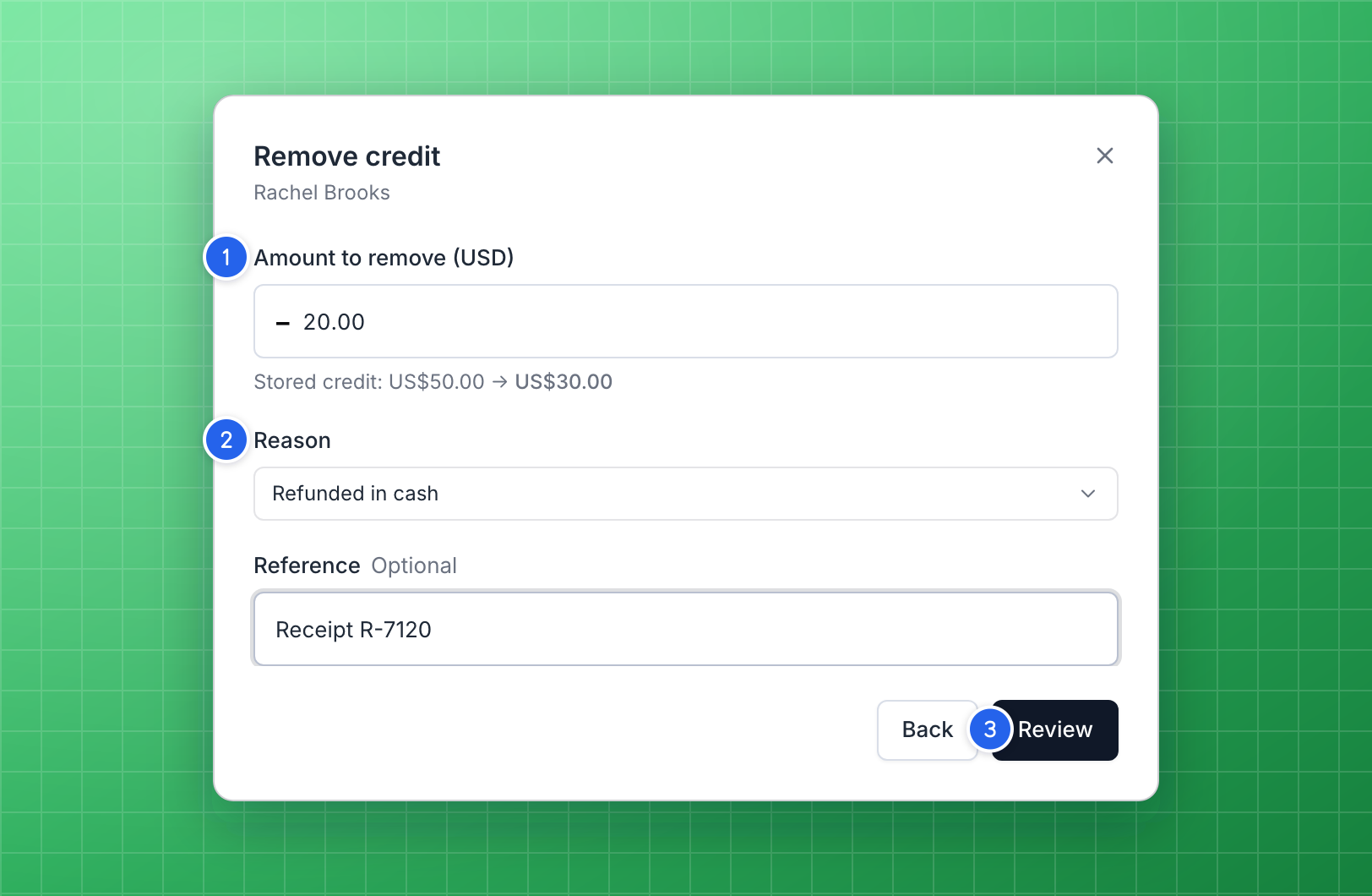
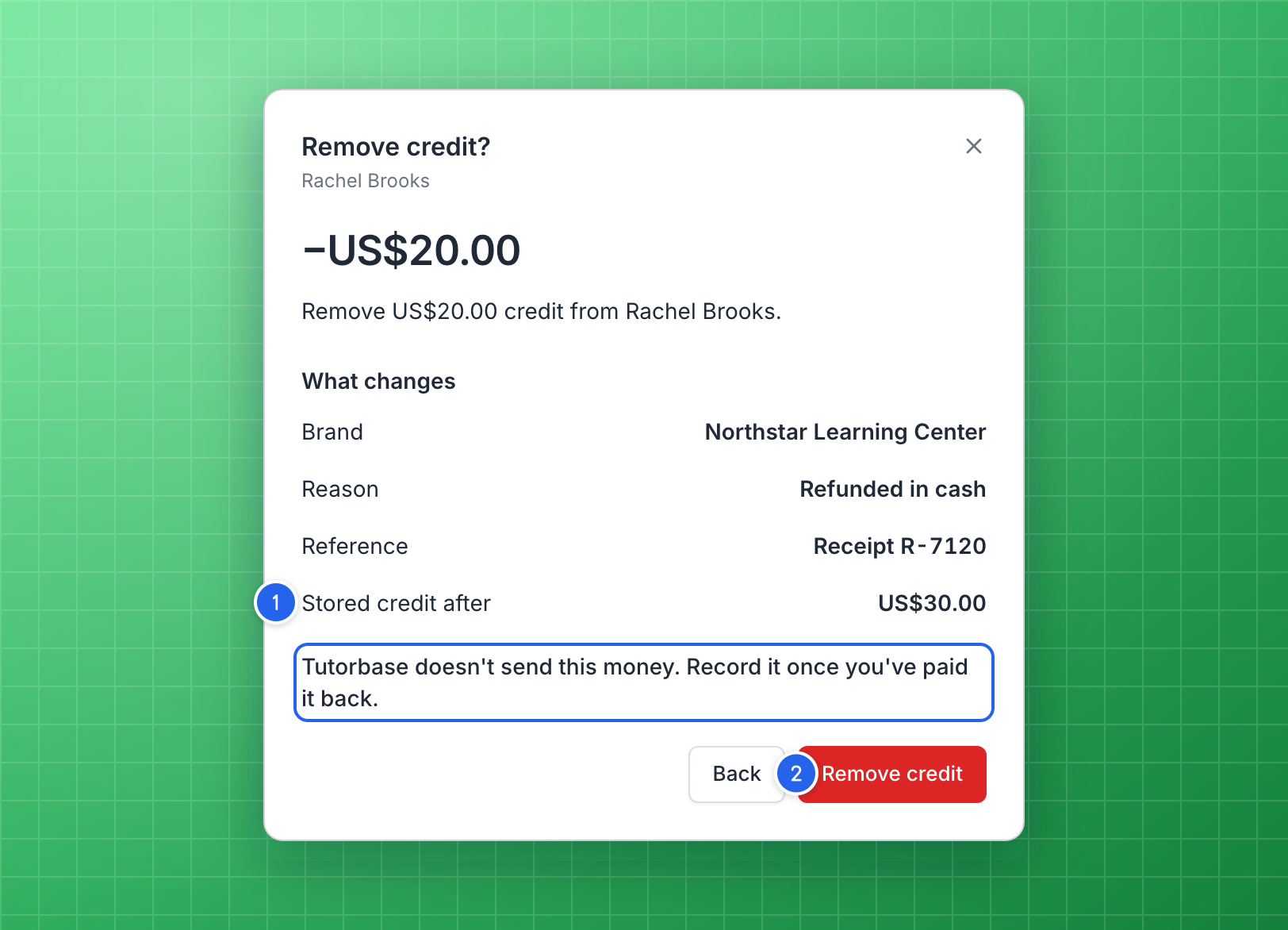
Describe the removal. Before you select Review, enter the cash receipt or bank transfer reference in Reference (optional, up to 200 characters), so the history shows which repayment it was.
- Enter the Amount to remove. You can't remove more than the Brand holds: Tutorbase asks you to enter no more than the stored credit.
- Choose the Reason: Refunded in cash, Refunded by bank transfer or Correction.
- Select Review.
Choose the reason that matches how you paid the money back; use Correction only to fix a wrong balance.
Confirm the change:
- Check Stored credit after.
- Select Remove credit.
The review reminds you: "Tutorbase doesn't send this money. Record it once you've paid it back."
After you confirm
Tutorbase changes the payer's stored credit, and the Available balance on the payer's profile shows the new amount. The new line appears first in the history.
Adding or removing credit doesn't change any invoice and moves no money. To give the payer the money, pay it back yourself before you record the removal.
Use the credit on an invoice
Open one of the payer's unpaid invoices in Billing > Invoices. The invoice shows how much credit is available, for example US$10.00 credit available. Select Apply credit. Check Amount to apply and Amount due after credit. Select Apply followed by the amount. Tutorbase uses stored credit first, then any unapplied payments. For example, applying US$10.00 of credit to a US$25.00 invoice leaves US$15.00 due.
Read the balance history
The history lists each change to the stored credit, newest first. Each line shows what happened, such as Goodwill credit or Refunded in cash, its date, the reference, the Brand and who made the change, the amount with + or −, and the credit left after it.
Common questions
Does removing credit send money to the payer?
No. Remove credit records money you already paid back in cash or by bank transfer, or corrects a wrong balance. Tutorbase doesn't send the money.
Why is Remove credit greyed out?
The payer holds no stored credit. Remove credit in Manage balance becomes available once the payer holds credit.
Can I remove more credit than the payer holds?
No. Remove credit asks you to enter no more than the credit the Brand holds. Lower the amount to what Stored credit shows.
Can I undo a change?
Manage balance has no undo. To reverse an addition, remove the same amount with the reason Correction; to reverse a removal, add it back with Correction.
Does adding credit pay an invoice?
Not by itself. Adding credit changes no invoice; select Apply credit on an invoice to use the credit there.