
To take card payments on invoices in Tutorbase, open Settings > Stripe, assign your Stripe account to the Brand, then choose which invoices show Pay: every invoice by default, or one invoice at a time from Invoice actions (⋯). With the default off, payers with Auto-pay on still see Pay. Payers select Pay on their invoice, pay on Stripe's page, and the payment appears in Billing > Payments.
Before you start
Your organization needs a Stripe account that is already connected. Settings > Stripe shows how many are connected under Brand payment routes. For example, Northstar Learning Center has one connected account and one Brand.
Assign your Stripe account to a Brand
Open Settings > Stripe. Under Brand payment routes, each Brand shows No account assigned until you choose one.
Under the Brand's name, choose the connected Stripe account.
Select Assign account.
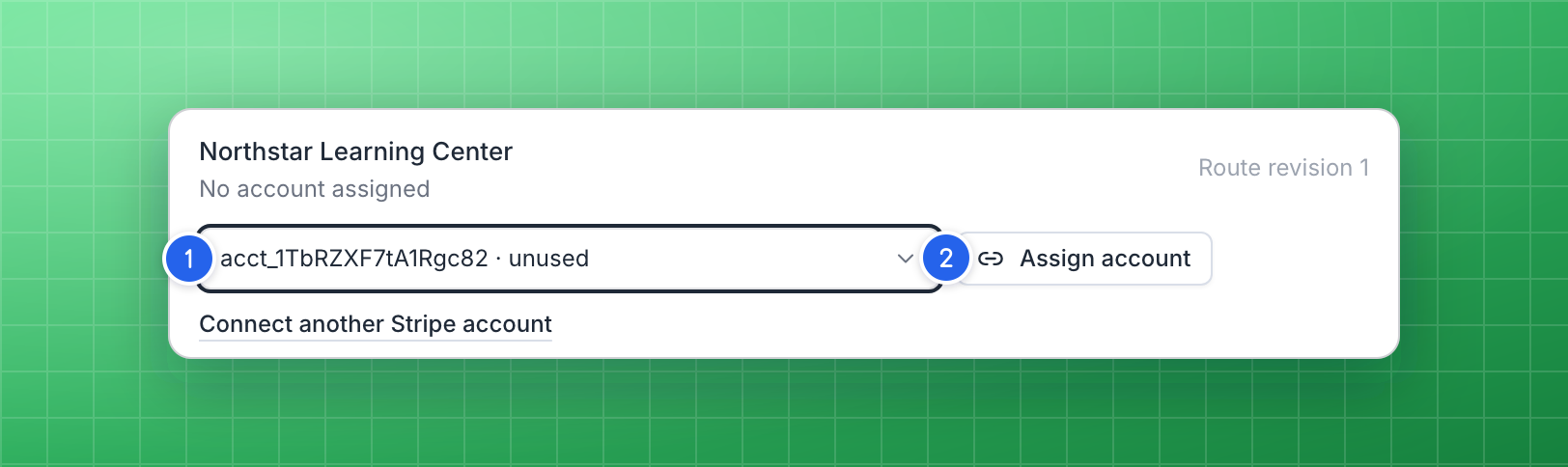
The Brand now shows Collects through followed by the account. Several Brands can use the same account.
Choose who sees Pay by default
Under Online payment by default, set Accept online payment by default. It starts off.
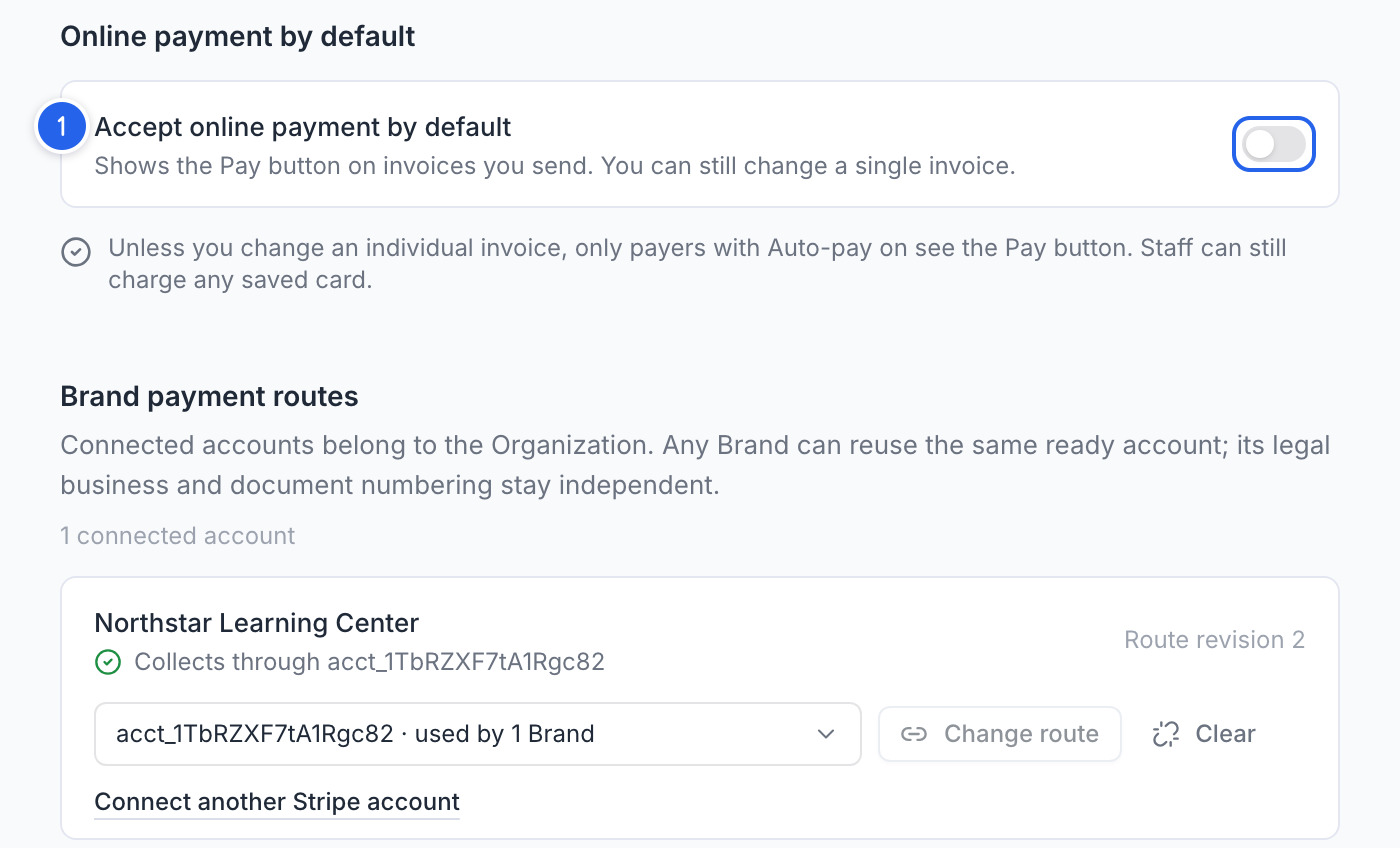
- Off: Tutorbase notes that, unless you change an individual invoice, only payers with Auto-pay on see the Pay button.
- On: Tutorbase notes that online payment is available for Brands with an assigned Stripe account.
The switch saves straight away. Leave it off when most families pay by bank transfer or cash, and turn card payment on for the invoices of families who ask. Turn it on when you want every family to be able to pay by card.
Turn on card payment for one invoice
Open the invoice in Billing > Invoices.
Select Invoice actions (⋯). Under Online payment, the menu shows the payer's Auto-pay, for example Auto-pay Off, and whether this invoice offers Pay.
Turn on the Online payment switch.
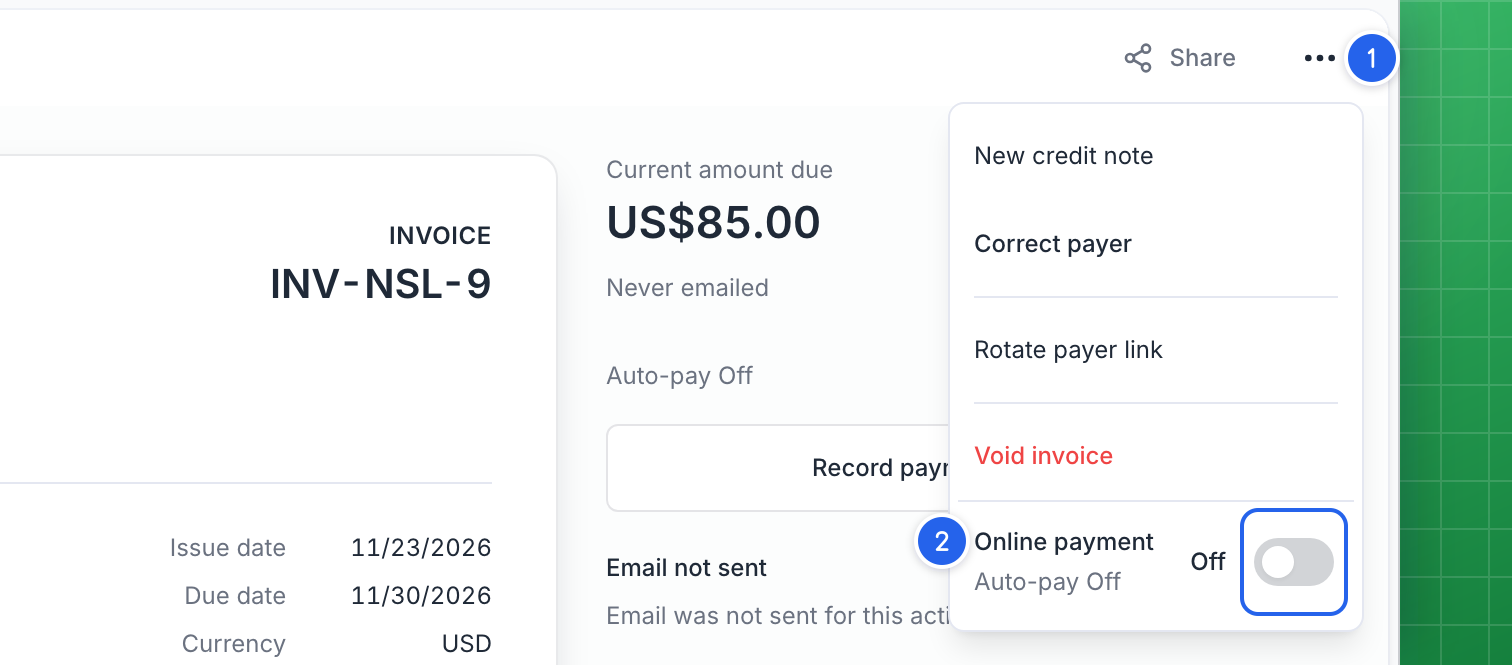
The invoice keeps its own choice. A small mark appears beside On. Pointing to the mark shows Different from Organization default with the default value. To follow the default again, select Use defaults in that note.
Turning online payment on doesn't charge anyone. The invoice stays due until the payer pays.
To send the payer their invoice yourself, select Share > Copy payer link and send them the link.
What the payer sees
When the payer opens their invoice link, the amount due has a Pay button with the amount, for example Pay $85.00. Pay opens Stripe's payment page, which shows the invoice number and amount and asks for an email address, the card details, the name on the card and a country. After Stripe accepts the card, the payer sees Payment received.
The payer's invoice then shows Payment received, an amount due of $0.00 and Paid in full.
After the payer pays
Tutorbase records the payment against the invoice, and the invoice is paid. In Billing > Payments, the payment has its own receipt number, the card it was paid with (for example Visa ···· 4242), the status Received, the amount and the invoice it paid.
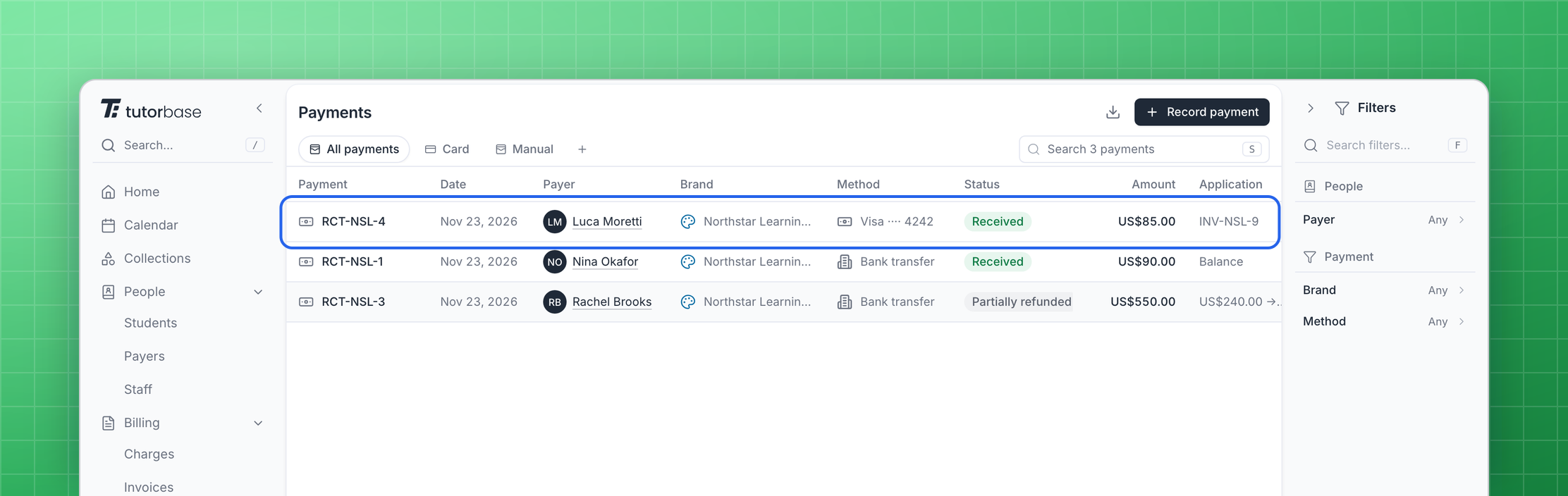
You don't need to record a card payment made with Pay. Use Record payment only for money received outside Tutorbase.
Good to know
- The default applies to invoices that have no choice of their own. A choice made on one invoice stays until you select Use defaults.
Common questions
Why doesn't the payer see Pay on their invoice?
With Accept online payment by default off, an invoice for a payer whose Auto-pay is off starts with Online payment off, so open the invoice, select Invoice actions (⋯) and turn Online payment on. Pay also needs the invoice's Brand to show Collects through under Settings > Stripe > Brand payment routes. Online payment works only for Brands with an assigned Stripe account.
Does turning on online payment charge the family?
No. Turning on Online payment, for one invoice or by default, only lets the payer select Pay. The invoice stays due until the payer pays on Stripe's page.
Where do I see a card payment?
Card payments made with Pay appear in Billing > Payments with the card brand and last four digits, the status Received and the invoice they paid. The invoice itself shows as paid.
How do I undo turning card payment on for one invoice?
Open the invoice, select Invoice actions (⋯) and point to the mark beside On under Online payment. Select Use defaults, and the invoice follows Accept online payment by default and the payer's Auto-pay again.