
Find, save and export Payments
Find payments in Tutorbase, save a personal view and download every matching receipt as CSV, up to 1,000 rows.
Last updated
To find and export payments in Tutorbase, open Billing > Payments, narrow the list and select Export CSV. Save a personal view to reuse the same search, filters, order and columns for your next bookkeeping check.
Before you start
Sign in as the school owner and use a computer for CSV export. Payments must already be recorded; finding or exporting receipts does not record money.
For example, you review Rachel Brooks' cash receipts and keep a view named Cash receipts. Payer and Brand filters can narrow a check to a particular payer or Brand.
Find the receipts
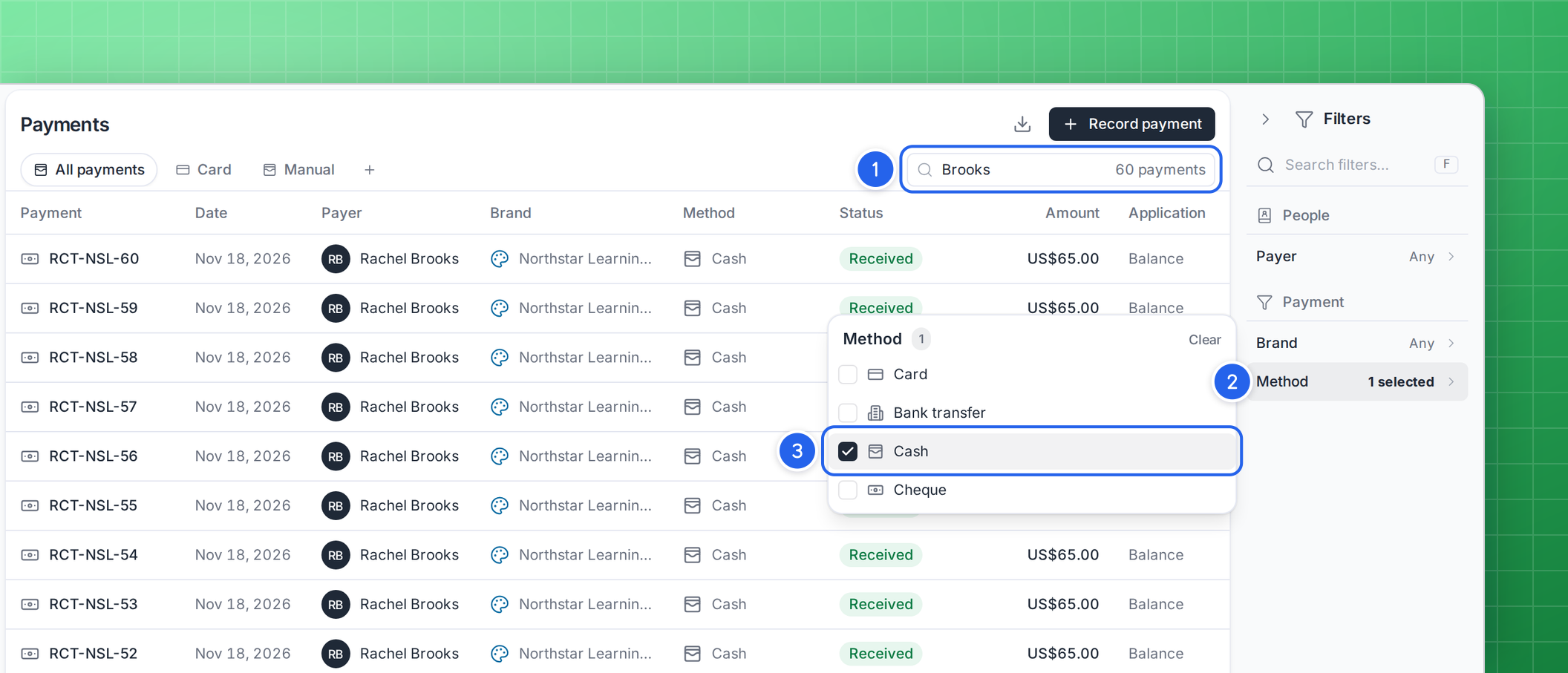
In the Payments search box, enter Brooks. Search before exporting so unrelated receipts stay out of the file.
Under Filters, select Method.
Choose Cash to reconcile cash receipts without mixing in other payment methods.
Select Amount in the column headings to sort from smallest to largest; select Amount again to reverse the order. Start with the smaller amounts when checking receipts against a cash book so the two lists are easy to compare.
The + at the end of the column headings, Add column, lets you hide columns you do not need. Keep Amount visible for the bookkeeping check because the export uses the visible columns.
Save the setup
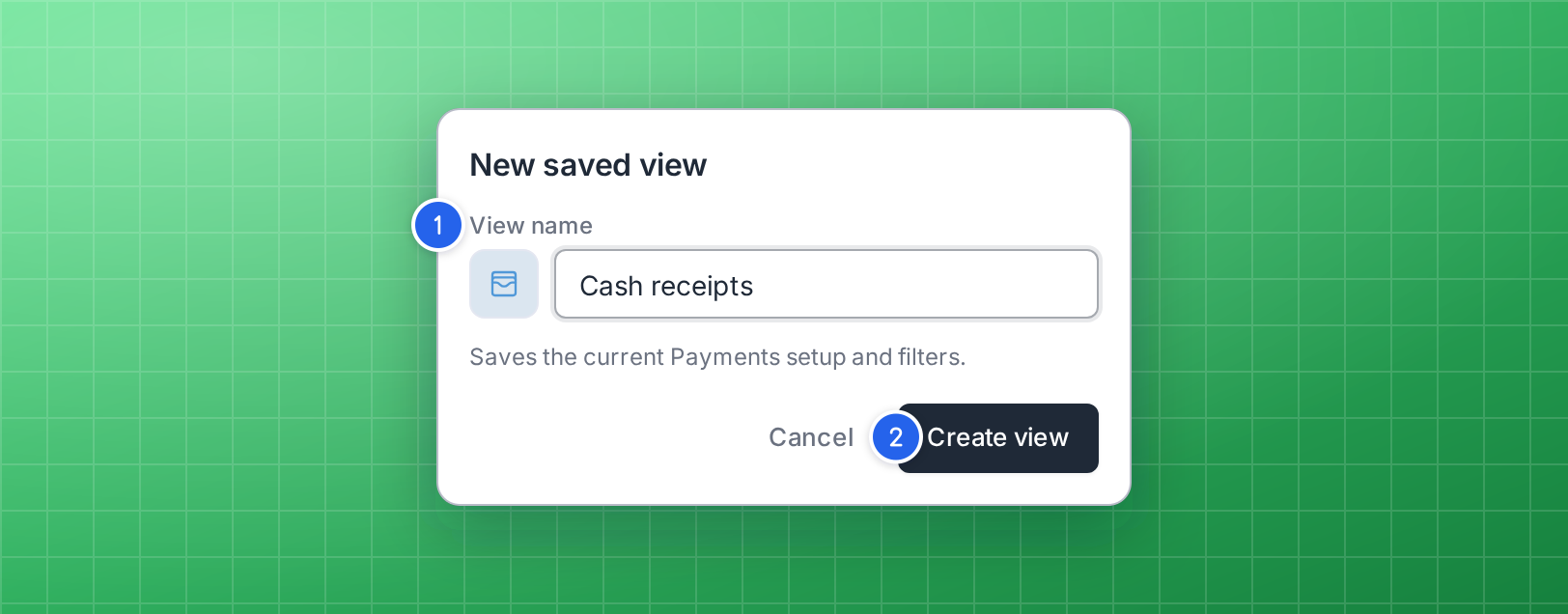
Select + in the saved-views row, New view. New saved view opens.
In View name, enter Cash receipts. Name the view for the job so you can recognize the setup on your next visit.
Select Create view. The named view becomes selected and saves the current search, filters, sort order and columns.
Update a saved setup
Changing a list does not automatically replace its saved setup. To keep a change for future visits, such as reversing the Amount order:
- With Cash receipts selected, select the Amount heading again to reverse the order.
- Open the selected view's … actions.
- Select Update view. Future visits use the changed setup.
Use Update view for a correction to the same bookkeeping job. Choose Save as new for a different job so the original setup remains available.
Download the matching receipts
Select Export CSV, the download icon beside Record payment. Tutorbase downloads
payments.csvto your computer.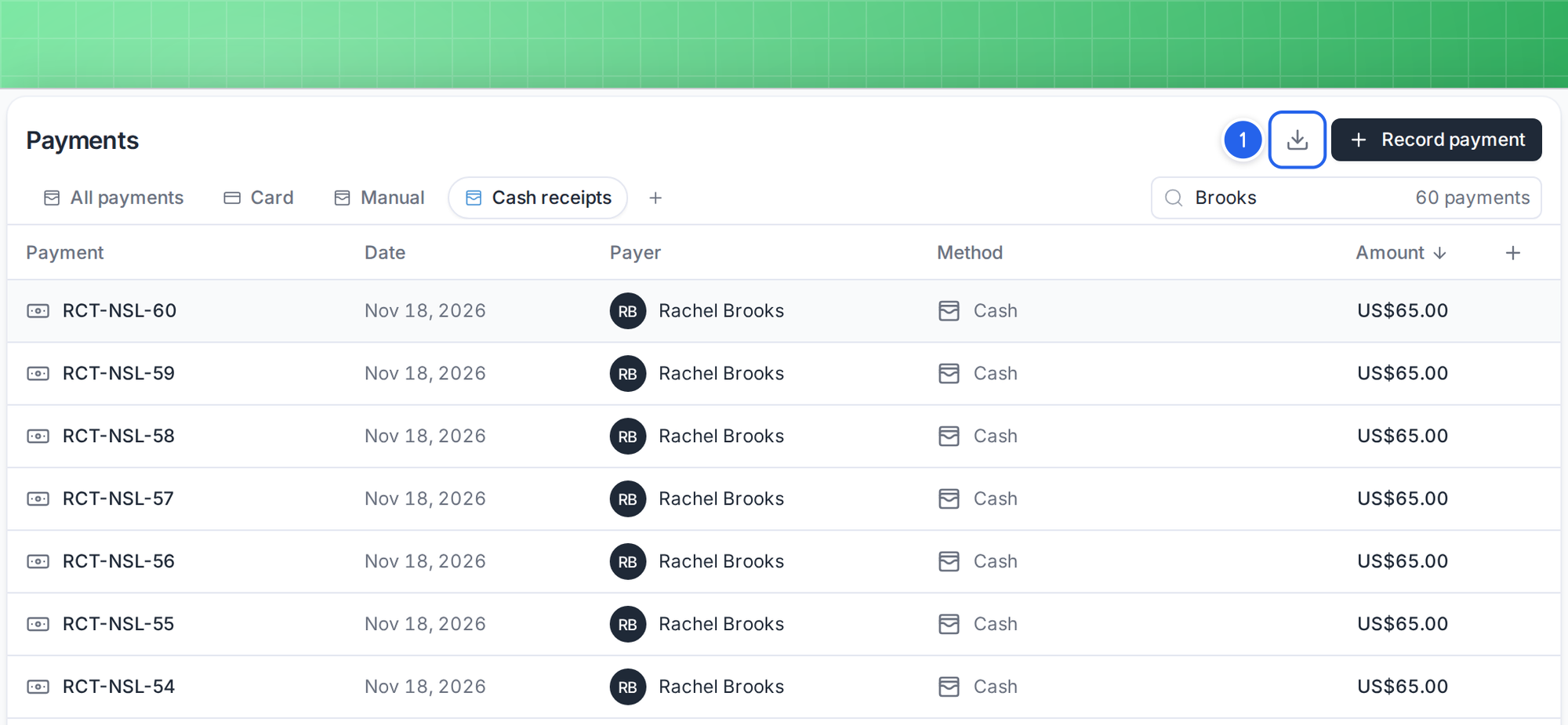
The file includes every matching payment, including rows that have not loaded on screen, in the list's current order. For example, the cash check has 60 matching receipts: all 60 go into the file even when only 50 are loaded.
The first row contains column names. The file follows the visible columns; Amount is a plain number followed by Amount currency, for example 65.00 and USD. Exporting leaves the payments and their balances unchanged.
Common questions
Will Payments remember an unsaved search? No. An unsaved Payments search is temporary. Create or update a saved view when the same search should return on future visits.
Can other people use my saved Payments views? No. Saved Payments views are personal to your sign-in and school.
Why did my saved setup keep its old filters? Changing filters does not automatically update a saved Payments view. Select Update view from the selected view's … actions to keep the changed setup.
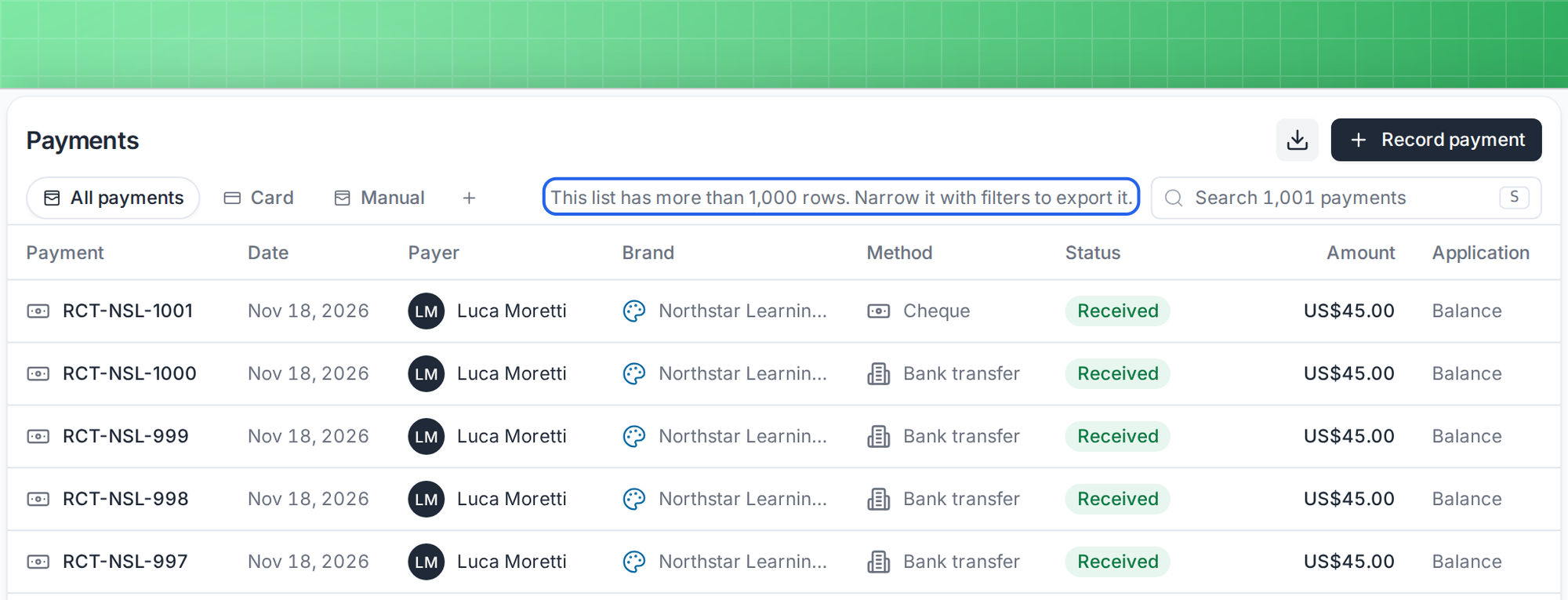
Why can't I export more than 1,000 payments? Payments exports accept up to 1,000 data rows, plus the header. Above the limit, Tutorbase asks you to narrow the list and makes no file; narrow the filters before exporting again so every matching receipt fits. To export more than 1,000 payments, export them in parts, for example one Method or Brand at a time.
Does deleting a saved view delete payments? No. Delete view removes only the personal setup after confirmation. Deleting the selected view opens All payments and keeps the payments.