
Remind a payer about an unpaid invoice
Send a reminder for an unpaid invoice, or copy a message and payment link for a chat, and check Last sent.
Last updated
To remind a payer about an unpaid invoice, open Billing > Invoices and use Reminder to email the current balance, or Copy reminder + pay link to send the message in a chat yourself.
Before you start
Sign in as the school owner and check the invoice's Current amount due. When Reminder is available, use it to follow up on an unpaid balance; choose Invoice when you want to send the invoice again instead. To change what the payer owes, correct the invoice before contacting them.
If Reminder is unavailable, read its reason before contacting the payer.
Choose one sending path below: email one payer, email a desktop selection, or copy a message for a chat. These are alternatives; completing every path would contact the same payer again.
A reminder uses the invoice's due date to say Due soon or Overdue. Its email includes the amount still due, invoice number, due date, school branding and invoice Notes. For example, a $1,000 invoice with a $400 payment reminds the payer about the remaining $600.
Find the reminder on an invoice
Open the invoice from Invoices. On a phone, use the invoice's three-dot actions menu for the same sharing choices.
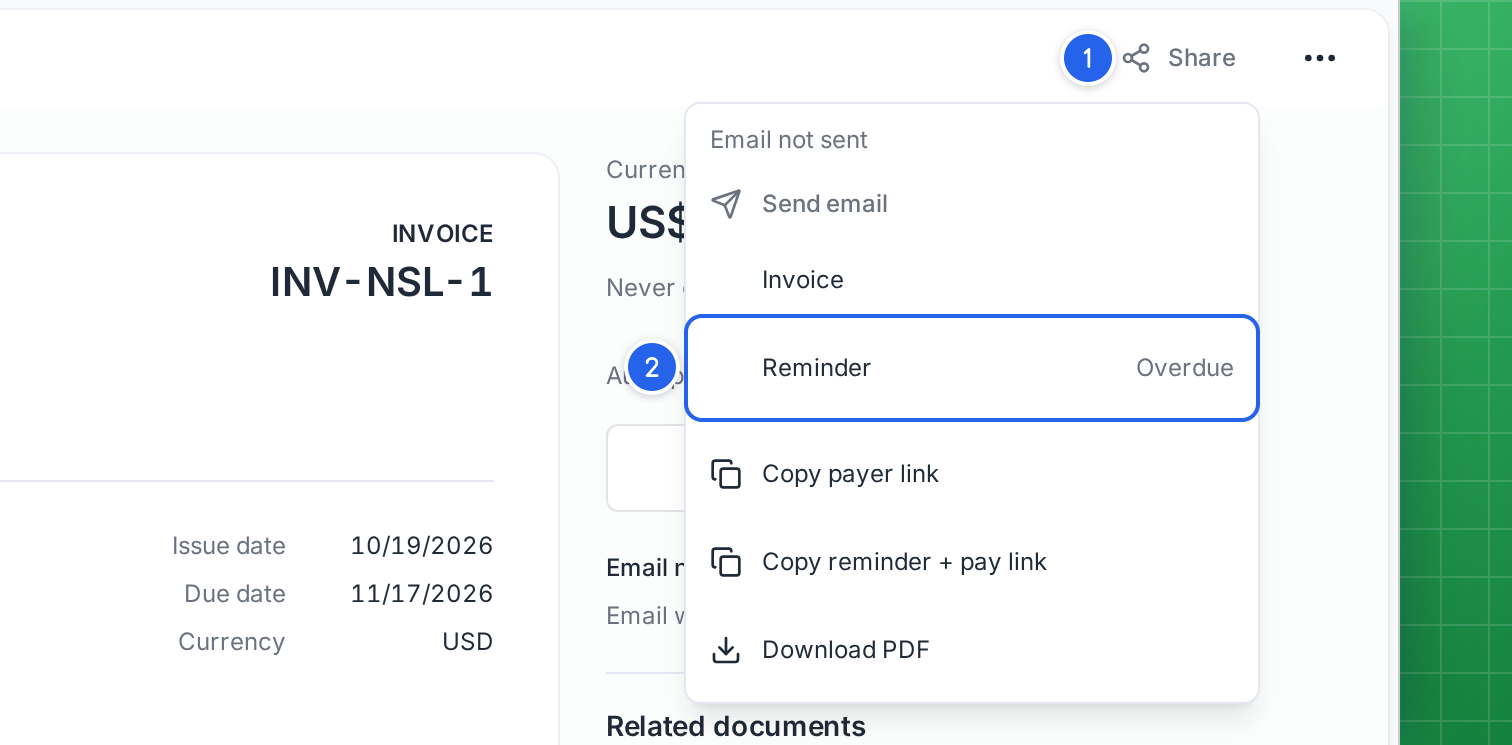
Select Share.
Under Send email, select Reminder to email that payer. The label beside it shows Due soon or Overdue.
Remind several payers on desktop
In Invoices, select the invoices you want to follow up, then select Send email.
Choose Reminder. Review the invoices that apply and each skipped invoice's reason. Keep Reminder selected to chase unpaid balances.
Select Send reminders, followed by the number that applies.
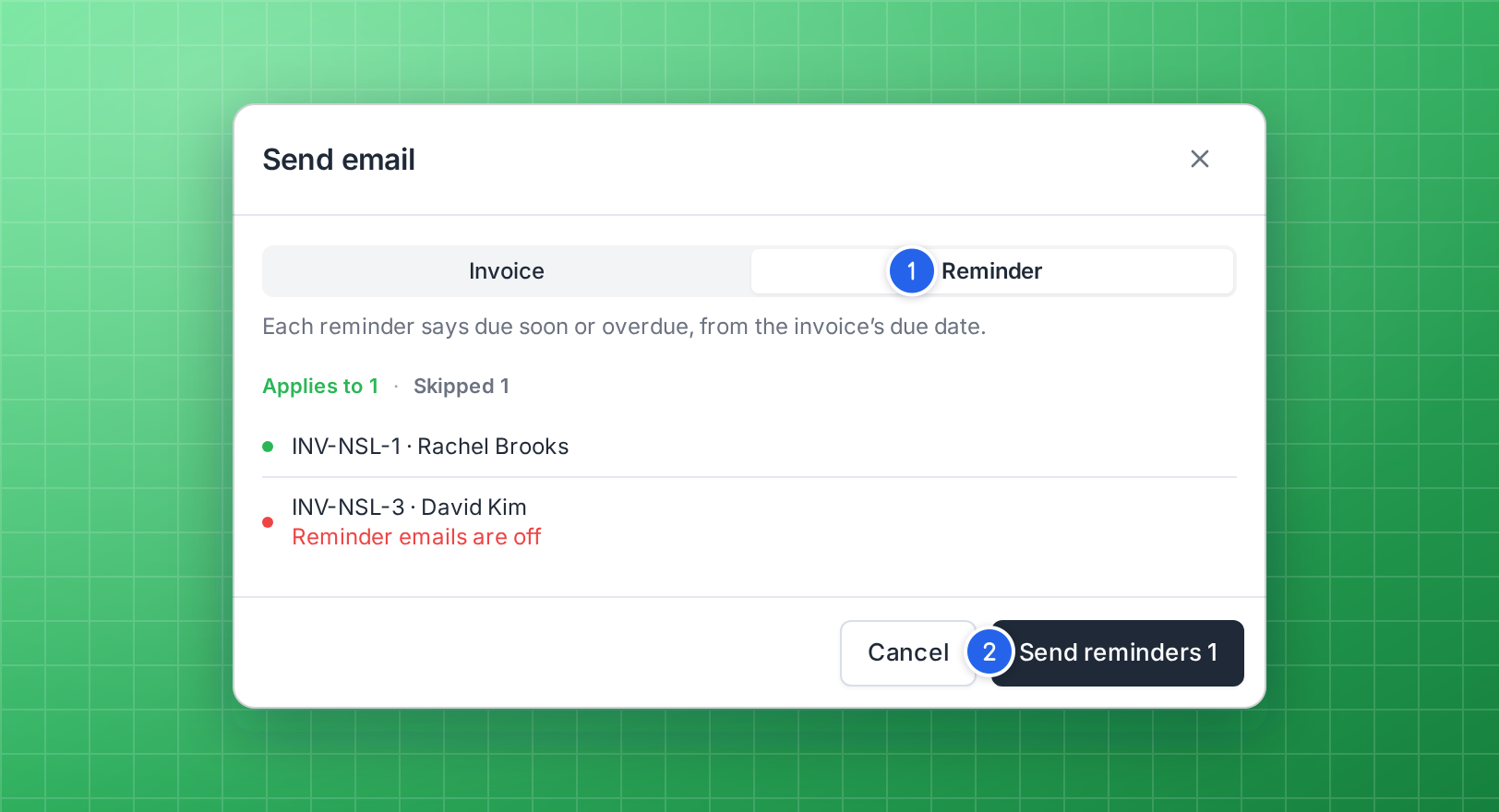
For example, the review includes Rachel's unpaid invoice and skips David's because Reminder emails are off. Sending keeps the skip in Email history; it does not override the payer's email preference.
Copy a reminder for a chat
Open the invoice and select Share.
Select Copy reminder + pay link.
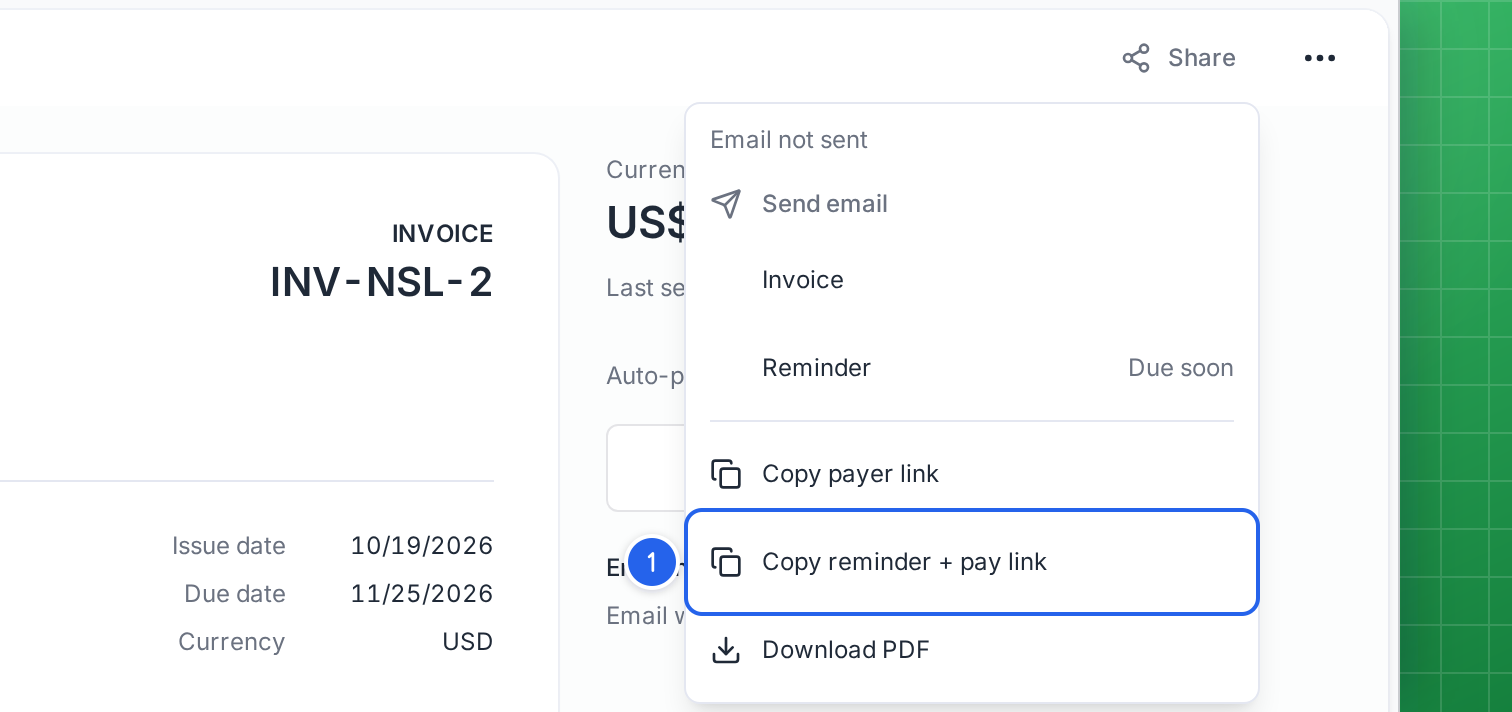
Paste the copied message into your chat and send it to the payer. The message includes the invoice's balance and payment link. Copying sends nothing and does not change Last sent.
Record that you sent the copied message
After sending the message yourself, return to the invoice's open Share menu.
Select I sent it beneath Reminder copied.
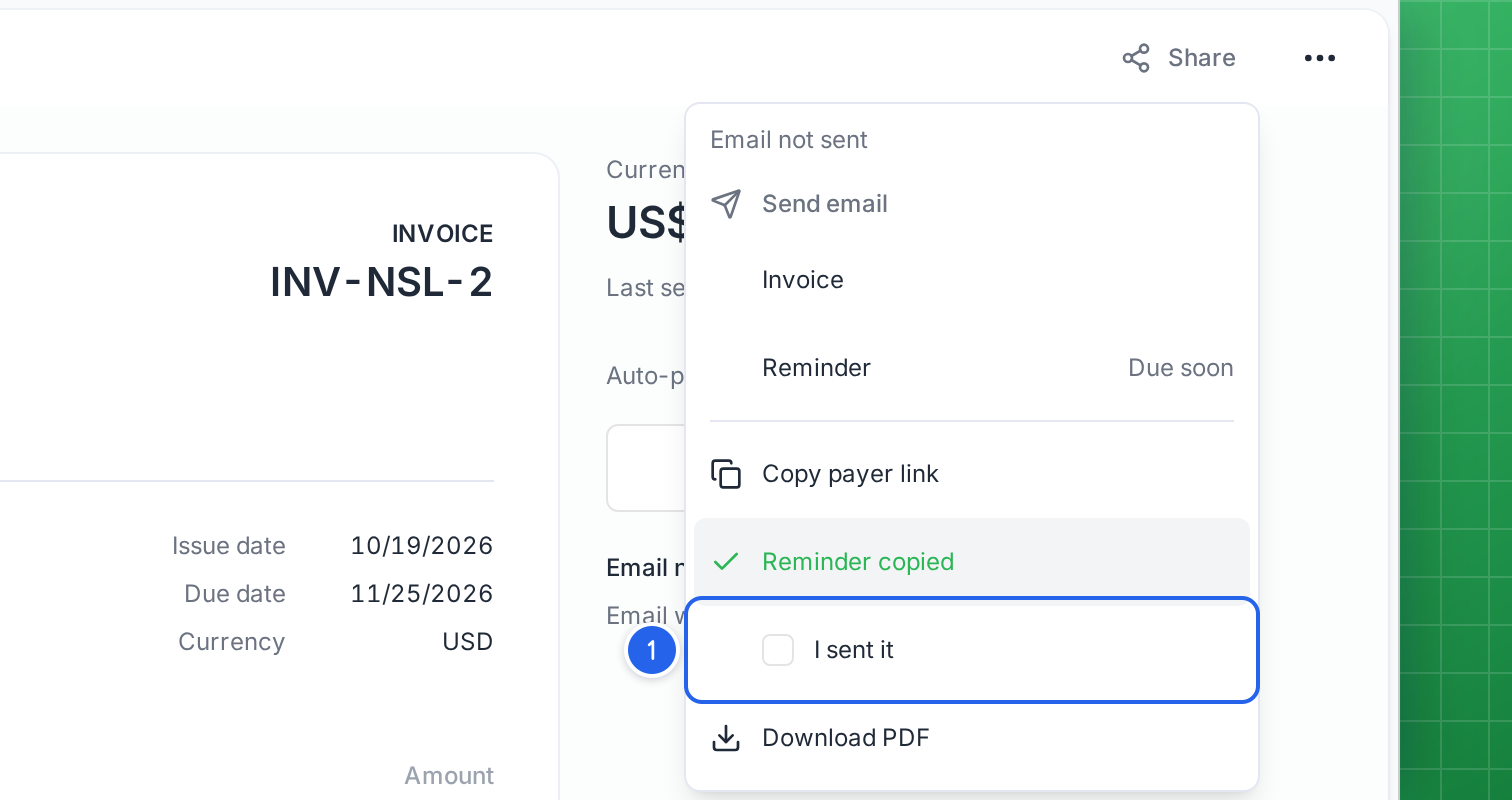
Last sent now records the time, your name and Copied reminder. Confirm only after sending the message; copying alone is not a send record.
Check what happened
Reopen the invoice to check Last sent. A reminder email appears as Reminder, and a confirmed copied message appears as Copied reminder, with the staff member's name. Never emailed means there is no counted send or copied-message confirmation.
Use Email history in Settings to check an email's status and any skipped reason. A skipped email does not update Last sent. Changing email settings afterward does not send the skipped reminder for you; review the invoice again before deciding whether to send a new reminder.
Common questions
Does Tutorbase remind payers automatically?
No. Staff deliberately send reminders from an invoice or the desktop invoice selection. There is no automatic reminder schedule in this workflow.
Can I change the reminder wording?
The reminder wording is fixed. Tutorbase chooses due-soon or overdue wording from the invoice's due date and uses the current amount due.
Why was a reminder skipped?
Read the reason in the review or Email history. For example, Reminder emails are off means email preferences prevent that reminder. Review the reason before sending again; selecting Reminder does not override it.
Does copying a reminder mark it as sent?
No. Copy reminder + pay link only copies the message. Send it yourself, then choose I sent it to record the copied reminder in Last sent.
Can I remind several payers from my phone?
Bulk selection is available on desktop. On a phone, open one invoice and use its three-dot actions menu to choose Reminder or Copy reminder + pay link. Check the result before moving to the next invoice.
Does Last sent mean the payer received or read the email?
No. Last sent records a counted email send or your confirmation of a copied message. It does not prove that the payer received or read it; check Email history for the email's status.