


A parent calls during lunch and wants a trial lesson this week. Your coordinator opens Google Calendar, checks a room spreadsheet, messages two teachers, then promises a callback. By the time you confirm, the parent has already contacted another center.
That's why a widget for site matters. It isn't a design extra. It's the difference between a smooth first impression and an admin bottleneck that burns time, creates booking mistakes, and keeps your team stuck in manual work.
The End of Phone Tag and Spreadsheet Chaos
A parent submits an inquiry at 8:30 p.m. By the next morning, your team still has to collect the student's level, preferred schedule, subject, branch, and lesson format before anyone can offer a time. In a busy center, that delay is where good leads start slipping.
I have seen this firsthand across multi-branch schools. The problem is rarely one big failure. It is a chain of small manual steps. Staff copy details from a form into a spreadsheet, check teacher availability in another system, confirm room space somewhere else, then send messages to patch the gaps. A trial lesson that should take minutes can easily stretch into a half day.
The cost shows up fast. Parents get a slow reply. Coordinators spend their day chasing missing information. Booking mistakes creep in because the same student data gets entered more than once.
If you are still patching together forms and exports, guides on how to connect forms with Google Sheets can tidy up one part of the workflow. They do not solve the operational handoff after the form is submitted.
The tutoring centers that fix this treat the website as part of operations, not just marketing. They use the site to collect complete booking details, route inquiries to the right branch, and cut out the retyping that causes avoidable errors. That is the practical shift behind the four widget types in this guide.
Practical rule: If staff have to re-enter information from your website into scheduling, CRM, or billing, your website is adding admin time.
That is why many owners end up looking at tools that replace spreadsheets for tutors. The goal is not to stack on more software. The goal is to reduce handoffs, shorten response time, and stop losing enrollments to preventable admin friction.
What Exactly Is a Website Widget?
A website widget is a small self-contained tool that adds one specific function to your site. Picture it as installing an app on your phone. You don't build the operating system yourself. You add a tool that does one job well.
On a tutoring website, that function might be:
- Booking lessons: Letting parents request or confirm times online
- Capturing leads: Collecting inquiry details without a phone call
- Taking payments: Accepting deposits, invoices, or trial fees
- Showing live information: Displaying calendars, availability, or key business stats
Why widgets matter more than static pages
A normal website page gives information. A widget lets visitors do something.
That distinction matters. Parents don't just want to read that you offer math, IELTS, or piano. They want to know whether there's a suitable slot, how to contact you quickly, and what happens next. A good widget handles that interaction without forcing your staff to jump in manually.
If you want a plain-English breakdown of the mechanics, this guide on how website widgets function gives a useful non-technical explanation.
A widget should act like a digital employee
The best way to think about a widget is as a narrow, reliable digital employee. It doesn't run your whole business. It handles one repeatable task, the same way, every time.
That only works when the widget is focused. One widget shouldn't try to be your CRM, scheduler, invoicing system, and accessibility fix all at once. In practice, widgets work best when each one has a clear job and the system behind them keeps the data aligned.
A weak widget looks impressive on the page but creates cleanup work behind the scenes.
In 2026, a tutoring website without interactive tools feels incomplete. Families expect immediate action, not a contact page that sends everything into an inbox for later.
The Four Must-Have Widgets for a Tutoring Site
Monday at 8:15 a.m., your front desk is chasing three parents for preferred times, one teacher has already been booked into two lessons, and someone still needs to send a trial payment link by hand. That pileup usually comes from the same problem. The website collects interest, but it does not complete the next step correctly.
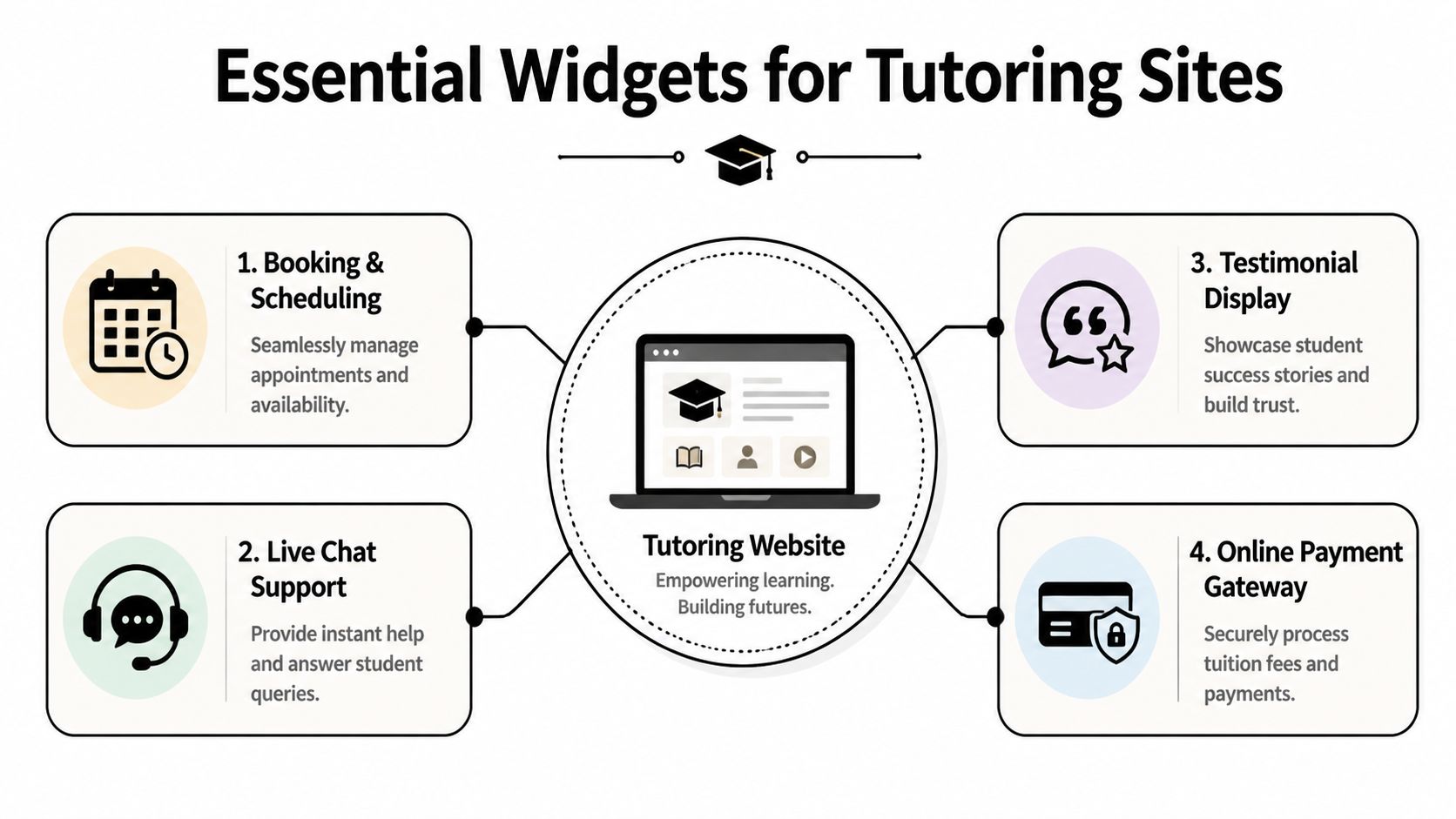
For tutoring centers, four widget types do most of the operational heavy lifting. These are the ones that reduce admin time, cut booking mistakes, and give parents a clear path from inquiry to enrollment.
Booking and scheduling widget
If I could fix only one thing on a tutoring website, I'd start here.
Scheduling is where small errors turn into expensive ones. A parent asks for a trial. Staff checks teacher availability, branch capacity, room usage, and suitable start times. If any of that happens in inboxes or spreadsheets, mistakes creep in fast.
A useful scheduling widget does not just collect a preferred date. It needs to apply your actual operating rules before a parent submits the request.
- Teacher matching: filter by subject, level, and real availability
- Branch and room logic: avoid offering in-person slots you cannot host
- Conflict prevention: block unavailable times before staff has to clean up the mistake
- Faster intake: turn interest into a booked trial while the parent is still ready to act
A good benchmark is whether the platform includes tutoring scheduling software that generates valid lesson options instead of sending your team another request to review manually.
Lead capture widget
A weak inquiry form creates admin work. A strong one gives your team enough detail to act without a second round of questioning.
For tutoring centers, that usually means collecting more than name, phone number, and a blank message box. Coordinators need the student's year group, subject, exam board or goal, preferred branch or online option, and how soon the family wants to start. Without that, every new lead begins with avoidable back-and-forth.
Keep the form focused, but make it useful. Ask for:
- Who the student is
- What subject, level, or exam support they need
- Which location or lesson format they want
- When they hope to begin
That one change improves the quality of your follow-up. Staff spend less time qualifying inquiries and more time booking trials that fit.
Payment widget
Payment delays often kill momentum right after a parent says yes.
If your team still has to send a manual invoice, bank transfer details, or a one-off payment link, some families will pause and deal with it later. Later often turns into never. A payment widget closes that gap while the decision is still fresh.
The practical uses are straightforward:
- Charging for trial lessons
- Taking deposits to reserve a class place
- Collecting invoice payments
- Adding credit to prepaid lesson balances
The trade-off is integration. A payment widget that looks good on the page but does not sync with your records still leaves staff reconciling payments by hand. That saves less time than owners expect.
Calendar and proof widgets
The fourth category is less obvious, but it matters because parents look for signs that your center is active, organized, and current.
Sometimes that means a live calendar showing assessment dates, holiday camps, parent meetings, or upcoming start dates. Sometimes it means visible proof on the page itself, such as recent class availability, student outcomes, review highlights, or renewal figures presented clearly. These widgets reduce hesitation because families do not have to guess whether your operation is busy but controlled, or just outdated.
Used well, they also cut repetitive questions. Parents can check dates, see what is running, and understand what kind of center they are dealing with before they call.
If a parent has to ask whether you have space, whether trials are available, or whether anyone will reply soon, the website is leaving too much work for your staff.
You do not need all four widgets live on day one. But these are the first four I would put in place in any multi-branch tutoring business, because they target the bottlenecks that create the most admin work and the most preventable errors.
How to Add a Widget to Your Website
Most owners assume this part is technical. Usually, it isn't.

In many cases, adding a widget means copying an embed code and pasting it into your website builder, page editor, or custom HTML block. It's similar to embedding a YouTube video. The complexity sits in the platform that provides the widget, not in the paste action itself.
Start with placement, not design
Before you change colors or button text, decide where the widget belongs.
A trial booking widget should sit near your main offer pages. A payment widget belongs where parents already expect a transaction. A lead form should appear on pages that attract first-time visitors, not only on a buried contact page.
Use this checklist before you publish:
- Match intent: Put the widget on the page where a visitor is ready to act.
- Limit fields: Ask only for information your team will use right away.
- Test the path: Complete the flow yourself on desktop and mobile.
- Check handoff: Make sure someone on staff receives and can process the result.
Customize enough, but don't over-design
The widget should look like it belongs on your site. Match your brand colors, fonts, and button style. Keep the language simple. “Book a trial” usually performs better than vague text like “Submit inquiry.”
What matters more is clarity. Parents should understand what happens after they click.
Operator view: The best widget design is the one that reduces hesitation. Fancy styling doesn't fix a confusing workflow.
Later in the process, it helps to see a setup walkthrough in motion:
Don't ignore mobile behavior and system design
A lot of tutoring traffic comes from phones. If your widget overflows the screen, hides the submit button, or forces awkward scrolling, parents will drop off. Test on a real phone, not only inside a browser preview.
Security and stability matter too. Well-designed widgets in multi-tenant SaaS systems use a component-based architecture where each widget is isolated and operates through a single API endpoint, which means a booking widget won't interfere with a payment widget even when a center handles high lesson volume, as explained in this technical breakdown of component-based widget design.
That isolation is one of the biggest differences between a professional widget and a fragile patchwork plugin.
Choosing the Right Widget Platform
A single widget can help. A pile of unrelated widgets often recreates the original mess.
I've seen centers install one tool for forms, another for calendars, another for payments, and another for CRM notes. The website looks more capable, but the team still copies data between systems and chases errors when records don't match.

What to evaluate before you commit
If you run one branch today but expect to grow, platform choice matters more than widget appearance. For multi-location operators, standardized widget deployment matters. The W3C widget specifications describe configuration-based packaging, including XML configuration and manifest-driven setup, so teams can define settings like room capacity or branch-specific fee structure consistently across locations. In practice, that supports faster rollout and can eliminate the 10+ hours per week of manual admin described in the specification summary at the W3C WidgetSpecs reference.
Here's what to judge in real terms:
- Integration: Does booking data flow into billing, attendance, and lead tracking?
- Multi-branch control: Can you manage location-specific rules without rebuilding each widget by hand?
- Scalability: Will the system still hold up when your calendar gets busy?
- Permissions and security: Can you control what each widget accesses and who can change it?
- Operational fit: Does it support your actual lesson types, branches, room rules, and payment flows?
If you're evaluating vendors, that's the lens I'd use for what to look for in tutoring software.
Integrated platform versus separate plugins
| Feature | Integrated Platform (e.g., Tutorbase) | Separate Plugins/Tools |
|---|---|---|
| Booking data | Flows into one operating system | Often sits in its own plugin |
| Payment records | Can align with invoices and student accounts | Often needs manual reconciliation |
| Multi-branch setup | Managed with standardized rules | Repeated setup by location |
| Reporting | Shared dataset across workflows | Split across tools |
| Error handling | More consistent when tools are connected | Failures are harder to trace |
| Staff training | One operating logic | Different interfaces for each task |
One practical option is Tutorbase, which includes embeddable forms, a WhatsApp widget, scheduling workflows, billing, payroll, and room management in one platform. That matters less as a brand point and more as an operational one. If your widgets sit on top of the same system, staff don't need to rebuild the same information in multiple places.
Your Widget Adoption Checklist
Monday at 8:15 a.m. is usually enough to show what needs fixing. One parent has filled out a form but never got a reply. Another booked the wrong branch. Your front desk is checking a spreadsheet, a calendar, and WhatsApp to work out what happened. That is the point to audit widgets. Start with the step that causes the most rework.
For tutoring centers, this checklist works best when you tie it to the four widget jobs that matter most: lead capture, booking, payments, and parent communication. If a widget does not reduce admin time or prevent a common booking mistake, it can wait.
Questions worth answering this week
Use these questions with the person who handles daily scheduling and parent follow-up:
- Where do inquiries stall? Pinpoint the exact handoff where a parent stops hearing back or waits too long for confirmation.
- What gets retyped? List every detail copied from a website form into your timetable, student record, invoice, or chat thread.
- Where do booking errors start? Check whether teacher availability, room availability, branch rules, and lesson type rules live in different places.
- What must work well on mobile? Focus on the actions parents complete from a phone, especially enquiries, trial bookings, and payments.
- What should build trust? Show practical information that helps families commit, such as clear availability, location details, or next-step forms. Skip decorative widgets that do not change behaviour.
I have found that owners often buy the widget that looks polished, then keep the same broken process behind it. The better approach is smaller and more useful. Fix one high-friction task first, measure whether staff touch that task less often, then add the next widget.
Accessibility belongs on the checklist too
Accessibility affects bookings, form completion, and parent confidence. Test each widget with a keyboard. Check form labels, error messages, focus states, color contrast, and mobile readability. If a parent cannot complete a trial booking without guessing what to tap next, the widget is failing at its job.
If your team wants a wider review of current options, this roundup of best AI-enhanced accessibility tools for developers is a useful place to start.
A good widget reduces clicks for families and reduces cleanup work for staff. That is the standard.
Frequently Asked Questions
Do widgets slow down a tutoring website?
They can, if you stack too many unrelated tools or use poorly built scripts. A focused set of widgets tied to real business tasks usually performs better than loading several decorative plugins that don't share data.
Can I use a widget without rebuilding my website?
Usually, yes. Most widgets use an embed code or a simple integration method inside WordPress, Elementor, or another site builder. The essential work is choosing the right workflow behind the widget, not redesigning every page.
Are widgets safe for payment and booking workflows?
They can be, if the platform isolates each widget properly and controls data flow through defined APIs. That lowers the chance that one front-end tool disrupts another part of the system.
What's the biggest mistake tutoring centers make with widgets?
They install isolated tools for separate tasks and assume the job is done. The front end looks smoother, but staff still reconcile bookings, payments, and student records manually in the background.
Should I use an accessibility widget overlay?
Be careful. Many accessibility widgets are overlays, and research summarized by SeaMonster Studios on obnoxious overlays notes that these tools can interfere with screen readers and keyboard navigation, including keyboard traps and conflicting announcements. For scheduling and parent portals, native accessibility with semantic HTML and proper ARIA support is the safer approach.
What's the first widget most tutoring centers should add?
In most cases, start with the widget attached to your biggest bottleneck. If trial booking is slow, start there. If parents agree to enroll but payment follow-through breaks, fix payments first. If leads come in incomplete, improve intake before adding anything else.
Can widgets help multi-branch centers?
Yes, if the platform supports standardized configuration and location-specific rules. If it doesn't, every new branch creates more setup work and more room for inconsistent processes.
If your website still sends parents into phone calls, inbox threads, and manual scheduling checks, it's probably time to treat the site as part of your operations. Tutorbase gives tutoring centers one platform for scheduling, billing, payroll, room management, embeddable forms, and lead capture, so your website can do more than collect inquiries.


