
To correct billing on a finalized lesson in Tutorbase, open the lesson in Calendar and select Correct finalization. You can make the lesson free for one student, or charge it using its plan, and review the change before you save it. The same window corrects whether the lesson ran, its actual duration and attendance.
Before you start
The lesson must be finalized. For example, Theo Brooks was recorded as a No-show on his Individual Mathematics lesson, and the school later agreed not to charge it because he was ill.
Correct the student's billing
Open Calendar and select the finalized lesson. The lesson window shows Correct finalization.
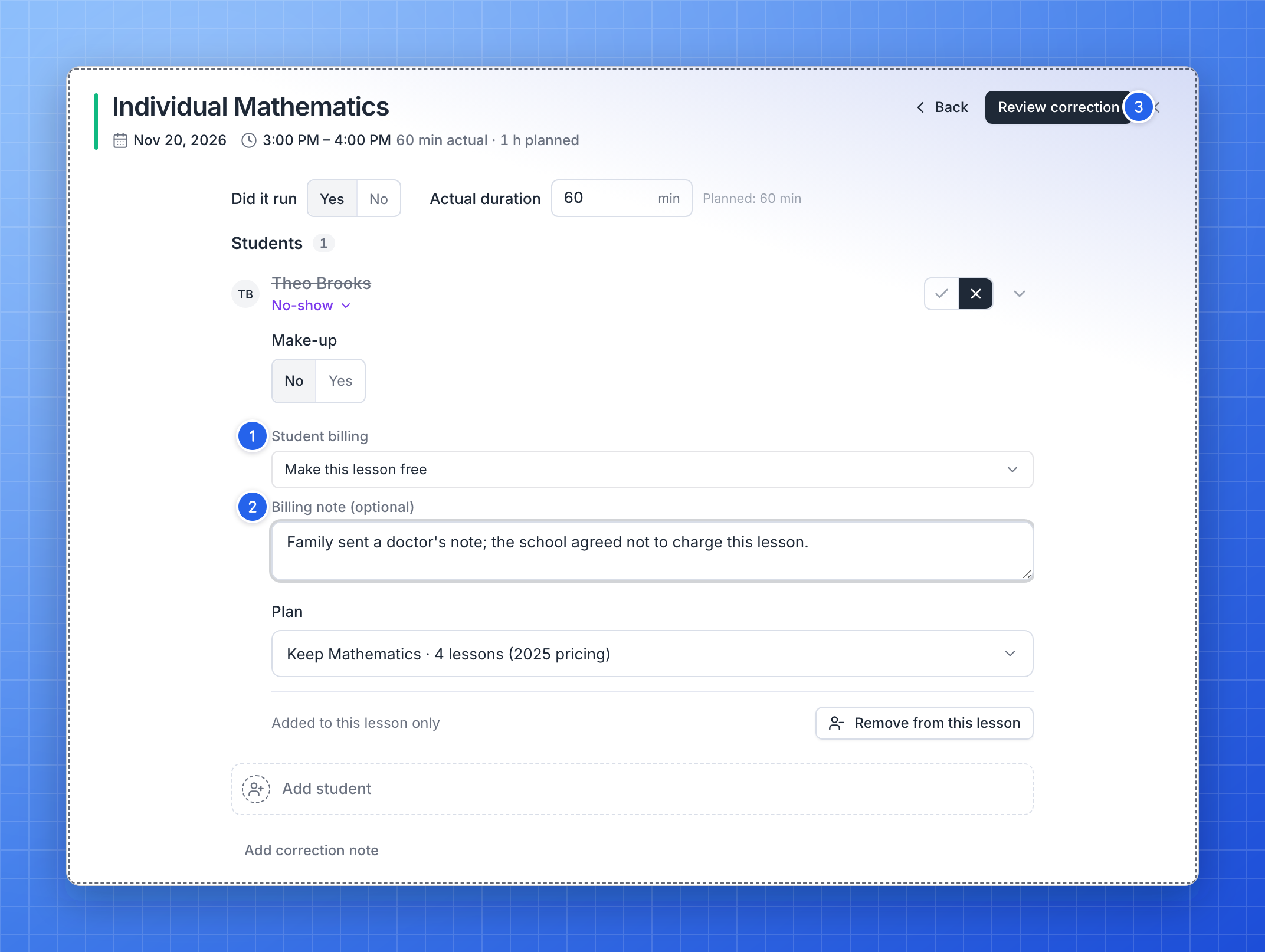
Select Correct finalization. The window lists Did it run, Actual duration and each student's attendance.
Select the arrow at the end of the student's row (its name is More options for the student, for example More options for Theo Brooks). The student's Make-up, Student billing and Plan appear. Leave Make-up and Plan as they are unless they are what you are correcting.
Set the correction:
- Under Student billing, choose Make this lesson free. Student billing starts at Use the existing policy; it also offers Charge this lesson using its plan. Keep the student's attendance as it happened: billing is a separate choice.
- Select Add billing note and type why, for example the family's reason. The note is optional; it shows next to Free in Before and after.
- Select Review correction.
Save the correction
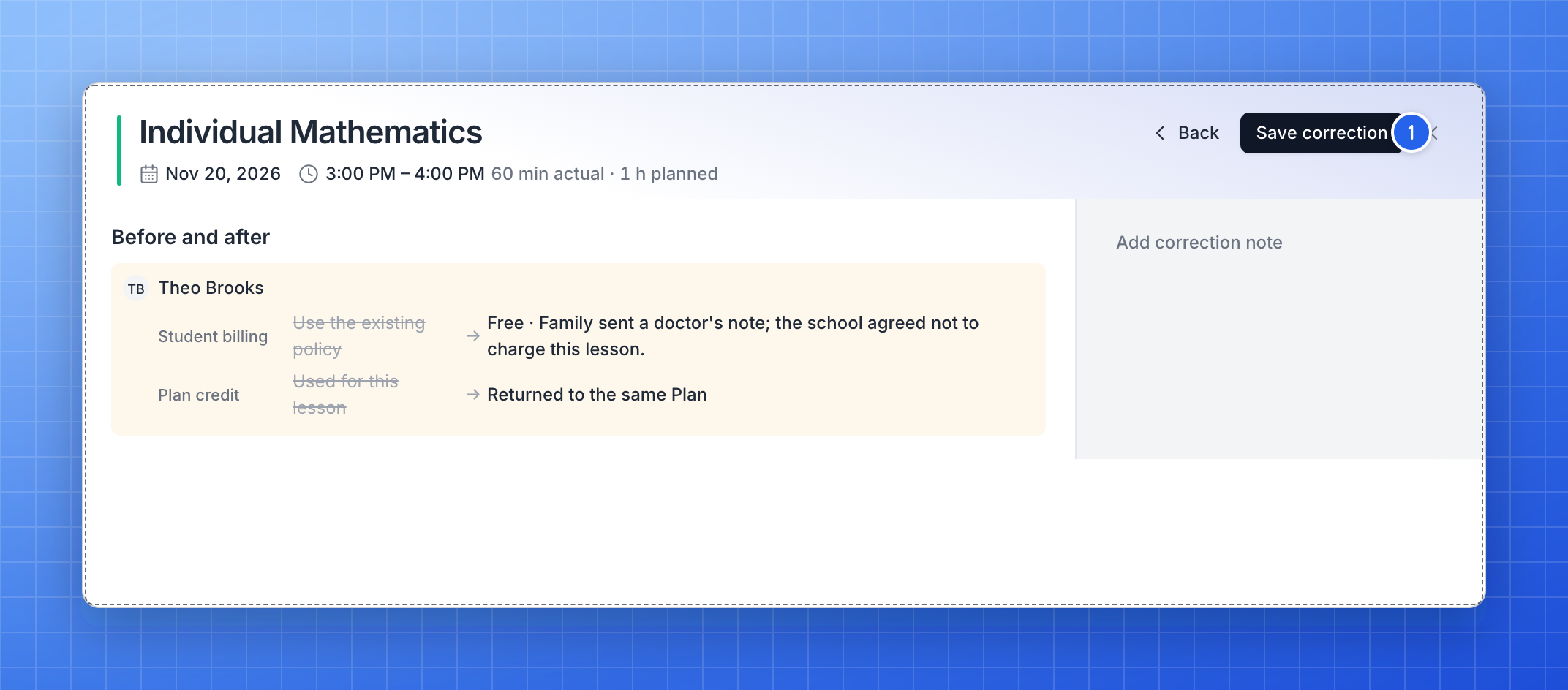
Check Before and after, then select Save correction. Before and after names the student and shows each change, for example Student billing from Use the existing policy to Free with the note, and Plan credit from Used for this lesson to Returned to the same Plan. Select Back instead to change anything. Add correction note is optional; use it to explain the correction as a whole.
After you save
Tutorbase saves the correction as Before and after showed it. When the lesson used a plan credit, Before and after shows that credit Returned to the same Plan, so the family can use it for another lesson. The attendance you recorded stays as it was, for example No-show.
To check the change, open the lesson again: Activity lists who Corrected finalization and when, and Correct finalization shows the student's Student billing as Make this lesson free.
Common questions
Does making a finalized lesson free give the family money back?
No. Make this lesson free returns the plan credit the lesson used to the same plan, so the family can use it for another lesson; that is the correction. Give money back only if the school agreed to refund instead: pay it back outside Tutorbase, then use Record external refund on the payment in Billing > Payments.
Should I change attendance to make a lesson free?
No. Keep the attendance accurate and choose Make this lesson free under Student billing. Attendance and billing are separate choices in Correct finalization.
Can I add a note about why I corrected the lesson?
Yes. Add billing note explains one student's billing choice, and Add correction note explains the whole correction. Both are optional.