
To correct an issued invoice in Tutorbase, open it in Billing > Invoices and select Invoice actions. Choose New credit note to give back part of an item, or Void invoice to cancel the whole invoice. A credit note lowers what the payer owes and keeps the original invoice; a voided invoice keeps its number and has nothing due.
Before you start
The invoice must already be published. A credit note (a formal correction) fits when part of an item was wrong, for example US$20.00 back on Nina Okafor's US$60.00 invoice for a workbook that arrived damaged. Void fits when the whole invoice should not exist, for example a paid US$90.00 invoice for a weekend workshop the school canceled.
Give back part of an invoice
Open the invoice in Billing > Invoices.
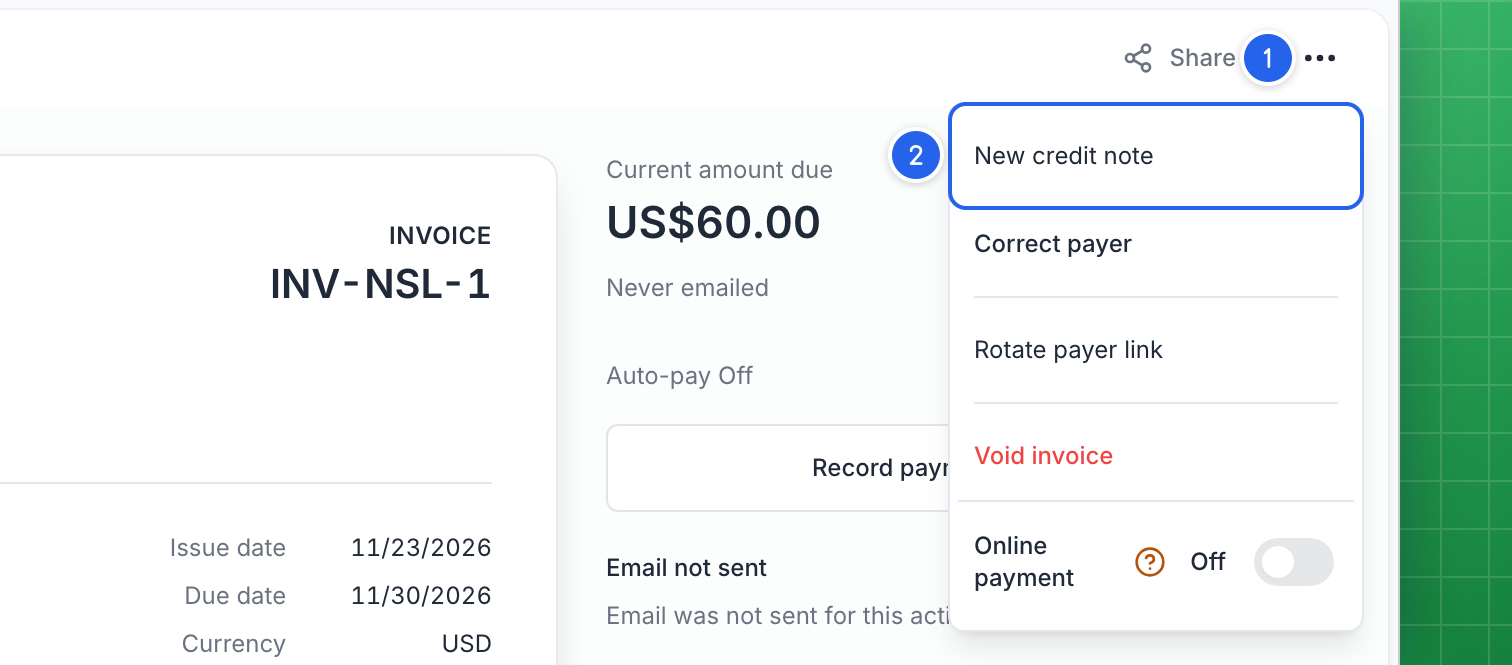
Open the credit note form:
- Select Invoice actions, the button with three dots next to Share.
- Choose New credit note.
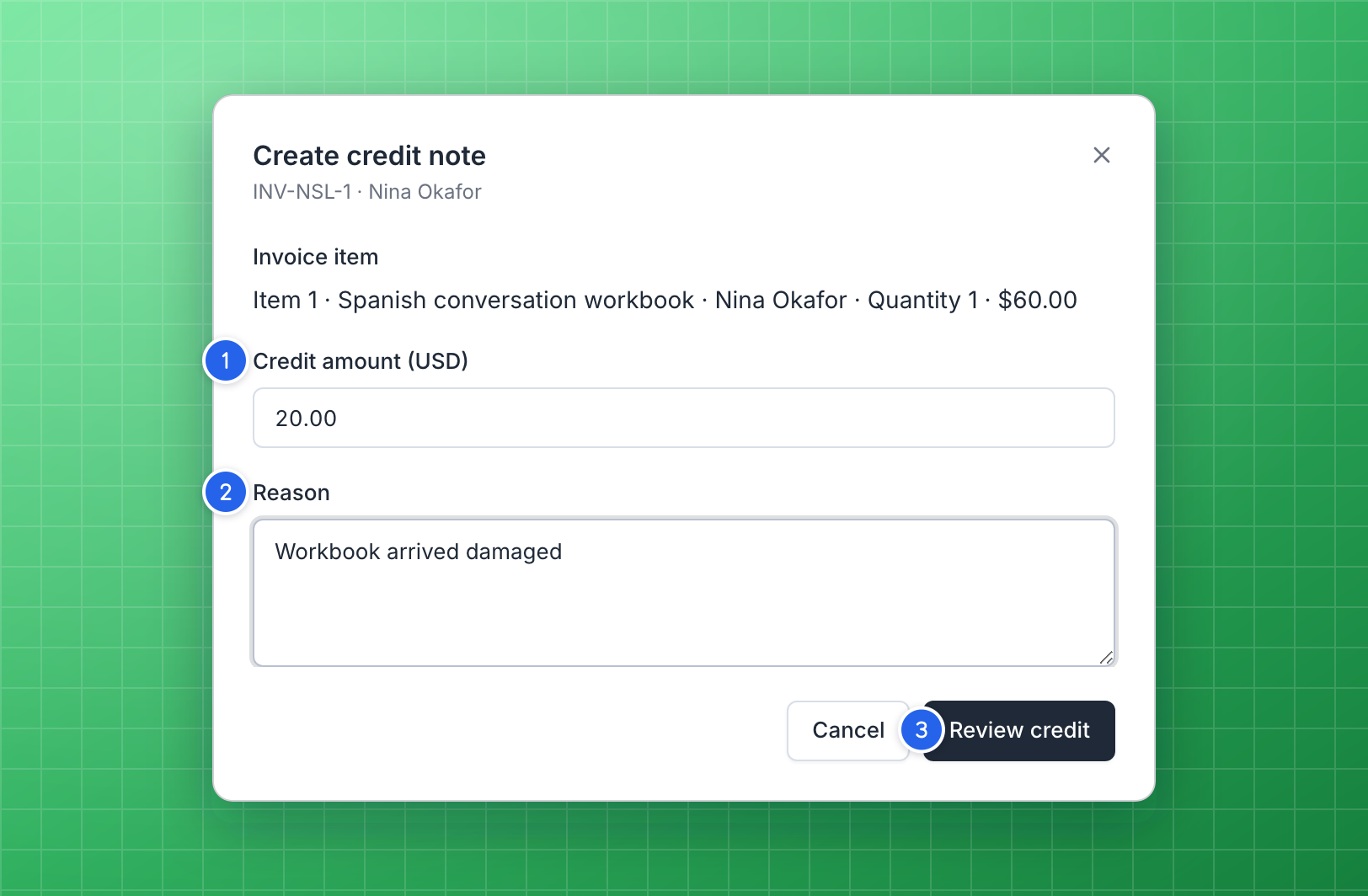
In Create credit note, check the Invoice item the credit applies to, then:
- Enter the Credit amount (USD), for example 20.00.
- Enter the Reason. It shows next to the credit note on the invoice.
- Select Review credit.
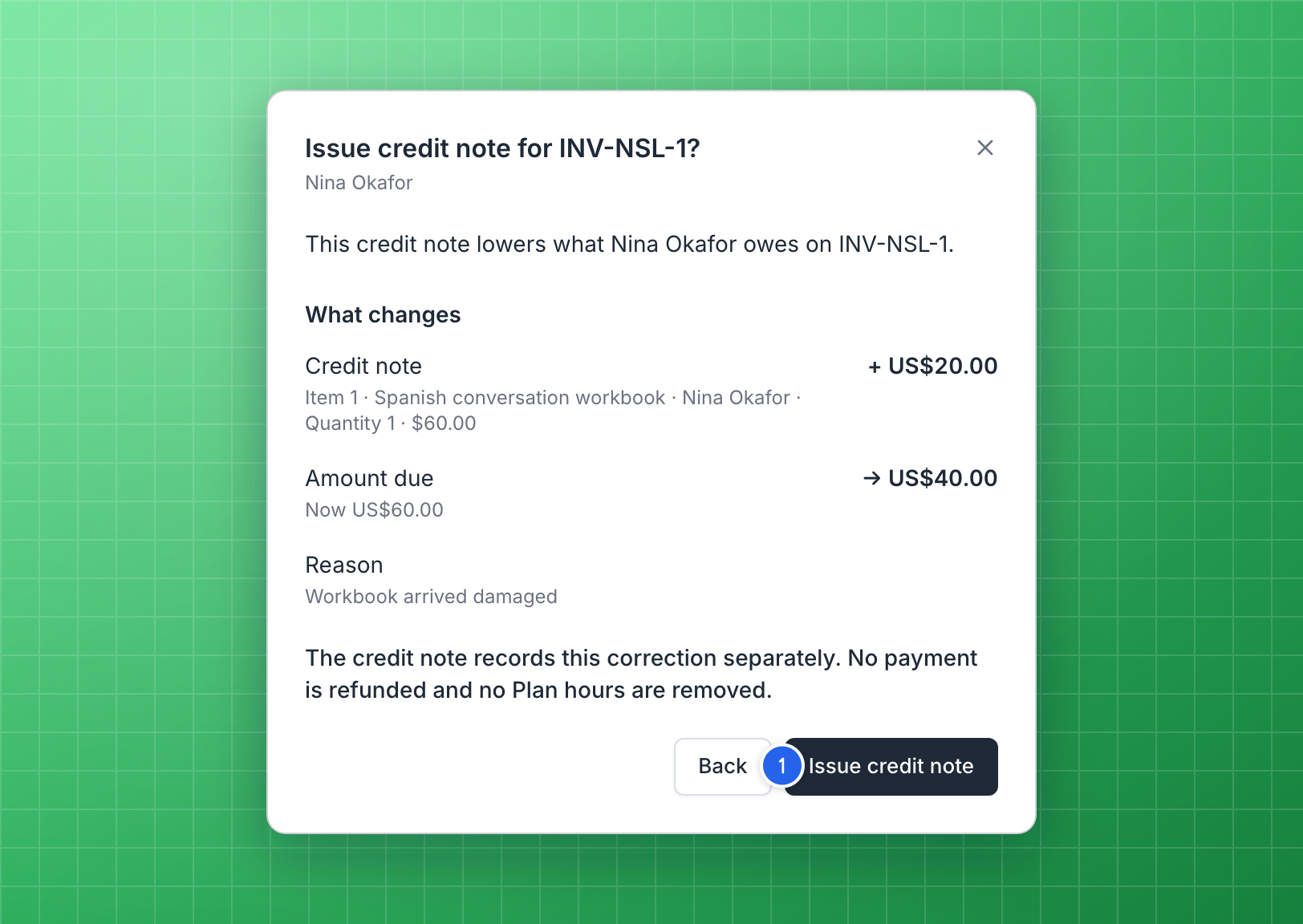
Check and issue the credit note
In the review, check Amount due, which shows the amount now and after the credit, then select Issue credit note. For example, a US$20.00 credit takes US$60.00 due to US$40.00.
After you issue a credit note
The invoice keeps its number and total, and its Current amount due drops by the credit. Under Related documents, the invoice lists the credit note with its own number, amount and reason. Opening the credit note shows which invoice it corrects and that the original invoice remains unchanged. The review states that no payment is refunded.
Void an invoice
Open the void review:
- Open the invoice in Billing > Invoices.
- Select Invoice actions.
- Choose Void invoice.
If the review names a payment, select Close and do steps 3 to 5. Tutorbase does not void an invoice while a payment is applied to it, and the review offers only Close. If no payment is named, go to step 6.
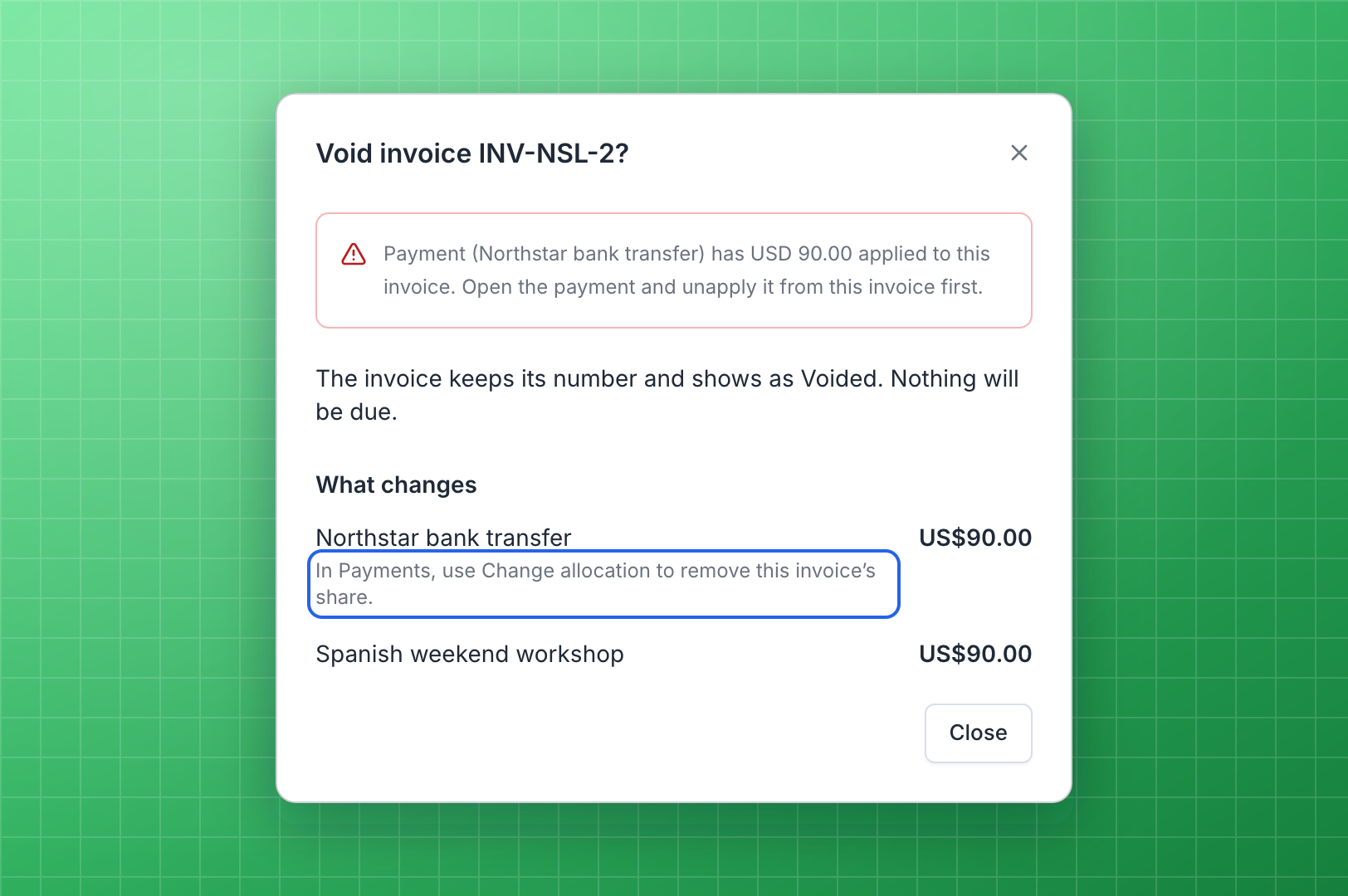
Only if a payment was named, open the payment's allocation:
- In Billing > Payments, open the payment.
- Select More payment actions, the button with three dots.
- Choose Change allocation.
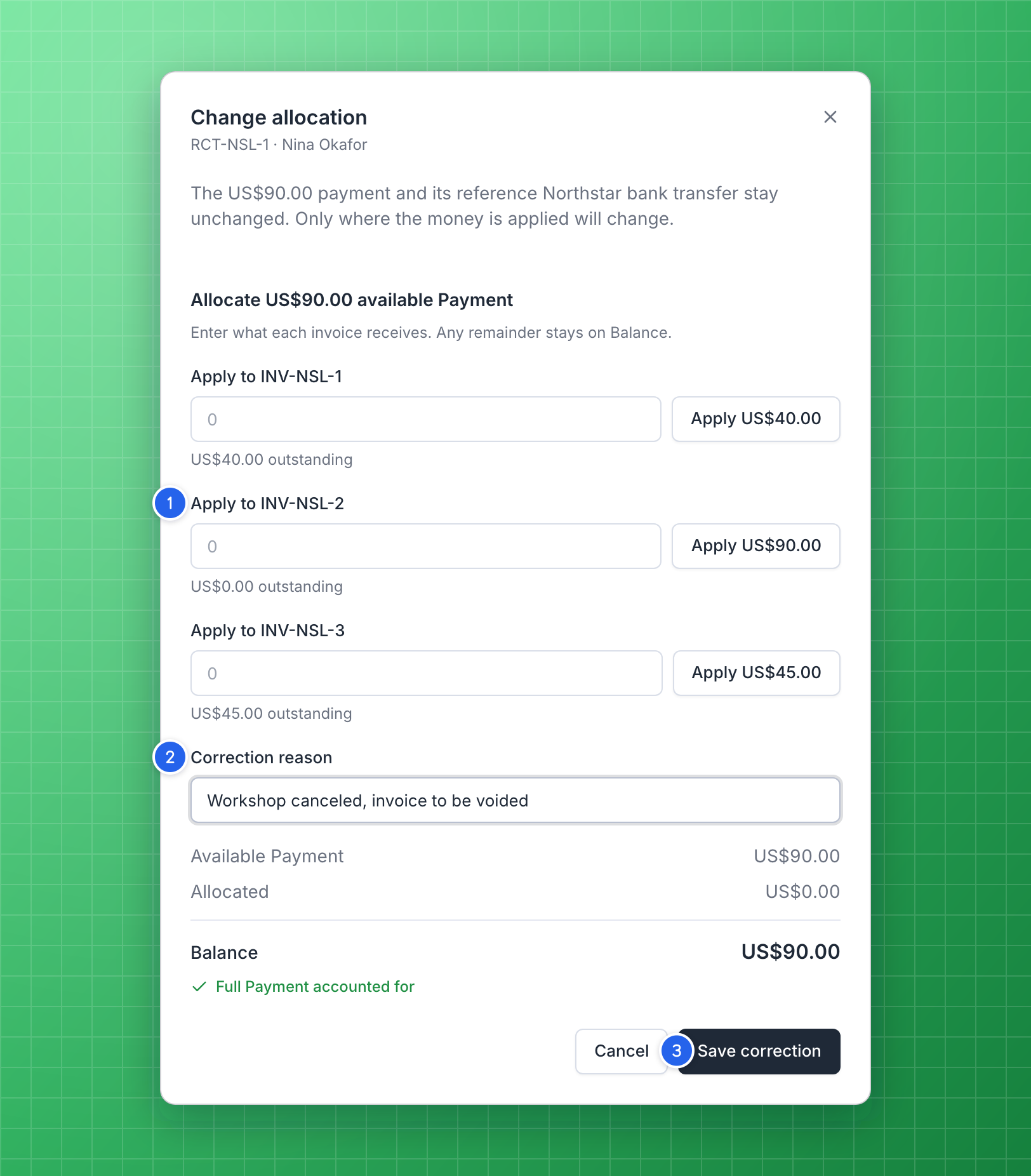
In Change allocation:
- Clear the Apply to amount for the invoice you are voiding, for example Apply to INV-NSL-2.
- Replace the Correction reason, which starts as "Applied to the wrong invoice", with why the payment moves, for example "Workshop canceled, invoice to be voided".
- Select Save correction. Balance shows the amount no longer applied to an invoice.
Change allocation also lists the payer's other open invoices, each with Apply to. If the payer owes another invoice, apply the money there in the same window; any remainder stays on Balance.
Go back to the invoice and open the void review again, as in step 1. The review no longer names the payment.
Under Charges, decide what happens to the invoice's charges:
- Choose Waive charges when the school will not collect them, or Release charges when they are right but belong on another invoice.
- Select Void and waive charges or Void and release charges.
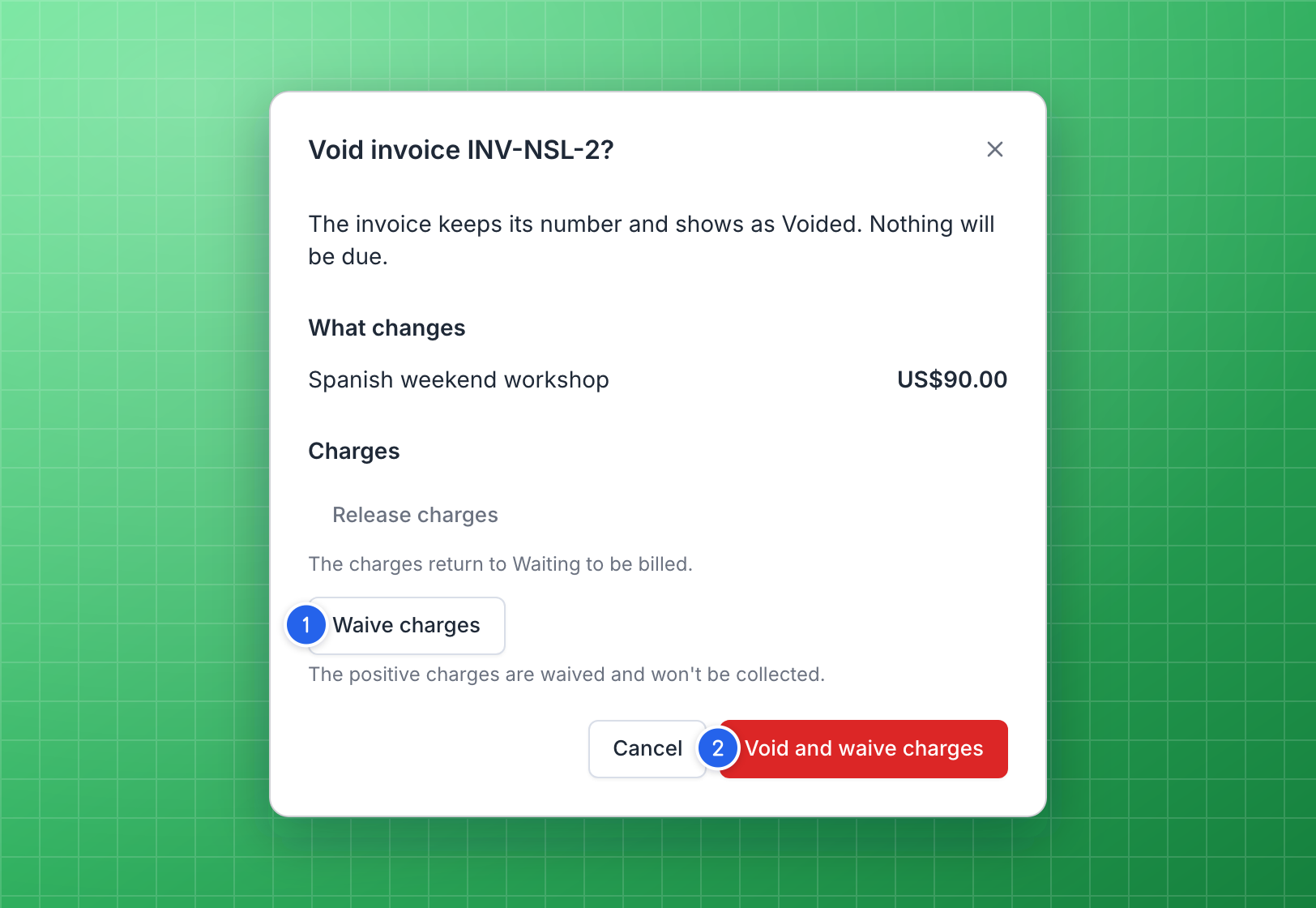
Most schools choose Waive charges for something that didn't happen, such as a canceled workshop, and Release charges to rebill the same charges correctly. Selecting Void invoice before choosing shows "Choose an option to continue."
After you void an invoice
The invoice keeps its number, shows Voided and has a current amount due of US$0.00. Voiding creates no credit note and refunds nothing. Released charges return to Billing > Charges > Waiting to be billed, ready for a new invoice. Waived charges won't be collected.
A payment you removed keeps its amount and reference. In Billing > Payments, its application shows Balance: the money stays with the payer until you apply it to another invoice. Tutorbase sends no money. To give it back, pay the payer outside Tutorbase, then choose Record external refund in the payment's More payment actions menu.
Good to know
- Removing a payment's allocation reopens the invoice: until you void it, the full amount is due again.
Common questions
Why can't I void a paid invoice?
The void review lists each payment applied to the invoice and offers only Close. Remove the payment's share with Change allocation in Billing > Payments, then void the invoice.
Does voiding an invoice refund the payer?
No. Voiding an invoice refunds nothing and creates no credit note. A payment you removed from the invoice stays recorded, and its unapplied amount shows as Balance in Billing > Payments until you apply it to another invoice or record a refund on the payment.
Does a credit note change the original invoice?
No. The original invoice keeps its items and total; only its current amount due goes down. The credit note is a separate document listed under Related documents on the invoice.
What is the difference between Release charges and Waive charges?
Release charges sends the charges back to Waiting to be billed so you can put them on a new invoice. Waive charges means the school won't collect them.