
Set a teacher’s weekly availability
Set a teacher’s weekly working hours in People > Staff, adjust the availability grid, and save the pattern in the teacher’s local timezone.
Last updated
To set a teacher’s weekly availability in Tutorbase, open People > Staff, choose the teacher, and edit Availability on the staff profile. Save a weekly working-hours pattern from Monday to Sunday in the teacher’s local timezone.
Before you start
Sign in as the owner. The teacher (tutor) must already appear in Staff. Weekly availability sets normal working hours; use a Calendar blocker for a dated absence or room closure.
For example, Maya Chen’s Monday start changes from 9am to 10am, while her 7pm finish and Tuesday–Friday hours stay the same. Keep her Los Angeles timezone because those are her local working hours.
Set the weekly hours
Under People, open Staff.
Choose the teacher whose working hours changed, so you update the intended person’s schedule.
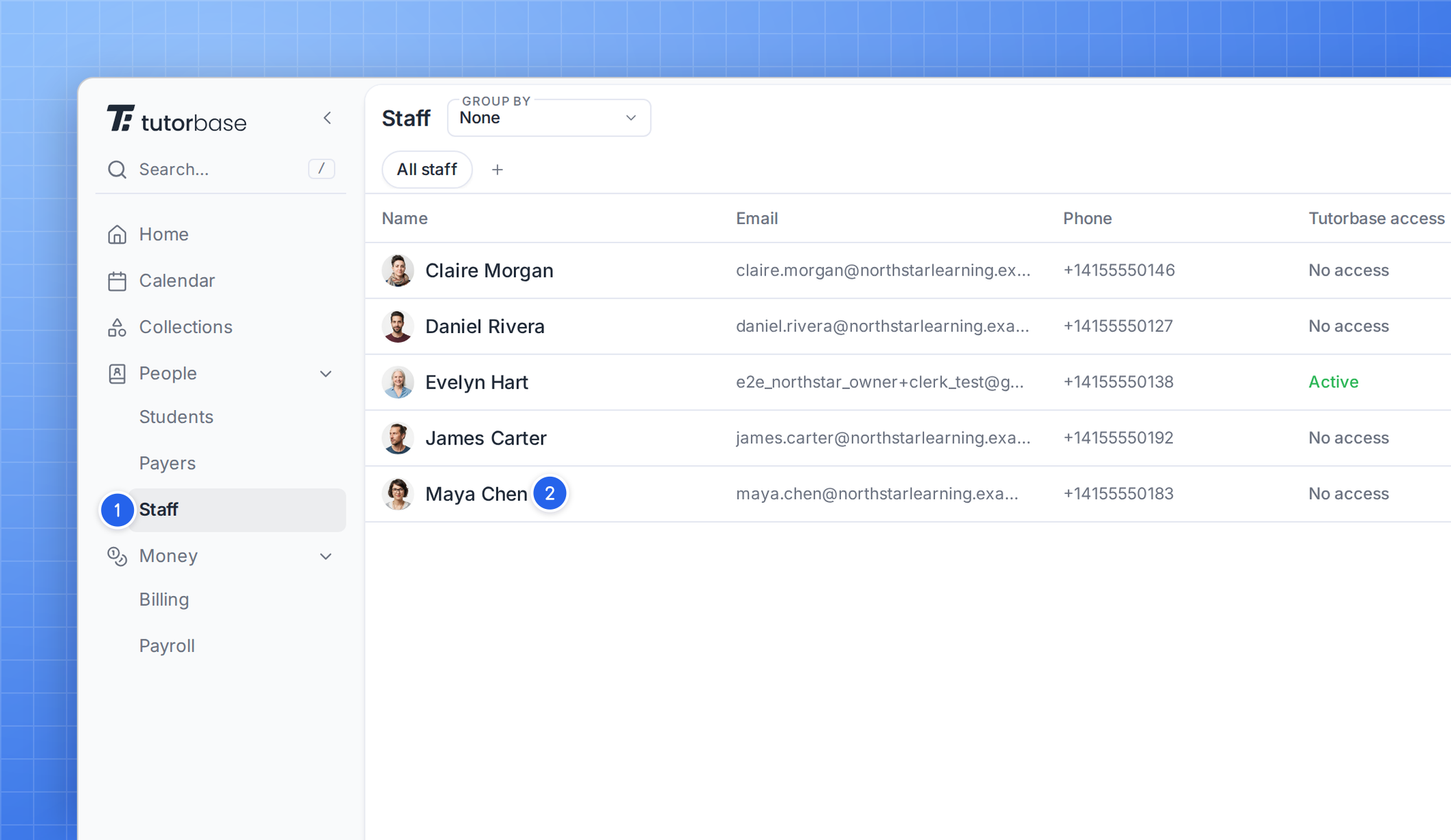
On the teacher’s profile, select Edit (the pencil).
In Availability, select Edit. The weekly grid opens.
Set and save the teacher’s working hours:
- Check Availability timezone. Keep the timezone that matches the teacher’s normal working location, because weekly hours stay anchored to that local time.
- Set the working hours in the day columns. Start a drag on an empty cell to add hours, or on a filled cell to clear hours. In Mon, clear 9am–10am to change Maya’s Monday to 10am–7pm. Change only the periods that differ, so you preserve the teacher’s other working days.
- Select Save availability to apply the weekly pattern.
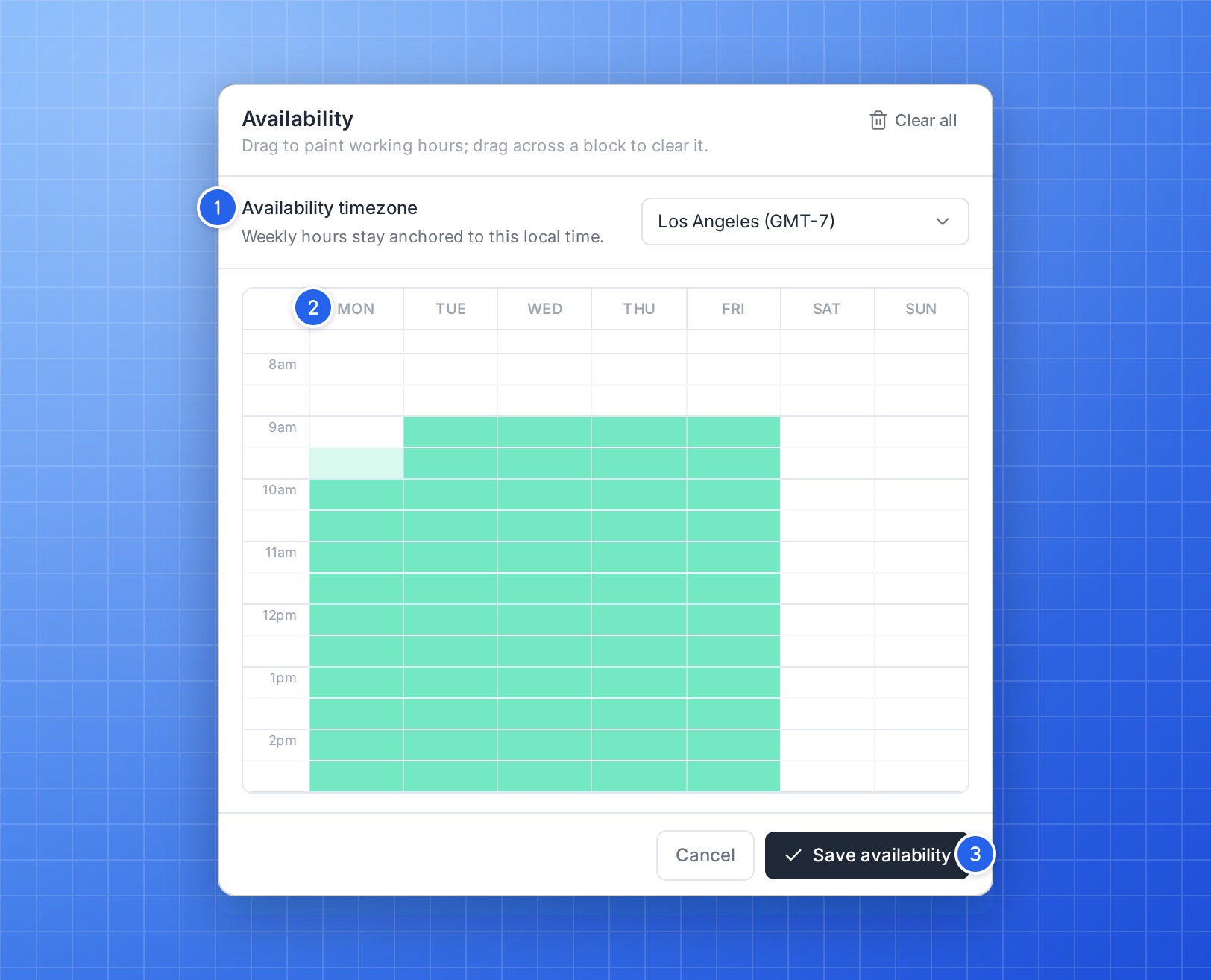
The grid uses half-hour cells across the full day. Scroll within the grid to reach earlier or later hours.
After you save availability
The teacher’s Availability section shows the saved weekly pattern and timezone. For example, Monday shows 10am–7pm while the other weekdays remain 9am–7pm. Save availability saves the weekly hours without using the profile’s Save changes button.
Common questions
Where do I set a tutor’s weekly working hours?
Open People > Staff, choose the teacher, and select the profile’s Edit pencil. In Availability, select Edit to open the weekly working-hours grid.
How do I add or remove working hours?
In the teacher’s Availability editor, start a drag on an empty cell to add working hours. Start a drag on a filled cell to remove working hours, then select Save availability.
Can I set working hours on Saturday or Sunday?
Yes. In the teacher’s Availability editor, draw the hours in Sat or Sun, then select Save availability.
How do I replace the whole weekly pattern?
Choose Clear all only when you intend to replace every day’s hours, because the button empties the entire draft grid. Draw the new working hours, then select Save availability to apply the new pattern.
Do I also need to select Save changes on the profile?
No. Save availability saves the teacher’s weekly hours independently of the profile’s Save changes button.
What happens if I select Cancel?
Cancel in the Availability editor discards the unsaved grid changes and keeps the teacher’s saved hours. Choose Cancel if you are unsure about the new pattern, so you preserve the existing schedule.