
Set your organization's opening hours
Set weekly business hours in Tutorbase under Settings, Calendar & hours, then paint the opening times and save.
Last updated
To set your organization's opening hours (business hours) in Tutorbase, open Settings > Calendar & hours, select Edit hours, paint the weekly opening times and select Save. Opening hours are the organization-wide scheduling baseline; staff availability can narrow those hours further.
Before you start
Decide when the school normally schedules lessons. The worked example uses Monday–Friday 10am–7pm, Saturday 9am–1pm, and a closed Sunday. Use the organization's normal hours rather than one teacher's schedule, because opening hours provide the shared baseline.
Open your account menu, then select Settings. The opening-hours page shows the timezone beside an existing weekly pattern, for example America/Los_Angeles; choose the weekly times in that timezone.
Set the weekly opening times
In Settings, select Calendar & hours. The Opening hours section shows the saved weekly pattern.
Select Edit hours. If no hours have been set, select Set Up Now instead. The Opening hours editor opens.
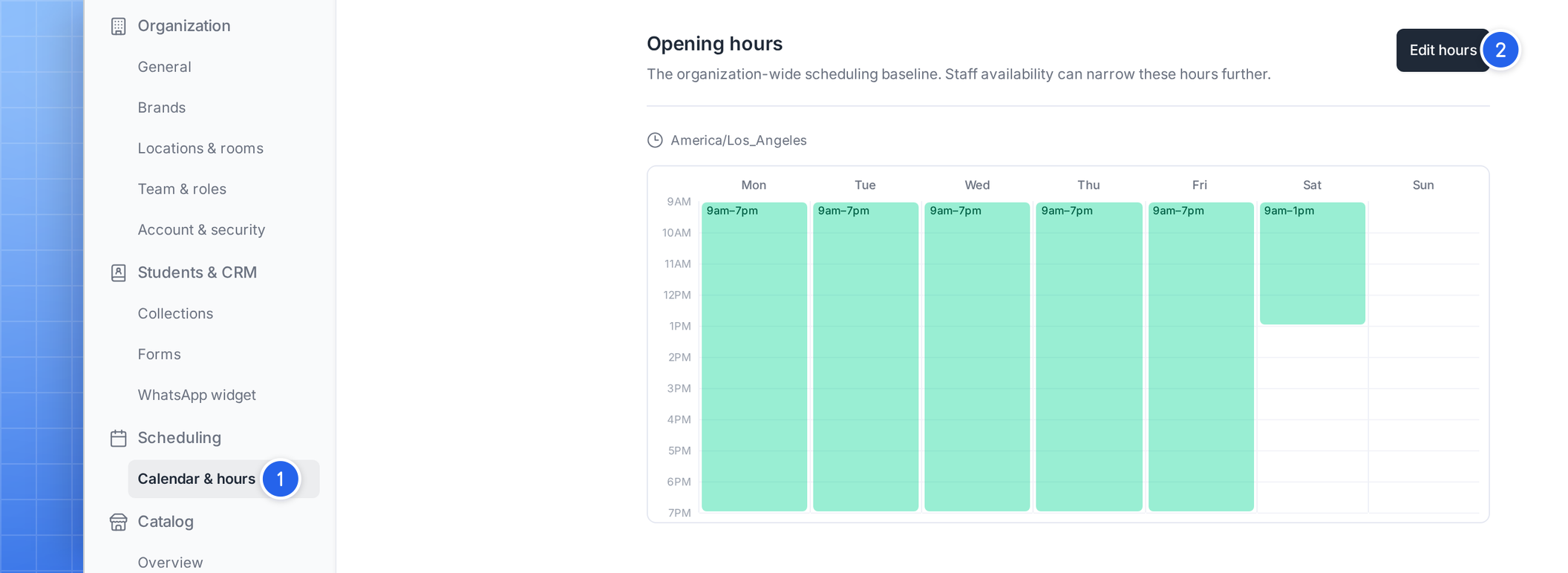
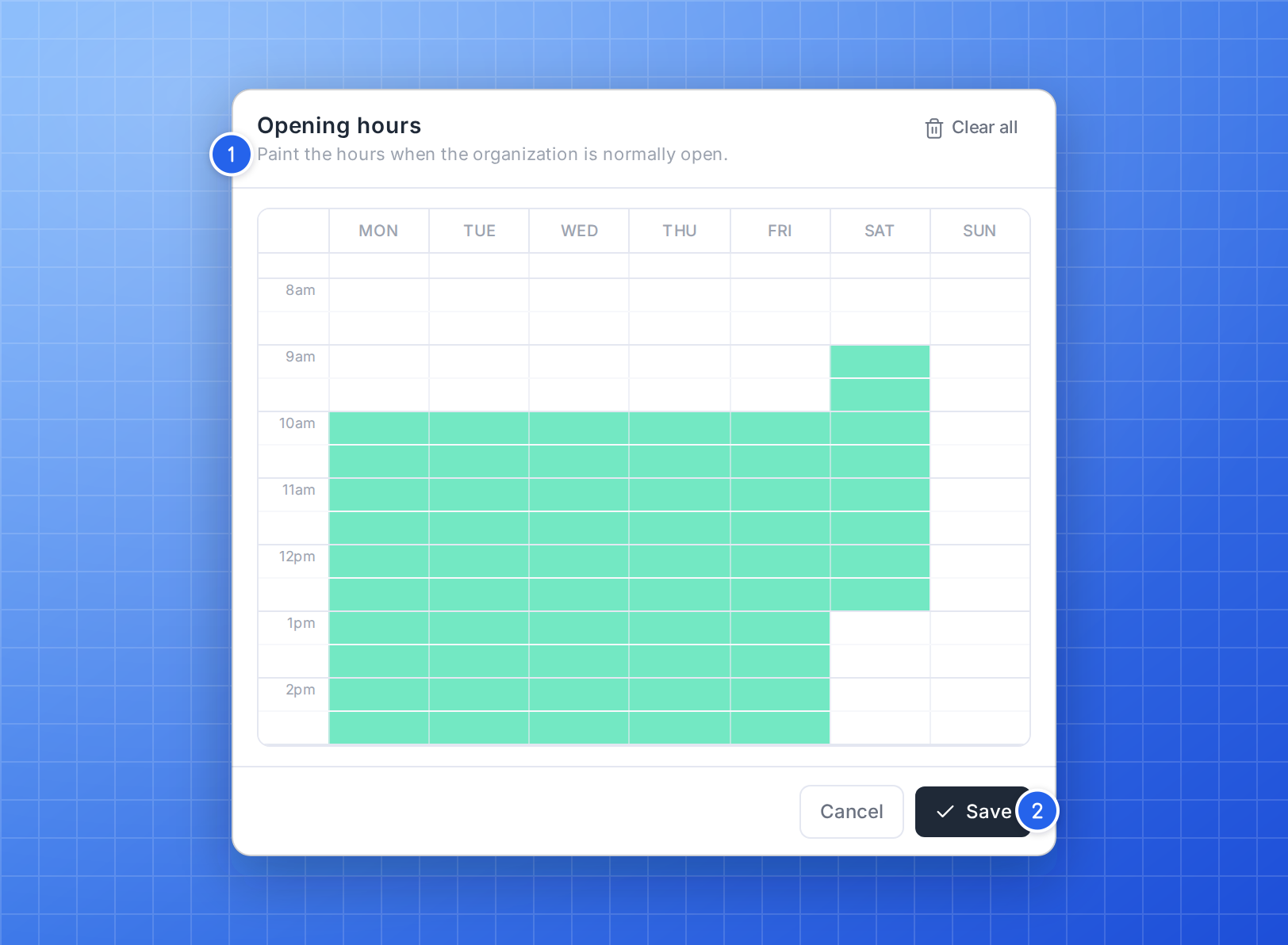
Existing hours remain painted when the editor opens. For the worked example, select Clear all before painting the replacement week so old opening times are removed. For a small correction, change only the affected cells so the rest of the week stays intact. Cancel discards unsaved changes.
Set and save the weekly pattern:
Set the opening times in the weekly grid. Start a drag in an empty cell to add hours, or in a painted cell to erase hours. Each cell represents 30 minutes; a drag can cover several days. After Clear all, paint Monday–Friday 10am–7pm and Saturday 9am–1pm for the worked example. Paint the visible part of a block, scroll the grid, then continue from an empty cell to extend the block. Leave normally closed days empty so the pattern reflects the school's normal week.
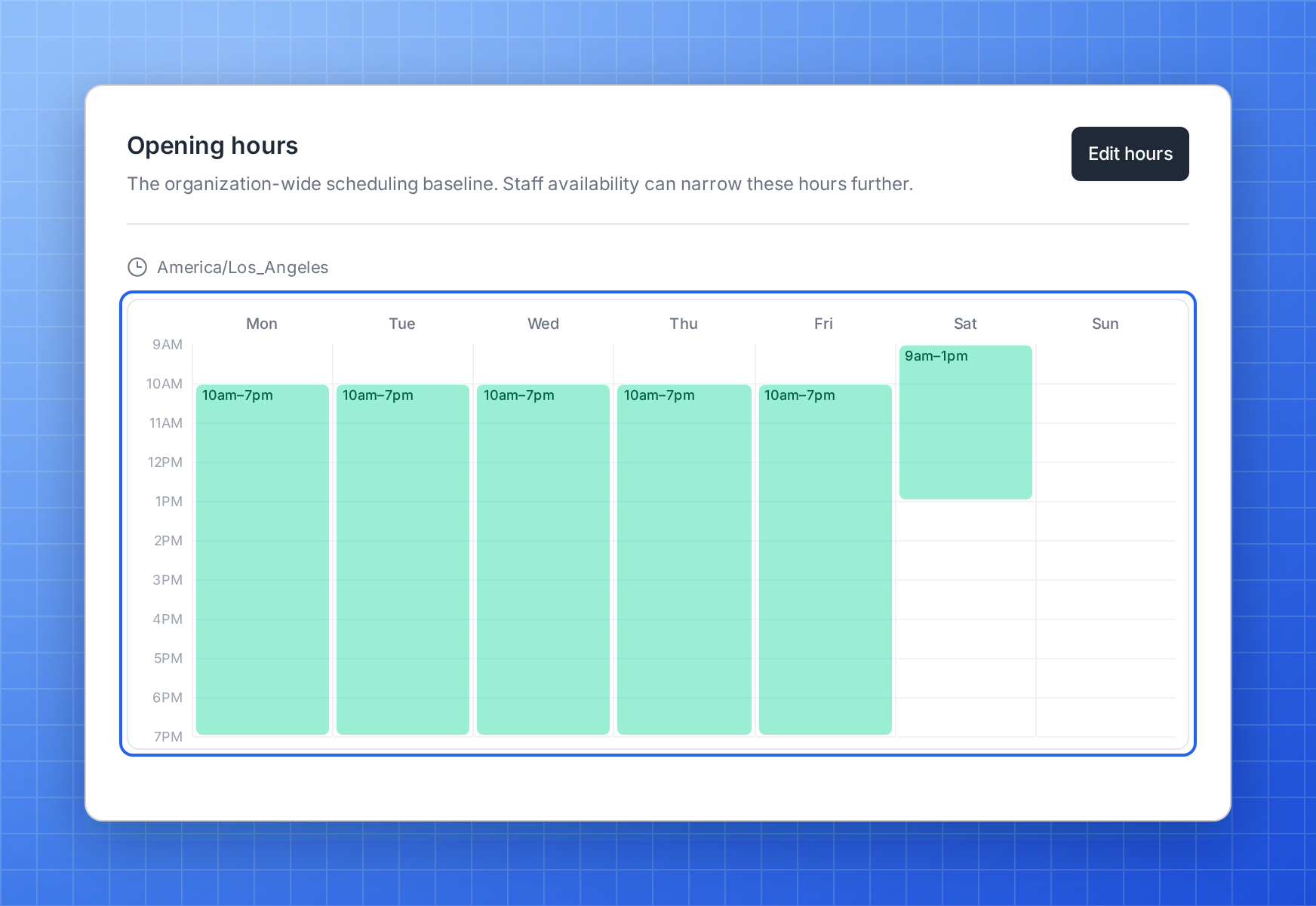
Select Save. The editor closes and Opening hours shows the saved weekly pattern.
After you save the opening hours
Calendar & hours shows the saved opening times for each day, with the organization's timezone. Check the ranges against the school's normal week; for example, the weekday blocks read 10am–7pm and Saturday reads 9am–1pm.
Common questions
Where do I change the school's business hours?
Open Settings > Calendar & hours, then select Edit hours. Paint the weekly opening times and select Save.
How do I mark a day as closed?
Leave that day's column empty in the Opening hours editor. Erase any painted blocks for the day, then select Save.
How do I correct just one opening block?
In the Opening hours editor, drag across empty cells to add opening times, or start a drag in a painted block to erase the affected cells. Select Save to save the corrected weekly pattern.
Does Clear all save the empty pattern immediately?
No. Clear all empties the pattern in the Opening hours editor. Select Save to save the change, or Cancel to keep the saved hours.
Which timezone do opening hours use?
Calendar & hours displays the organization's timezone beside the weekly pattern. Set the opening times using that timezone.
How do opening hours relate to teacher availability?
Opening hours are the organization-wide scheduling baseline. Staff availability can narrow those hours further.