
Block time when staff or a location is unavailable
Create a Calendar blocker for selected staff, all staff, a room, a campus or all locations, then review and save the unavailable time.
Last updated
To block unavailable time in Tutorbase for staff or locations (rooms), open Calendar and choose Create > Blocker. A blocker reserves selected or all staff, a room, a campus or all locations. For teaching time, create a lesson instead.
Before you start
Sign in as an owner. The staff and locations you want to select must already exist.
For example, reserve 10:00 AM to 11:00 AM for a one-time “Staff planning” meeting with All staff in Oak Room at Downtown Campus.
Open a blocker
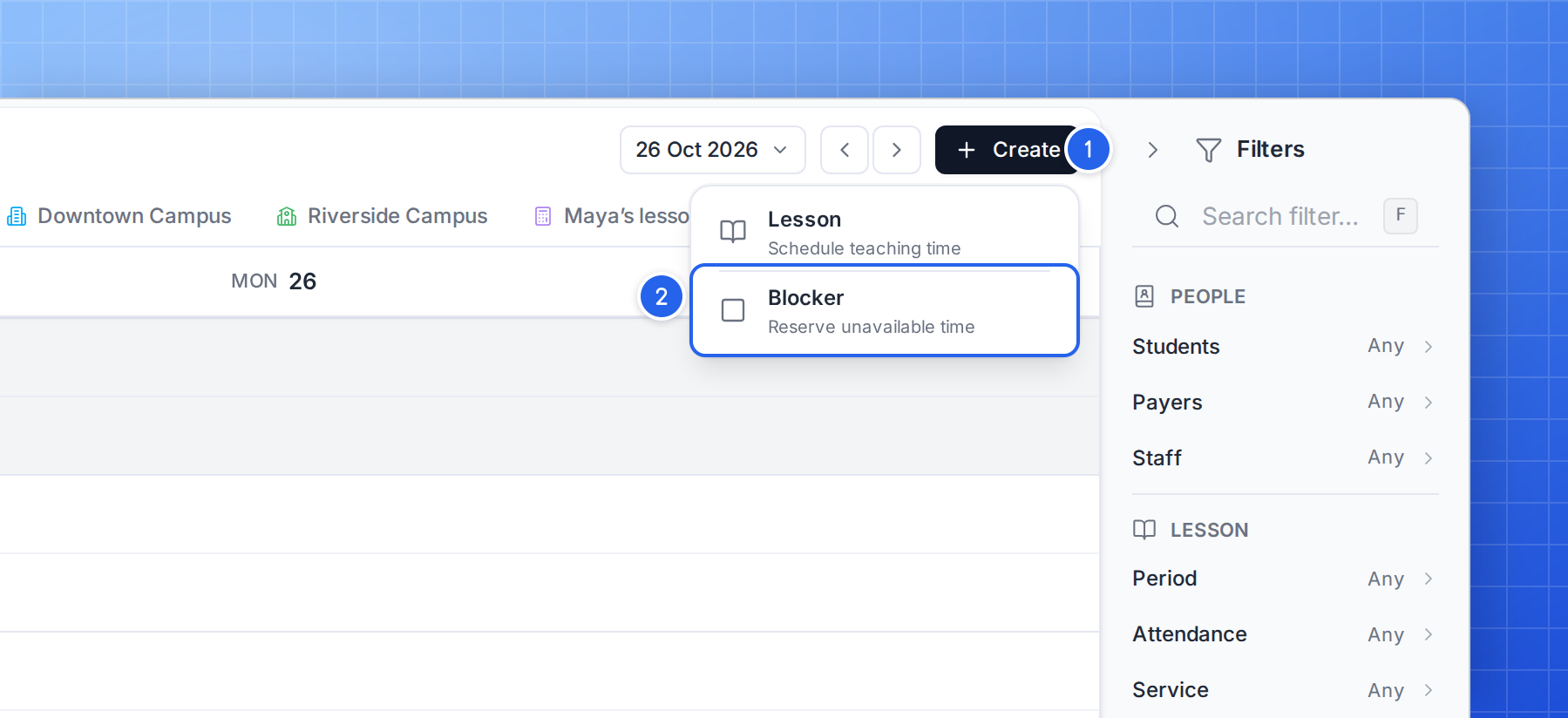
Open Calendar on the day you want to block.
Select Create.
Choose Blocker to reserve unavailable time.
Set the unavailable time
Set the New blocker title to “Staff planning” by selecting the title itself. Use a short reason that staff will recognize on the Calendar.
Select the date and time beneath the title to open the Date & time flyout. Choose the date, then set Start to 10:00 AM and End to 11:00 AM. The blocker flyout uses 12-hour times with AM or PM. Keep All day switched off for an hourly meeting, and keep Repeat at Does not repeat so a one-time meeting does not reserve future dates.
Under Staff, select the empty value, then choose All staff for the school-wide meeting. Choose only the affected staff for an individual absence, so the blocker names the people who are unavailable.
Under Location, select the empty value, then choose Oak Room under Downtown Campus. Choose only the meeting room so the blocker names the place that is unavailable.
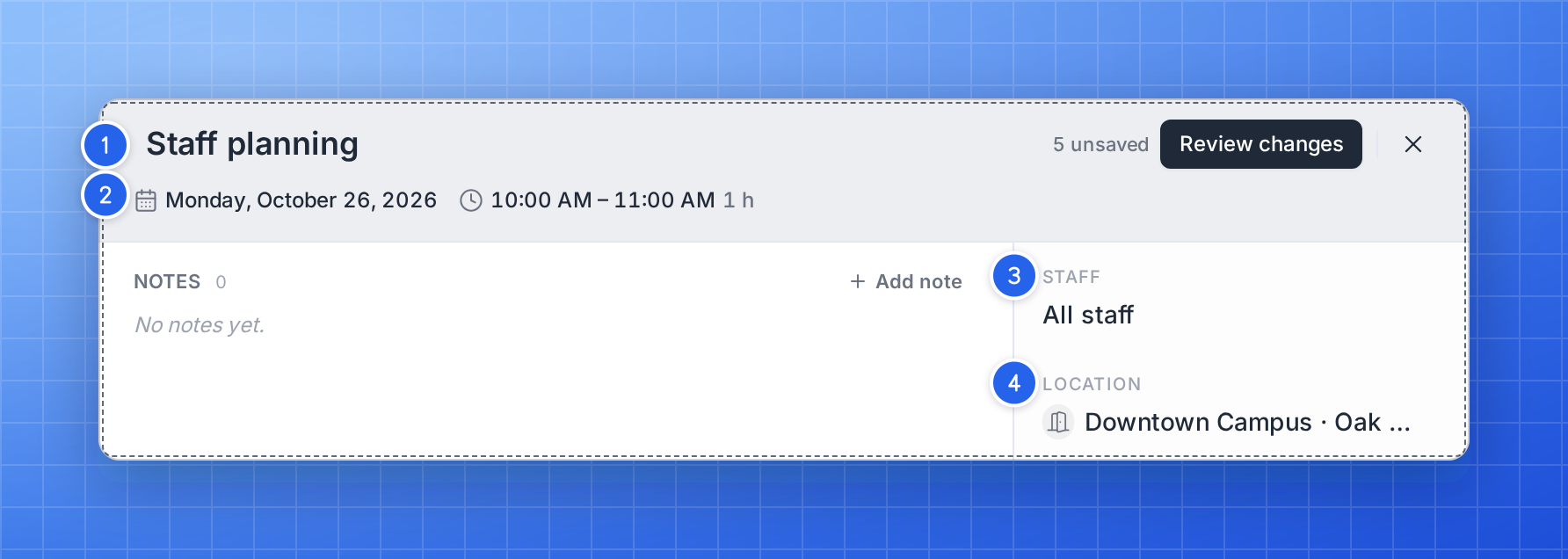
Staff and Location both start empty. Choose at least one staff member or location to save the blocker. Leave Location empty for a staff absence that does not close a room; leave Staff empty for a room closure that does not make staff unavailable.
Notes are optional: Add note opens a note marked Internal. Leave the note empty for a simple meeting when the title already explains the reason.
Review and save the blocker
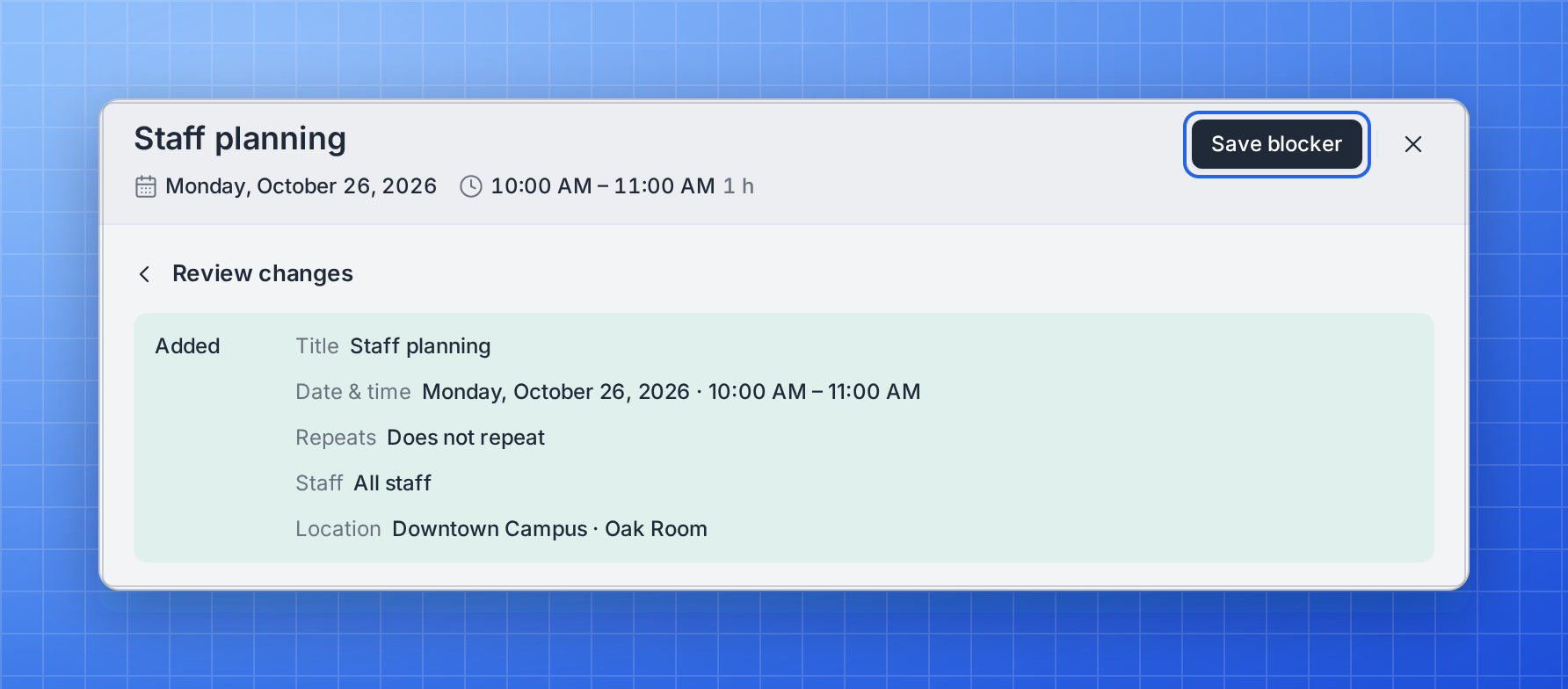
Select Review changes. Check the title, Date & time, Repeats, Staff and Location before saving, so the blocker reserves the intended time and resources. The blocker is not saved yet.
Select Save blocker. The blocker appears on the Calendar.
After you save
The Calendar shows the blocker with its title, time, staff and location. Open the blocker to check the saved details. For example, the meeting's Calendar tile reads 10:00–11:00, while the blocker details read 10:00 AM – 11:00 AM.
Creating a blocker adds no email to Email history. The blocker review has no notification choices.
Common questions
How do I block an afternoon when a teacher is unavailable?
Open Calendar on the day, choose Create > Blocker, and set the afternoon's start and end times. Under Staff, choose the teacher; leave Location empty unless a location is also unavailable. Review the details and select Save blocker.
How do I mark a room as closed?
Create a Blocker, set the closure time, and select the room under Location. Leave Staff empty if the closure only affects the room. For a whole-day closure, switch on All day in the Date & time flyout and choose the start and end dates.
Can I create one blocker for all staff?
Yes. In the blocker's Staff picker, choose All staff. Select a location too if the event also reserves a meeting room, then review and select Save blocker.
Can I block a campus or every location?
Yes. In the blocker's Location picker, choose the campus to select the whole campus, or choose All locations. Choose the smallest area that is unavailable so the blocker identifies the closure's scope.
Does Review changes save the blocker or email anyone?
No. Review changes opens the blocker's review; select Save blocker to save the unavailable time. Creating a blocker adds no email to Email history, and the review has no notification choices.