
Set up the WhatsApp widget
Add a WhatsApp chat button to your school's website, ask visitors a few questions, turn answers into leads and email staff about each enquiry.
Last updated
To set up the WhatsApp widget in Tutorbase, open Settings > WhatsApp widget, select New widget and complete Create widget. Then paste the code from Install on site into your website, so visitors can message your school on WhatsApp and become leads.
Before you start
Have your school's WhatsApp number, with its country code, and your questions for visitors.
For example, Northstar Learning Center creates "Website enquiries" for +1 415 555 0134, asks for phone, name and subject, and emails Evelyn Hart about each enquiry.
Create the widget
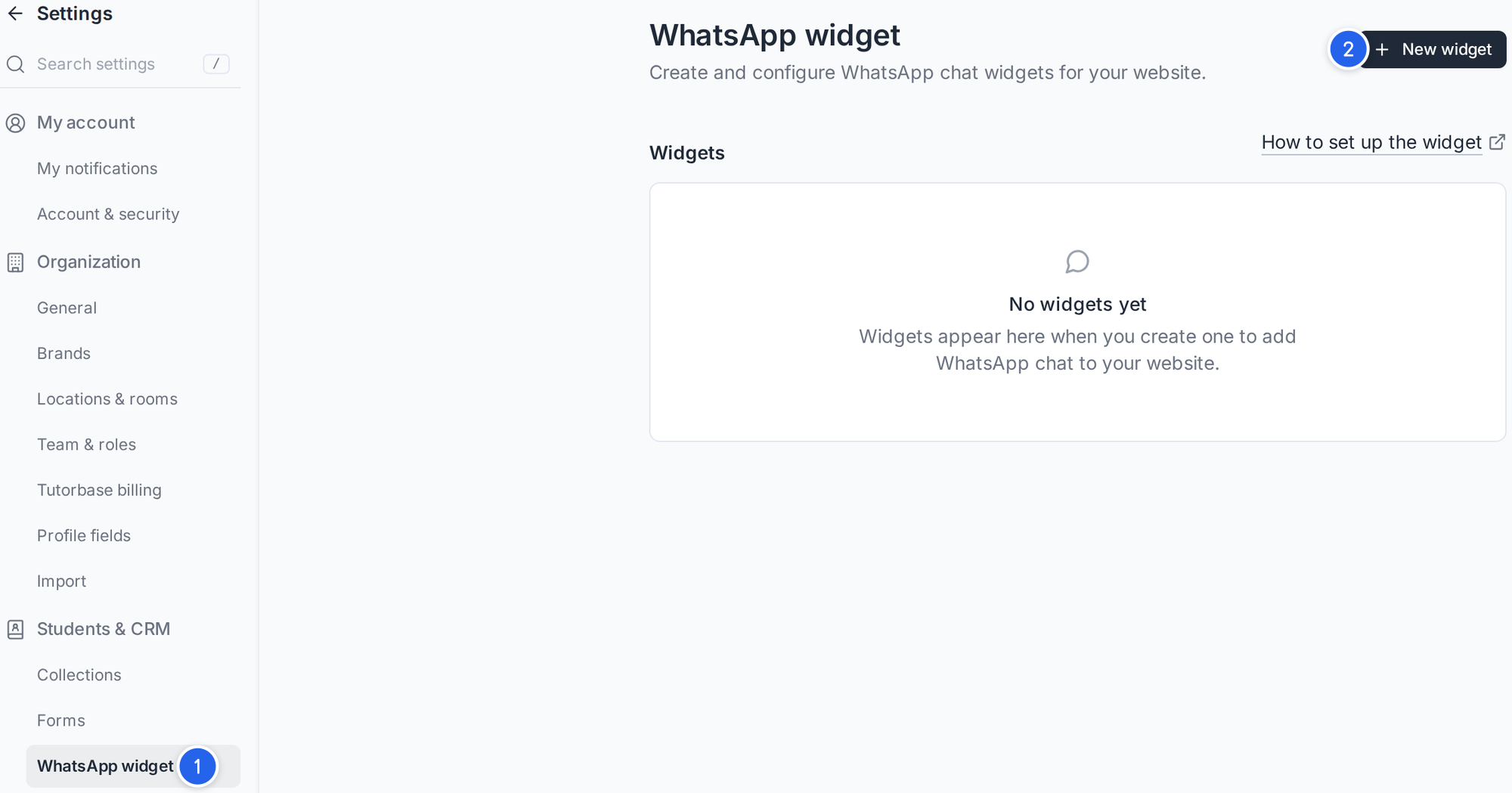
Select your name to open the account menu, then select Settings.
Under Students & CRM, select WhatsApp widget.
Select New widget. Create widget opens at Step 1 of 10.
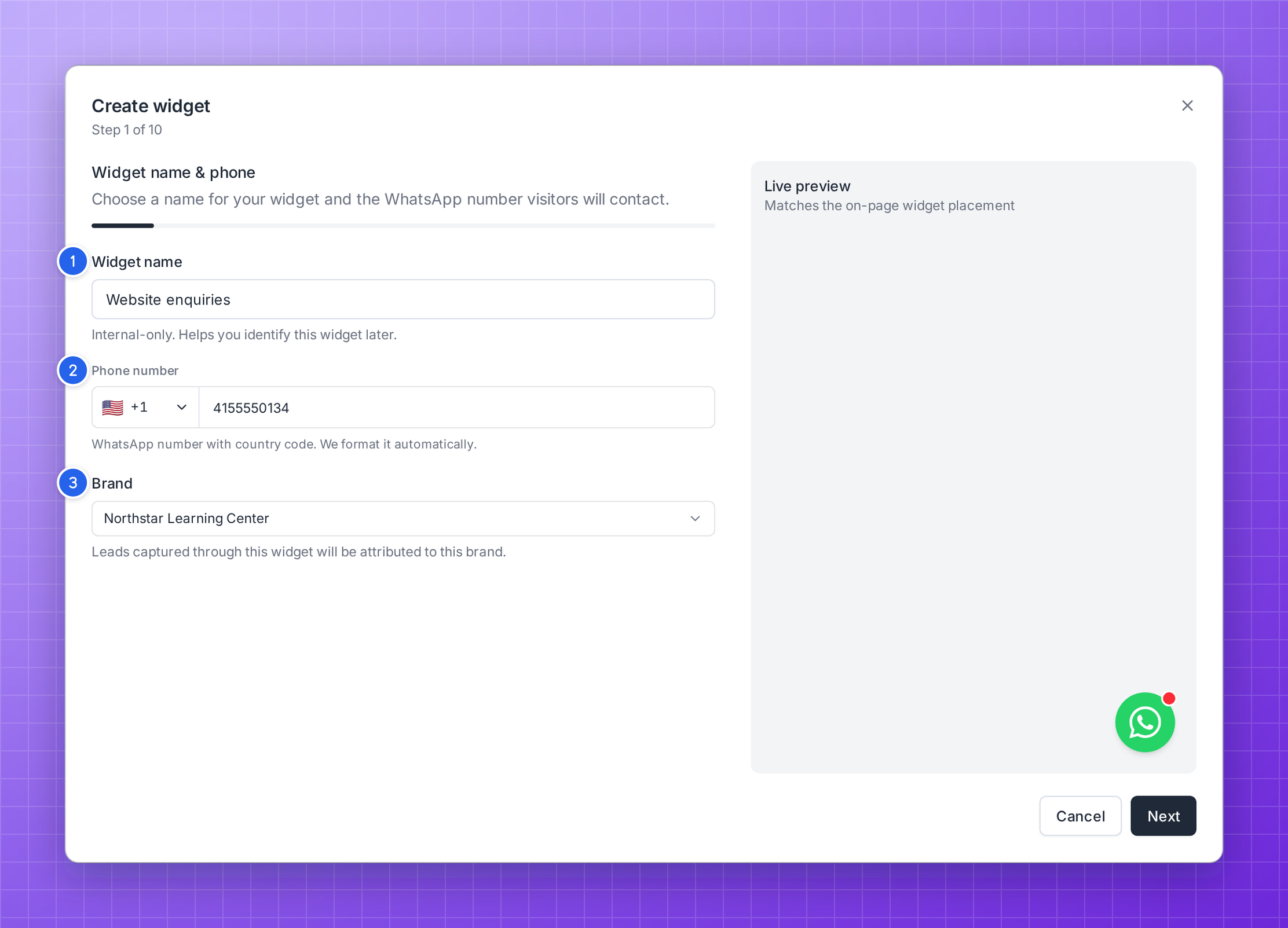
Under Widget name & phone, set:
- Widget name, for example "Website enquiries". Only your team sees it, so name it after the website it goes on.
- Phone number: choose the country, then type the number that receives the WhatsApp chats.
- Brand: choose the Brand whose website the widget goes on; leads from the widget are attributed to it.
Select Next. Under Profile details, set Profile name to your school's name, so visitors see who they are chatting with instead of "Support". The reply time and photo are optional.
Select Next. Under Greeting message, replace "Hello! I'm here to help you." with a welcome in your own words; it is the first message visitors read.
Select Next five times to reach Form steps, keeping the defaults for Closing message, WhatsApp message prefix, Position & color and Widget initial state: the chat on the Right in WhatsApp green, opening with Send Message and ending with a Continue on WhatsApp button, as most visitors expect.
Under Form steps, set the questions visitors answer:
- Keep What's your phone number? in Step 1. Select Add field to this step and set Field prompt to "What's your name?". Asking for name and phone first lets your team call back.
- In Step 2, set the dropdown's Field prompt to "Which subject would you like to learn?". Under Dropdown options, add each subject with Add and remove the samples. Use the names your leads use for Subject, such as Mathematics or Piano. Keep the optional Anything else we should know?.
Removing a question or changing its answer type clears its Lead mapping.
Select Next. Under Lead creation:
- Switch on Map form answers into your CRM. Off, the widget creates no leads.
- Under Field mappings, choose a Lead field for each question, for example Phone, First Name, Subject and Notes. Map every question, so the whole enquiry is on the lead. To keep first and last names apart, ask two questions and map them to First Name and Last Name.
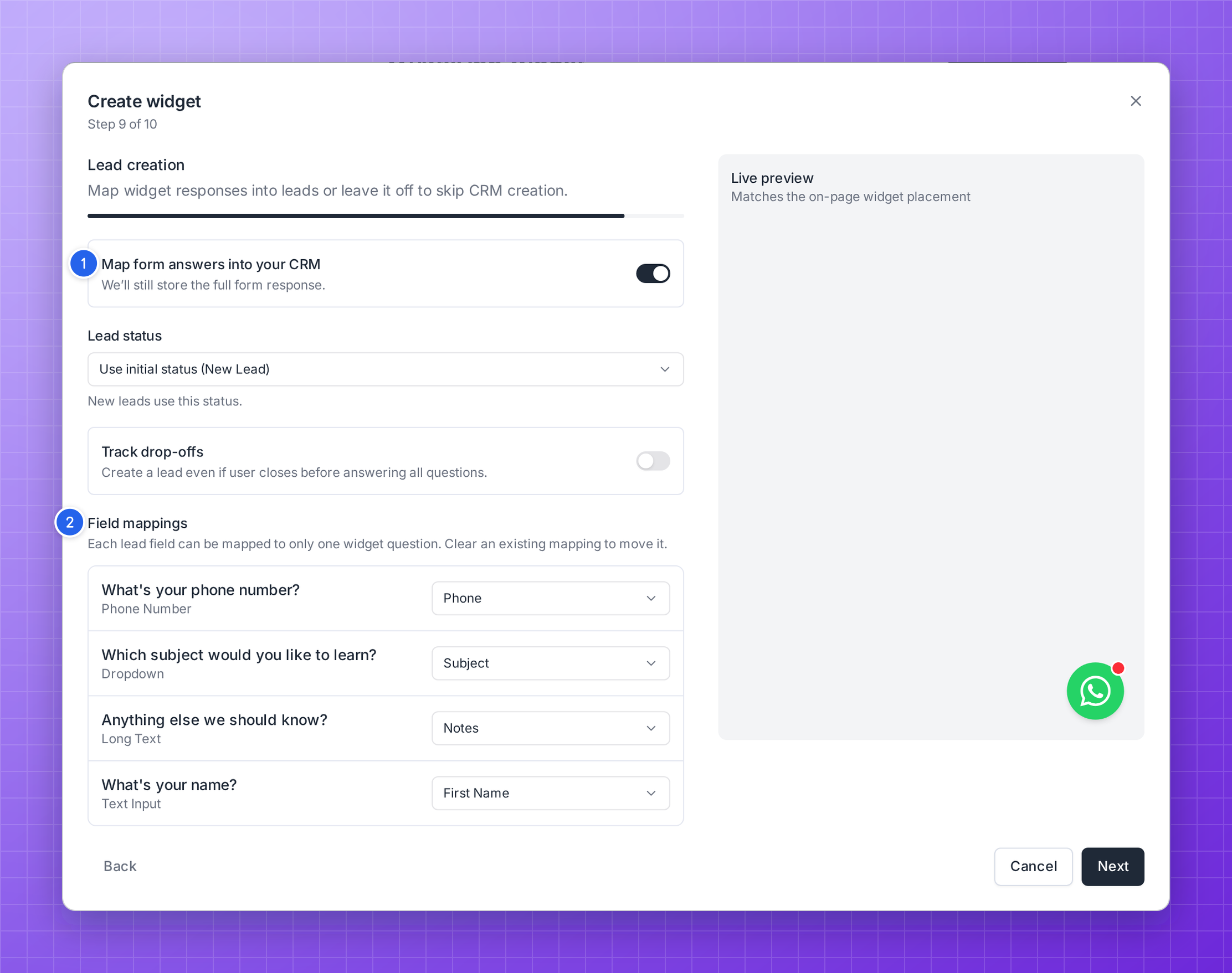
Keep Lead status as Use initial status (New Lead), so enquiries start in the first status. Leave Track drop-offs off unless you follow up visitors who stop early.
Select Next. Under Notifications:
- Switch on Send email when form is submitted. It is off for a new widget.
- Under Recipients, choose who answers enquiries, for example Evelyn Hart, so visitors who never send the WhatsApp message are still called back.
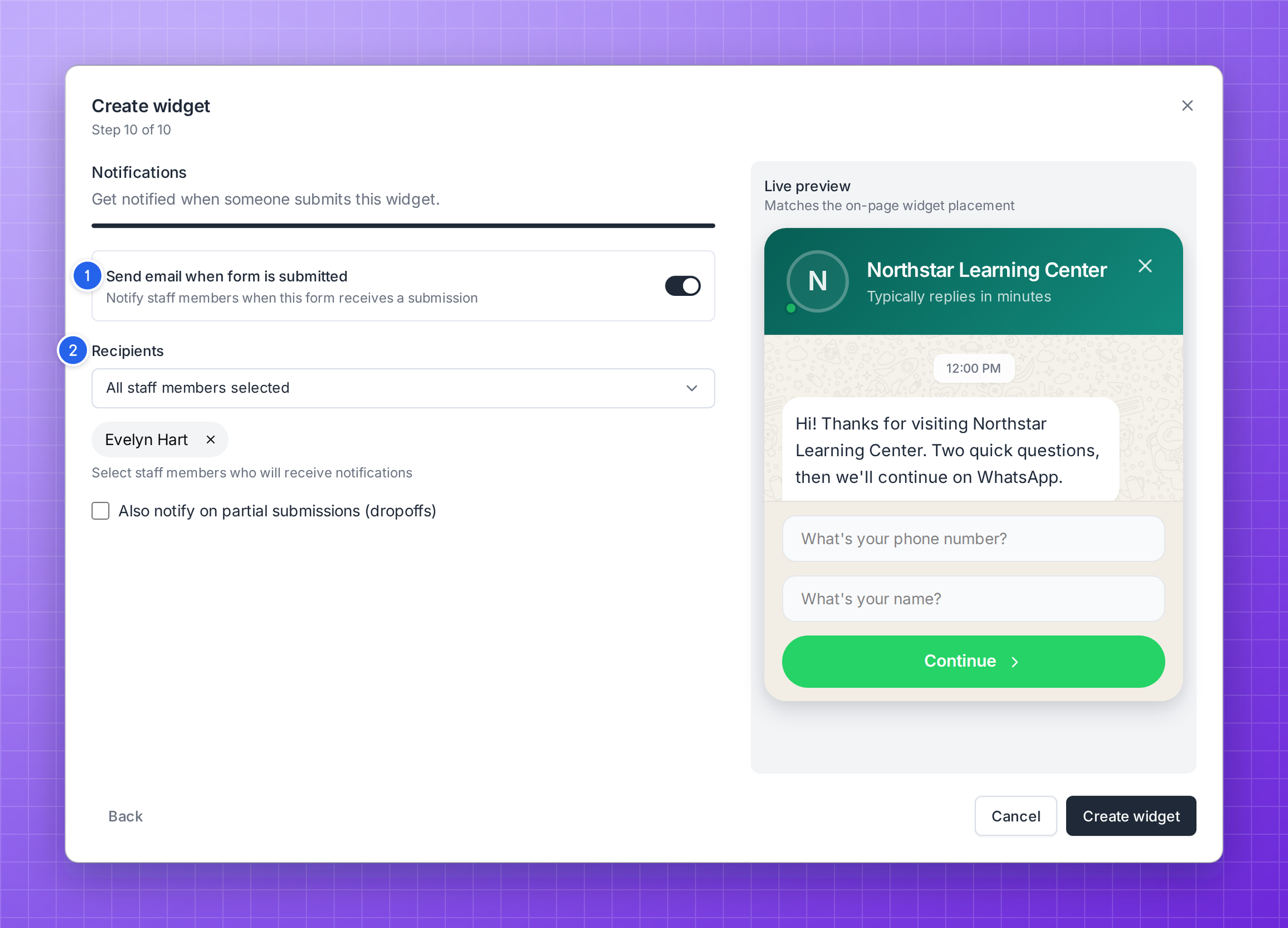
Select Create widget. Widget saved. shows and the widget is listed under Widgets.
Add the widget to your website
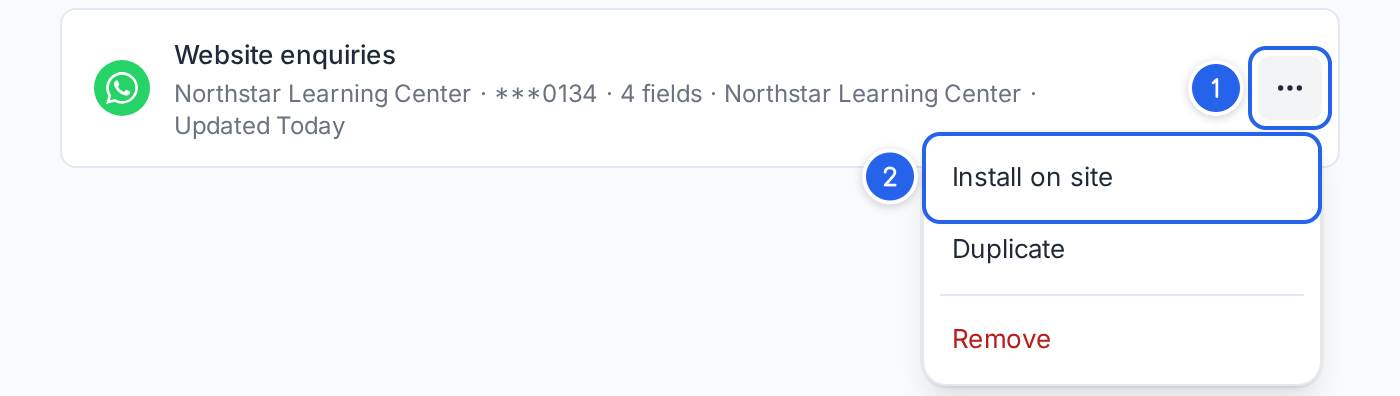
Next to the widget, select ….
Select Install on site. Add this widget to your website opens.
Select Copy. The button reads Copied!.
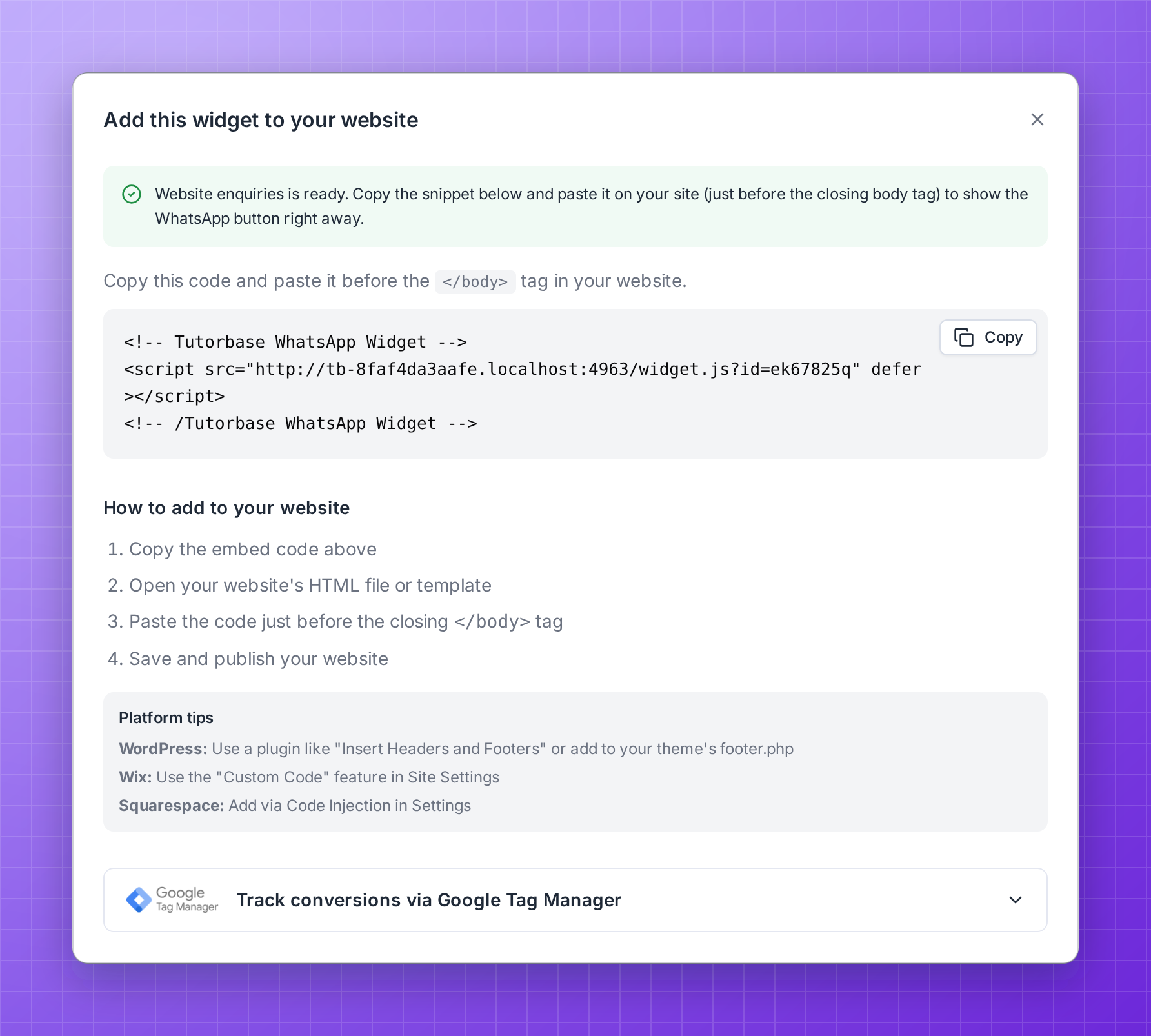
In your website's HTML or template, paste the code just before the closing
</body>tag, on every page that should show the chat. On WordPress, use a plugin such as "Insert Headers and Footers" or your theme's footer.php; on Wix, Custom Code in Site Settings; on Squarespace, Code Injection in Settings.Save and publish your website.
The window also offers Track conversions via Google Tag Manager.
After you add the widget
Pages with the code show the WhatsApp button. After visitors answer your questions and select Continue on WhatsApp, WhatsApp opens on their device with your message prefix and their answers, ready to send to your number.
With Map form answers into your CRM on, each enquiry becomes a lead in Collections with the mapped answers and the New Lead status. The recipients you chose get an email about each enquiry. Convert the lead when the family enrols (see "Track an enquiry and convert the lead to a student").
Common questions
Where do I paste the WhatsApp widget code? Just before the closing </body> tag on every page that should show the WhatsApp button, then publish the website.
Why isn't the WhatsApp widget showing on my website? Check that the website with the pasted code is published. Then open the widget in Settings > WhatsApp widget and check Widget status under Widget initial state: an inactive widget stays saved but does not appear publicly.
Do WhatsApp widget enquiries become leads? Only when Map form answers into your CRM is on under Lead creation.
Who gets an email when someone uses the WhatsApp widget? Only the Recipients under Notifications, once Send email when form is submitted is on. A new widget emails nobody.
Do I need WhatsApp Business to use the widget? No. Tutorbase connects to no WhatsApp account. The widget opens WhatsApp on the visitor's device, addressed to the number in Phone number.
How do I change a WhatsApp widget later? Select the widget under Widgets to open Edit widget, change it, then select Next to the last step and Save Changes. Check Lead creation after changing questions.