
Export your leads as CSV
Download your leads as a CSV file for Excel or Google Sheets, filtered to the enquiries you need, in List or Board layout.
Last updated
To export leads in Tutorbase, open Collections, narrow the Leads list with Filters or search, then select Export CSV. You get a CSV file (a spreadsheet file for Excel or Google Sheets) with every lead that matches the list.
Before you start
Export from a computer. On a phone-sized screen the Leads list shows no Export CSV.
The layout decides the file's columns, so choose it before you filter. Use List for a spreadsheet: the file has one row per lead with the list's columns. Keep Board when the file should follow the pipeline: the file starts with the group the lead sits in, then the fields shown on each card.
For example, before calling families back, you export the Mathematics · Grade 5 enquiries, Harper Ellis and Isla Foster, in List layout.
Export your leads
Select Collections. The Leads list opens. The Active view opens in Board layout.
Select Display settings, the sliders icon beside Export CSV, and set Layout to List.
Under Filters, select Subject & level, open Mathematics and choose Grade 5. For example, the search box then shows Search 2 leads. Filter before exporting, because the file holds every lead that matches. The Status, Source, Brand and Assignee filters narrow the list the same way.
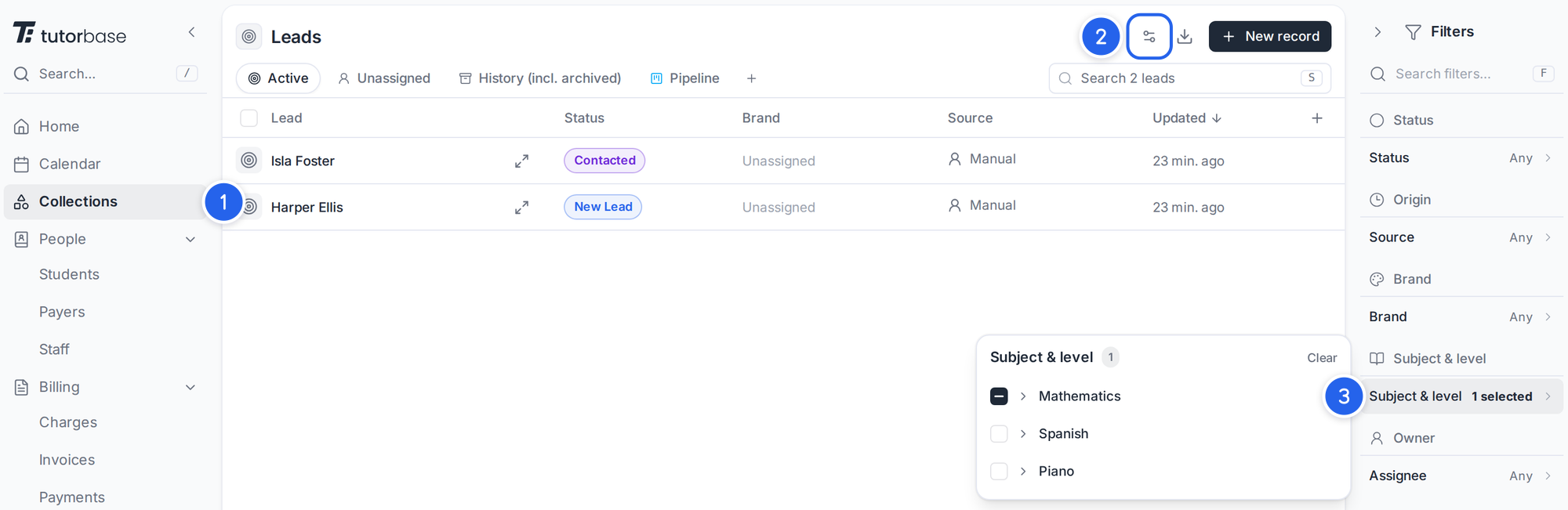
Select Export CSV, the download icon beside New record. The file downloads to your computer as
leads.csv.
After you export
The file's first row holds the column names. A List file has the list's columns in the same order: Lead, Status, Brand, Source and Updated. Updated holds a date and a 24-hour time (year-month-day, hour:minute) instead of "23 min. ago". A lead with no Brand has an empty Brand cell.
A Board file grouped by status starts with Status, then Lead, Subject · level, Created, Source, Brand and Owner. For example, the Grade 5 Board file has Harper Ellis under New Lead and Isla Foster under Contacted.
Exporting downloads a file only. It doesn't change the leads, and the list keeps its filters.
Common questions
Does the export include leads that haven't loaded on screen? Yes. A Leads export holds every lead that matches the list's view, search and filters, not only the leads loaded on screen.
Why will my Leads export not download? A Leads file is limited to 1,000 data rows. Tutorbase refuses a larger export rather than cutting the file short. Narrow the list with Filters or search, then select Export CSV again. To export more than 1,000 leads, export them in parts, for example one Status or Brand at a time.
Why does my Leads export have different columns from my colleague's? The Leads file follows the layout. List gives the list's columns; Board gives the group first, then the fields shown on each card.
Why can't I see Export CSV on Leads? Export from a computer: phone-sized screens show no Export CSV. A team member whose role can see Leads but not export them also has no Export CSV.
Does exporting leads send anything to families? No. Export CSV only downloads a file to your computer. The leads are not changed.