
Track an enquiry and convert the lead to a student
Create an enquiry in Collections, then convert the saved lead to a student and choose who pays when the customer enrols.
Last updated
To track an enquiry in Tutorbase, open Collections, create a lead, then select Convert on the saved enquiry when the customer enrols. Conversion keeps the enquiry and creates a new student or links an existing one. For a new adult paying their own fees, choose Self-paying to create student and payer profiles for the same person.
Before you start
Have the prospective student's name, contact details and agreed payer ready. The worked example is Elena Rossi, an adult enquiring about Spanish conversation lessons who will pay her own fees. Her email is elena.rossi@northstarlearning.example.
If the student already exists, choose Use existing Student in conversion and find that student to avoid creating a duplicate. The existing-student form describes linking the lead without changing the student's brands or payer relationships.
For a new student whose parent or guardian pays, choose Existing when the payer already has a record to avoid duplicates, or New payer when they do not. Follow Create a student and choose who pays for the payer details and relationship choices.
Choose the agreed payer whenever known so responsibility is decided before conversion. If the payer is not yet known, the form's Create without a payer option shows Billing not ready as the student result.
Record the enquiry
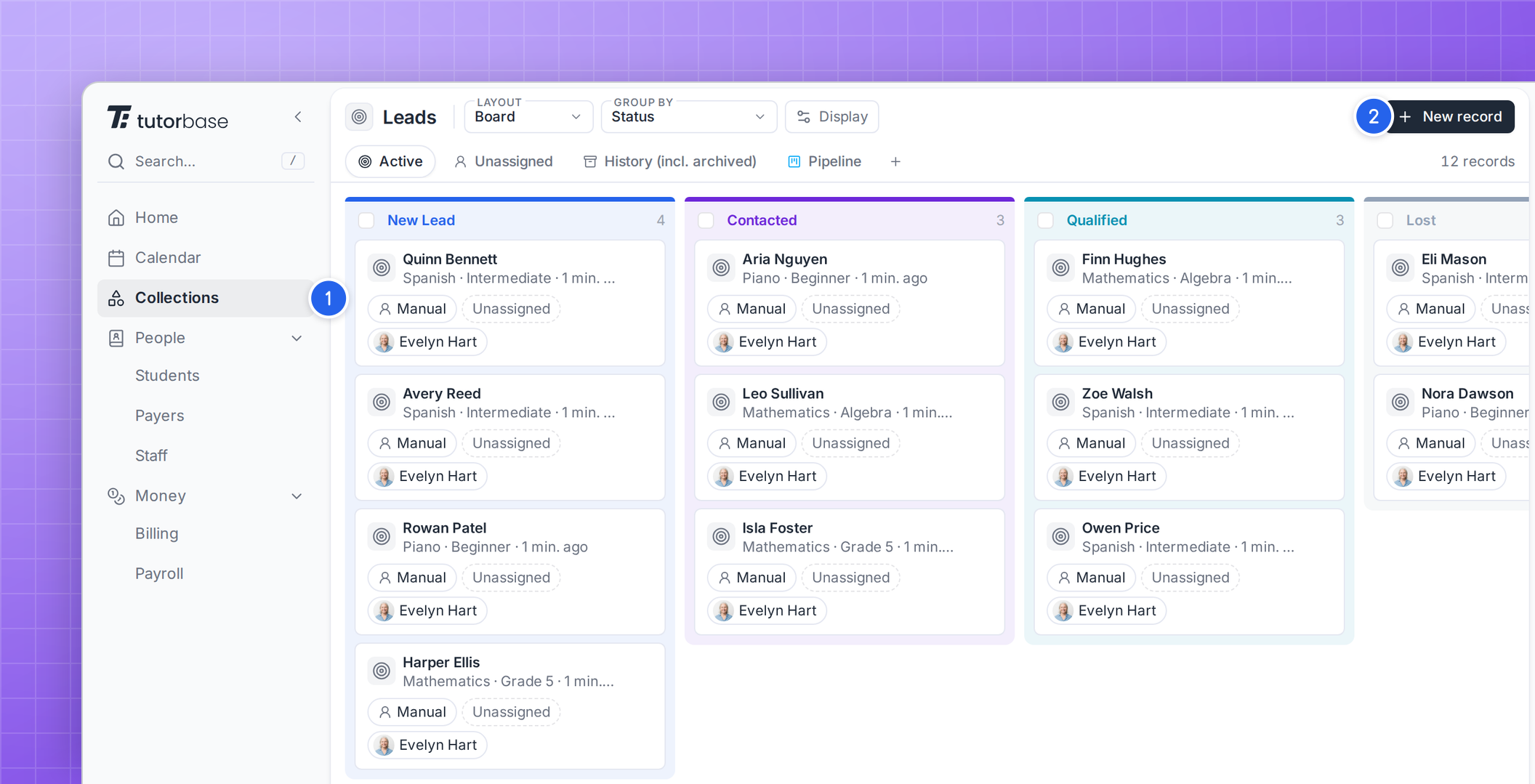
Open Collections.
Select New record. The New lead dialog opens.
Set the enquiry details:
- Select First name and Last name, entering Elena and Rossi. Use the prospective student's name because conversion carries that identity into the student form.
- Set Email to the student's own address and Notes to the enquiry and agreed payment arrangement. For Elena, record her interest in Spanish conversation lessons and that she will pay personally. Keep the student's contact details distinct from a parent's so the converted profile belongs to the right person.
- Under Owner, keep Evelyn Hart for this enquiry. Assign the person who will follow up so the enquiry has a responsible contact.
- Under Brand, select Northstar Learning Center. Choose the school's brand so conversion starts with the correct brand selected.
Record enquiry details you have agreed with the customer; leave unknown details blank so the lead does not imply an agreed service or start date.
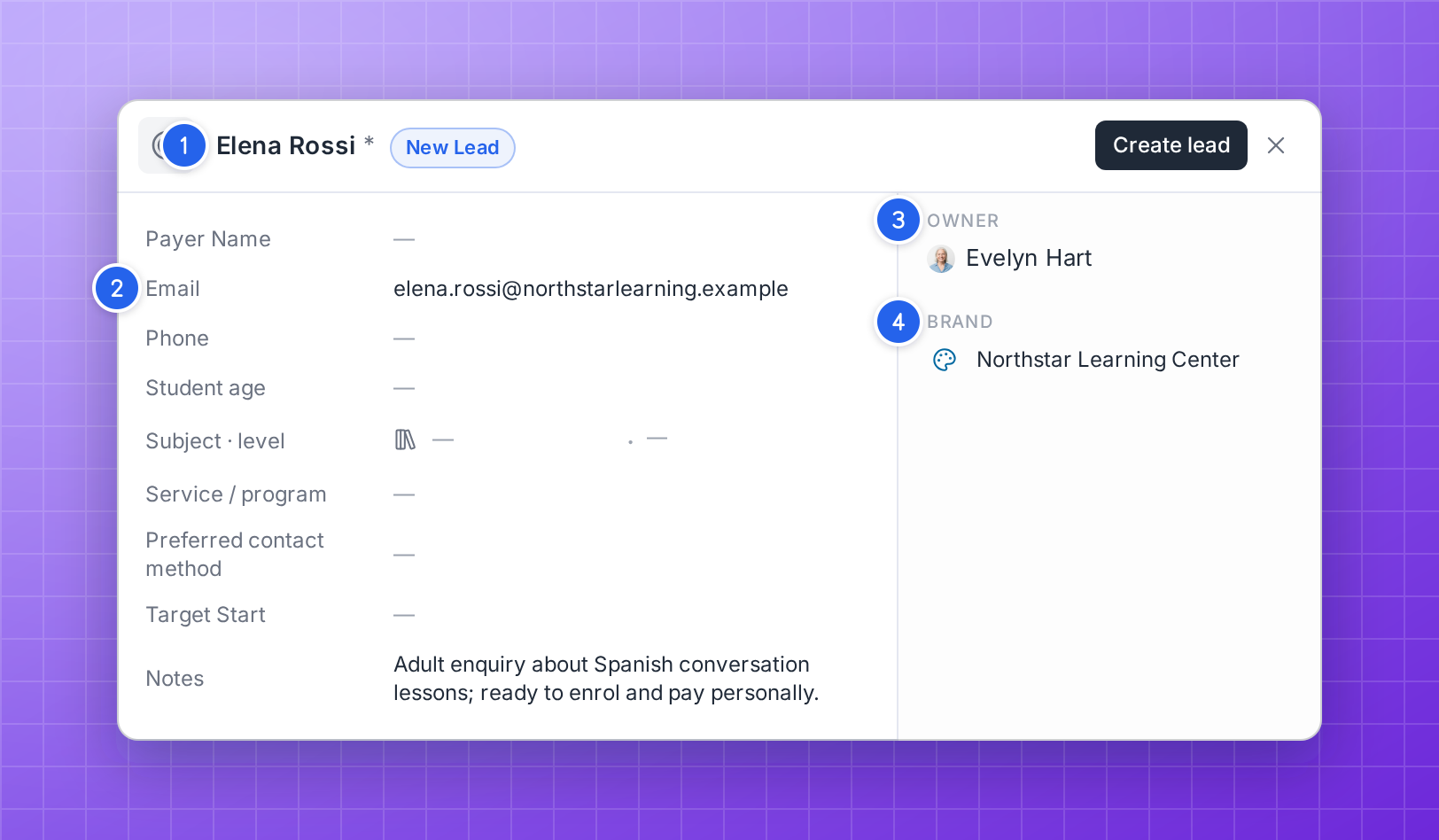
Select Create lead. The saved enquiry appears on the lead board.
Convert to a new self-paying student
Open the saved enquiry from the lead board, for example Elena Rossi.
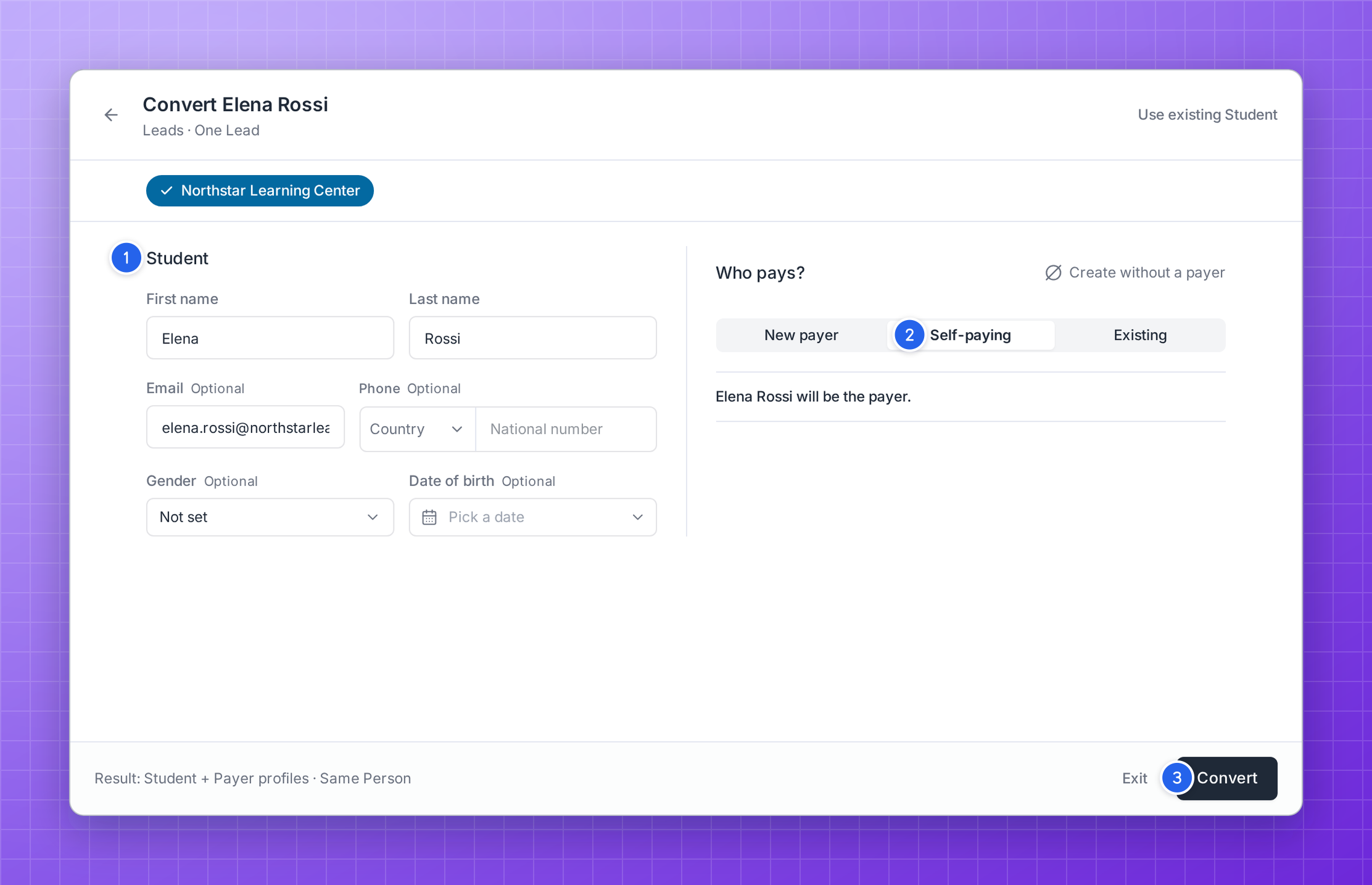
Select Convert. The conversion form opens.
Set the student and payer details:
- Under Student, check the carried First name, Last name and Email. Keep the selected school brand when it matches the student's school; correct the identity before saving to avoid creating the wrong profile. Phone, Gender and Date of birth are optional; leave unknown student details blank or Not set.
- Under Who pays?, select Self-paying. New payer starts selected; switch to Self-paying for an adult who pays their own fees so the student and payer are the same person.
- Select Convert. Tutorbase saves the conversion and the lead shows Converted.
After you convert the lead
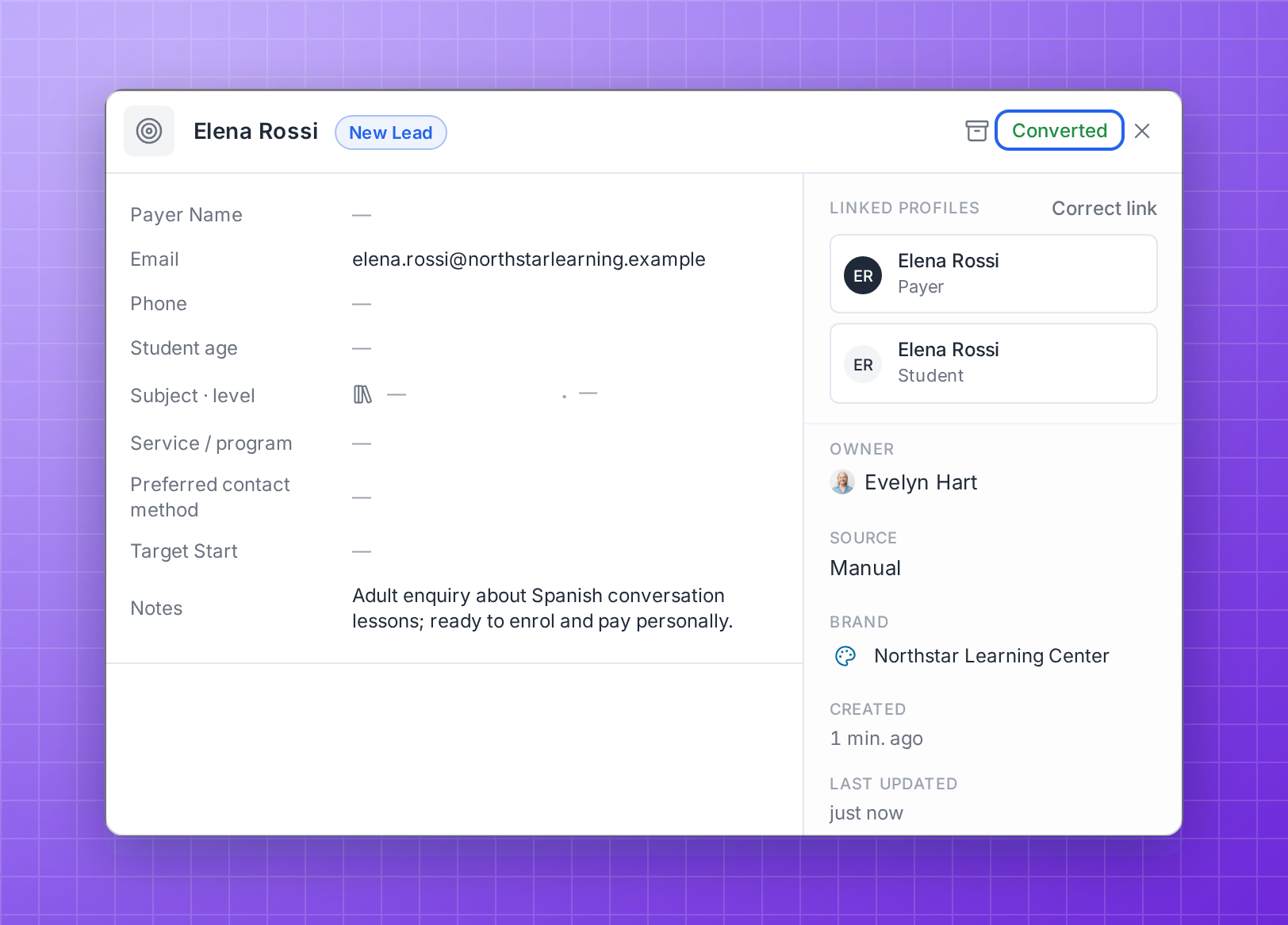
After creating a self-paying student, the enquiry remains in Collections with a Converted marker and Linked profiles for the student and payer. A self-paying student appears under both Students and Payers in People. The student's payer card says Self-paying.
Common questions
How do I add an enquiry to the lead board?
Open Collections and select New record. Enter the prospective student's details in New lead, then select Create lead.
Where can I find an enquiry after creating the lead?
The saved enquiry appears on the lead board in Collections. Open the enquiry by its name to read the details or start conversion.
How do I turn a lead into a student?
Open the saved lead in Collections and select Convert. To create a new student, check the identity and brand, choose who pays, then select Convert in the conversion form. If the student already exists, choose Use existing Student to find and link that student; the form describes keeping their brands and payer relationships unchanged.
Which payer choice should I use for an adult who pays their own fees?
When creating a new student through conversion, choose Self-paying under Who pays?. Tutorbase creates student and payer profiles for the same person.
Where do I check the student after conversion?
After creating a self-paying student, the converted lead in Collections shows Linked profiles for the student and payer. Open People > Students to find the new student; the student's payer card says Self-paying.