
Correct an unassigned manual Pay item
Correct a manual Pay item's amount or reason before assigning a Payroll document, while retaining the original entry and correction history.
Last updated
To correct an unassigned manual Pay item in Tutorbase, open Payroll > Pay items, open the manual item and select the Edit Pay item pen at the top right. Saving keeps the corrected item unassigned and retains the original entry in Correction history.
Before you start
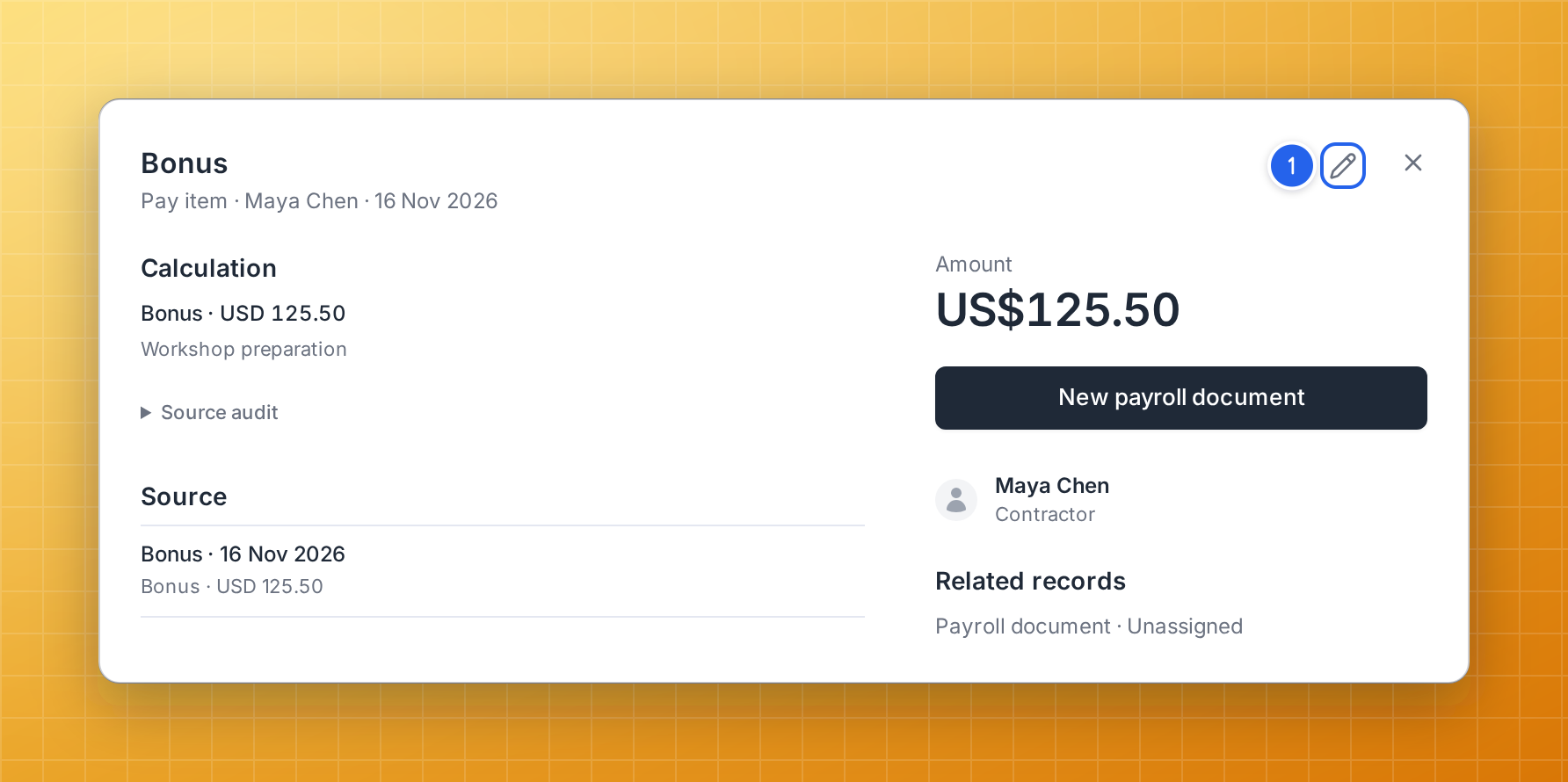
Sign in as the business owner. In the sidebar, open Payroll > Pay items and keep Unassigned pay selected. Open the independent manual item that needs correction.
For example, correct Maya Chen's workshop preparation from US$125.50 to US$150.75 to include materials, with the reason “Workshop preparation including materials”. Correct the existing manual item so the original entry and the revised values stay together in its history.
Correct the manual Pay item
Select the Edit Pay item pen at the top right. The Edit Pay item window opens with the saved Amount and Reason.
Set the correction details:
- Set Amount to the full corrected amount, for example
150.75. Keep the saved amount when only the explanation is wrong. The amount must be greater than zero. - Set Reason to explain the corrected item, for example “Workshop preparation including materials”. A reason is required.
- Set Amount to the full corrected amount, for example
Select Save changes. The item appears as Correction with the corrected amount and reason, and shows Payroll document · Unassigned under Related records.
After you save
The corrected item remains in Unassigned pay. Open the Correction to check the current amount and reason. Expand Correction history to see the original explanation, the previous and corrected amounts, and who authored each entry. Source audit shows the current entry's author.
Common questions
How do I correct a manual pay amount?
In Payroll > Pay items > Unassigned pay, open the manual item and select the Edit Pay item pen. Enter the full corrected Amount and a Reason, then select Save changes.
Can I change just the reason?
Yes. In Edit Pay item, keep Amount unchanged, update Reason and select Save changes. The correction is retained in Correction history, even when the amount stays the same.
Can I change the Staff member, date, currency or type here?
No. Edit Pay item offers only Amount and Reason.
Where can I see the original amount and author?
Open the corrected item in Payroll > Pay items. Expand Correction history to see the original explanation and author, followed by the amount changes and each correction's author.
What happens if I cancel the edit?
Select Cancel inside Edit Pay item to leave the saved amount and reason unchanged.