
Set up how a teacher is paid
Set a teacher's salary, premiums and fixed Lesson outcome pay, then compare an example before saving the Pay agreement.
Last updated
To set up a teacher's pay in Tutorbase, select Pay agreements in Settings, choose the teacher, enter the agreed terms, then review and save. This walkthrough updates an existing agreement with monthly salary, a Sunday premium and fixed no-show pay.
Before you start
Sign in as the business owner. The Maya walkthrough below uses an existing agreement that permits editing; for a teacher without an agreement, use Create a first agreement from a Pay item below. Choose salary, hourly or per-lesson components according to the teacher's contract.
For example, change Maya Chen's hourly agreement to US$3,000 each month, due at the period end, plus “Sunday teaching” at US$10 per payable hour. A no-show has US$25 total Lesson pay, with no included-work allowance. Keep the agreed customer-cancellation and school-cancellation Staff-pay rules at No pay. For a return, Sophie Bennett moves from US$45/hour to US$50/hour.
Open the agreement
In Settings, select Pay agreements.
Select the teacher.
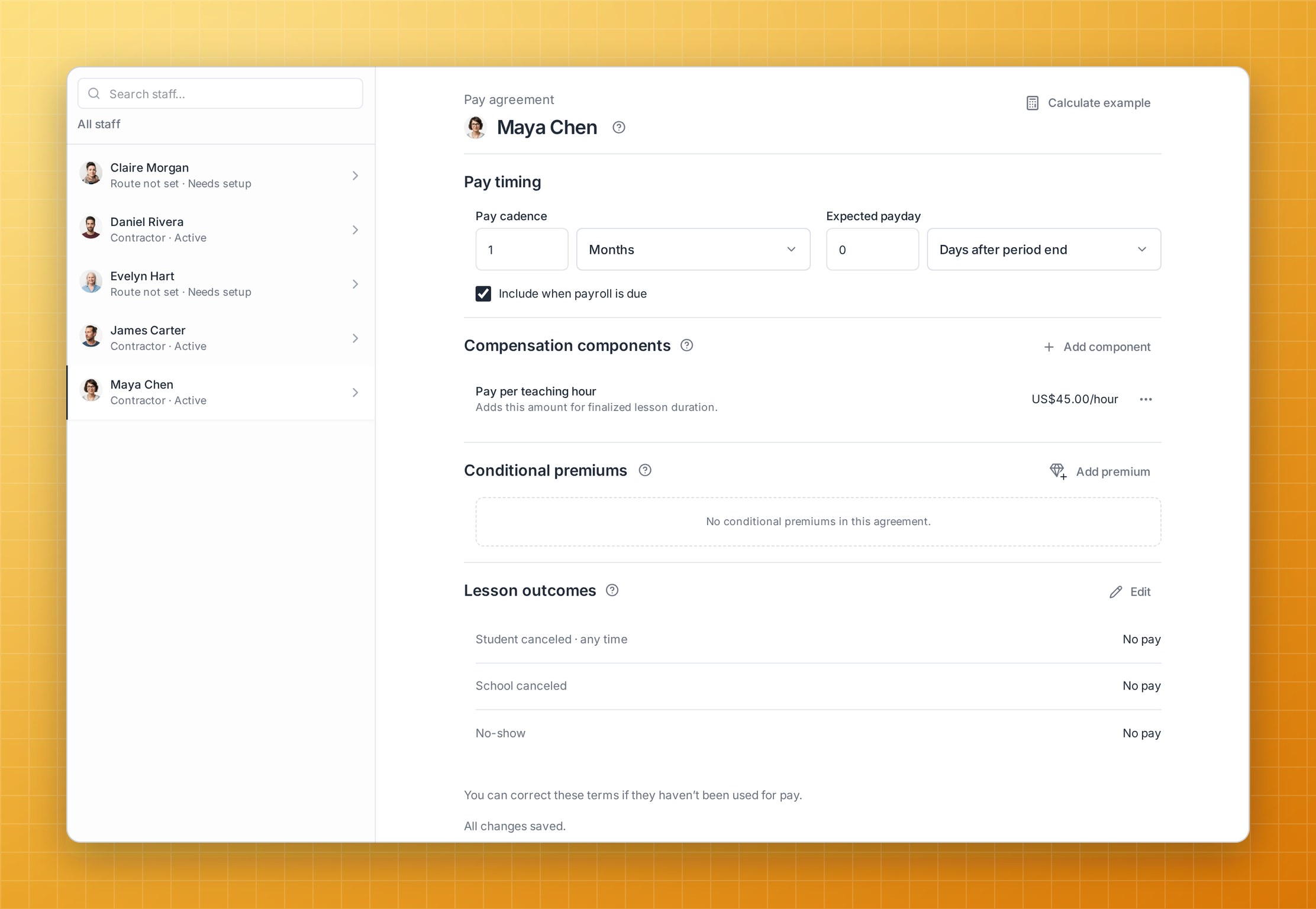
Enter the negotiated terms
Under Pay timing, set the monthly pay schedule:
- Set Pay cadence to 1 and Months because the salary covers a month.
- Keep Expected payday at 0 and Days after period end because this contract pays at the period end.
Keep Include when payroll is due selected for a teacher in payroll preparation.
Under Compensation components, open the existing component's three-dot menu.
Select Edit and set the salary:
- Choose Fixed pay every payroll period for the agreed recurring amount.
- Set Amount to 3000.
Name is optional; enter “Salary” to make the component recognizable.
Select Save component. The component joins the agreement draft.
Under Conditional premiums, select Add premium.
Enter the Sunday premium:
- Set Premium name to “Sunday teaching”. Use the negotiated name so the teacher can recognize the extra pay.
- Under Applies for, choose Lesson weekday because the premium depends on the Lesson's day.
- Choose Additional amount per payable hour under Premium calculation because this contract pays the premium by the hour.
- Select Sunday and enter 10 as its premium value.
Select Save premium. The premium joins the agreement draft.
Choose the fixed no-show total
Under Lesson outcomes, select Edit. Keep the other outcome rules as agreed.
Under No-show, choose Fixed amount and enter 25.
Under Applies to, choose Entire Lesson because the contract pays one total that replaces ordinary Lesson pay and matching automatic premiums.
Select the calculator icon beside X, Calculate example, to check the unsaved terms.
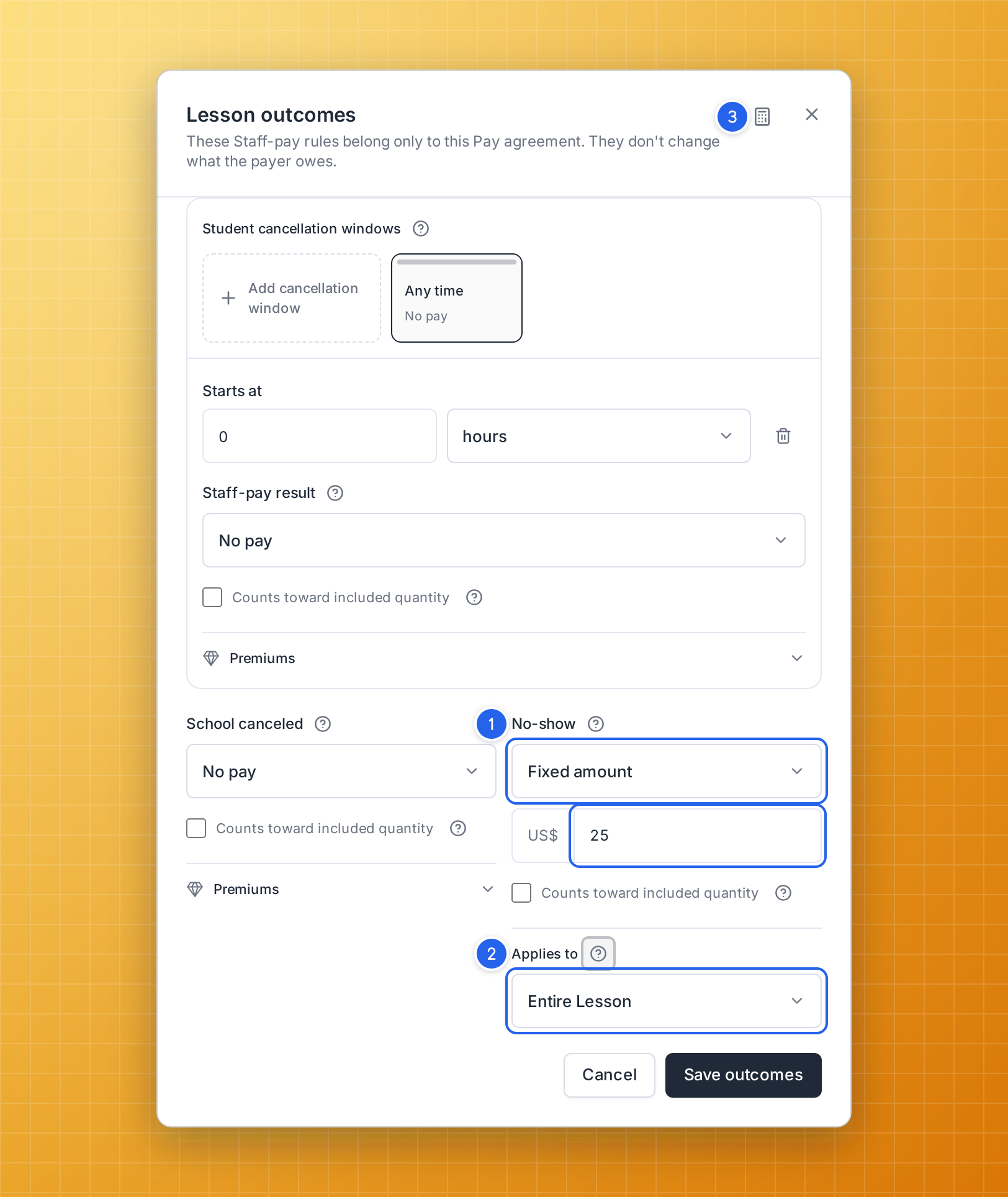
Select Counts toward included quantity only when the contract consumes included hours or Lessons; payment and counting are independent. Counting covers the whole pay period, including Lessons before a change.
Check and save the agreement
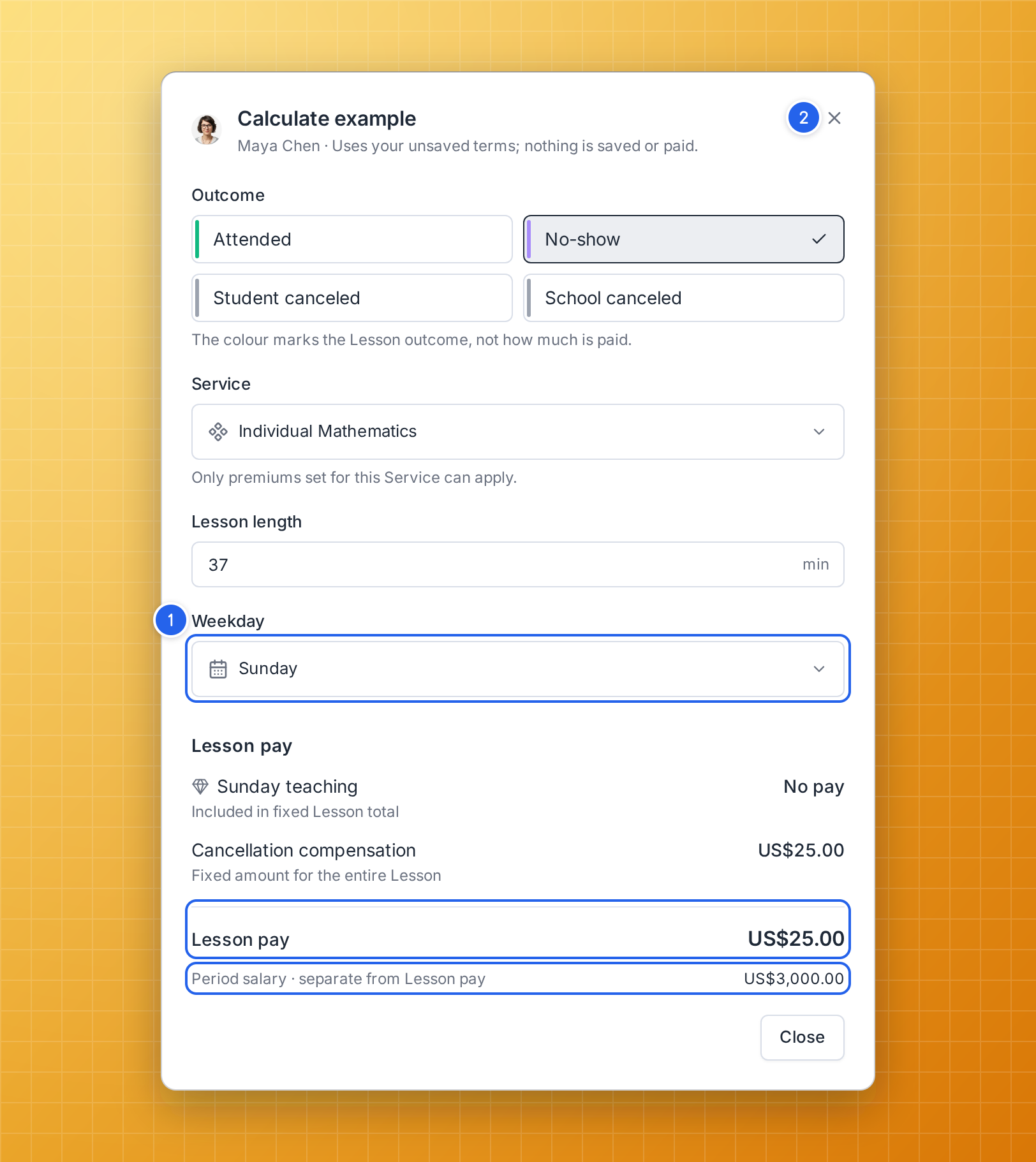
Keep No-show selected, choose Individual Mathematics under Service and set Lesson length to 37 minutes. Use a realistic Service and duration.
Compare Monday and Sunday under Weekday. Check an ordinary day and a matching-premium day to catch unintended extra pay.
Lesson pay is US$25.00 on both days. The monthly salary remains US$3,000.00. On Sunday, the premium says No pay with Included in fixed Lesson total.
Select the calculator's X to return to the retained unsaved terms.
Select Save outcomes. The outcomes join the agreement draft.
Select Review changes and check Change impact before accepting the terms.
Select Save changes to save the agreement.
After you save
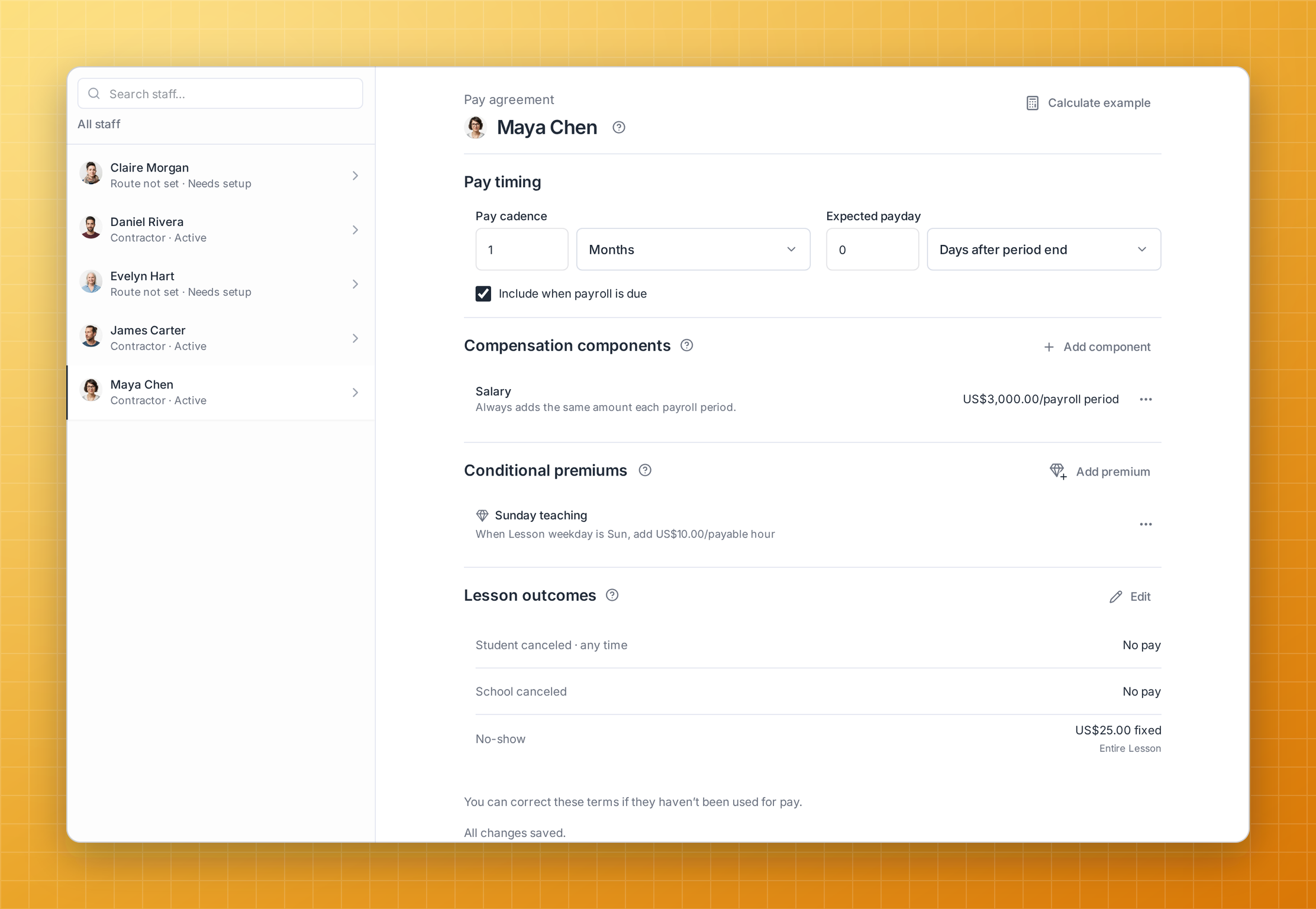
The teacher's Pay agreement contains the negotiated salary, premium and no-show scope. Calculate example has created no Pay items.
Create a first agreement from a Pay item
For a teacher without an agreement, start setup from your manual Pay item draft:
- In Payroll > Pay items, select New pay item and open Staff member.
- Search for the teacher. Beside Pay setup needed, select Set up pay. Their new agreement opens in the same tab; your Pay item draft stays there.
- Choose the Brand and document route that match the teacher's contract. Use its agreed cadence and payday. Select Add component, choose the contract's pay basis, enter the amount and select Save component. Enter other negotiated premiums and Lesson outcomes.
- Select Create agreement, then Return to Pay item. Tutorbase rechecks eligibility before selecting the teacher. Check the retained date, type, amount and reason, then create the Pay item yourself. Saving the agreement does not submit it.
You can return without completing setup, but cannot select that teacher until setup is complete. Reloading or closing this tab loses the draft.
Common questions
When should I choose Base pay only?
Choose Base pay only when premiums add to the fixed base; retain each agreed premium at 100%, because following premiums add nothing to a fixed result.
Does Calculate example save or earn pay?
No. Calculate example explains unsaved terms, excluding manual Lesson exceptions and period-end minimum-guarantee top-ups. Close the calculator to keep editing; Review changes and Save changes save the terms.
How do I set up pay for a returning Staff member?
In Settings > Pay agreements, select the Staff member’s ended agreement.
Select Start new Pay agreement.
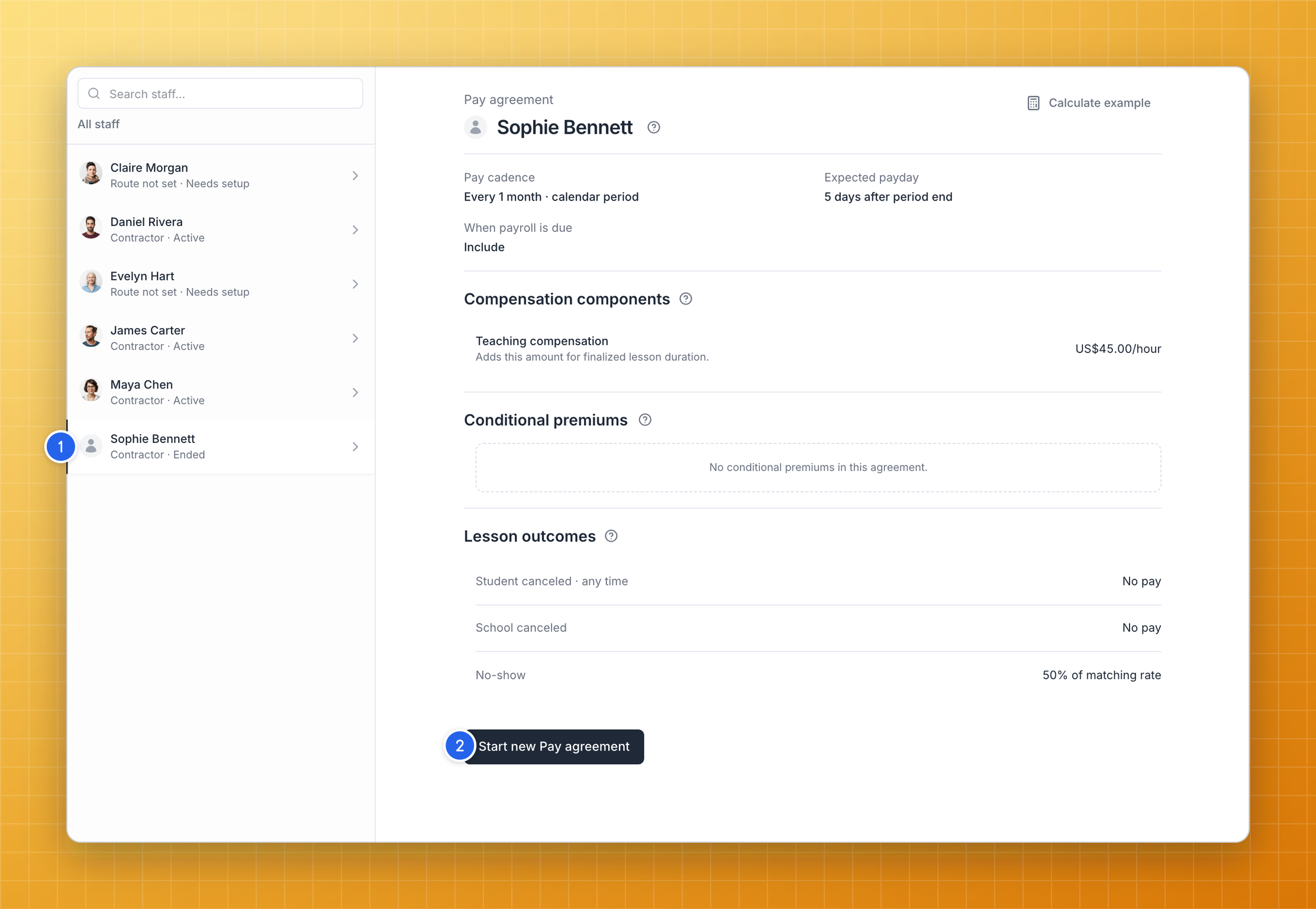
Set the new contract’s terms. The draft starts with monthly Pay cadence, payday at period end, Include when payroll is due selected and No pay for all Lesson outcomes. Check these defaults and enter components and premiums because ended terms are not copied.
Select Create new Pay agreement. Check the saved terms before using them for payroll.
The new agreement starts today with the same Brand and document route. The Staff member keeps the same identity.