
To check your Tutorbase fee, open Settings > Tutorbase billing as an owner. The page shows your rate, how this month's fee is worked out so far, and the card and billing details Tutorbase charges the fee to.
Before you start
Tutorbase's fee is separate from your families' card payments and from your school's Stripe connection that collects them.
Check your fee
Under Settings, select Tutorbase billing.
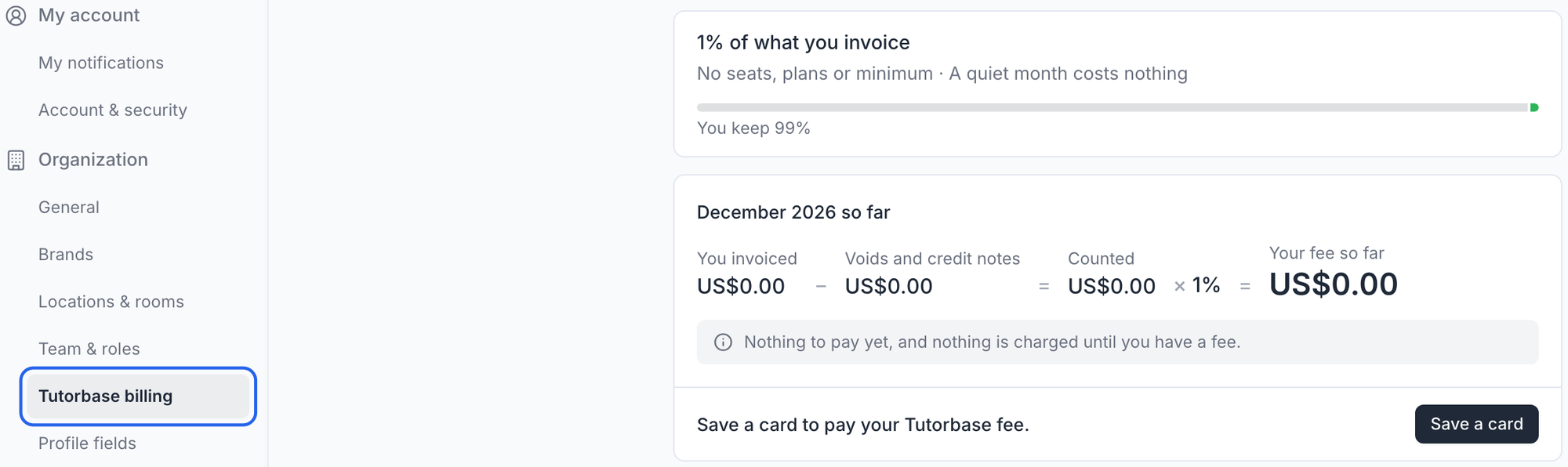
The top of the page shows your rate, for example 1% of what you invoice, with No seats, plans or minimum · A quiet month costs nothing.
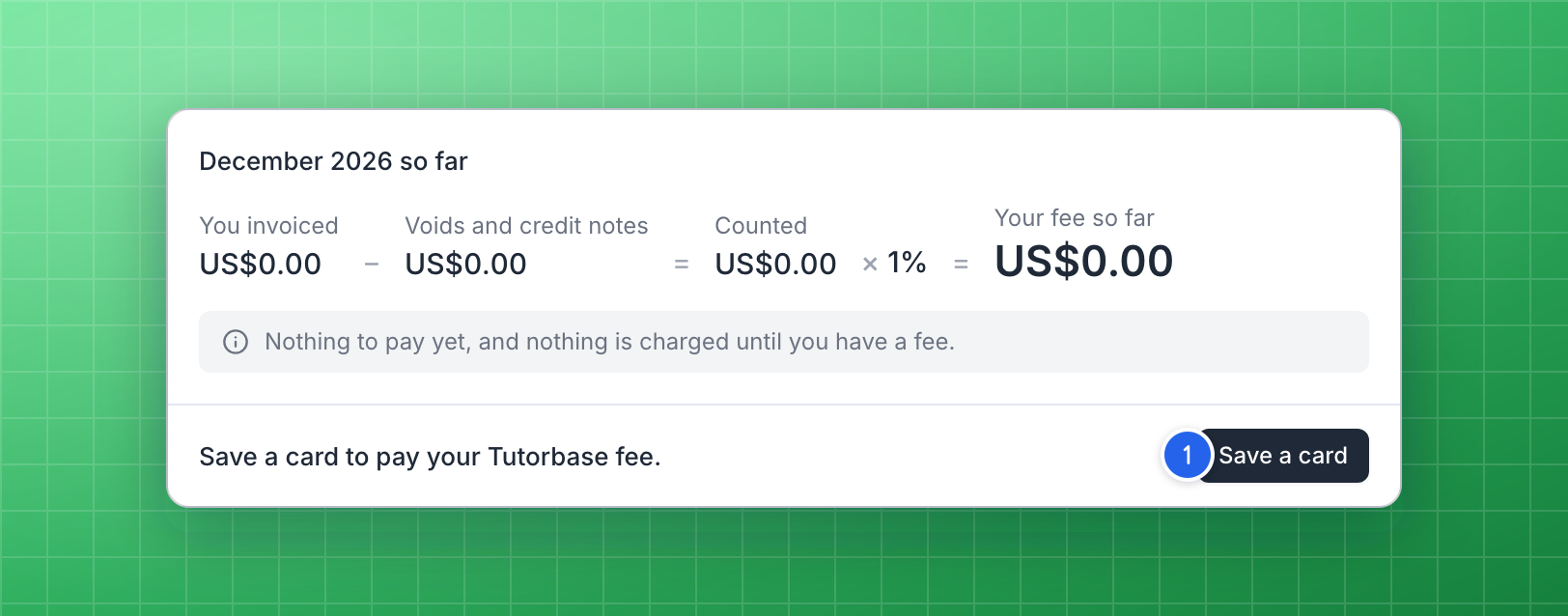
The current month, shown as its name followed by so far, works the fee out in one line:
- You invoiced, minus Voids and credit notes, equals Counted.
- Counted times your rate equals Your fee so far.
Until you save a card, a zero fee reads Nothing to pay yet, and nothing is charged until you have a fee.
Save a card for your fee
You can save a card while your fee is still zero. While you have no fee to pay, saving a card charges nothing; it lets Tutorbase charge the fee once you have one. Save the card now so you don't need to come back when your first fee is due.
Under the current month, select Save a card. Stripe's page opens.
On Stripe's page, enter the card, the Full name and the Country or region, then select Save. Your billing email is already filled in. For some countries, such as the United States, Stripe also asks for an address, including the state and ZIP code.
Stripe's page notes that you allow Tutorbase to charge the card for future payments. After Save, you return to Tutorbase billing.
After you save a card
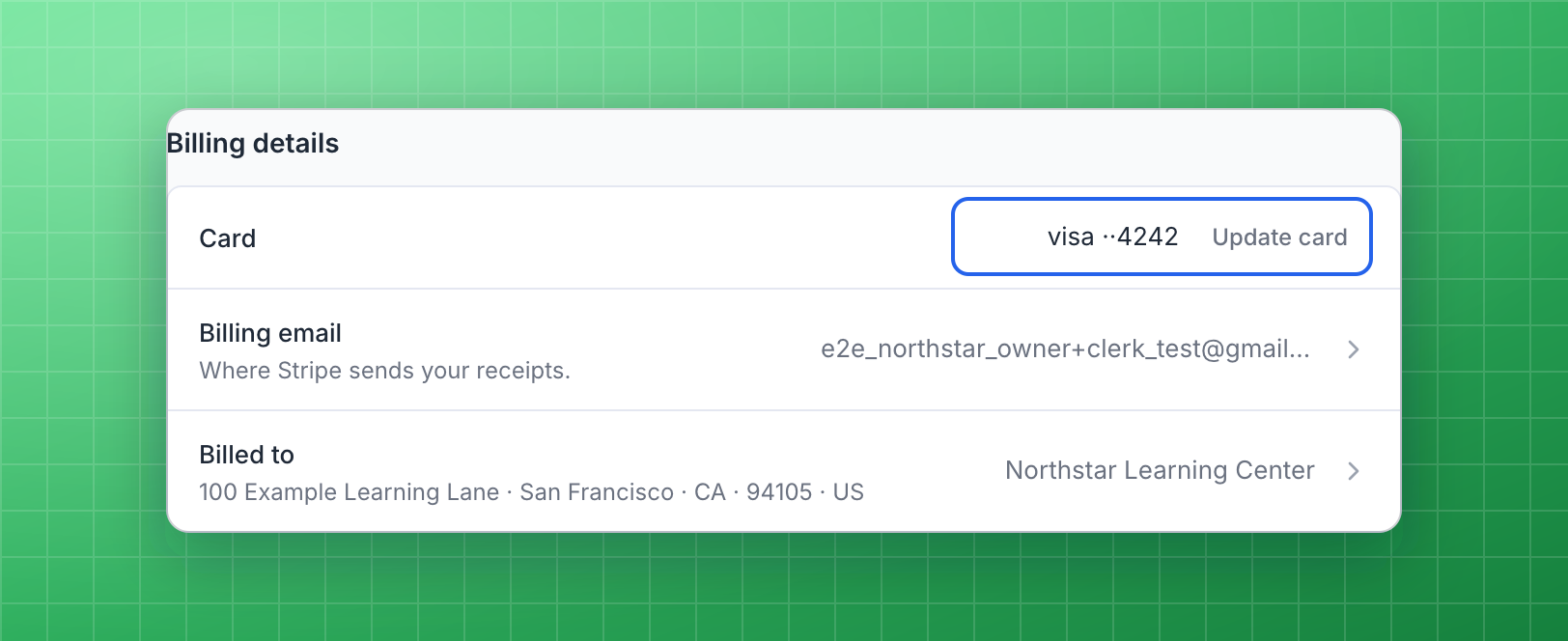
Under Billing details:
- Card shows the card brand and its last four digits, for example visa ··4242, with Update card beside it.
- Billing email is where Stripe sends your receipts.
- Billed to shows the name and address you entered on Stripe's page. Until you save a card, Billed to reads Not set up.
While your fee is zero, the current month says Nothing to pay for this month yet.
Common questions
How is my Tutorbase fee calculated?
Tutorbase billing shows the current month's calculation: what you invoiced, minus voids and credit notes, gives the counted amount, and the counted amount times your rate gives your fee so far.
Do I pay anything in a month with no invoices?
No. Tutorbase billing says No seats, plans or minimum · A quiet month costs nothing, and nothing is charged until you have a fee.
Is my card charged when I save it?
No, not while you have no fee to pay. Saving a card on Stripe's page then charges nothing; Tutorbase uses the card for your Tutorbase fee once you have one.
How do I change my Tutorbase billing card?
Open Settings > Tutorbase billing. Under Billing details, select Update card beside the saved card.
How do I leave Tutorbase and export my data?
Open Settings > Tutorbase billing. Under Leave Tutorbase, select Write to us to contact Tutorbase. The page says Tutorbase will export your data and stop the fee.