
Set up teaching services and lesson defaults
Create a reusable lesson type in Tutorbase with subjects, delivery modes, student limits and a default duration.
Last updated
To set up teaching services in Tutorbase, open Settings, choose Services, and select New Service. A service is a reusable lesson type with subjects, delivery modes, student limits and a default duration. Save the service to make it available when you schedule lessons.
Before you start
Have the subjects and levels you teach ready. You can manage them in Settings under Subjects & levels before creating the service.
For the worked example, Northstar Learning Center is introducing Paired Piano: in-person beginner piano for two students, usually 45 minutes, with a permitted length of 30–60 minutes.
Create the teaching service
In Settings, choose Services.
Select New Service. A service named Untitled teaching service opens.
Set the service's identity and teaching format:
- Select the service name and enter Paired Piano. Use a name that distinguishes the lesson format so staff can choose the right service.
- Under Subjects & levels, expand Piano and select Beginner. Choose an individual level for beginner-only tuition so staff can identify the focused offering; select the subject checkbox when the service covers all its levels. A new service starts as Any subject with nothing selected, so make an explicit choice for a subject-specific offering.
- Under Delivery, keep only In-person selected for lessons at the school. You can select several modes independently, but at least one is required to save. Select Online or Hybrid when you offer those formats; selecting In-person and Online does not select Hybrid.
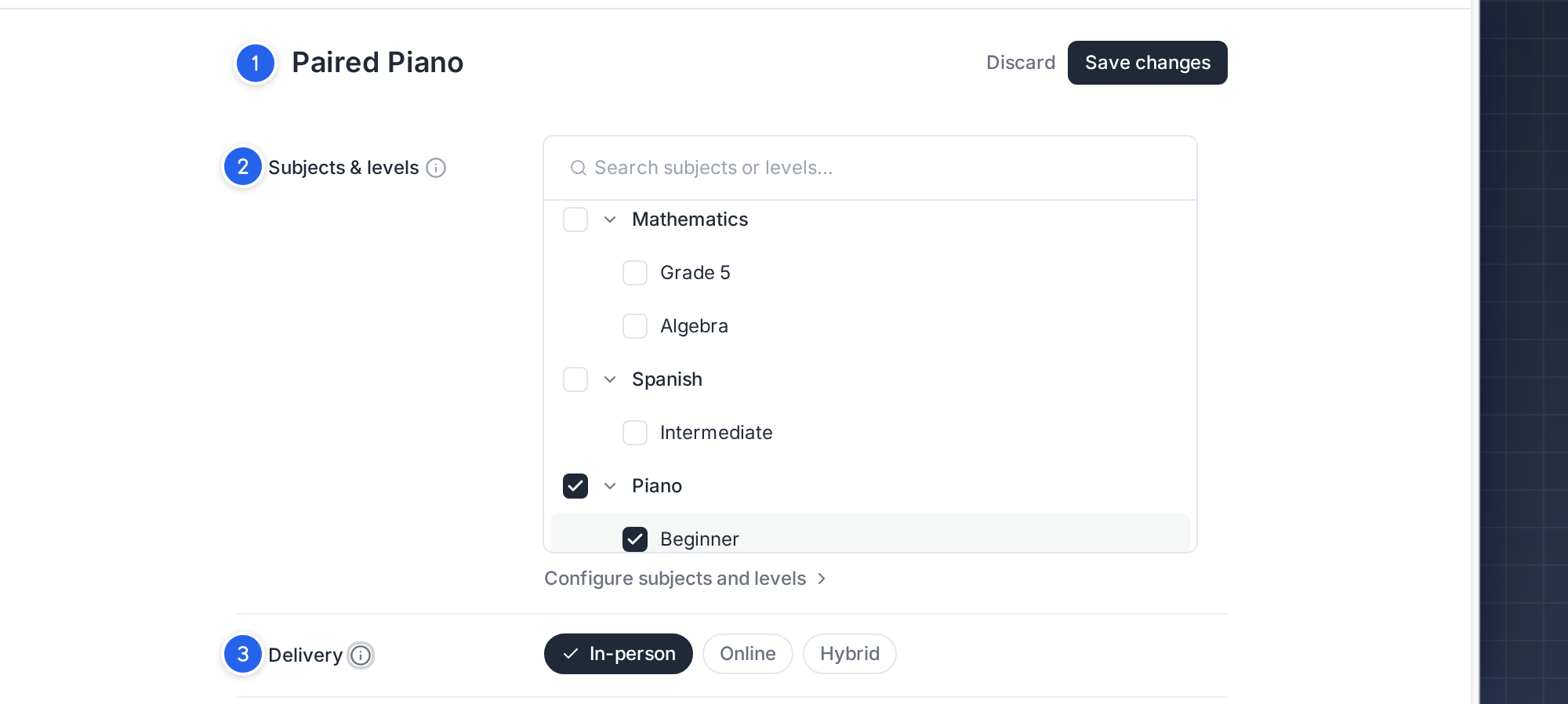
The service colour is optional; leave the automatic colour unless you need a custom colour to identify the service.
Set the student limits and lesson length:
- Under Student capacity, switch on Set student limits and set both student counts to 2. Use matching minimum and maximum counts for a paired format; leave limits off for a format without fixed attendance boundaries.
- Under Duration, switch on Set duration limits and set the range to 30–60 minutes. Set limits only when you need boundaries for lesson lengths; leave limits off for flexible lengths.
- Set Default duration to 45 minutes. Choose the usual teaching slot so new lessons start with the right length, and keep the default within the duration limits.
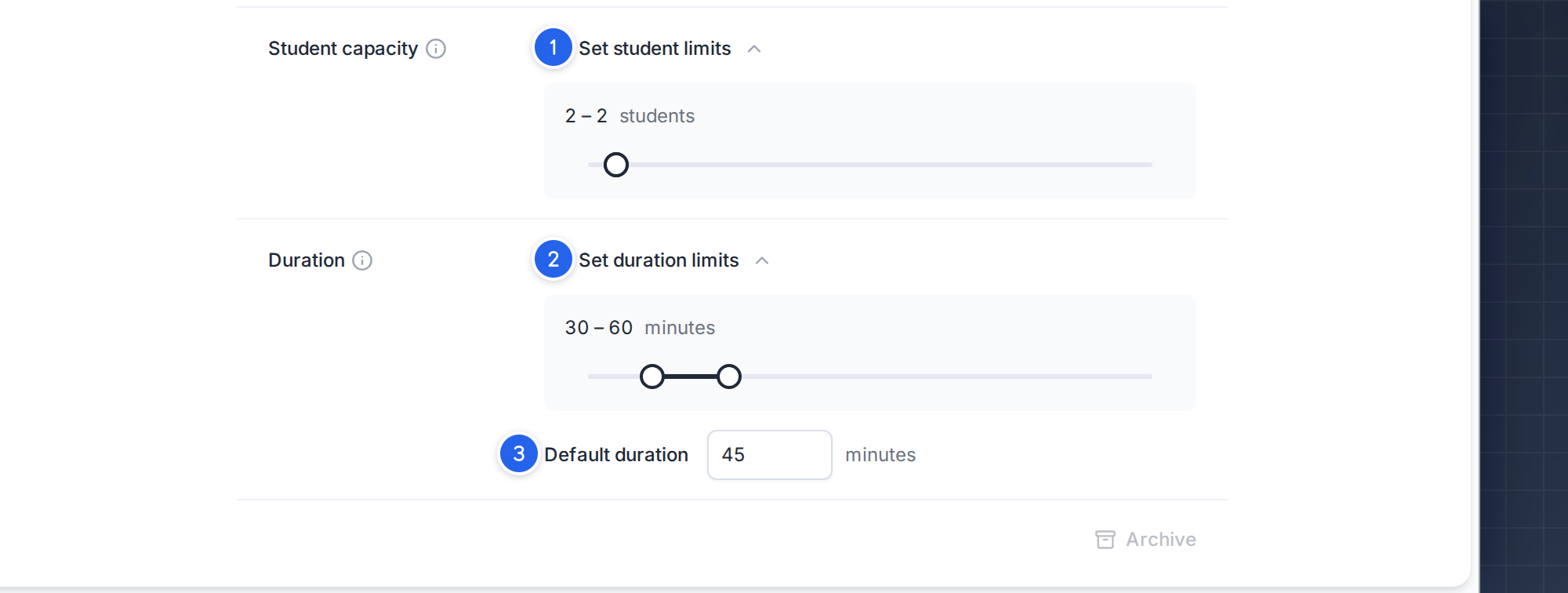
Select Save changes. The named service appears in Services.
After you create the service
The service is available in the Service selection when you create a lesson in Calendar. Selecting the service supplies its default duration and student capacity. For example, selecting Paired Piano starts the lesson at 45 minutes with a maximum and minimum of two students.
Creating a service does not schedule a lesson. Choose the lesson's subject and level, teacher and other lesson details in Calendar when you schedule it.
Common questions
How do I set the size of a group lesson?
In Settings under Services, use Student capacity and switch on Set student limits. Enter the minimum and maximum student counts the format needs; a paired service uses two for both.
Why does a new lesson start at 60 minutes?
A new teaching service starts with a Default duration of 60 minutes. Set the service's usual length in Settings under Services; choosing that service in a new lesson supplies the duration.
Can a service allow online or hybrid lessons?
Yes. Under Delivery in Settings → Services, choose Online or Hybrid for the formats you offer, keeping at least one mode selected. In-person starts selected; selecting In-person and Online together does not enable Hybrid.
Does saving a service create a lesson or assign a teacher?
No. Save changes in Services saves the reusable teaching setup. Create the lesson and choose its teacher in Calendar.
Where do I set prices or sell a plan?
Use lesson-plan setup and plan sales for pricing and purchases. Services defines the teaching setup to reuse in lessons.
Can a two-student service still be private?
Yes. For example, a two-student service can give a lesson the label Private, exclusive to this group. Use Student capacity for the teaching format's headcount, rather than as a public booking workflow.