
Choose the company that invoices for each Brand
Share one company across Brands, move a Brand to another company, or give a Brand its own company in Invoicing settings.
Last updated
To choose the company that invoices for a Brand in Tutorbase, open Settings > Invoicing, choose the Brand, then choose its company under Who sends invoices for …?. Brands can share one legal business, move to another company, or get their own company.
Before you start
You need at least two Brands to see the company choice. With one Brand, edit the company's details directly in Invoicing.
The worked example sets up Northstar Music on Northstar Learning Center's company with document series NSM. A later correction changes the legal name to Northstar Learning LLC and the tax number to NS-100.
Set up a Brand on an existing company
- Open Settings > Invoicing.
- In Brand, choose Northstar Music.
- Under Who sends invoices for Northstar Music?, choose Northstar Learning Center. Choose the existing company when both Brands use the same legal business so you maintain the company details once.
- In Document series, enter NSM. Choose a recognizable, unique code so each Brand's documents remain distinguishable.
- Select Save invoicing settings. The Brand uses the existing company, and Shared with Northstar Learning Center. identifies the other Brand using it.
Move a configured Brand to another company
In Invoicing, choose the Brand to move.
Under Who sends invoices for …?, choose the target company. Move the Brand when its legal issuer changes; keep the current company when only its name or tax number needs correcting.
Review the named Brand and target company, then select Move. If the company details match and the review offers Use same company, select that button instead. Select Cancel to keep the current company.
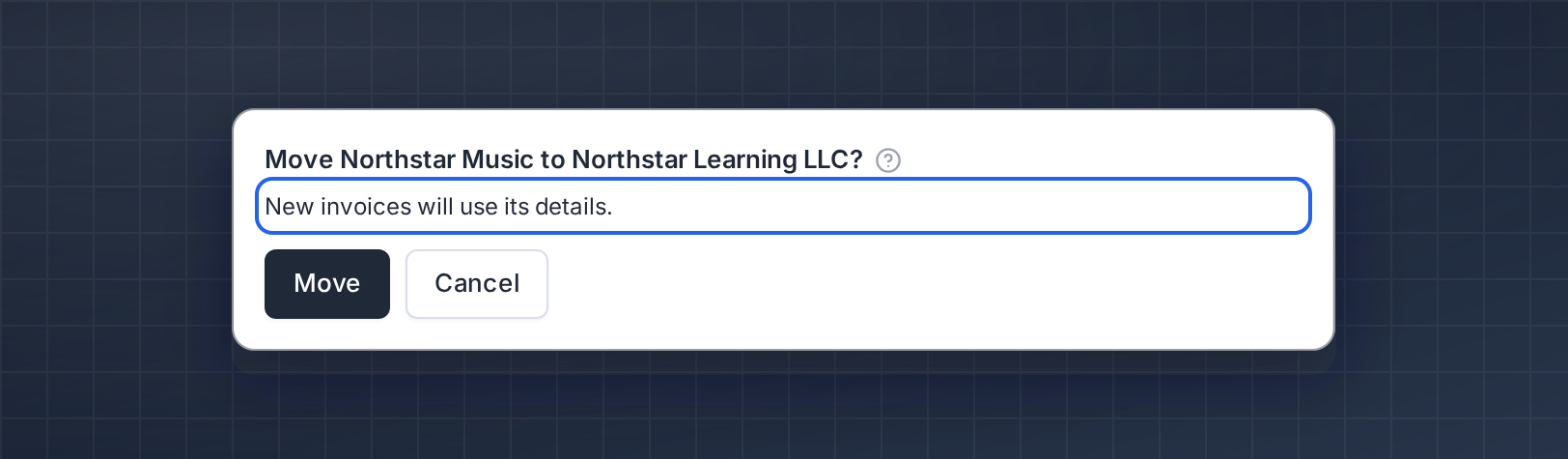
The Brand now uses the chosen company. The Brand's Document series stays the same.
Change details shared by Brands
- In Invoicing, choose a Brand using the shared company.
- Set Legal business name and Tax number, for example Northstar Learning LLC and NS-100. Change the shared details when the correction applies to every Brand using the company; give a Brand its own company first when the correction should apply only there.
- Select Save invoicing settings. Change for both Brands? names the affected Brands.
- Select Save to update the shared company. Choose Keep editing if the named Brands should not all receive the change.
The company name and tax number change for both Brands. Each Brand keeps its own Document series.
Give a Brand its own company
In Invoicing, choose a Brand that shares a company and needs independent company details.
Under Who sends invoices for …?, choose Its own company. Choose this when that Brand's company details must change independently of the other Brands.
Select Create company. The new company starts as a copy of the current company, including its legal name and tax number.
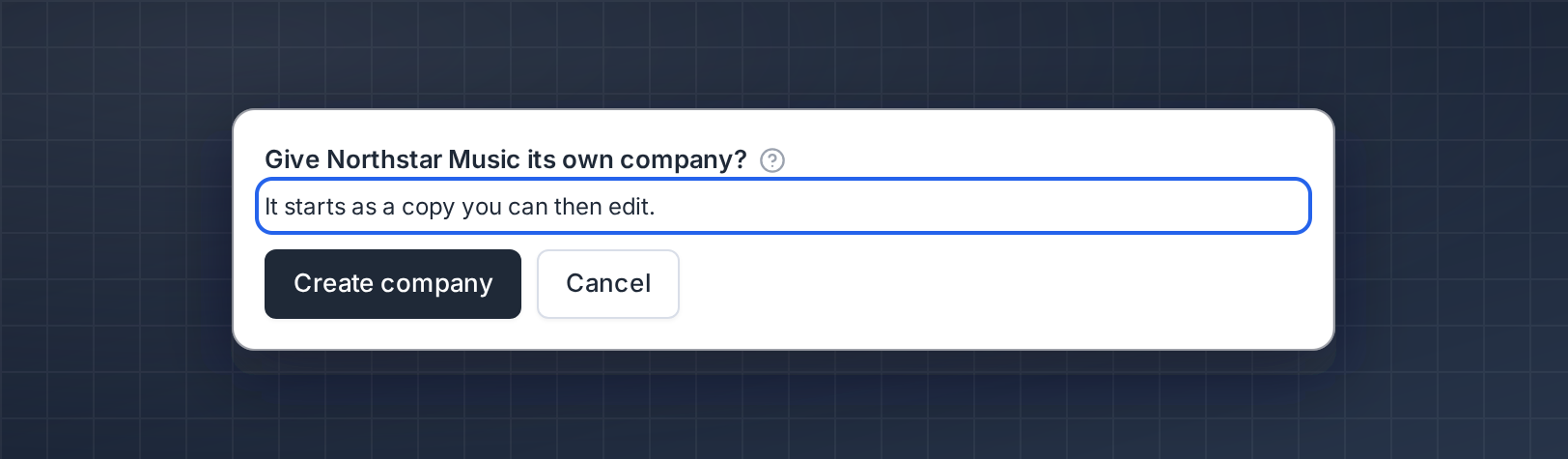
Set the new company's details, then select Save invoicing settings.
The other Brand keeps its company details. Both Brands keep their existing document series.
Common questions
Do Brands sharing a company share a document series? No. Document series belongs to each Brand in Invoicing. For example, the two Northstar Brands keep NSL and NSM while sharing one company.
Why can't I choose another company? Unsaved invoicing edits block the company choice. Save the edits first, or reload Invoicing to discard them before choosing a company.
Does choosing another company move the Brand immediately? No. A configured Brand shows a review first. Select Move, or Use same company when the review offers that button, to confirm. Select Cancel to keep the current company.
Why do two companies have the same name? Giving a Brand its own company creates a copy with the same details. In the company choice, Used by … identifies the other Brands using a company.
How do I combine identical companies? Choose the matching company in Invoicing. When the review offers Use same company, select that button to share the company; the unused duplicate leaves the company choice.