
Add your logo and icon to invoices, emails and payment pages
Upload your logo and a square icon in Settings > General. Invoices and payer pages show the logo; emails show the icon beside your name.
Last updated
To add your logo in Tutorbase, open Settings > General and select Upload logo, then add a square icon with Upload icon. Invoices, credit notes, receipts and payer pages then show the logo, and emails show the icon beside your school's name. Each Brand (the business name customers see) has its own logo and icon.
Before you start
You need two files, each a PNG or JPEG of 2 MB or less:
- Logo: your full, wide logo with the school's name.
- Icon: a square file, such as the symbol from your logo. You can use the logo file and crop the square part in Tutorbase.
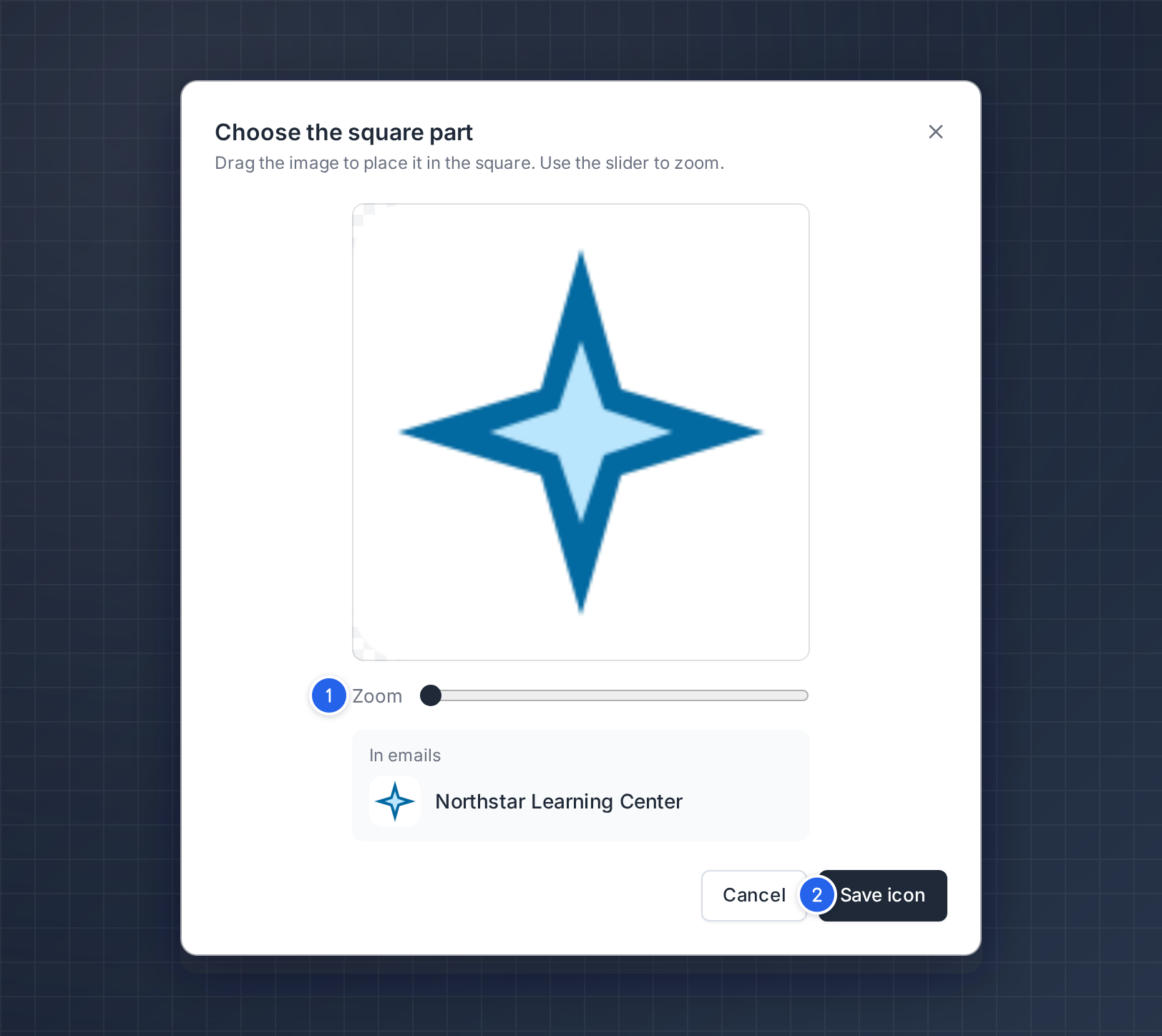
For example, Northstar Learning Center has one wide file with a star and its name. It uploads that file as the logo, and again as the icon, keeping only the star.
With two or more Brands, the Logo and Icon rows are under Settings > Brands > the Brand > Identity instead of General.
Add the logo and icon
Open Settings, then General.
Under Organization identity, next to Logo, select Upload logo and choose your logo file. Choose the full logo with the school's name, because families see it on every invoice and receipt. The logo is saved straight away; there is no Save changes step.
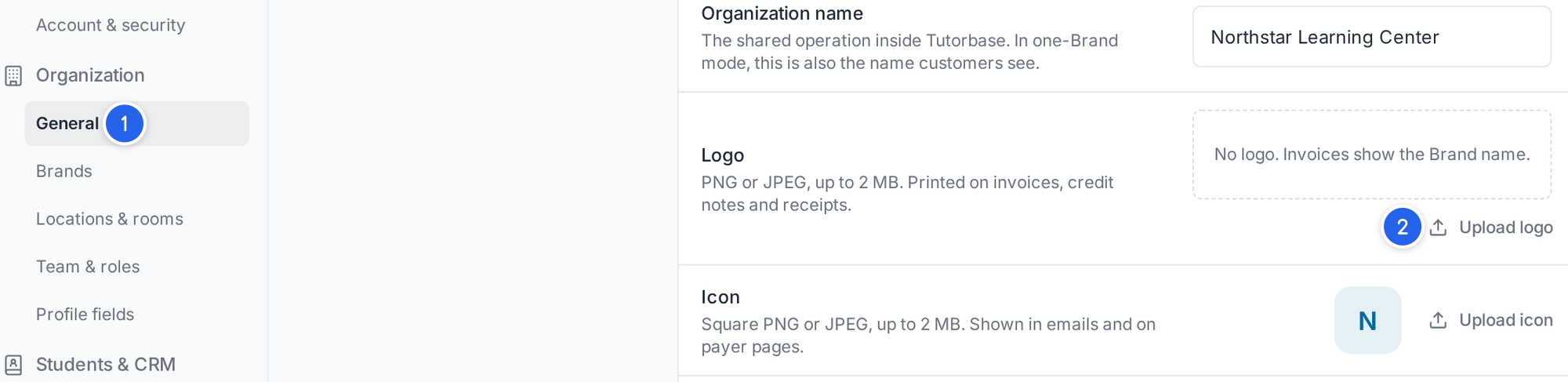
Next to Icon, select Upload icon and choose a square file or your logo file. If you have no separate square file, choose the logo file, because Tutorbase lets you crop its symbol next. A square file is saved straight away. Any other shape opens Choose the square part.
In Choose the square part:
- Drag the logo until the square holds your symbol, and use Zoom to fill the square. Keep the symbol, not the school's name: the icon is shown small, where words become hard to read. In emails shows the icon beside the Brand name, as emails will show it.
- Select Save icon. To leave without uploading, select Cancel.
After you add the logo and icon
Tutorbase emails nobody about the change. From then on:
- Invoices, credit notes and receipts print the logo. A Draft invoice normally picks up your current logo, and issuing locks the logo on that invoice. Open an older Draft to check its logo before you issue it. A credit note or receipt prints the logo you have when it is created.
- Payer pages for an invoice, a receipt or a payment show the logo. The browser tab shows the Brand name and the icon.
- Emails Tutorbase sends for the Brand show the icon beside the Brand name.
- When a family saves a card, Stripe's page shows the logo. The pages families return to after paying or saving a card through Stripe also show the logo. Stripe's page for paying an invoice shows the Brand name.
Change or remove the logo or icon
Next to Logo or Icon, select Replace to choose a new file, or Remove to delete it from the Brand.
Invoices, credit notes and receipts already issued keep the logo they were issued with, and emails already sent keep their icon. After you remove the logo, Draft and new invoices, credit notes and receipts show the Brand name without a logo. After you remove the icon, new emails show the Brand name only, and payer pages show the Tutorbase icon in the browser tab.
Good to know
Tutorbase checks each file when you choose it and says why it can't be used:
- Use a PNG or JPEG image. Other formats, such as SVG, GIF or WebP, aren't accepted. Export the logo as PNG.
- Use an image of 2 MB or less. Tutorbase doesn't make a larger file smaller for you.
- Use a smaller image: at most 10,000 pixels on each side and 16 megapixels in all.
- This image can't be read. Try another PNG or JPEG. The file is damaged or incomplete.
- Use a square image for the icon. The crop step makes the icon square for you.
Common questions
Where did the logo setting in Invoicing settings go?
Settings > Invoicing no longer has its own logo. Invoices print the Brand's logo from Settings > General, or Settings > Brands when you have two or more Brands.
Why don't my emails show my logo?
Emails show the Brand's icon, not the wide logo. Add an icon next to Icon in Settings > General. Without an icon, emails show the Brand name only.
Will a new logo change invoices I have already sent?
No. An issued invoice, credit note or receipt keeps the logo it was issued with. Draft invoices and documents created afterwards show the new logo.
Can I upload an SVG logo?
No. The logo and icon must be PNG or JPEG files of 2 MB or less. Export the SVG logo as a PNG first.
Can each Brand have its own logo?
Yes. With two or more Brands, open Settings > Brands, choose the Brand, and set its Logo and Icon under Identity.