
Set your organization's timezone and date, time and money formats
Choose date, time and money formats in Settings > General. Changing the timezone keeps each lesson's moment and shows it at the new local time.
Last updated
To set how Tutorbase writes dates, times and money, open Settings > General, choose the rows under Regional presentation, then select Save changes. The Calendar then shows times in the new format. The same page holds the Organization timezone (time zone: the school's official time) and the Base currency.
Before you start
For example, Northstar Learning Center in San Francisco keeps Month day year and US$1,234.56, and switches Time format to 24-hour because its teachers plan the timetable on a 24-hour clock.
Base currency can't be changed once the organization has financial history: the row says Base currency is locked because financial history exists.
Choose your date, time and money formats
Open Settings, then General.
Under Regional presentation, choose each format. Every option shows a sample, so you can see the result before you save.
- Set Date format to the order your staff and families write dates in, so nobody misreads a lesson date: Day month year (24 Jul 2026), Month day year (Jul 24, 2026) or Year month day (2026-07-24).
- Set Time format to 24-hour (16:30) or 12-hour (4:30 PM). Choose the clock your teachers use on their timetable, so lesson times read the same in Tutorbase and on paper.
- Set Number and money format to the separators your staff write amounts with, so prices aren't misread: a comma for thousands and a point for decimals (US$1,234.56), a point and a comma (US$1.234,56), or a space and a comma (US$1 234,56). The samples use the organization's Base currency.
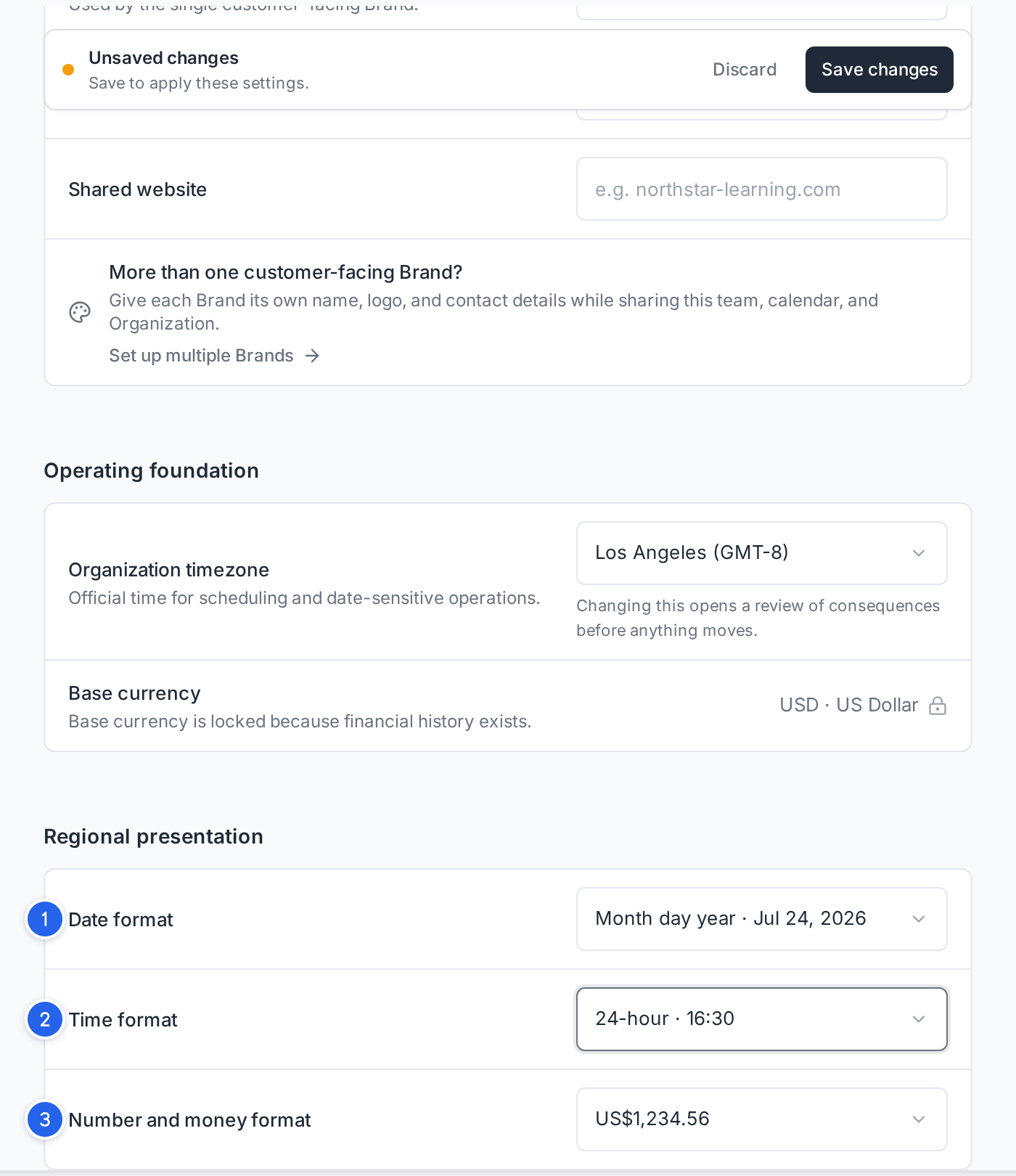
Select Save changes in the Unsaved changes bar.
After you save the formats
Times on the Calendar follow the new Time format. For example, after Northstar switches to 24-hour, a mathematics lesson on the Calendar reads 15:00–16:00 instead of 3 PM–4 PM. The lesson itself doesn't change: only the way its time is written.
Change the organization timezone
The Organization timezone is the official time for scheduling and for anything that depends on a date. Set it before you schedule lessons. Change it later only if it is wrong or the school moves, because existing lessons keep their moment and show at the new clock time.
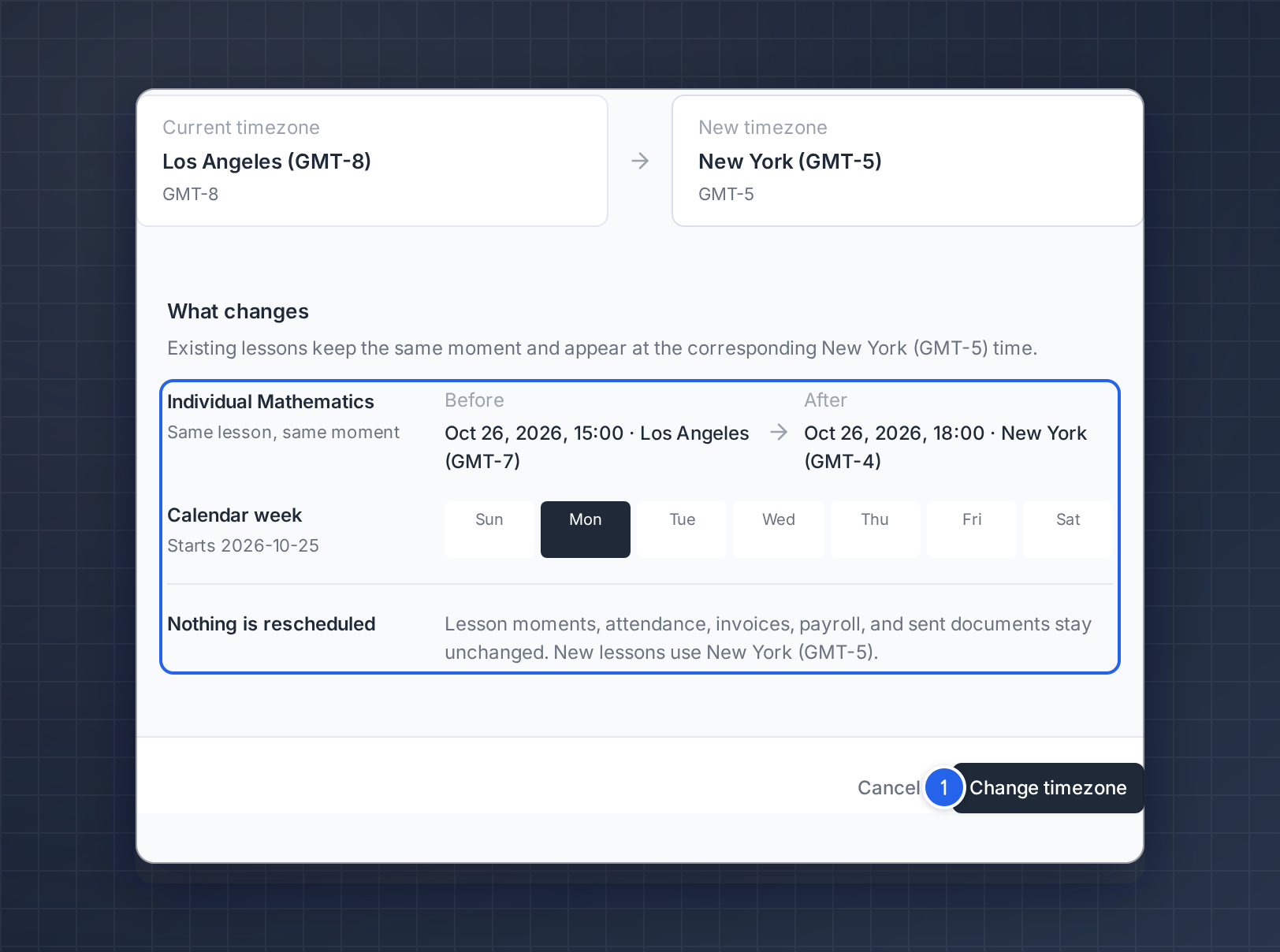
Under Operating foundation, choose Organization timezone, search for the school's city and choose it. Nothing is saved yet: a review opens. Under What changes, compare the example lesson's time before and after, then select Change timezone. To keep the current timezone, select Cancel instead.
After you change the timezone
The new timezone is saved at once; there is no Save changes step. The review states that nothing is rescheduled: lesson moments, attendance, invoices, payroll and sent documents stay unchanged, and new lessons use the new timezone. For example, after a Los Angeles school chooses New York (GMT-5), a lesson that showed at 15:00–16:00 shows at 18:00–19:00: the same moment, written in New York time.
The review's example writes each time with the offset that applied on the lesson's date, so the review can show Los Angeles (GMT-7) while the timezone list shows Los Angeles (GMT-8).
If lessons were created while the timezone was wrong, check the Calendar afterwards and move any lesson whose clock time should stay the same.
Good to know
- There is no setting for the first day of the week. The Calendar starts weeks on Monday.
- Every Number and money format puts the currency symbol in front of the amount.
- New invoices, receipts and pay statements use the Date format and Number and money format you saved; those already issued keep the format they were issued with.
Common questions
How do I switch Tutorbase to a 24-hour clock?
Open Settings > General, set Time format to 24-hour and select Save changes. The Calendar then shows times such as 15:00–16:00.
Does changing the time zone move my lessons?
Changing the Organization timezone reschedules nothing: every lesson keeps the same moment, so its clock time changes. Each lesson shows at the matching clock time in the new timezone, so a lesson at 15:00 in Los Angeles shows at 18:00 in New York.
Why do my lessons show at the wrong hour?
Check Organization timezone in Settings > General. The Calendar shows every lesson in that timezone, so a wrong timezone shifts every lesson's clock time.
Can I change the currency?
Base currency can't be changed once the organization has financial history. The General settings row then says it is locked.
Can the currency symbol go after the amount, as in 1 234,56 €?
No. Every Number and money format option writes the currency symbol in front, for example US$1 234,56.
Can I start the Calendar week on Sunday?
No. The Calendar starts weeks on Monday, and General settings has no first-day-of-week setting.
Is there a language or country setting for formats?
No. Choose Date format, Time format and Number and money format one by one in Settings > General.