
To charge tax in Tutorbase, open Settings > Invoicing and select Change tax. You set the tax once for your company (the legal business on your invoices): a name such as VAT, GST or sales tax, a rate, whether prices include it, and the day it applies from. Waiting charges then carry that tax, except charges with their own tax.
Before you start
Tax belongs to the company, not to one Brand or plan, so a change applies to every Brand that uses the company. In the steps below, a school starts charging VAT at 23%, already included in its prices, from today, and then adds its tax number, NS-100.
Set the company's tax
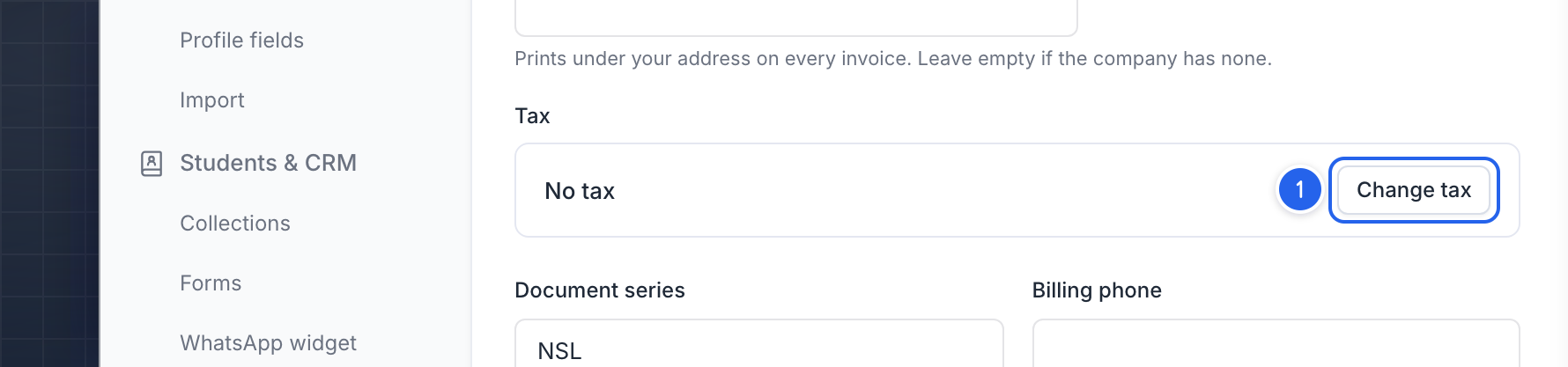
Open Settings > Invoicing. Under Tax, the tax in force today shows, for example No tax.
Under Tax, select Change tax. The Change tax window opens.
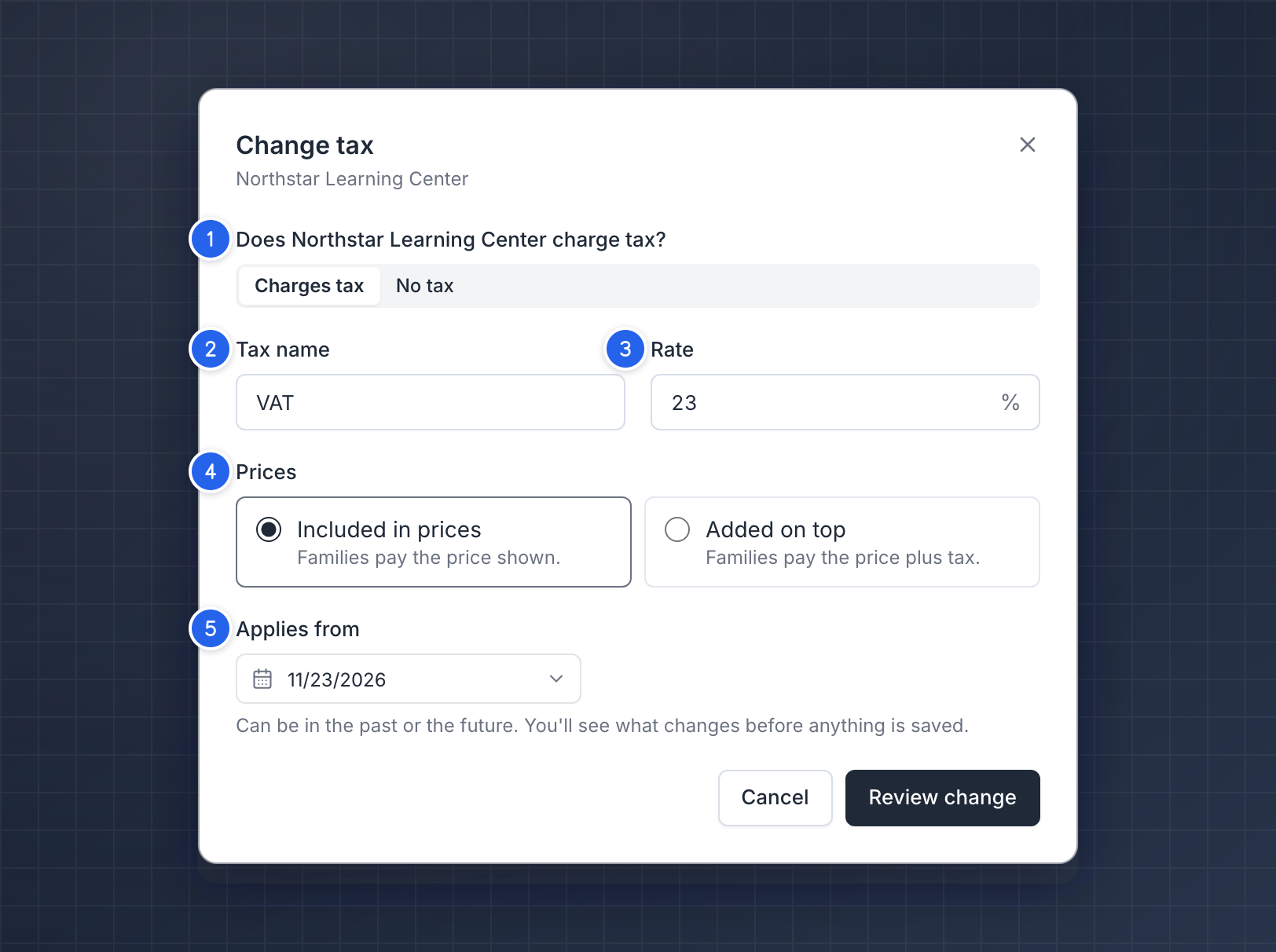
Set the new tax:
- Under Does … charge tax?, choose Charges tax.
- In Tax name, enter the name your invoices print, for example VAT or Sales tax.
- In Rate, enter the percentage, for example 23.
- Under Prices, choose Included in prices when families keep paying the price shown, or Added on top when they pay the price plus tax. With Included in prices, the school keeps less of each price. With Added on top, families pay more. Most schools choose Included in prices, because it matches the prices families already see; choose Added on top only when families know prices will rise by the tax.
- In Applies from, set the first day the tax applies. It starts at today's date and can be in the past or the future.
Select Review change. Nothing is saved yet: Review tax change shows the days the change covers, later settings that stay, the tax before and after, how many drafts and waiting charges will update, and published invoices in those days. For example, it says "23 waiting charges will update. Charges with their own tax keep it." and lists each published invoice dated from then under "These published invoices keep their tax. Void and reissue any that should change."
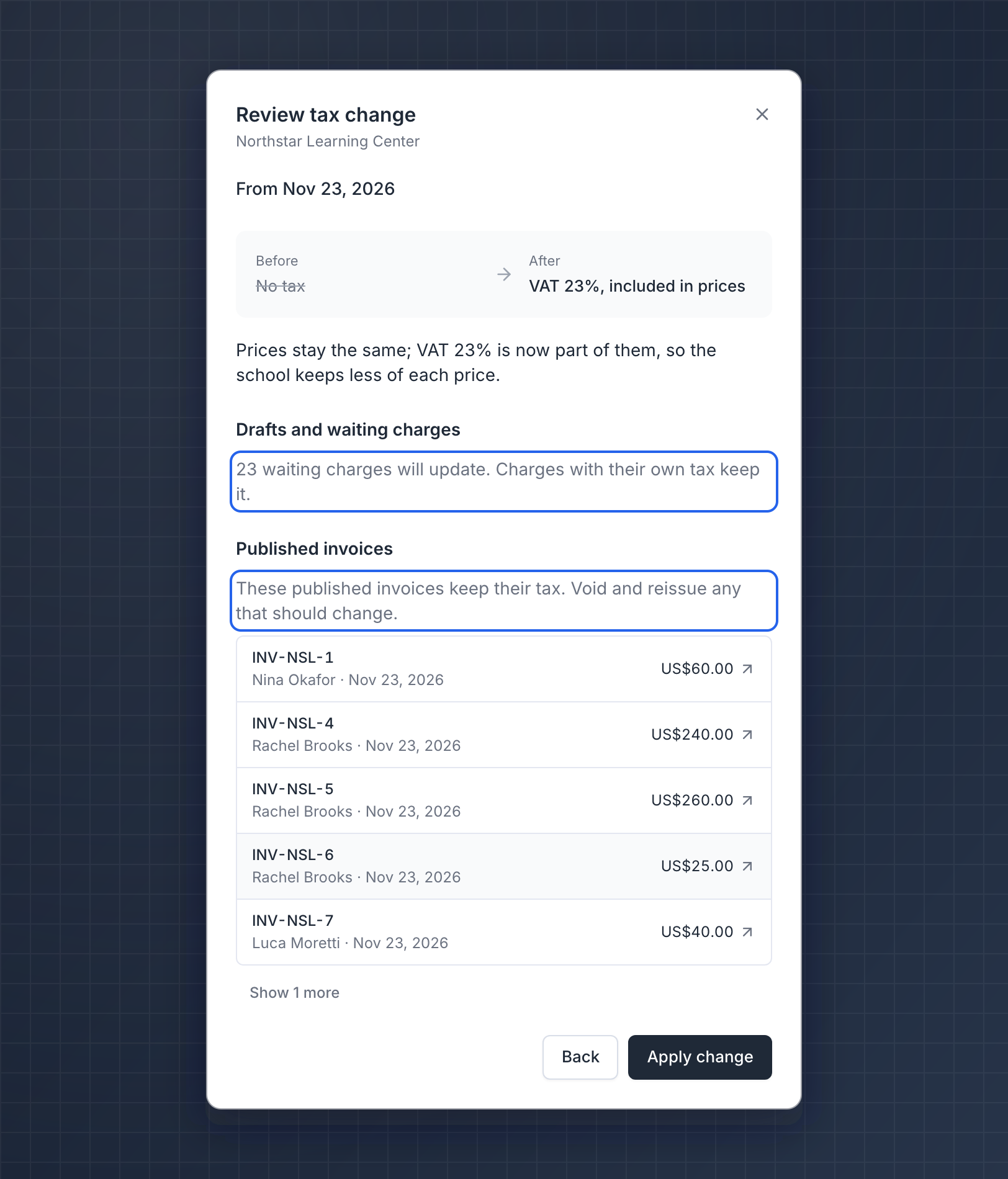
Select Apply change. Under Tax, a line confirms the change is saved and the date it applies from, and the row shows the new tax, for example VAT 23%, included in prices.
After you apply the change
Charges waiting to be billed that are dated from that day take the new tax, except charges with their own tax. Their prices stay the same.
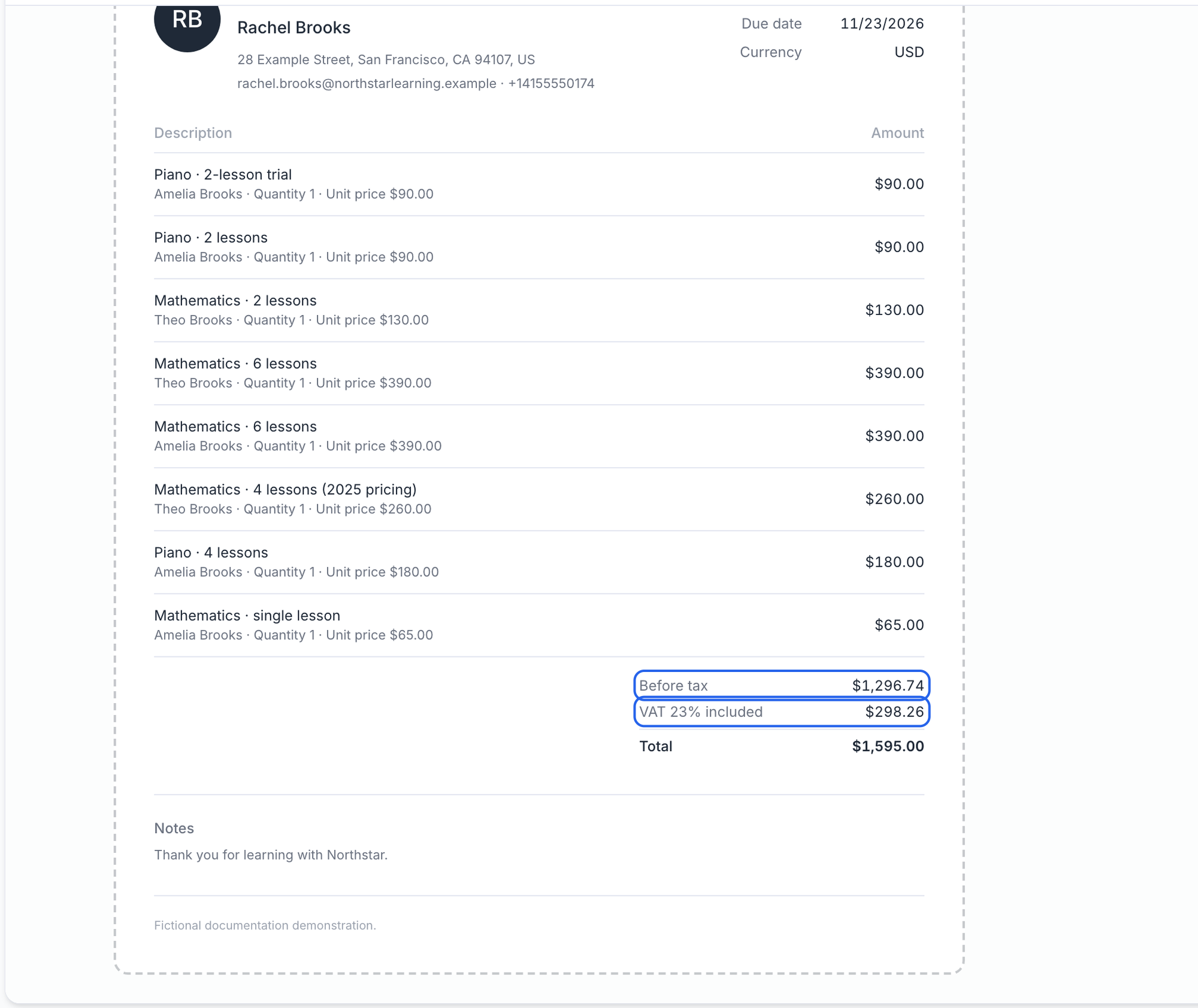
With Included in prices, part of each price becomes tax. For example, after VAT 23% included, a $1,595.00 draft shows Before tax $1,296.74 and VAT 23% included $298.26.
Published invoices keep the tax they were issued with. To change one, void it with Void invoice and choose Release charges, so its charges go back to Waiting to be billed for a new invoice.
A change dated in the future is scheduled. Under Tax, the tax in force today stays, with the scheduled tax under it: From the date, then the new tax.
Cancel a scheduled change
Under Tax, select Cancel change.

Select Cancel change again to confirm. The confirmation says unpublished charges dated from that day go back to the tax in force and published invoices don't change. A line under Tax confirms the change is canceled. Select Keep change instead to leave the change scheduled.
Add your tax number
In Tax number, enter the company's tax registration number. Below the field, Tutorbase shows how the number prints, for example "Prints under your address as "VAT no. NS-100"".
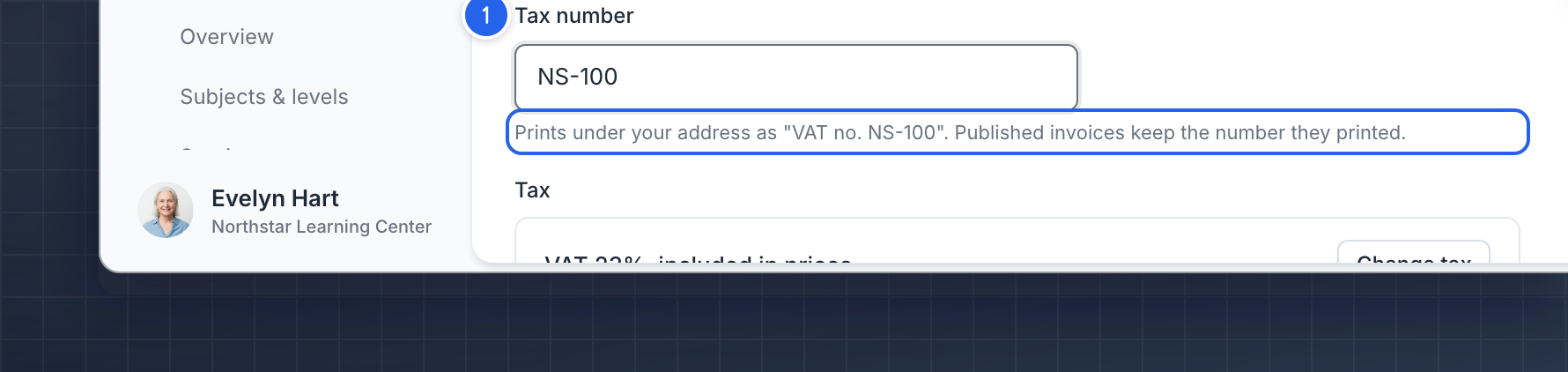
Select Save invoicing settings. Saved shows.
The number prints under your address, labelled with your tax name, for example VAT no. It shows on drafts created afterwards and in the Live preview. Published invoices keep the number they printed.
Good to know
- You decide whether a rate, price option, number and date are right for your business. Tutorbase doesn't give tax advice.
Common questions
Do I need to change my plan prices when I start charging tax? No. Your plan prices stay the same. With Included in prices, families pay the same amount and part of it is tax. With Added on top, families pay the price plus the tax.
What happens to invoices I already published? Published invoices keep the tax and tax number they printed. The review lists those in the days it covers; void any that should change with Release charges, so its charges can go on a new invoice.
Can I start charging tax from a date in the past? Yes. Set Applies from to that date. Review tax change shows the days the change covers, for example from a past date up to the day a later setting starts, and says that later setting stays. It lists the drafts, waiting charges and published invoices in those days; published invoices keep their tax.
How do I stop charging tax? In Settings > Invoicing, select Change tax, choose No tax, set Applies from, then review and apply. Prices stay the same, and none of each price is tax any more.
Why doesn't my invoice show a Tax line? The tax line appears only once the invoice's charges carry tax. It is named after your tax, for example VAT 23% included, under Before tax and above the total. An invoice published before you set the tax keeps what it printed.