
Skip closed days when you schedule a weekly lesson
Add a blocker for a holiday or typhoon closure, then choose Skip when you review a new weekly lesson so no class is booked on the closed days.
Last updated
To skip a holiday or other closed day in a new weekly lesson (a recurring class) in Tutorbase, add a Blocker for the closure, then create the lesson and choose Skip on the closure's card in Review lesson. The series gets no lesson on the closed dates, and the lesson email lists them under “No lesson on”.
Before you start
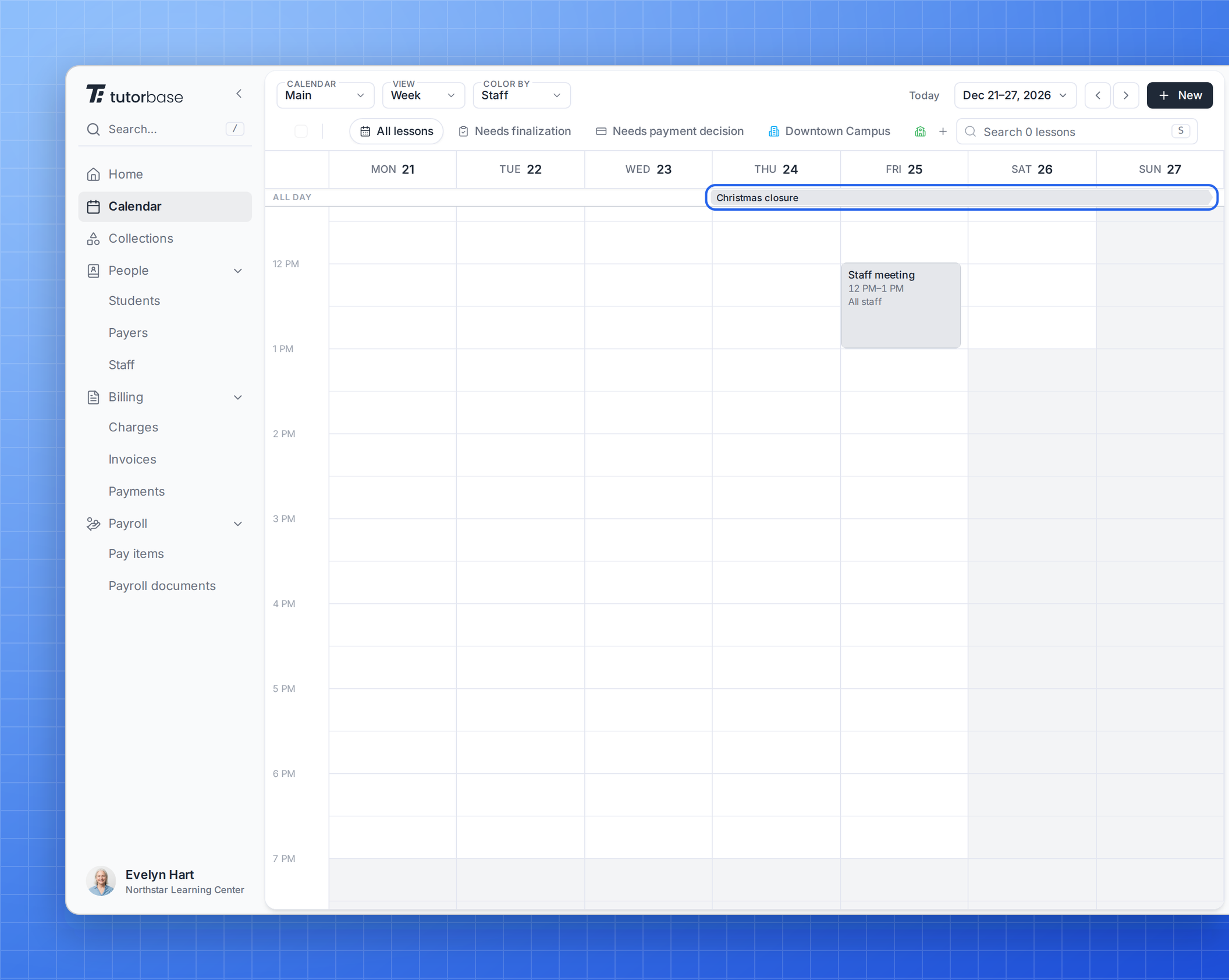
Tutorbase does not skip holidays by itself. Review lesson offers Skip for a closure only when it is already on the Calendar as a blocker. Add it first: open Calendar, choose New > Blocker, switch on All day, set the start and end dates, and choose All staff for a school-wide closure such as a public holiday, a winter break or a typhoon day, then select Review changes and Save blocker.
For example, add an all-day “Christmas closure” blocker for All staff over the winter break. A new weekly Friday piano lesson for Luca Moretti with James Carter at 4:00 PM, ending after 6 lessons, crosses the closure on two Fridays.
Skip the closed days
Open Calendar on the first lesson's day, choose New > Lesson, and set the service, teacher, time and weekly Repeat. Under Ends, choose After and enter the number of lessons, 6 in the example, then set the student and location as for any weekly lesson. Choose After for a fixed number of lessons: each skipped date adds the next weekly date at the end, so the student still gets every lesson.
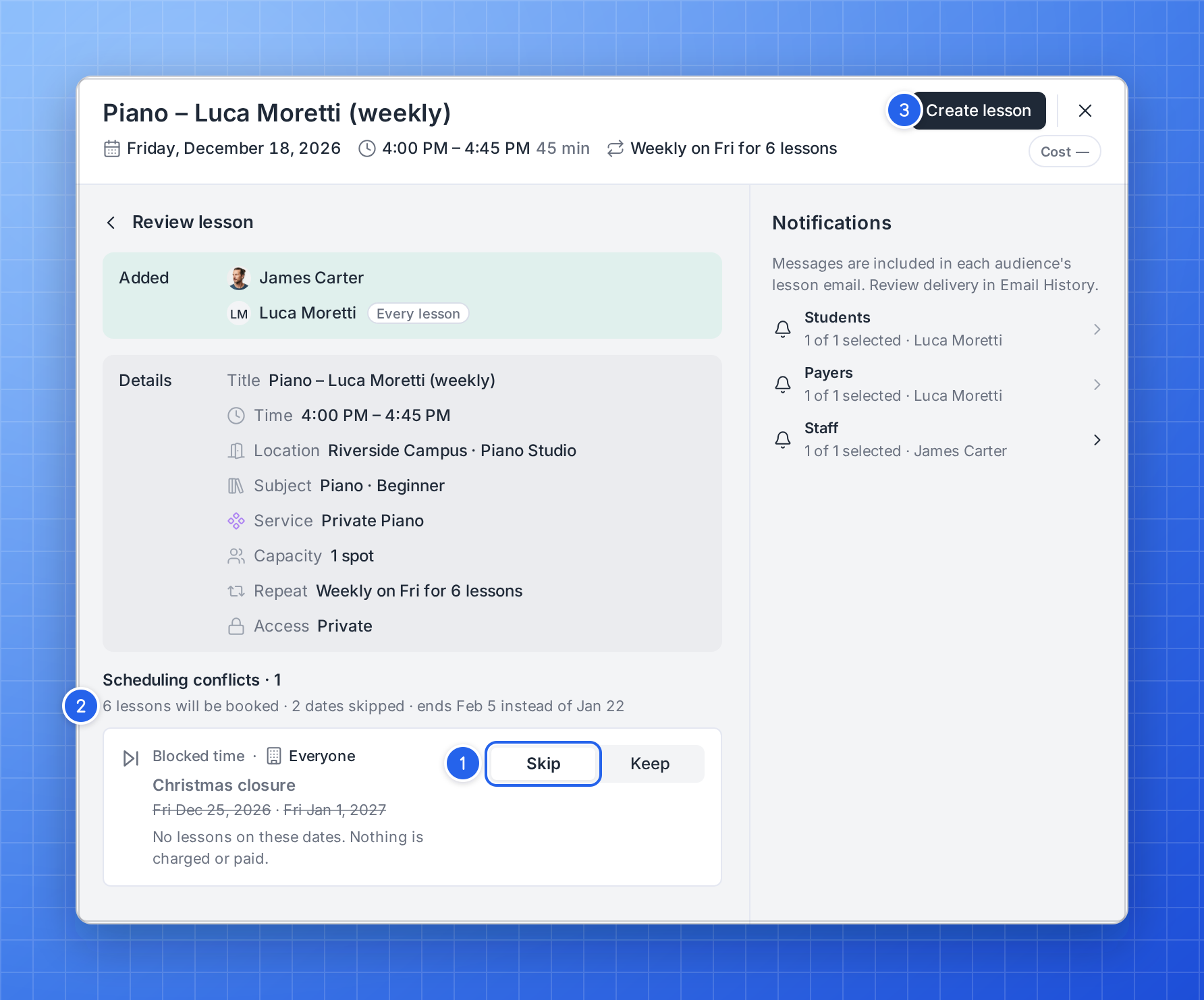
Select Review & save. Review lesson opens; the series is not created yet. Under Scheduling conflicts, each blocker the series' dates cross has a card with the reason (Blocked time), who the blocker covers (Everyone), its title and the dates it hits. Other cards, such as a double booking or a teacher's availability, can appear too; choose for each. The line under the heading reads “Choose Skip or Keep for each conflict · 1 left”, and Create lesson stays unavailable until every card has a choice.
In Review lesson:
- On the closure's card, choose Skip. Nothing is chosen for you. The card strikes through the dates and says “No lessons on these dates. Nothing is charged or paid.” Choose Skip because nobody teaches on a closed day. Choose Keep only when this class still meets on those dates despite the blocker; the card then says “Lessons are booked despite this conflict.”
- Check the line under Scheduling conflicts. In the example it reads “6 lessons will be booked · 2 dates skipped”, followed by the series' new last date and the last date it replaces.
- Select Create lesson.
After you create the series
The Calendar has lessons only on the dates you kept. A skipped date shows the blocker and no lesson. In the example, the series has six Friday lessons: the first, three more after the closure, and two added at the end, one for each skipped Friday. The lesson's details still read “Every Friday, for 6 lessons”.
Tutorbase emails a “New lesson” email to the students and payers selected under Notifications, and a “New lesson assignment” email to the teacher. The student's email gives the repeat, the time, the first and last dates and the number of lessons, then lists the skipped dates under “No lesson on”. It does not mention the blocker or its title. Check the emails in Settings > Email history.
Good to know
- Ends decides what Skip does. With After, the series keeps its number of lessons and ends later. With Until, the series still ends on its last date, so each skipped date is one lesson fewer: for example, nine Fridays with two skipped book seven lessons. With Ongoing, the series has no end, and the line under Scheduling conflicts says only how many dates are skipped.
- With Keep, the closed dates stay in the series as lessons. In the example, the line under Scheduling conflicts then reads “6 lessons will be booked”, with no dates skipped and no change to the last date.
Common questions
How do I skip a holiday in a weekly class?
Add an all-day blocker for the holiday in Calendar. Then create the weekly lesson, select Review & save, and choose Skip on the blocker's card in Review lesson.
Does Tutorbase skip holidays automatically?
No. Tutorbase skips a date only after you choose Skip on a blocker's card while reviewing a new weekly lesson. Add the holiday as a blocker first, so Review lesson can offer it.
Will the student still get all their lessons?
Yes, when the series ends After a number of lessons: each skipped date adds a weekly date at the end. A series that ends Until a date has one lesson fewer for each skipped date. An Ongoing series has no lesson on the skipped dates.
Do families see why a lesson was skipped?
No. The “New lesson” email lists the skipped dates under “No lesson on”, without the blocker's title.