
Schedule a recurring lesson
Create a weekly lesson series, choose when the series ends, and set a student to attend every lesson.
Last updated
To schedule weekly lessons (a recurring class) in Tutorbase, open Calendar > Create > Lesson and set Repeat and student Membership. You create a series with a chosen end and attendance pattern. These steps cover a private, in-person lesson; group and online lessons need different service or delivery choices.
Before you start
Create the service (lesson type), subject and level, teacher, student and location (room) first. Agree the first lesson's time and the series end.
The worked arrangement is two Monday piano lessons for Amelia Brooks at 10:00, with James Carter in Riverside Campus · Piano Studio. Amelia has no email address; her payer is Rachel Brooks.
Creating the series leaves the student's plan undecided. Decide coverage after saving, before treating the lessons as covered.
Set up the weekly lesson
Open Calendar on the first lesson's day and select Create.
Select Lesson. New Lesson opens.

Under Service, choose Private Piano for its 45-minute length and one student spot. Choose the service before timing because the service sets duration and capacity.
Under Subject · Level, expand Piano and choose Beginner to match the teaching arrangement; choosing the service does not fill this field.
Under Teacher, choose James Carter, the teacher agreed with the family.
Select the date and time under the title to open Date & time.
In Date & time, set the schedule:
- Set Start to 10:00 and check End is 10:45. Keep the service's length unless a different duration was agreed, so the booking matches the lesson offered.
- Under Repeat, choose Weekly on Mon for a weekly Monday booking; the starting choice, Does not repeat, would create only one lesson.
- Under On, keep Monday selected to match the arrangement; add a weekday only if the class should meet that day too.
- Under Ends, choose After and enter 2 because the booking is for two lessons. For a known final teaching date, choose Until and set Last lesson instead; Ongoing is the default.
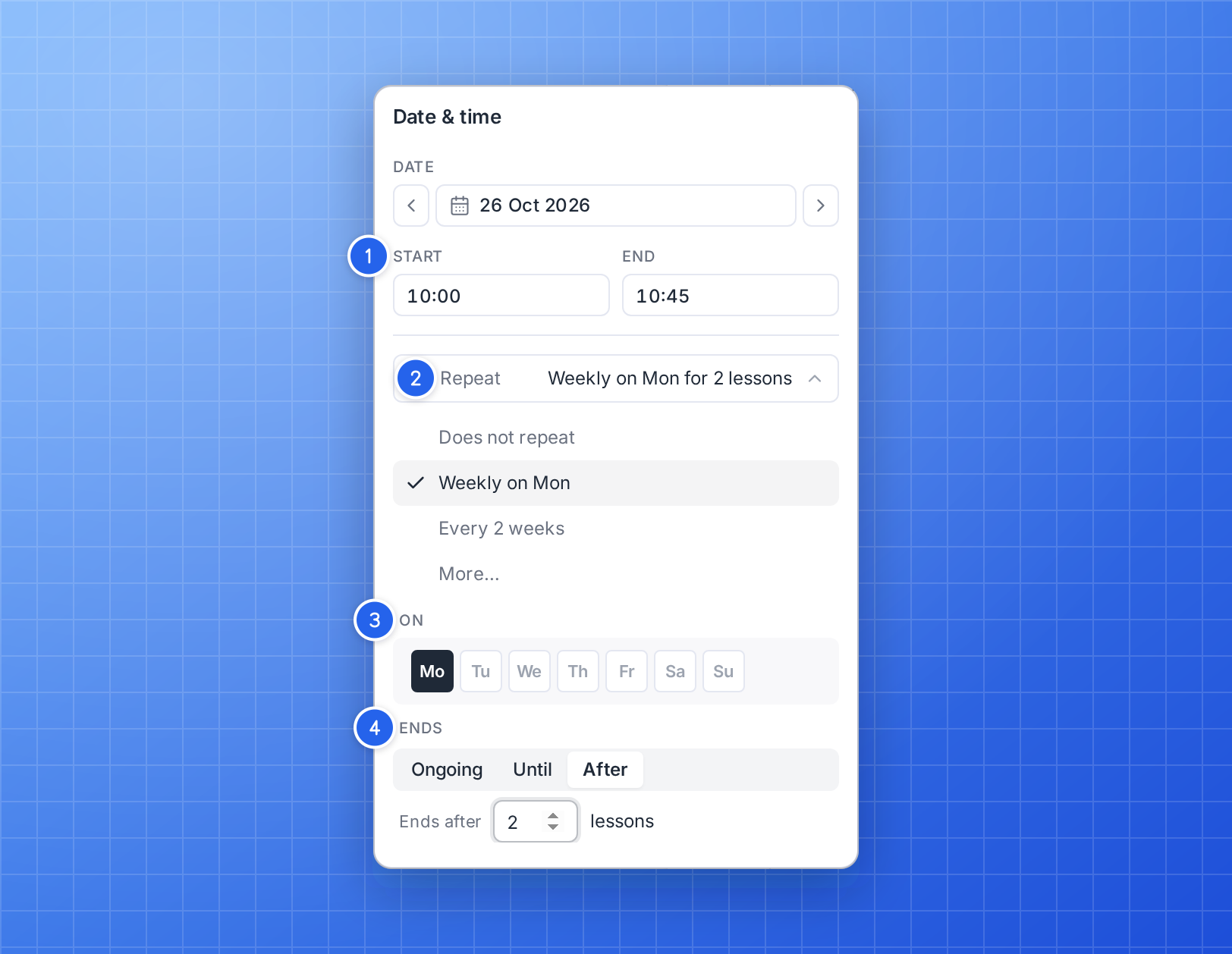
Select outside Date & time to return to New Lesson.
Under Students, select 1 open spot · private to open Add student.
Choose Amelia Brooks, the student booked for the slot, then select outside Add student.
Select the student's name to open the student menu.
Select Membership.
Choose which lessons the student attends
Keep Every lesson selected because the student should attend every weekly lesson. Membership sets attendance; Repeat sets the schedule.
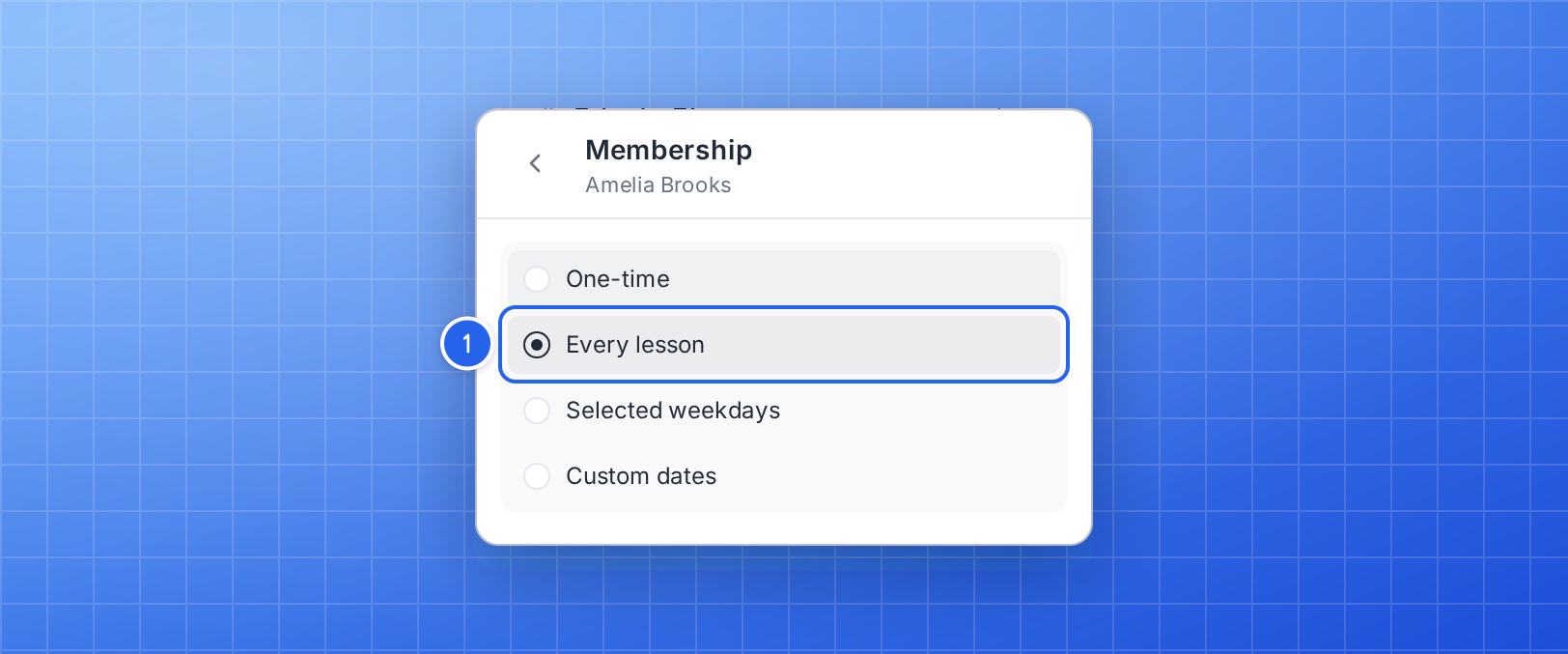
Select the back arrow to return to the student menu.
Select the close button to return to New Lesson.
Choose the location and title
- Under Location, choose Riverside Campus · Piano Studio, the room agreed for the lessons.
- Keep In person because teacher and student will meet in that room.
- Select New Lesson and enter “Piano – Amelia Brooks (weekly)” so the Calendar title identifies the booking.
Leave optional Add note blank when the booking details are sufficient, so the lesson has no unnecessary note.
Review and create the series
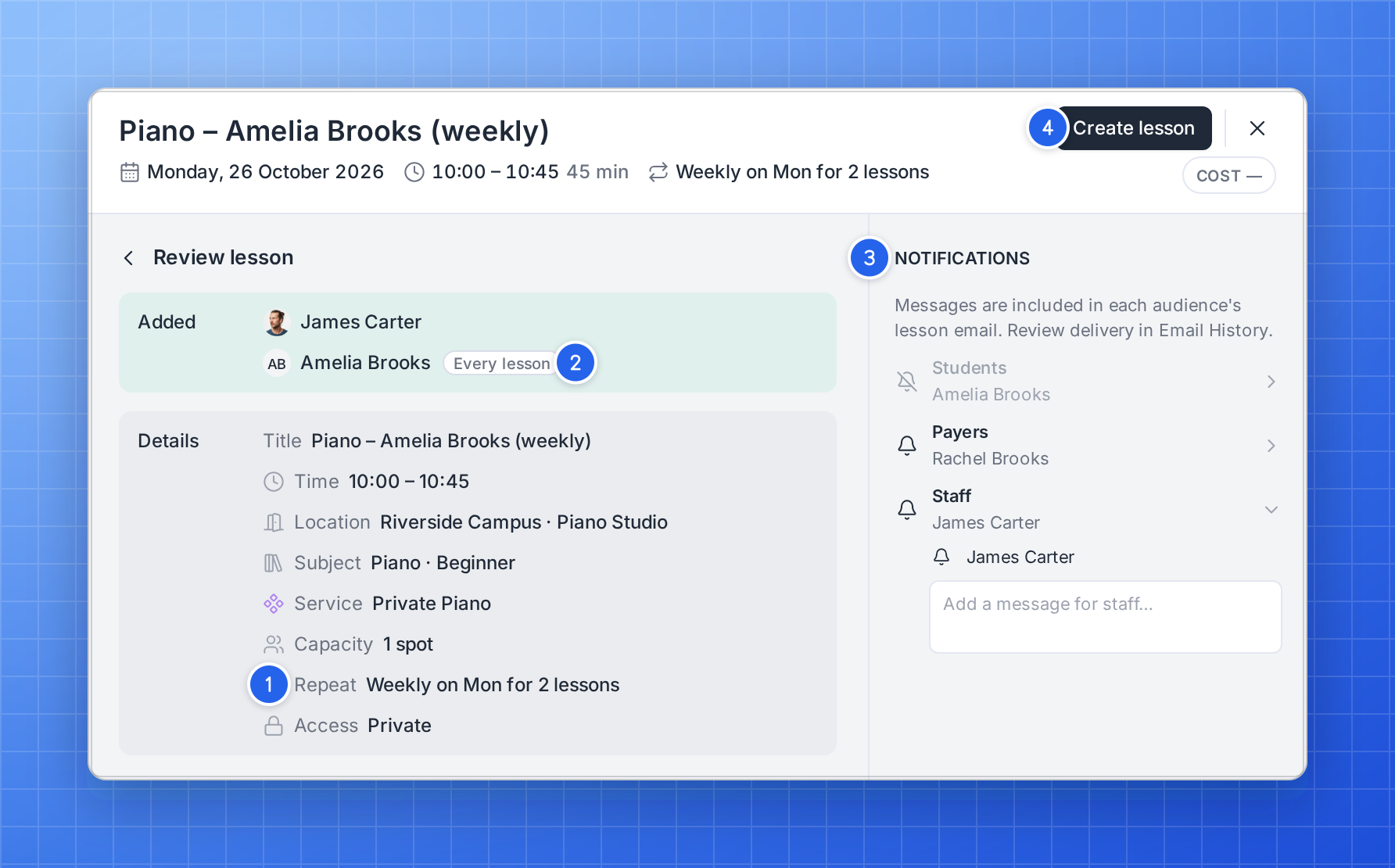
Select Review & save. Review lesson opens; the series is not created yet.
In Review lesson:
- Check Repeat reads Weekly on Mon for 2 lessons, Capacity is 1 spot and Access is Private. Select Back to editing to correct a mismatch before creating the series.
- Check the student is listed as Every lesson.
- Under Notifications, open Payers and Staff to check the family and teacher listed for the booking. Review the selected recipients before creating the series; select the recipients you intend to inform and clear any others. Check Students separately: Amelia has no email address and her individual checkbox is disabled. Starting selections can differ with notification preferences, so review the actual names and choices.
- Select Create lesson.
After you create the series
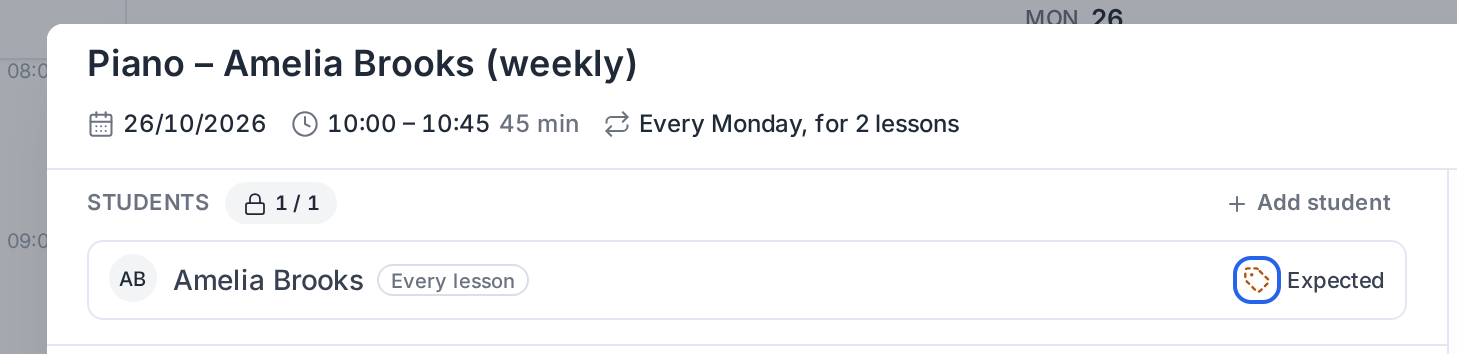
The Calendar shows two weekly lessons with the chosen title, time, location and subject. Both include the student as Every lesson. Each lesson shows Needs plan beside the student: creating a series does not choose a plan. Choose a series plan default when the same purchased plan should cover recurring lessons, to avoid choosing a plan each week; choose individual lesson coverage when the plan should differ. A default does not guarantee coverage if the plan runs out.
Tutorbase records the payer's “New lesson” and teacher's “New lesson assignment” emails as Sent in Settings > Email history. The student's entry is Not sent. Sent does not guarantee delivery to an inbox.
Common questions
How do I repeat lessons until term ends?
In Date & time, choose the weekly Repeat schedule, then Until under Ends and set Last lesson.
Does Every lesson make a class repeat?
No. Membership sets which lessons the student attends. Set the weekly schedule through Repeat in Date & time.
Will creating a recurring lesson choose a plan?
No. Saved lessons show Needs plan until you decide the student's coverage.