
Understand and correct scheduling warnings
Read lesson warnings for double bookings, availability, opening hours and capacity, then correct the arrangement before creating the lesson.
Last updated
To understand scheduling warnings in Tutorbase, check Needs attention while planning a lesson in Calendar, then open Review lesson for the affected people, location and times. Warnings cover double bookings, availability, opening hours, blocked time and capacity. Correct the teaching arrangement before creating the lesson.
Before you start
The teacher, students, service (lesson type) and location (room) already exist. The examples use an unsaved Northstar Spanish group proposal: four students, Maya Chen and Cedar Room, followed by a correction to Daniel Rivera and Oak Room. Reviewing a proposal does not create a lesson.
Where to read the warnings
Open Calendar on the proposed lesson day and select Create.
Select Lesson. New Lesson opens.

Under Service, choose the lesson type before adjusting time or capacity, because the service sets the lesson length and student limit.
Select the delivery label under Location to open Delivery mode.
Choose In person for a group attending in the room so the proposal matches the intended arrangement.
Set the remaining lesson details, then select Review & save. Review lesson opens with the scheduling conflict cards. Review each card before deciding whether to keep the arrangement, because one proposal can have several different conflicts.
A double-booking card names the teacher, student or room. Affected lesson is the proposed lesson; Another lesson gives the existing booking's time and when the resource becomes available. Compare both windows before choosing a new time.
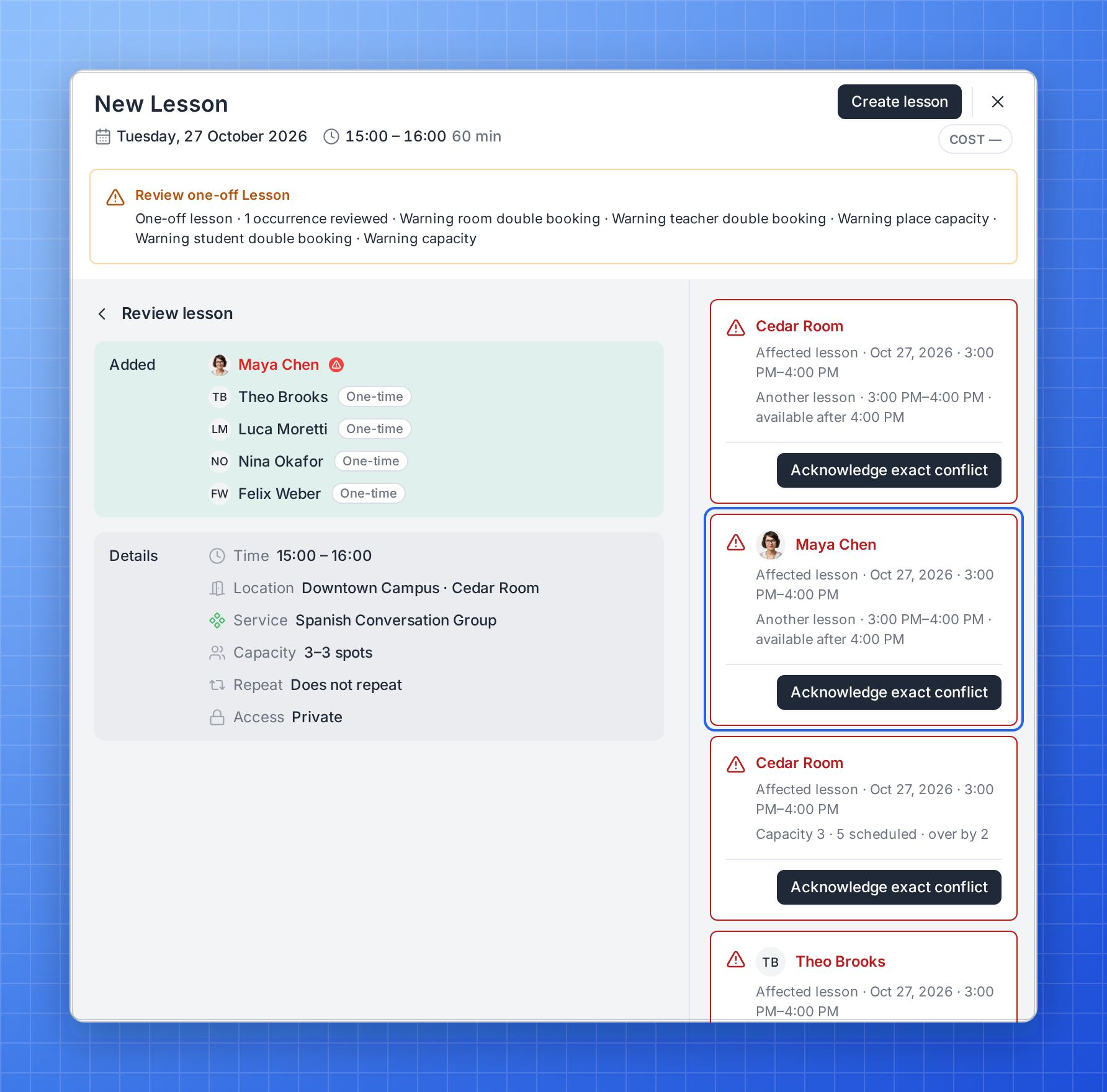
The lesson editor uses times such as 15:00–16:00, while conflict cards use 3:00 PM–4:00 PM. These displays describe the same time; read the date and window on each card.
What each warning means
| Warning | What to check and change |
|---|---|
| Teacher, student or room double booking | The named person or room already has another lesson during the proposed time. For a student clash, choose another time so the student can attend both lessons. For a teacher or room clash, change the time or replace the conflicting teacher or room. |
| Outside availability | The lesson falls outside the teacher's recorded availability. Choose a time within the teacher's working hours; change weekly availability only when the working pattern itself is wrong. |
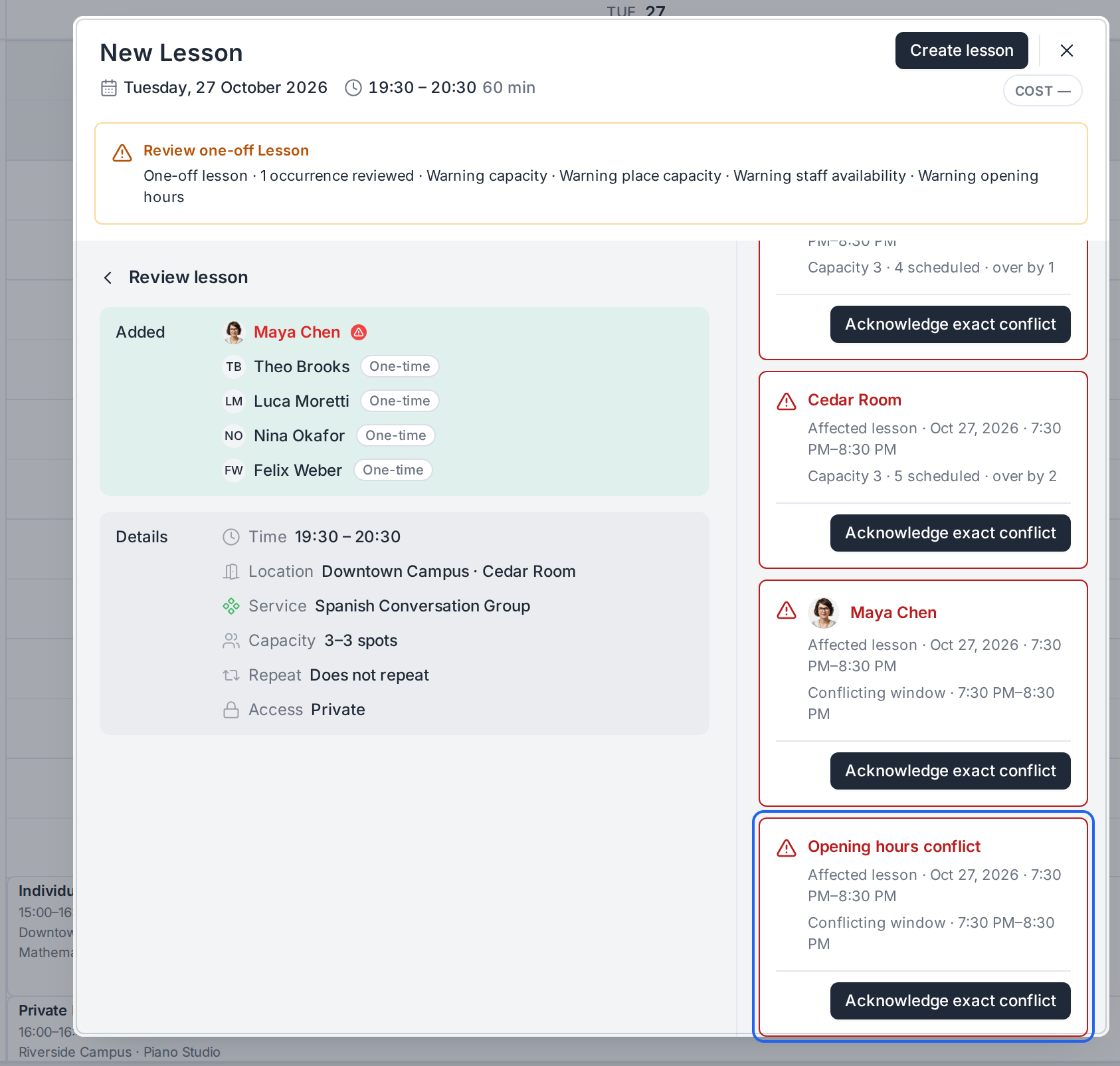
| Opening hours conflict | The lesson falls outside the organization's opening hours. Choose an open time so the booking fits the school's hours. |
| Blocked time | The lesson overlaps time reserved as unavailable. Choose another time so the lesson respects the existing reservation. |
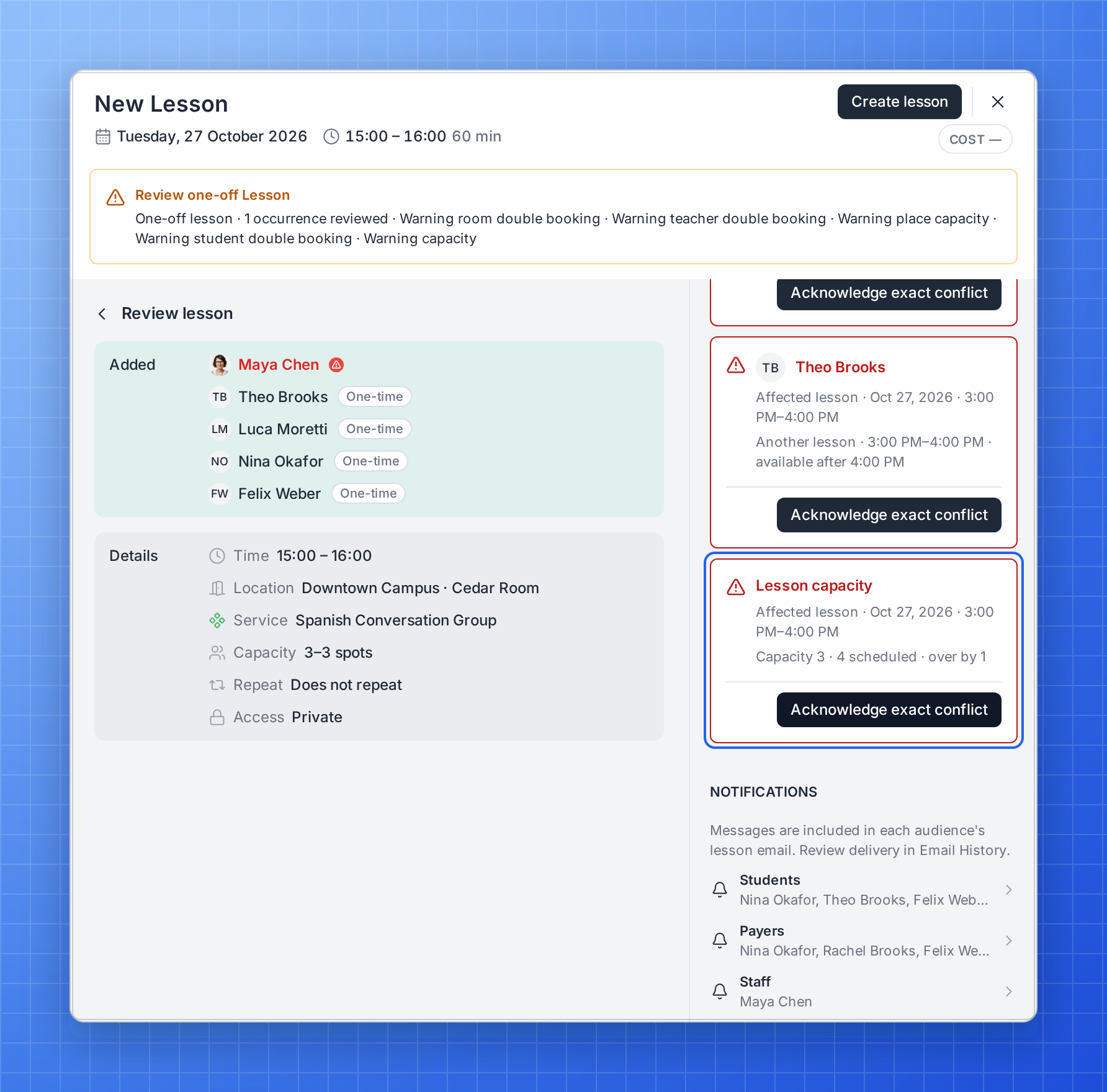
| Lesson capacity | The student count exceeds the lesson's maximum. Keep a realistic limit for the teaching group instead of removing the limit to hide the warning. |
| Room capacity exceeded | The room's scheduled occupancy exceeds its limit. Choose a larger room and check the room's displayed total; the room count can differ from the lesson's student count. |
For example, a lesson warning can say Capacity 3 · 4 scheduled · over by 1, while the room warning says Capacity 3 · 5 scheduled · over by 2. Treat these as two constraints.
Correct the proposed arrangement
Select Back to editing in Review lesson, then change the fields responsible for the warning. Prefer a time and room that fit the whole group so correcting one conflict does not leave another unresolved.
For a larger group that the teacher can teach, select the student-count control under Students to open Capacity, then set Maximum seats to the intended group size. Keep Set a limit so the lesson retains a useful cap; changing the lesson maximum does not enlarge the room.
For example, choosing Daniel Rivera, Oak Room, 13:00–14:00 and a four-seat maximum removes the scheduling conflict cards from the four-student proposal. Select Review & save again to check the new arrangement.
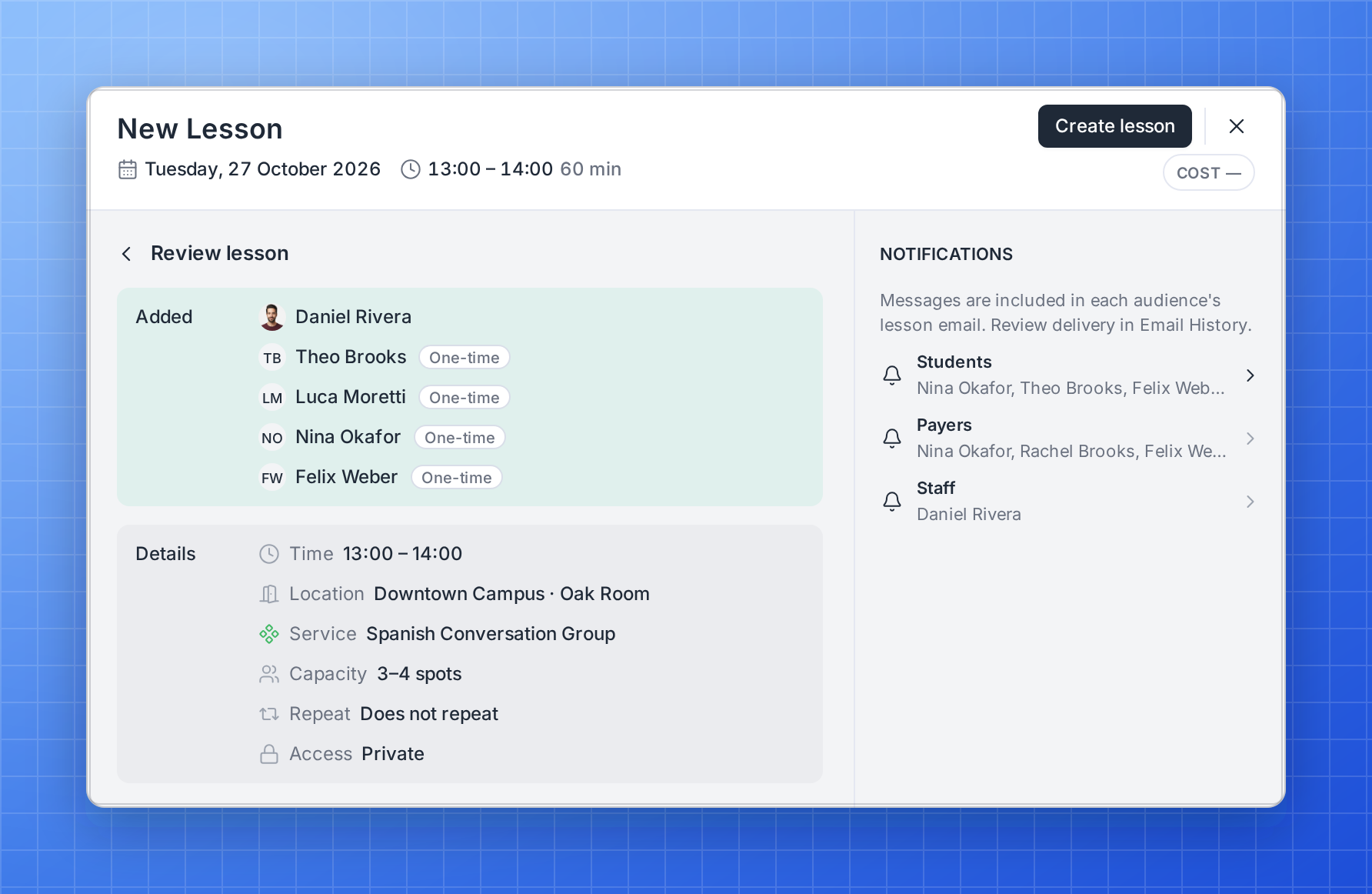
Before creating a real lesson, review Notifications and select each group name to check its individual recipients. Select the recipients you intend to inform and clear any others, including recipients whose saved preferences leave them initially off. For routine lesson information, include the intended payer and teacher; include a student only when a separate student email is useful. Check Email history after saving to review delivery.
To abandon an exploratory proposal, select Close, then Discard changes. The confirmation states that the lesson has not been created.
Common questions
What does outside availability mean?
Outside availability means the proposed lesson is outside the teacher's recorded working hours. Choose a suitable time in the lesson or correct the teacher's weekly availability if those hours are wrong.
Can I save with a warning?
Review & save can open Review lesson while scheduling warnings remain; that action has not created the lesson. Correct the arrangement first rather than assuming every warning permits a completed save.
Why does room capacity differ from lesson capacity?
Lesson capacity limits the lesson's student count; the room warning compares scheduled occupancy with the room's own limit. Check both warning totals before choosing the group size and location.
What does an opening-hours warning mean?
Opening hours conflict means the proposed lesson is outside the organization's opening hours. Choose an open time unless the school's opening hours need correcting.
Does acknowledging a conflict fix the double booking?
No. Acknowledge exact conflict changes the teacher card to Acknowledged, while the existing booking window remains on the card. Use Back to editing to change the teaching arrangement.