


You're probably dealing with some version of the same mess most tutoring centers hit once they add smartboards. One branch runs a SMART Board, another has BenQ panels, one teacher wants PDF markup, another wants live quizzes, and your hybrid classes fall apart because the app that works in-room doesn't work well on student devices. The problem usually isn't finding apps for smartboard use. It's choosing a stack that teachers can actually use across locations without constant setup drama.
That matters more now because interactive whiteboards are already widely deployed in education. The European Union moved from an average of 111 students per interactive whiteboard in 2011/12 to 58 students per whiteboard in later figures, which tells you this is an established classroom environment, not a niche one. At the same time, software has shifted from simple annotation into full device-connected teaching workflows. SMART's iQ platform highlights that students can connect from Chromebooks, laptops, tablets, or phones through its education software ecosystem.
If you're also tightening lesson delivery, teacher consistency, and note workflows, this guide to the best note taking software is a useful companion read.
1. SMART Lumio
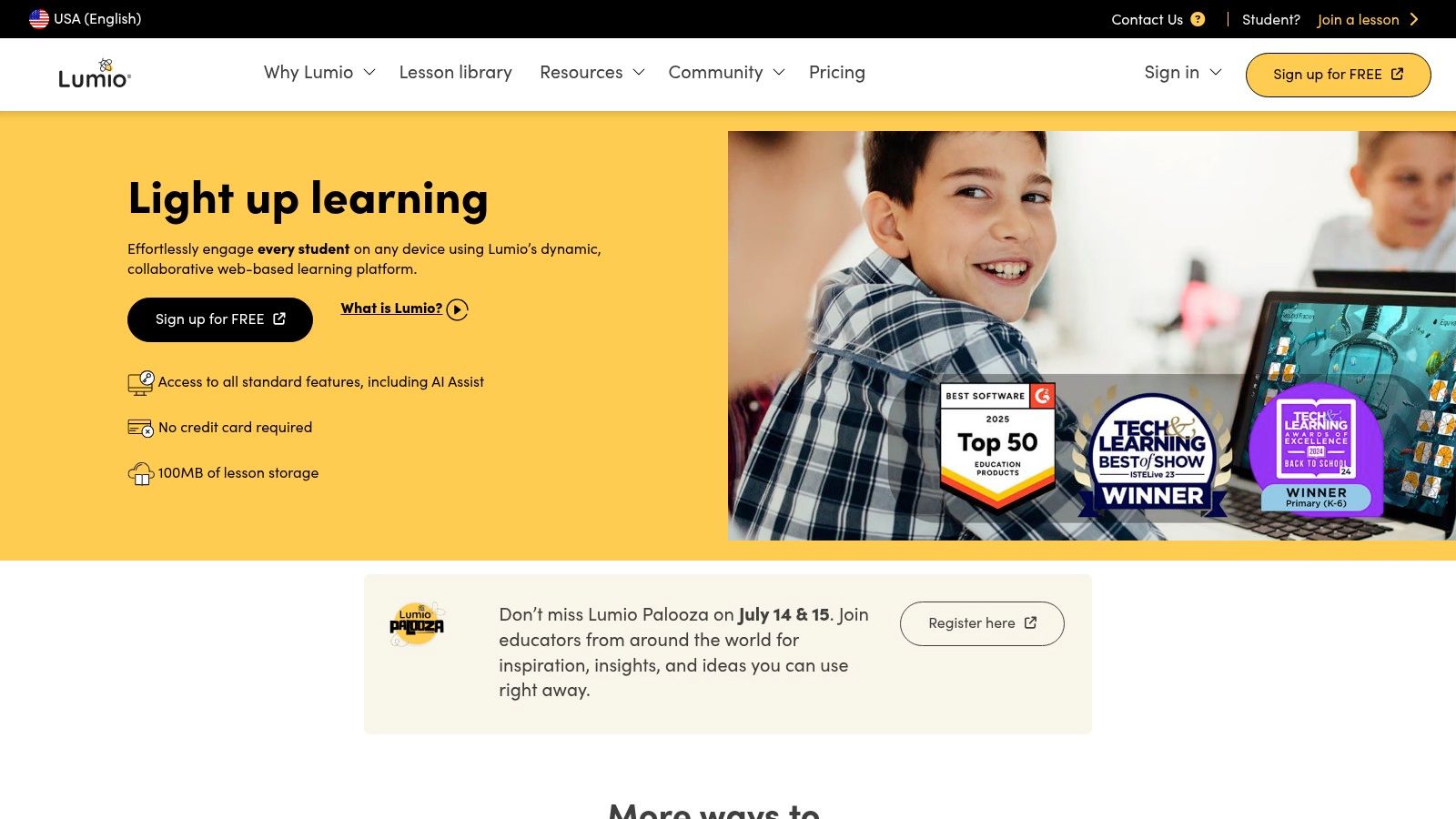
SMART Lumio is one of the easiest apps for smartboard setups when your teachers already have PowerPoints, PDFs, or Google Slides and don't want to rebuild everything from scratch. That's the main reason many centers adopt it. It respects existing lesson materials instead of forcing a new workflow on every teacher.
It works especially well for hybrid tutoring, small-group language classes, and teacher-led review sessions where students need to join from their own devices. If your center wants one platform for live teaching and student-paced follow-up, Lumio is a strong fit.
Where Lumio works best
Lumio makes sense when you need interactive delivery more than heavy whiteboard customization. Teachers can import files, add activities, and run live or self-paced sessions without learning a complicated desktop authoring tool.
What usually works well in practice:
- Fast lesson conversion: Teachers can start with existing slide decks and PDFs instead of creating lessons from zero.
- Good hybrid support: Students can participate from laptops, tablets, or phones, which helps when some learners are remote or using their own devices.
- Useful for shared curriculum: Academic directors can build one lesson version and roll it out across branches.
The trade-off is storage and feature depth. Free use is fine for testing, but once multiple branches start saving libraries, reusing content, and collaborating across teams, paid tiers become more realistic.
Practical rule: If your teachers already teach from slides, Lumio is usually easier to standardize than a blank-canvas whiteboard app.
Direct site: SMART Lumio
2. SMART Notebook / Notebook Plus
SMART Notebook is still one of the most familiar names in interactive teaching software, and that matters more than people admit. In multi-branch centers, familiarity reduces training time. Teachers who've used SMART Boards before can usually start teaching with Notebook quickly, especially for front-of-room instruction.
Notebook Plus becomes more interesting for mixed hardware. It supports use beyond SMART-only environments, which helps if one branch upgraded displays while another kept older equipment.
Best for teacher-led board work
Notebook is strongest when the board is the center of the lesson. Math modeling, grammar breakdowns, reading annotation, and visual demonstrations all feel natural here. It's less elegant for cloud-first collaboration than some newer tools, but it still does in-room teaching very well.
What stands out operationally:
- Strong offline teaching: Teachers don't need to depend on browser performance every lesson.
- Deep annotation tools: Good for worked examples, drag-and-drop tasks, and structured visual explanations.
- Large installed base: Many teachers have seen it before, which lowers rollout friction.
The weak point is collaboration across branches. If your team wants shared cloud libraries, remote co-editing, and easy access from any device, Notebook can feel more desktop-bound than modern alternatives. For centers that care more about consistent room teaching than cloud authoring, that's often an acceptable compromise.
If you're standardizing lessons and teacher workflows across locations, your board software should fit cleanly into your wider tutoring center software stack.
Direct site: SMART Notebook
3. Promethean ActivInspire
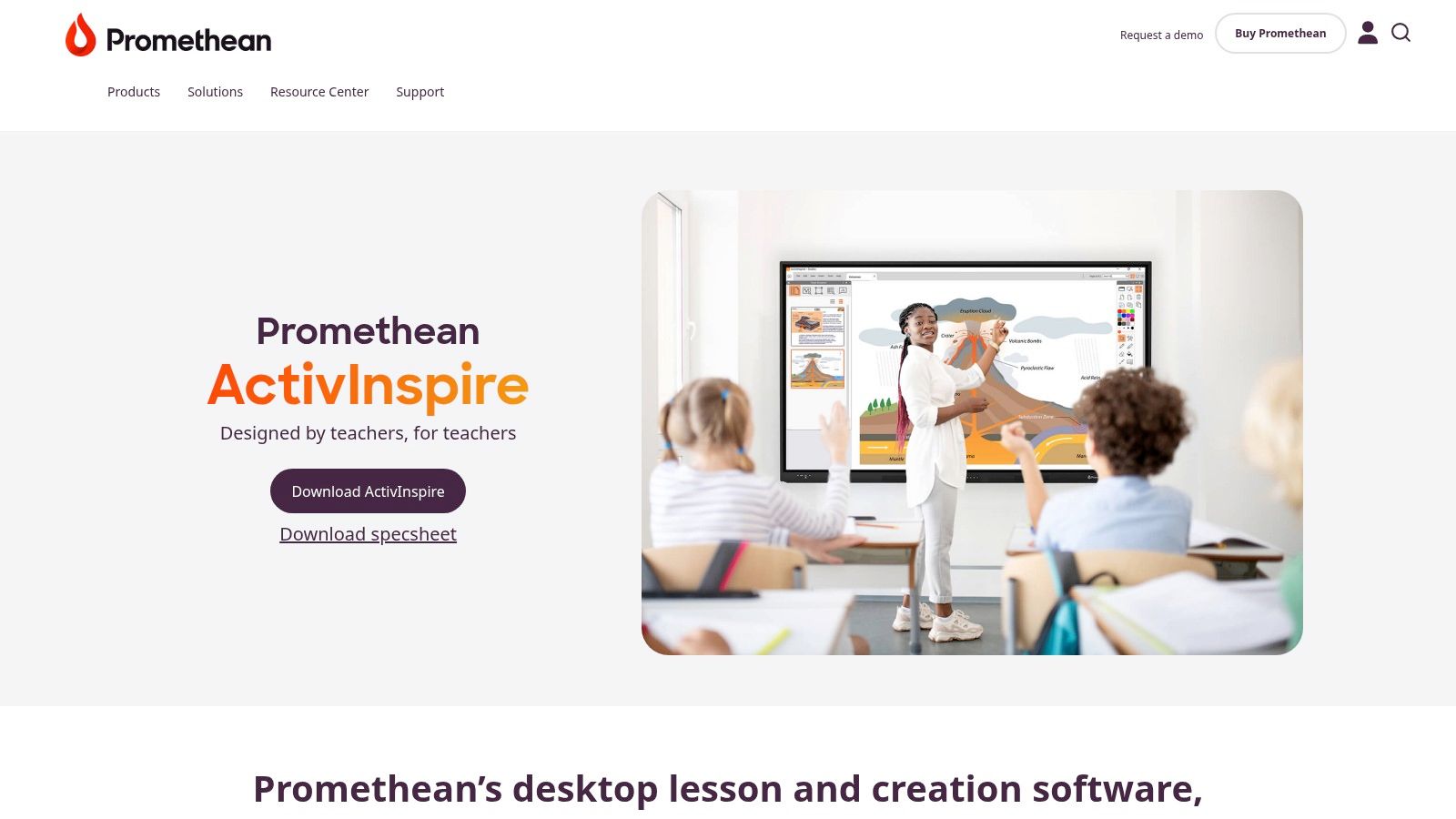
Promethean ActivInspire is a practical choice when you need a mature classroom tool that doesn't depend heavily on the cloud. A lot of centers still like that. Internet issues, shared room logins, and inconsistent teacher accounts can derail cloud-first tools fast.
ActivInspire feels more traditional than newer platforms, but traditional isn't always bad. If your teachers mainly need pens, flipcharts, subject tools, and stable in-room annotation, it does the job.
Why some centers still choose it
The big advantage is stability. It runs on Windows, macOS, and Linux, and it's been around long enough that many teachers already understand the basics. For tutoring labs and after-school programs, that familiarity can outweigh a dated interface.
A few realistic pros and cons:
- Good offline reliability: Helpful for centers with older PCs or stricter network controls.
- Cross-platform support: Useful when branches don't share the same computer setup.
- Less modern feel: Teachers who expect sleek browser-based collaboration may find it clunky.
This is not the app I'd choose first for student-device interaction across mixed branches. It's better as a dependable board-side teaching tool than as a center-wide collaboration layer.
If your teachers still teach best with a pen, a page, and a predictable interface, ActivInspire can be the safer choice than a flashier platform.
Direct site: Promethean ActivInspire
4. ViewSonic myViewBoard
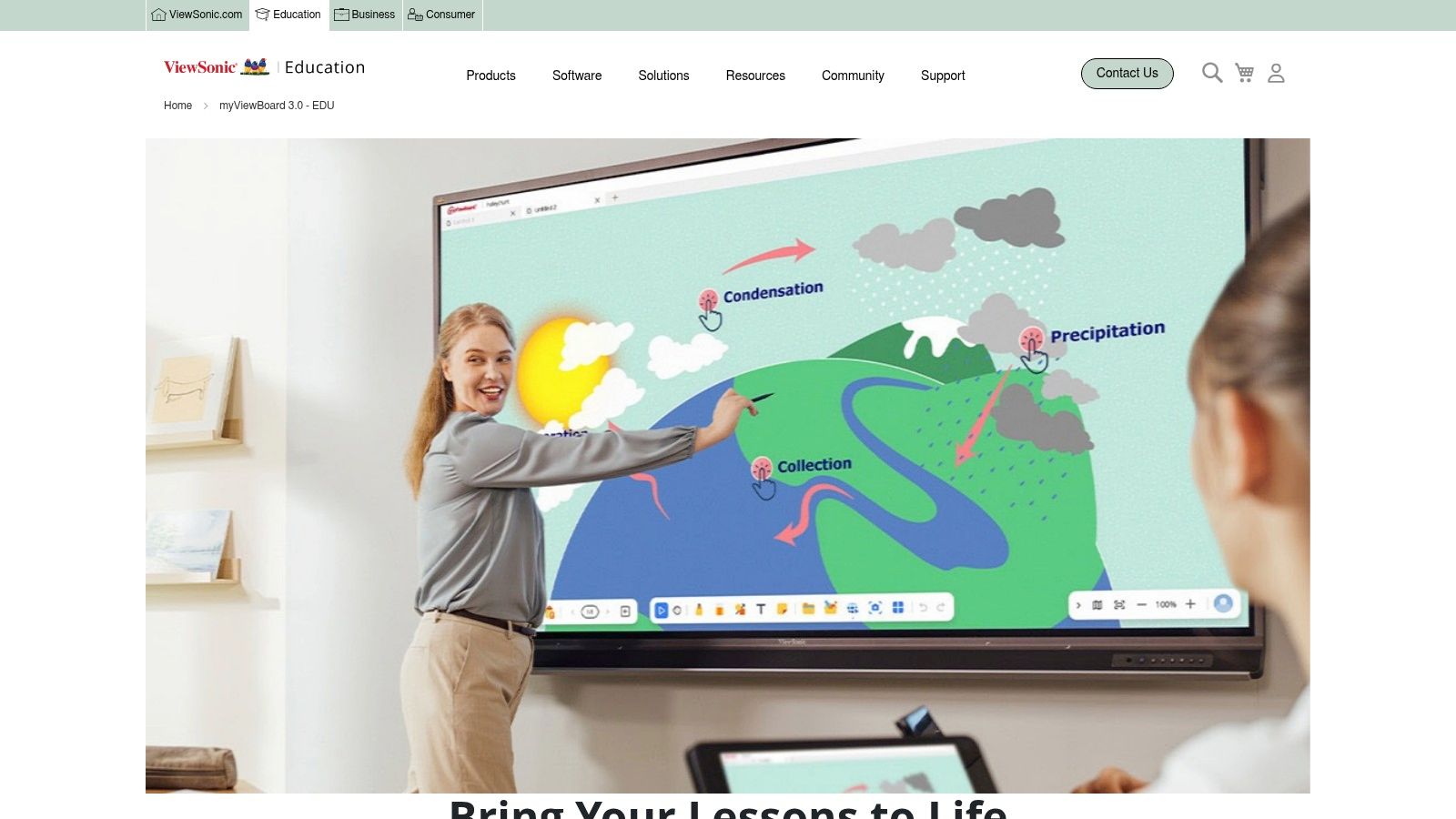
ViewSonic myViewBoard is one of the more operations-friendly apps for smartboard deployments when you have multiple sites. It isn't just a whiteboard. It's closer to a platform with whiteboarding, classroom delivery, cloud connections, and organization-level administration.
That broader scope is why it fits multi-branch tutoring networks better than many simpler tools. You can think of it as a system for standardizing teaching, not just an app for writing on a screen.
Best for multi-branch rollout
myViewBoard is a strong option when your real problem is governance. You don't just need teachers to open an app. You need them to use the same tools, access the same resources, and avoid support tickets every week.
What makes it appealing:
- Broad device support: Helpful when branches use different board brands and teacher devices.
- Admin and deployment options: Better suited to organization-wide rollouts than lightweight whiteboard apps.
- Accessibility tools: Useful for language programs, reading support, and mixed learner needs.
The downside is complexity. The more features a platform has, the more training it needs. If your teachers only want quick PDF markup and basic annotation, myViewBoard may be more system than you need.
There's also a broader market reason this category matters. The interactive smartboards market is projected at USD 1.28 billion in 2025 and USD 2.23 billion by 2034, with education accounting for about 60% of market revenue. For operators, that reinforces a simple point. Hardware is mature. Operational gains come from the software layer and the teaching process around it.
Direct site: ViewSonic myViewBoard
5. BenQ EZWrite 6
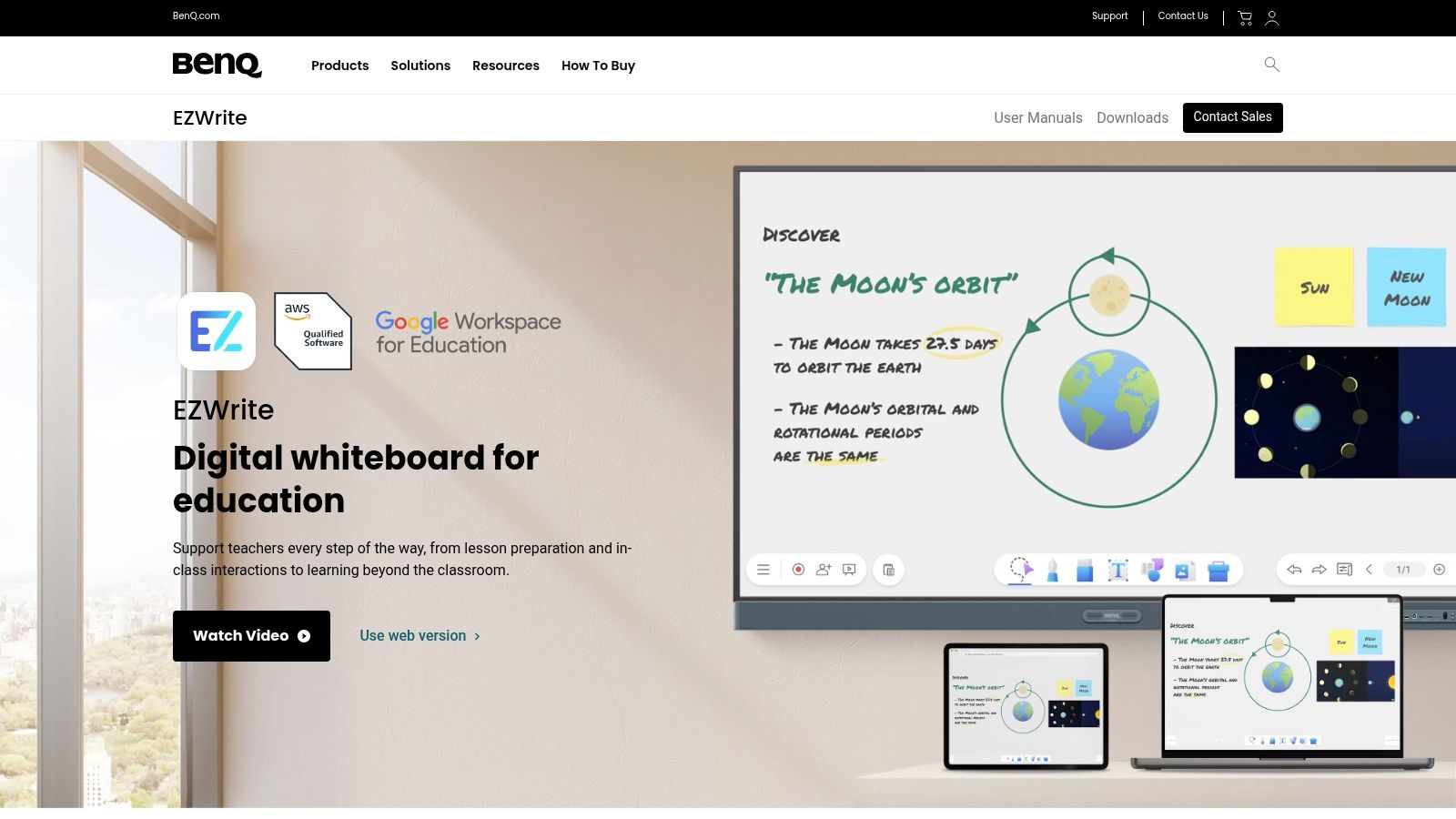
BenQ EZWrite 6 is one of the better options for centers that want fast walk-up teaching. If your teachers move quickly between rooms and don't want to fight with logins, app switching, or lesson boot-up time, EZWrite is attractive.
It's especially practical in centers where BenQ boards are already installed. The hardware and software work together in a way that reduces friction during actual lessons, which matters more than feature lists.
Strong in BenQ rooms, less universal elsewhere
EZWrite does a good job with infinite canvas work, handwriting, quick imports, and session sharing. For language schools, test-prep classes, and worksheet-based sessions, that can be enough. Teachers can walk in, open a file, annotate, and keep the class moving.
Where it tends to work best:
- Quick in-room teaching: Good for teachers who need speed more than advanced lesson authoring.
- Device handoff workflows: QR-based sharing and companion access can help students follow along.
- Low-friction board use: BenQ-specific integration improves the teaching experience.
The limitation is obvious. It shines most on BenQ hardware. If your center has a mixed fleet, standardizing on EZWrite can create uneven experiences between branches.
That's why I'd treat it as a great branch-level choice, not always the best network-wide standard.
Direct site: BenQ EZWrite 6
6. Microsoft Whiteboard
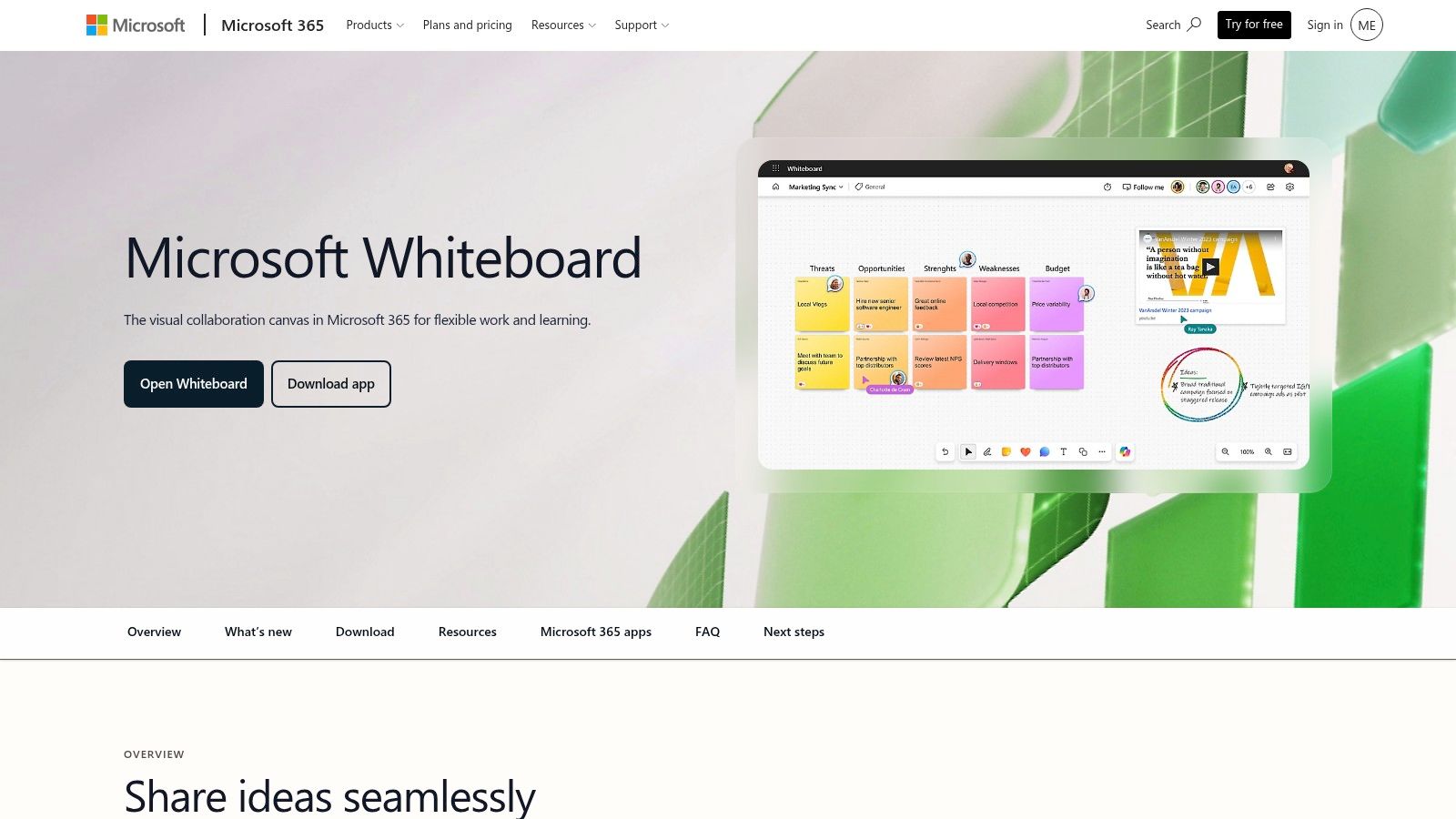
If your center already runs on Microsoft 365, Microsoft Whiteboard is often the most sensible default. Not the most exciting. Usually the most sensible. That's because it fits your accounts, permissions, Teams usage, and staff habits better than many standalone tools.
For hybrid lessons, staff meetings, teacher planning, and live online tutoring, Whiteboard is easy to adopt. It's also one of the better choices when IT wants tighter control over access and data handling.
Best when Microsoft is already your backbone
Whiteboard works well as a shared thinking space. It's not a complete lesson-delivery platform like Nearpod or Lumio, but for collaborative annotation and real-time explanation, it holds up well.
Use it when you need:
- Teams integration: Natural fit for online and hybrid sessions.
- Cross-device access: Teachers can continue work outside the room.
- Low extra procurement: Many organizations already have the ecosystem in place.
The main weakness is classroom orchestration. You don't get the same student-paced structures, richer activity types, or built-in assessment patterns that dedicated education platforms offer. So for a center with a heavy online component, Whiteboard often pairs well with stronger delivery tools and your best online tutoring software setup rather than replacing them.
Direct site: Microsoft Whiteboard
7. Explain Everything
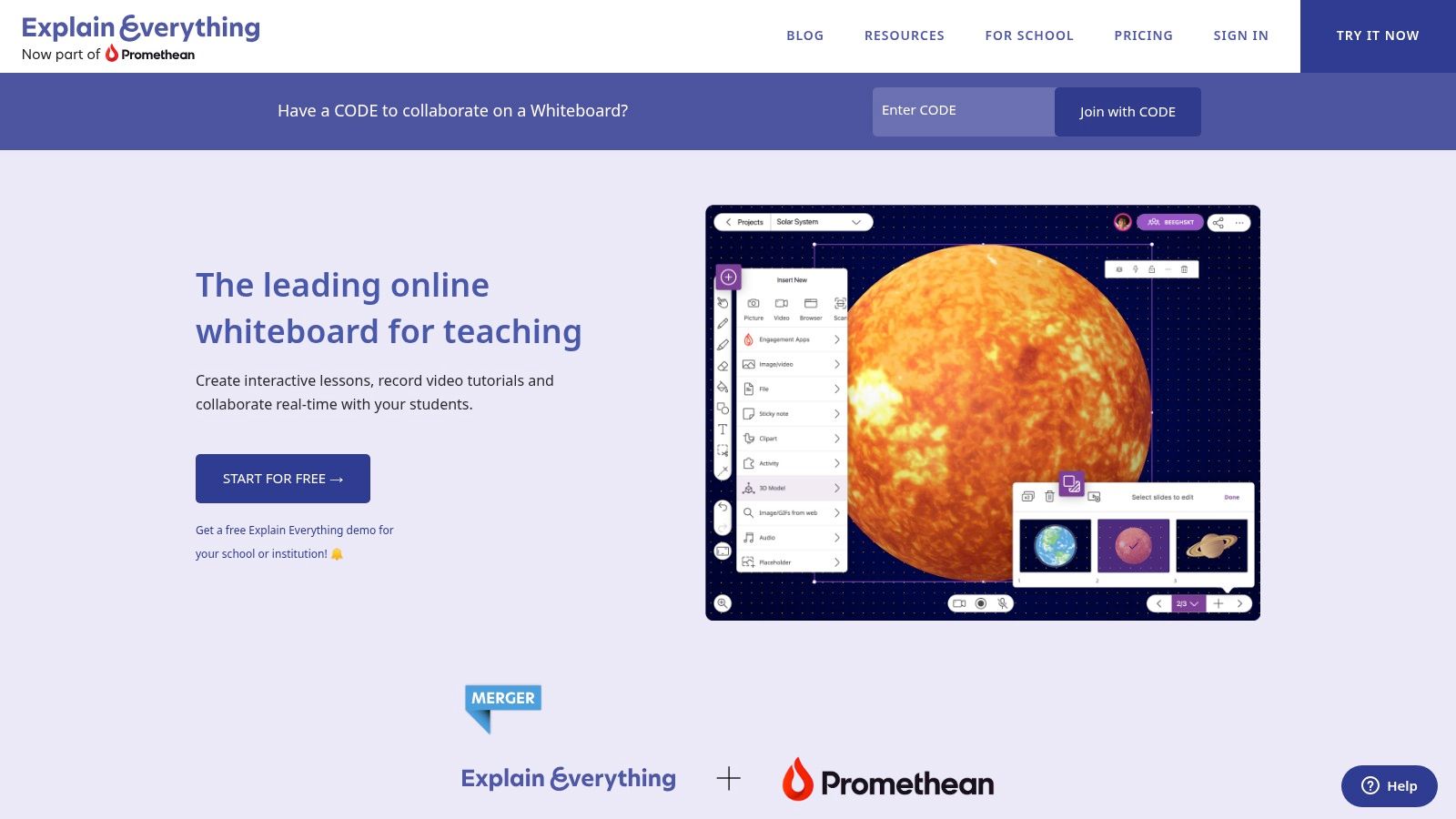
Explain Everything is excellent for centers that reuse teaching content. If your teachers repeat the same IELTS speaking drills, algebra methods, science explanations, or exam walk-throughs every week, this app can save real prep effort because it combines whiteboarding with recording.
That recording piece makes it different from simpler board apps. You're not just teaching live. You're building reusable assets.
Best for reusable lessons and worked examples
Explain Everything earns its place. Teachers can create model answers, annotate step by step, record explanations, and share the result later. That helps with absent students, homework support, and branch-to-branch consistency.
What it does well:
- Asynchronous lesson libraries: Great for test prep and repeatable concept teaching.
- Strong visual explanation: Good for worked examples and pronunciation or grammar drills.
- Shareable outputs: Easier to distribute beyond the room than traditional board software.
The trade-off is that some of the stronger collaboration and organization features sit behind paid plans. It also asks more from teachers than a basic whiteboard does. Not everyone wants to become a content producer.
Field note: Explain Everything pays off when you intentionally build a reusable content library. It's overkill if every lesson is improvised.
If your center records lessons and coordinates recurring sessions across teachers, it should sit alongside solid tutoring scheduling software so content reuse and timetable planning stay aligned.
Direct site: Explain Everything
8. Nearpod
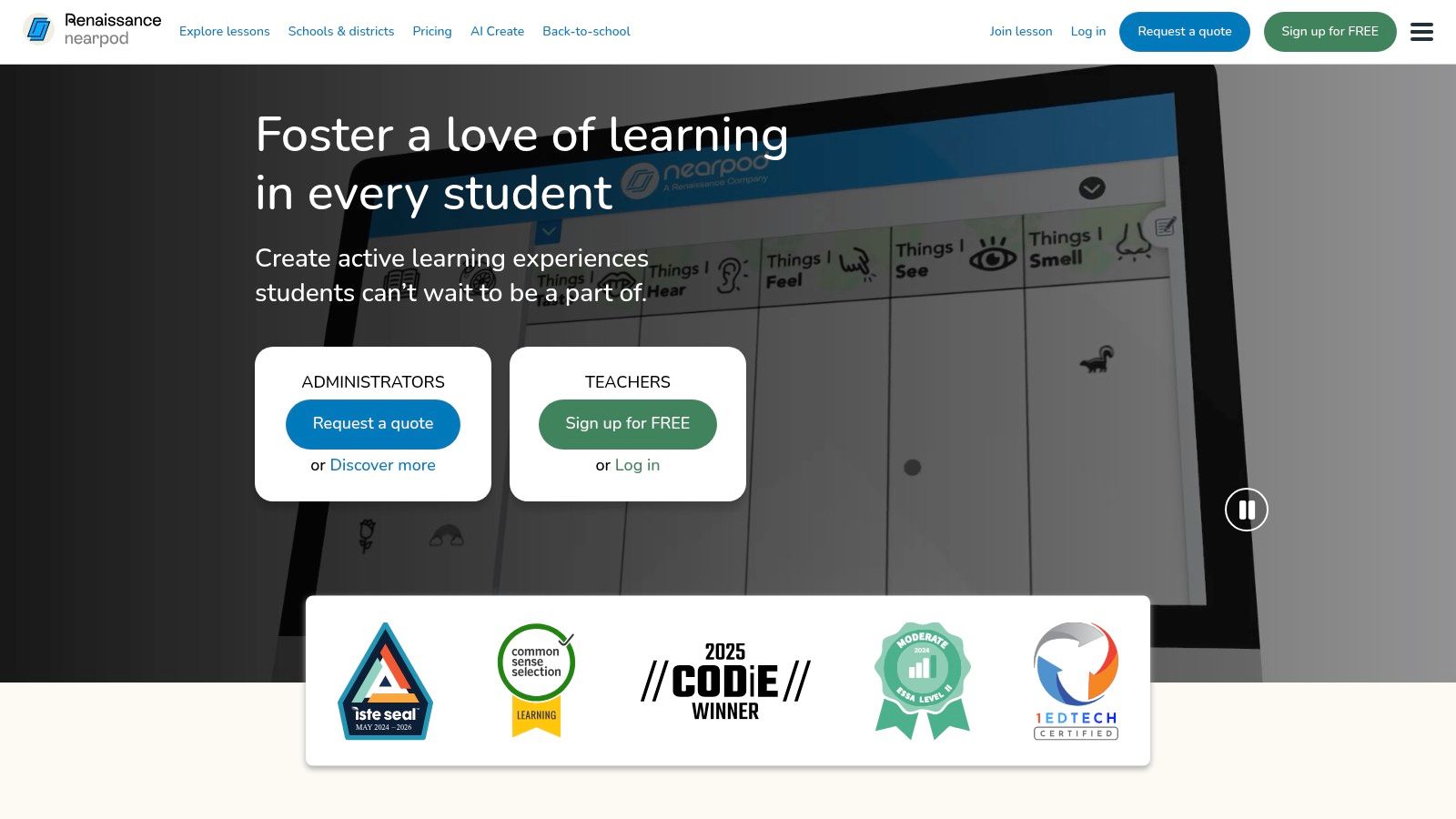
Nearpod is one of the strongest choices when you want lesson control, participation, and feedback in the same platform. It's more than a board app. It's a lesson-delivery system that happens to work very well on large interactive displays.
That distinction matters in tutoring centers. Many teams don't need more annotation tools. They need a way to keep a group class moving, check understanding, and avoid dead time.
Best for structured engagement
Nearpod is particularly effective in group tuition, language classes, and enrichment programs where teachers need students doing something every few minutes. Quizzes, polls, draw-it tasks, and interactive content keep the room active without requiring the teacher to juggle separate apps.
Here's the practical trade-off:
- Strong pacing control: Useful for branch-wide lesson consistency.
- Built-in formative checks: Better than plain whiteboarding when you need participation data.
- More dependent on planning: Teachers need to prepare lessons in the platform to get the most value.
This isn't my first pick for freeform teaching. It's my pick for standardized delivery. If you run franchise-style operations or want newer teachers to follow a clear lesson path, Nearpod makes that easier.
The software category around education apps is also expanding fast. The Smart Education and Learning Apps market is projected to grow from USD 36.7 billion in 2024 to USD 77.8 billion by 2034, with blended learning holding over 42.8% share in 2024. That tracks with what many centers are already doing. In-person teaching now often depends on student devices, interactive checks, and flexible follow-up.
Direct site: Nearpod
9. Kami
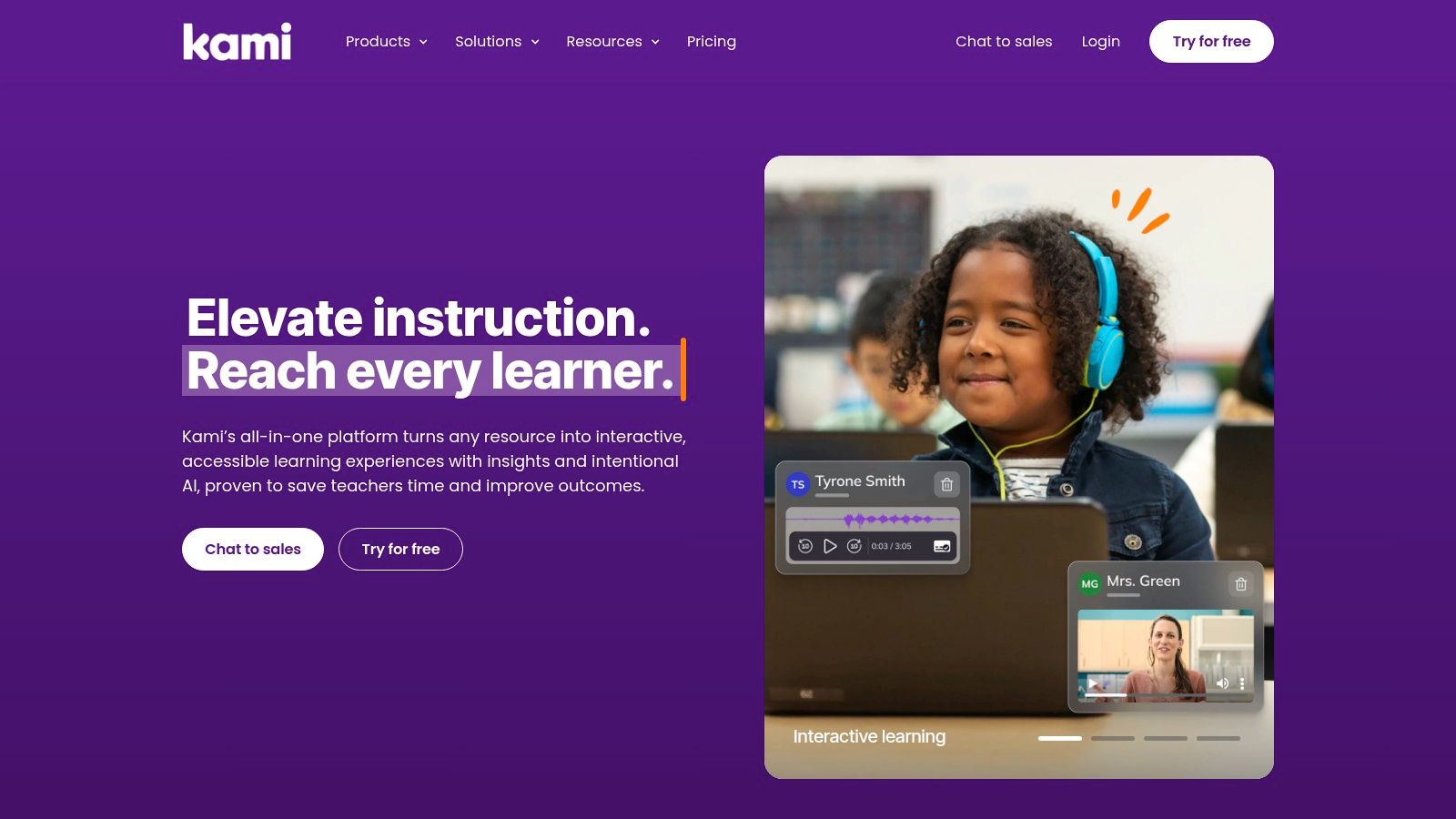
Kami is the app I'd push higher than most generic “best smartboard apps” lists do, especially for tutoring centers. Why? Because many tutoring lessons still revolve around documents. Passages, worksheets, scanned exam papers, writing tasks, reading articles, and homework corrections.
If that sounds like your center, Kami solves a very real operational issue. It lets teachers work directly on the materials they already use.
Best for PDF-heavy tutoring
Kami is particularly strong for literacy, language instruction, essay feedback, and test prep. Instead of rebuilding resources into a whiteboard app, teachers can annotate PDFs and scans live on the board while students follow from their own devices.
That usually works well for:
- Reading and writing classes: Mark up passages, essays, and grammar corrections in real time.
- Exam prep centers: Use past papers and worksheet banks without reformatting them.
- Teacher consistency: Keep materials standardized while allowing annotation flexibility.
Its main limitation is that it's not designed as a full front-of-room lesson platform. It's a document workflow tool first. For many centers, that's perfect. For others, it needs to sit beside a broader whiteboard or delivery system.
A lot of buyers miss this distinction because coverage often focuses on app lists rather than deployment reality. Guidance around smart board app compatibility and built-in app ecosystems is often more useful than another ranking of “fun” classroom tools.
Direct site: Kami
10. OpenBoard
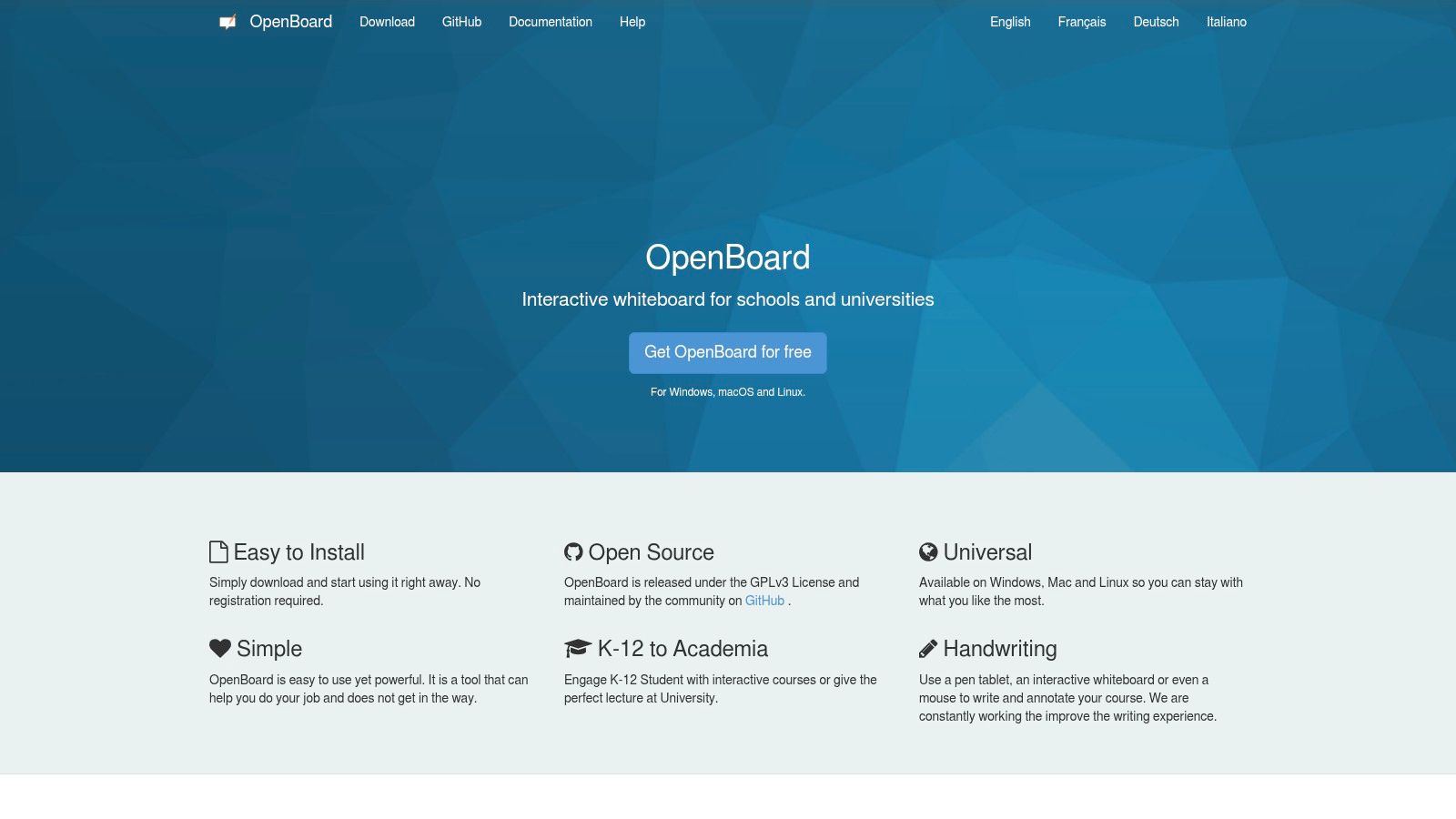
OpenBoard is the simplest recommendation on this list, and sometimes the simplest one is right. It's free, open source, cross-platform, and easy to deploy. For centers that want a no-account, low-overhead whiteboard on room PCs, OpenBoard is hard to ignore.
This is not the app for advanced orchestration, analytics, or student-device workflows. It's the app for writing, drawing, showing media, and getting out of the way.
Best for low-friction standardization
OpenBoard is useful when your top priority is consistency across rooms without subscription sprawl. Install it on every teaching computer, train staff once, and you have a dependable baseline tool even if branches use different display brands.
Why centers choose it:
- No account dependency: Helpful for shared machines and substitute teachers.
- Lightweight setup: Easier to manage than a stack of cloud logins.
- Cross-platform support: Practical for mixed IT environments.
The downside is that it won't replace richer learning platforms. You won't get polished assessments, branch-wide analytics, or advanced collaboration. But not every room needs that. Some rooms just need a clean board app that starts fast and works every time.
There's also a broader selection issue many operators overlook. For smartboard deployments, the better question often isn't “Which app is best?” It's “Which app can our teachers use reliably across hardware, accounts, and skill levels?” Recent commentary on smartboard app choices and lesson outcomes beyond simple gamification points in that same direction.
Direct site: OpenBoard
Top 10 Smartboard Apps, Features Comparison
| Product | Core use & key features | Best for / Target audience | Unique strengths | Limitations & pricing |
|---|---|---|---|---|
| SMART Lumio (formerly SMART Learning Suite Online) | Cloud lesson creation; import PPT/PDF; student-paced & live activities | Mixed in-person/remote tutoring, small–large centers | Fast import + interactive activities; cross-device; SMART Board support | Free tier with storage cap; paid tiers for larger libraries |
| SMART Notebook / Notebook Plus | Desktop lesson authoring & front-of-room whiteboarding | Front-of-room teachers; centers with legacy SMART hardware | Deep authoring tools; large teacher library; strong handwriting tools | Desktop-centric; usually licensed (paid/ reseller bundles) |
| Promethean ActivInspire | Interactive lesson builder with annotation tools | K–12 tutoring labs and tutors needing offline tools | Mature, stable toolset; cross-platform; free Personal edition | Interface feels dated; Professional features require license |
| ViewSonic myViewBoard (Whiteboard, Classroom, Entity) | Whiteboard + synchronous classroom + admin/deployment tools | Multi-branch centers and IT-managed deployments | Strong accessibility (Immersive Reader); org deployment & cloud integrations | Large feature set needs training; Entity pricing/custom setup |
| BenQ EZWrite 6 | Infinite canvas, QR handout/collection, mobile join | Rooms with BenQ panels; quick walk‑up teaching | Tight hardware integration (pens, NFC); fast session sharing | Best on BenQ hardware; reduced features on non‑BenQ displays; often bundled |
| Microsoft Whiteboard | Infinite-canvas collaborative whiteboard; Teams integration; Copilot on eligible plans | Centers using Microsoft 365 / Teams for tutoring | No extra cost for many M365 tenants; security/admin alignment | Lacks built-in pacing/grading; Copilot needs eligible M365 plan |
| Explain Everything | Infinite canvas + recorder; produce reusable video lessons | Test-prep, flipped tutoring, asynchronous lesson libraries | Excellent screen-recording and shareable lesson exports; cross-platform | Some collaboration/export features behind paid plans; org features need Group plans |
| Nearpod | Converts slides into interactive lessons (quizzes, VR); real-time reports | Data-driven group sessions, formative assessment use | Rich engagement activities and publisher content; LMS integrations | Most analytics and premium content require paid plans; school pricing for districts |
| Kami | PDF/document annotation and collaboration | Literacy, language instruction, test-prep marking | Works directly on PDFs/scans; strong LMS/Drive integrations | Best admin/LMS controls on paid tiers; feature sets scale with pricing |
| OpenBoard | Free open-source interactive whiteboard (pen, pages, media) | Centers wanting no-cost local tool and minimal IT overhead | Completely free (GPL); lightweight; cross-platform | Limited cloud collaboration, analytics and org management features |
Final Thoughts
The best apps for smartboard use in a tutoring center aren't necessarily the flashiest ones. They're the ones your teachers can open quickly, use confidently, and repeat across branches without turning every lesson into an IT event.
If you want the shortest version, here it is.
- Choose SMART Lumio or Nearpod if you need structured interactive lessons with student participation.
- Choose SMART Notebook, ActivInspire, or OpenBoard if your teachers mainly need dependable front-of-room instruction.
- Choose Kami if your center teaches from PDFs, worksheets, and exam papers.
- Choose Explain Everything if reusable recorded lessons matter.
- Choose Microsoft Whiteboard if you already run on Microsoft 365.
- Choose myViewBoard if you need broader admin control across locations.
- Choose BenQ EZWrite 6 when your rooms already run on BenQ and speed matters most.
For multi-branch tutoring centers, I'd make the decision in this order.
What to standardize first
Start with your hardware reality. Don't pick an app stack before you know which boards run native Android apps, which rooms depend on connected PCs, and which teachers need browser-only access. Compatibility comes before pedagogy in real operations, because a great app that only works well in half your rooms creates more support work than value.
Then map apps to lesson types, not just teacher preferences.
- Group classes: Use a lesson-delivery platform
- 1:1 explanation-heavy tutoring: Use a strong whiteboard
- Exam prep and reading-heavy sessions: Use a document annotation tool
- Hybrid teaching: Prioritize student-device connection and easy joining
What usually fails
The most common rollout mistake is buying for demos instead of daily teaching. A tool looks great in a sales presentation, then teachers avoid it because login steps take too long, importing materials is awkward, or the board integration feels inconsistent between branches.
Another mistake is trying to standardize everything into one app. Most centers need a core stack, not a single winner. In practice, that often means one primary teaching platform, one document markup tool, and one fallback whiteboard that works on every room computer.
Don't optimize for the best possible lesson in one flagship classroom. Optimize for the most repeatable lesson across all your classrooms.
If you're running multiple locations, the smartboard app decision also affects scheduling, room usage, teacher training, and hybrid lesson delivery. That's why operations teams should own this decision with input from teachers, not the other way around.
If you're standardizing teaching across branches, you also need the admin side to stop fighting you. Tutorbase helps tutoring centers and language schools manage scheduling, rooms, billing, payroll, attendance, and hybrid lesson operations in one place, so your software stack works like a system instead of a pile of disconnected tools. If you want to reduce admin load while keeping lesson delivery consistent, you can try it at Tutorbase registration.


