


Your center is probably already juggling more than one teaching mode at once. A tutor is writing algebra steps for students in the room, another teacher is screen-sharing grammar exercises to online learners, and someone at the front desk is trying to figure out which room still has a usable display.
That's why buying an interactive whiteboard isn't a simple hardware decision. For tutoring centers, the right board needs to support clear writing, fast switching between lesson tools, and a setup your staff will use without needing IT every time something goes wrong.
Choosing Your Next Whiteboard for Modern Tutoring
A lot of owners start shopping for the best interactive whiteboards after a frustrating lesson day. The projector is dim, the laptop adapter is missing, the online students can't see the annotations clearly, and the tutor ends up teaching around the equipment instead of through it.
That pain is real, but the fix isn't “buy the most expensive board.” The better question is whether the board will make teaching smoother across your actual workflow, especially if you run a mix of in-person, online, and hybrid classes.
What the wrong setup looks like
In tutoring centers, the same room often serves different formats in the same day. A math tutor may need precise handwriting. A language teacher may need to annotate reading passages quickly. A test prep class may need split attention between a slide deck, timer, and worked solutions.
Common failure points show up fast:
- Slow switching: Tutors jump between laptop, browser tabs, and a physical whiteboard.
- Weak visibility: Students at the back can't read notation or corrections clearly.
- Hybrid friction: Online learners see a camera pointed at a reflective screen instead of a clean shared canvas.
- Staff resistance: If teachers need extra cables, dongles, or mode switching, many won't use the board well.
The best board is the one your least technical tutor can use confidently during a live lesson.
Why this buying decision affects more than teaching
An interactive whiteboard changes more than presentation quality. It affects room setup, lesson consistency, tutor onboarding, and support load.
If your network is unreliable, even a good board will feel broken. Before rolling out screens across multiple rooms, it's worth reviewing the basics of optimizing school WiFi, because annotation tools, cloud files, and hybrid teaching platforms all depend on stable connectivity.
What matters in a tutoring center
Corporate whiteboard reviews often overvalue meeting-room features. Tutoring centers need something else:
- Readable text for small symbols, especially in math and language instruction
- Fast annotation, so handwriting feels natural
- Easy access to teaching apps, without extra boxes attached
- Simple daily operation, so part-time tutors don't need training every week
- Sensible long-term cost, not just a low sticker price
The strongest buying decisions come from matching the board to your room size, student age range, and software stack. That's where most generic roundup articles fall short.
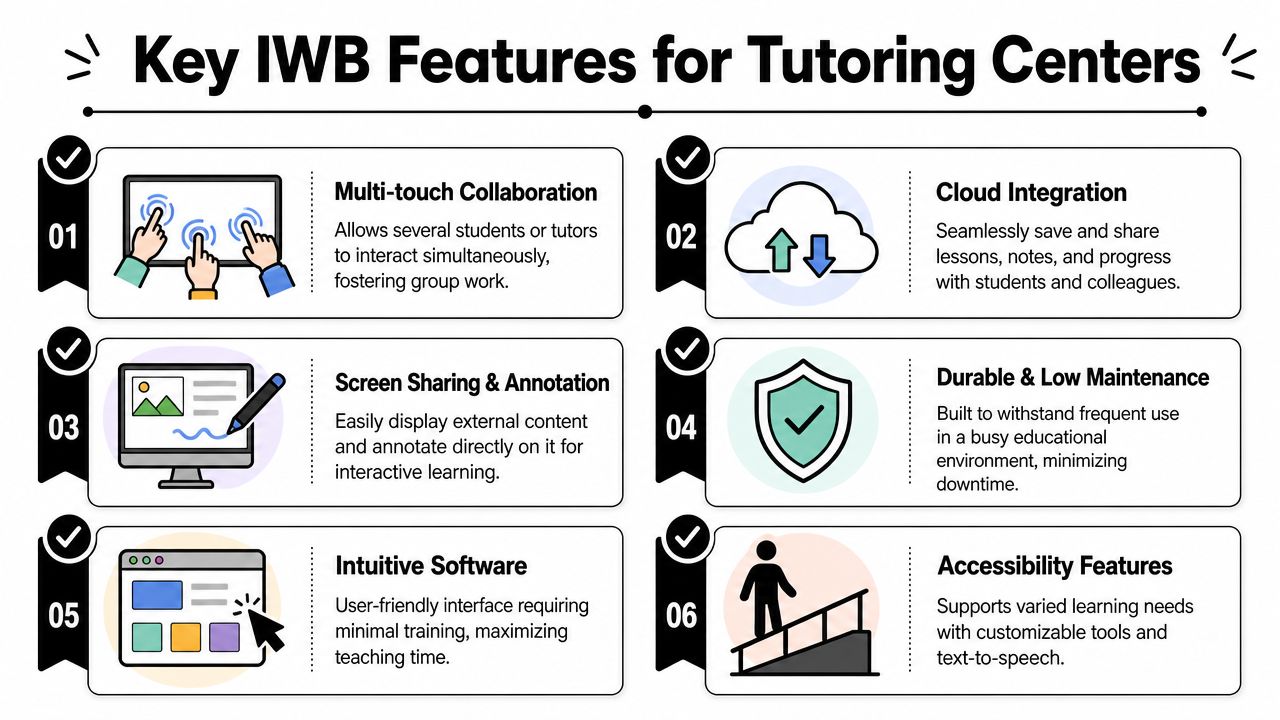
Key IWB Features That Matter for Tutoring Centers
Spec sheets can distract you. In real tutoring environments, only a handful of features consistently affect lesson quality.
Start with room size, not brand
For a standard classroom with a viewing depth of 6 meters, a 75-inch screen is the optimal choice for keeping fine details legible, including math notation and grammar marks. If the room is shallower than 6 meters, 55-inch or 65-inch models can be a better fit, while deeper rooms often need 86-inch or 98-inch screens to prevent blur from the back row. For younger students, a height-adjustable mount is mandatory, because if children can't comfortably reach the active area, effective collaboration time can fall by 30 to 40% according to the verified classroom benchmark provided in the brief.
That single decision rules out a lot of bad purchases. A board that's too small creates legibility problems. A board that's too large in a tight room can create glare and visual crowding.
Touch quality matters more than touch count
Many vendors advertise high touch-point counts. That sounds impressive, but tutoring centers should care more about input latency and touch resolution.
Boards using Optical Imaging Touch can deliver input latency under 20ms, which matters for real-time annotation and quick handwriting. If a tutor writes cursive notes, marks pronunciation changes, or sketches diagrams, that low latency keeps the lesson flowing. Lower-resolution touch systems can create jagged strokes, which makes the board feel less precise.
Practical rule: If writing on the board feels even slightly delayed during a demo, don't assume tutors will “get used to it.” They usually won't.
Here's a good demo to watch while comparing writing responsiveness and teaching workflows:
The short list of features worth checking
When owners ask me what to focus on, I usually reduce it to this:
- Screen sizing: Match the board to viewing depth and student age, not to showroom appeal.
- Annotation fidelity: Prioritize smooth handwriting for math, language, and test-prep marking.
- Native app access: Boards that open classroom tools directly are easier to run day to day.
- Mounting flexibility: Younger learners need reachable touch zones, not adult-height installations.
- Screen sharing: Tutors need to move between documents, browser content, and whiteboarding without friction.
- Usable interface: If the menu system is confusing, your staff will bypass the board.
Don't ignore the teaching software layer
The best hardware still depends on the apps your tutors use. If you're comparing annotation tools, whiteboarding apps, and classroom-friendly software options, Tutorbase's smartboard app guide is a practical place to narrow down what your staff will open in class.
A board should help tutors explain faster, not ask them to learn a new ritual every time they start a lesson.
Top Interactive Whiteboards for Every Budget in 2026
The best interactive whiteboards aren't “best” in the abstract. They're best for a certain kind of tutoring center, with a certain room layout, budget, and teaching style.
Comparison table for shortlisting
| Model | Price Tier | Best For | Key Feature |
|---|---|---|---|
| BenQ Board Pro | Budget | Small centers, first-time buyers, standard tutoring rooms | Lower upfront cost with native Android workflow |
| Vibe Board S1 | Mid-range | Collaborative classes, cloud-based teams, Google-centric environments | Native access to common classroom platforms |
| ViewSonic ViewBoard | Mid-range | Centers that want flexible app access with broad room use | Android-based access and general-purpose deployment |
| SMART Board MX | Premium | Centers already invested in SMART tools | Tight fit for established SMART ecosystems |
| Promethean ActivPanel | Premium | Teams that want built-in lesson tools and can accept ecosystem trade-offs | Rich built-in teaching software |
Budget tier works best when simplicity wins
If you run a smaller center, or you're replacing an aging projector in one room, BenQ Board Pro is often the most sensible starting point. The verified pricing benchmark places lower-cost Android alternatives such as BenQ Board Pro around $800 to $1,100, while still delivering 95% of the functional performance needed for standard tutoring when ease of use and annotation quality matter more than a locked ecosystem.
That makes it a practical fit for:
- One-to-one tutoring rooms
- Language centers with light annotation needs
- Operators testing one board before a broader rollout
The trade-off is straightforward. You won't get the same proprietary lesson environment as some premium brands, but many centers don't need it.
Mid-range is the sweet spot for many growing centers
Vibe Board S1 and ViewSonic ViewBoard sit in the category I'd call “operationally friendly.” These are attractive when your tutors rely on browser-based tools, shared drives, and quick lesson setup.
Vibe is often a strong choice for centers that want collaboration and direct access to cloud tools. ViewSonic can make sense when you want a flexible board that can live across mixed-use rooms.
What this tier usually gets right:
- Familiar workflows: Tutors don't need to rethink their lesson delivery.
- Fewer accessories: Native app access reduces dependence on extra hardware.
- Better day-to-day adoption: Teachers use what feels immediate.
Premium only pays off in specific cases
SMART Board MX and Promethean ActivPanel can be excellent, but only when their ecosystems align with how you already work. The verified benchmark notes that high-end boards such as Promethean can cost $2,800+. That doesn't automatically make them wrong. It just means the decision has to be tied to actual usage.
Premium boards tend to make sense when:
- You already store lesson content in that vendor's ecosystem
- Your tutors depend on those built-in lesson tools
- You have the support capacity to onboard staff properly
If a vendor's strongest feature is a proprietary software layer, ask whether your tutors want that layer or will avoid it.
A practical shortlist by center type
- Solo tutor or very small center: BenQ Board Pro
- Growing center with hybrid or collaborative teaching: Vibe Board S1
- Mixed environment with broader deployment needs: ViewSonic ViewBoard
- Existing SMART-heavy setup: SMART Board MX
- Lesson-library-focused teaching team: Promethean ActivPanel
For most tutoring centers, mid-range Android-based boards are where value is easiest to justify. Premium models only win when the software ecosystem already fits your operation.
Why the Software Ecosystem Is Your Most Important Choice
Most buying mistakes happen here. Owners compare brightness, audio, and panel quality, then end up with a board that creates friction every single day because the software layer doesn't match how tutors work.
Native access beats add-ons
Boards with native Android and LMS integration offer input latency under 20ms, which is critical for real-time annotation. They also avoid the 50 to 100ms of lag introduced by external dongles and HDMI extenders, and they help avoid the 30% increase in total cost of ownership that can come from proprietary software subscriptions, based on the verified benchmark provided in the brief.
That sounds technical, but the classroom effect is simple. Native access means the tutor taps into the lesson and starts teaching. Add-on access means one more device, one more point of failure, and one more reason the board sits unused.
Open platforms usually fit tutoring better
Tutoring centers tend to use a mix of tools. Google Classroom, Zoom, browser-based worksheets, PDFs, web dictionaries, digital tests, and lesson slides often all show up in the same day.
That's why Android-based boards from brands such as Vibe, BenQ, and ViewSonic often fit tutoring environments well. They give tutors direct access to the software they already know, instead of forcing them into a vendor-specific workflow.
A few things to check during evaluation:
- Can tutors log in to classroom tools directly on the board?
- Can they annotate over documents and browser content without awkward switching?
- Can they save or share lesson material without exporting through extra steps?
- Can the board work well without an attached laptop?
The hidden cost of ecosystem lock-in
Proprietary systems can be useful, but they often become expensive in quieter ways. Annual licenses, required training, and feature gating can make a board look affordable at purchase and expensive later.
This matters even more in multi-room centers, where consistency matters more than advanced one-room features.
If you're also reviewing the broader systems that sit behind your classes, including scheduling, attendance, billing, and room allocation, this checklist on what to look for in tutoring software helps frame the board as one part of a larger operating setup.
A whiteboard should fit your software environment. Your staff shouldn't have to reshape their workflow to fit the whiteboard.
What good software fit looks like in practice
In a healthy setup, the tutor opens the board, signs into familiar tools, writes naturally, saves what matters, and moves to the next lesson. No extra box on the wall. No searching for adapters. No support ticket for a normal class.
That's why software ecosystem should lead the decision. The board is the surface. The software determines whether it becomes part of daily teaching or just a large, expensive monitor.
Calculating the True Cost of Your New Whiteboard
A low purchase price can still lead to a bad deal. Most buying guides focus on hardware specs, but the key decision for education centers hinges on total cost of ownership over 3 to 5 years and on how well the board supports hybrid teaching, as noted in Computerworld's review of digital whiteboard displays.
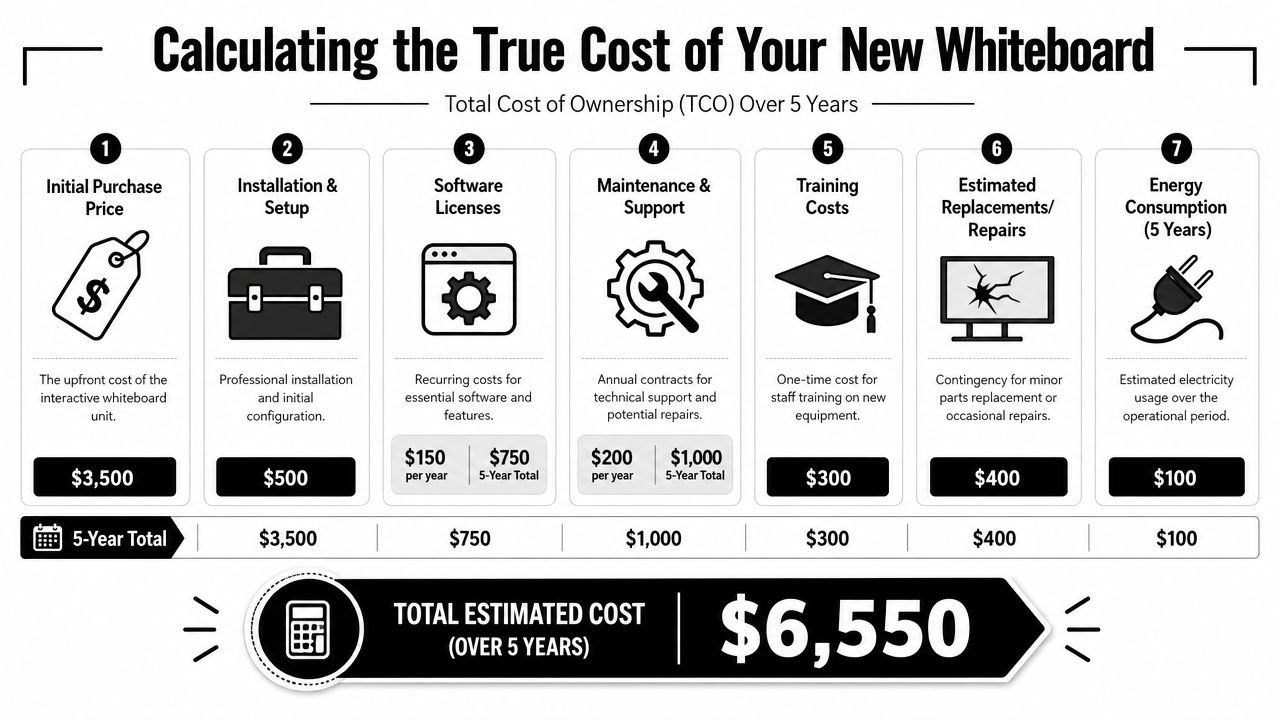
The infographic above shows one example cost model. I wouldn't treat those figures as universal pricing for every center, but the categories are exactly right. Too many buyers compare display price alone and ignore everything that makes the board usable.
The hidden costs owners miss
Use this checklist before you sign anything:
- Mounting and installation: Wall type, cable routing, stand choice, and room layout all affect setup cost.
- Software licensing: Some boards look affordable until annual software fees start stacking up.
- Training time: Even intuitive boards need a short adoption window for tutors and admins.
- Support coverage: Check what happens if a room goes offline during a teaching week.
- Hybrid add-ons: Cameras, microphones, and room audio often matter more than another headline screen feature.
- Refresh planning: If you're standardizing across rooms, think about replacement cycles before your first purchase.
Compare value by use case, not list price
A single-room tutoring center can tolerate some manual setup if the board is reliable and inexpensive. A multi-room center usually can't. Every extra login step or software mismatch multiplies across teachers, branches, and daily lesson turnover.
That's why two boards with similar hardware can have very different long-term value. One may run cleanly inside your workflow. The other may create years of small admin burdens that nobody counted at purchase.
Cheap hardware gets expensive when staff avoid using it.
A better way to budget
Build your shortlist around these questions:
- What does the room need to teach well every day?
- What extra equipment does hybrid delivery require?
- Which licenses renew annually?
- How much staff support will this board need after installation?
- Will this still fit your center if you add more rooms?
If you can't answer those five questions clearly, you're not comparing the best interactive whiteboards yet. You're only comparing screens.
Before You Buy Is a Whiteboard Your Highest Priority

A new board feels like progress because it's visible. Staff can see it. Parents can see it. Students notice it right away.
But for centers with 5 to 100+ teachers, the main constraint is often scheduling, room utilization, and billing, not presentation hardware. Hardware can't fix booking conflicts or automate invoicing, and prioritizing workflow software first often produces a higher return, according to the verified benchmark that references Vibe's buyer guide for teachers.
Ask where your real friction lives
If you're deciding between a new display and fixing your operations, answer these truthfully:
- Are classes getting delayed because the board is weak, or because rooms are double-booked?
- Do tutors lose time teaching, or do admins lose time fixing schedule conflicts?
- Is parent frustration about lesson quality, or about incorrect invoices and missed reminders?
- Will one new board help every branch, or only one room?
In many growing centers, the biggest waste happens behind the lesson, not inside it.
Hardware doesn't solve operational chaos
You can install a great display in every room and still have daily problems:
- Teachers assigned to the wrong branch
- Rooms booked on top of each other
- Attendance disconnected from billing
- Payroll calculated manually
- No visibility into room usage
That's why it helps to separate teaching tools from operating systems. If your center still struggles with the basics, fix those first. A practical place to start is reviewing how to schedule tutoring sessions efficiently, because scheduling logic affects room usage, teacher load, and lesson profitability long before a whiteboard enters the picture.
If you're also assessing your broader technical environment across sites, this overview of Networking2000 for school IT support is useful for thinking through classroom tech support, infrastructure, and rollout planning.
When software should come before screens
If you run multiple rooms or branches, management software often creates more value than another hardware upgrade. One option in that category is Tutorbase, which combines scheduling, billing, payroll, room management, and student tracking in one system.
That doesn't mean interactive whiteboards don't matter. It means they pay off more when the operation underneath them already works.
Frequently Asked Questions
How do I choose the right screen size for a tutoring room
Start with viewing depth and student age. A smaller room may suit a 55-inch or 65-inch board, while a standard classroom depth of 6 meters calls for a 75-inch display for clear fine-detail teaching. If younger children will use the board directly, plan for a height-adjustable mount.
Are interactive whiteboards worth it for language schools
They can be, especially when tutors need fast annotation over reading passages, grammar notes, and shared lesson materials. The biggest gains usually come when the board supports natural writing and easy access to familiar teaching apps.
What matters more, hardware or software
Software fit matters more in daily use. A good panel with a poor software ecosystem creates friction. A solid board with native access to the tools your tutors already use tends to see stronger adoption.
Do I need a premium board for hybrid tutoring
Not always. Many centers do better with a mid-range Android-based board plus a good camera, microphone, and stable network than with a premium board that locks them into a software ecosystem they won't fully use.
Should every classroom have the same board
Usually, yes, if you run multiple rooms. Standardization reduces training issues, simplifies support, and makes room changes easier for tutors.
What should I test in a live demo
Test handwriting speed, app access, screen sharing, lesson switching, and whether a tutor can start teaching without asking for help. If the demo requires too many explanations, daily use probably will too.
If your center is deciding between more classroom hardware and fixing the admin bottlenecks behind your lessons, Tutorbase is worth a look. It helps tutoring businesses manage scheduling, billing, payroll, room usage, and student records in one system, which often makes every later tech purchase easier to evaluate.


