
Choose who receives lesson emails
Choose students, payers and staff in the lesson review, then check the matching email record in Email history.
Last updated
Lesson email choices in Tutorbase decide which students, payers and staff are notified. For a lesson time change, select Review changes, check Email notifications, and choose the recipients before saving. Email history records the resulting emails; a selected notification is not confirmation that someone received the email.
Who can receive a lesson email?
Students are the learners. Payers are the people responsible for paying for them, often parents or guardians. Staff includes the teacher affected by the lesson change.
For a time change, Students, Payers and Staff start selected in Review changes. Check the actual recipient names before saving rather than assuming that every parent or student will receive an email.
Before you start
Prepare the intended change to an existing lesson from Calendar > Edit lesson. For example, move Theo Brooks's mathematics lesson from 15:00–16:00 to 16:00–17:00, notify payer Rachel Brooks and teacher Maya Chen, and leave the separate student email off.
For a single change to a weekly lesson, choose This lesson only in the review so the other lessons keep their usual time. Check the change and its scope before deciding who needs to hear about it.
Choose recipients before saving
Under Email notifications, select the bell beside a group to switch that group on or off. Keep Payers and Staff on for a time change so the people arranging and teaching the lesson know. Switch Students off unless the student needs a separate email.
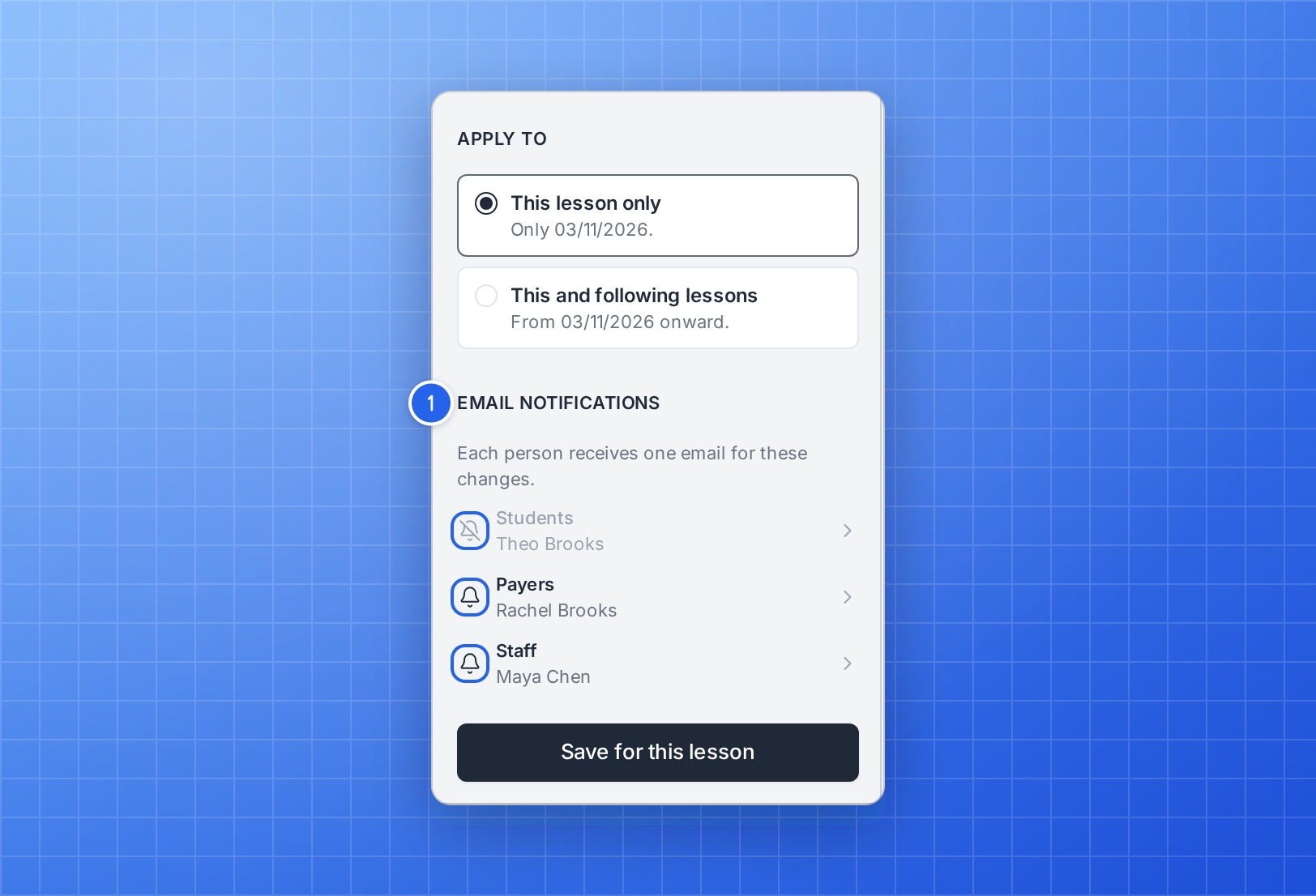
Select the group name, such as Payers, to expand its named recipients and optional message. Check the names to avoid notifying an unintended person. Leave the message blank for a straightforward time change; add context when the family needs an explanation.
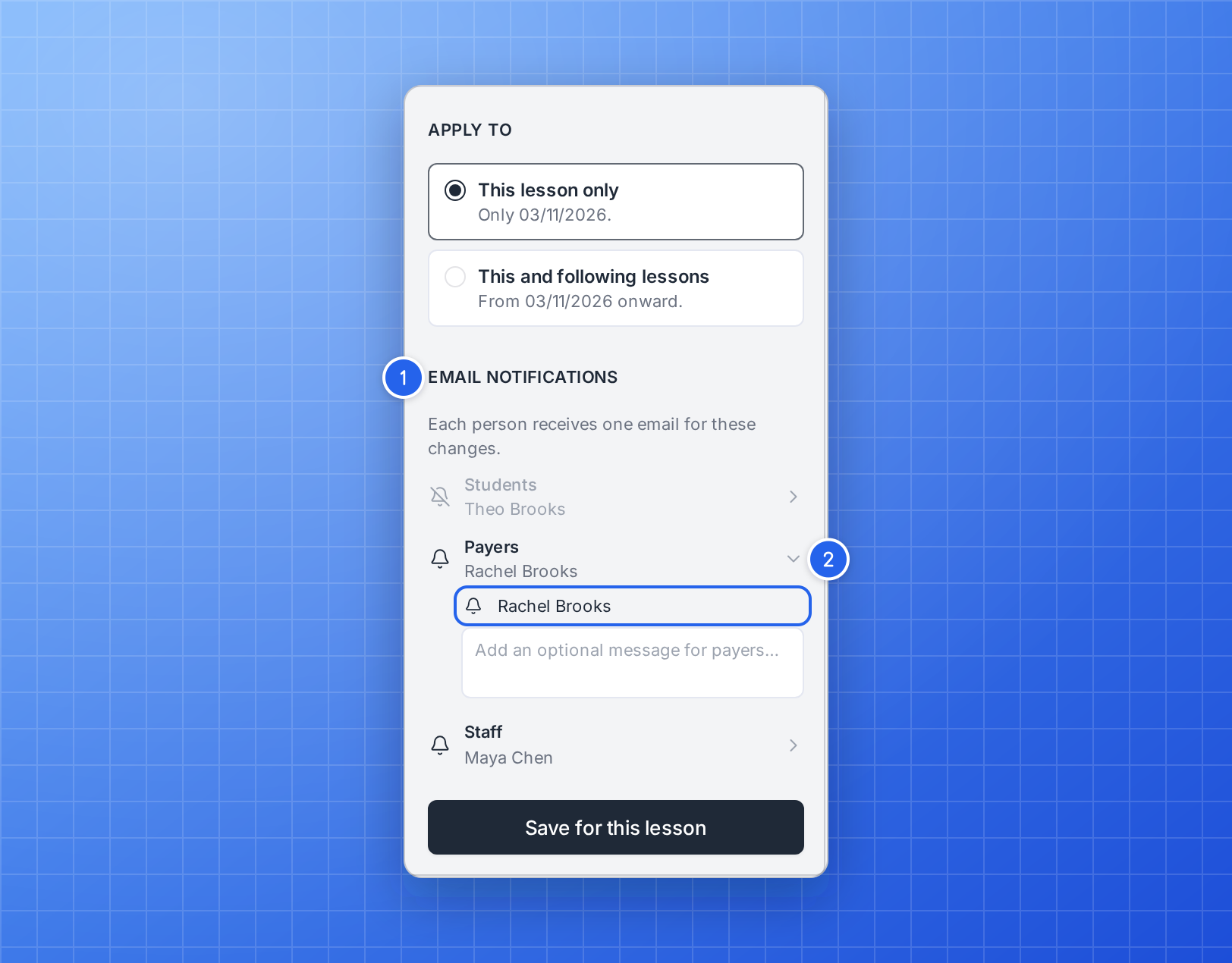
When Students is off, the student's person control and message are disabled. Use the group bell to change the group choice.
Select Save for this lesson to save the reviewed change and its notification choices.
Check the email record
Open Settings > Email history after saving. For a time-change email prepared for sending, look for Lesson changed and match the lesson title, lesson date and recipient. A Not sent entry may have a generic subject; check its detail rather than expecting a lesson date there. The event date is when the email event occurred.
Select the email subject to open its detail. Check To, Result and the message content so you know which person and change the record describes.
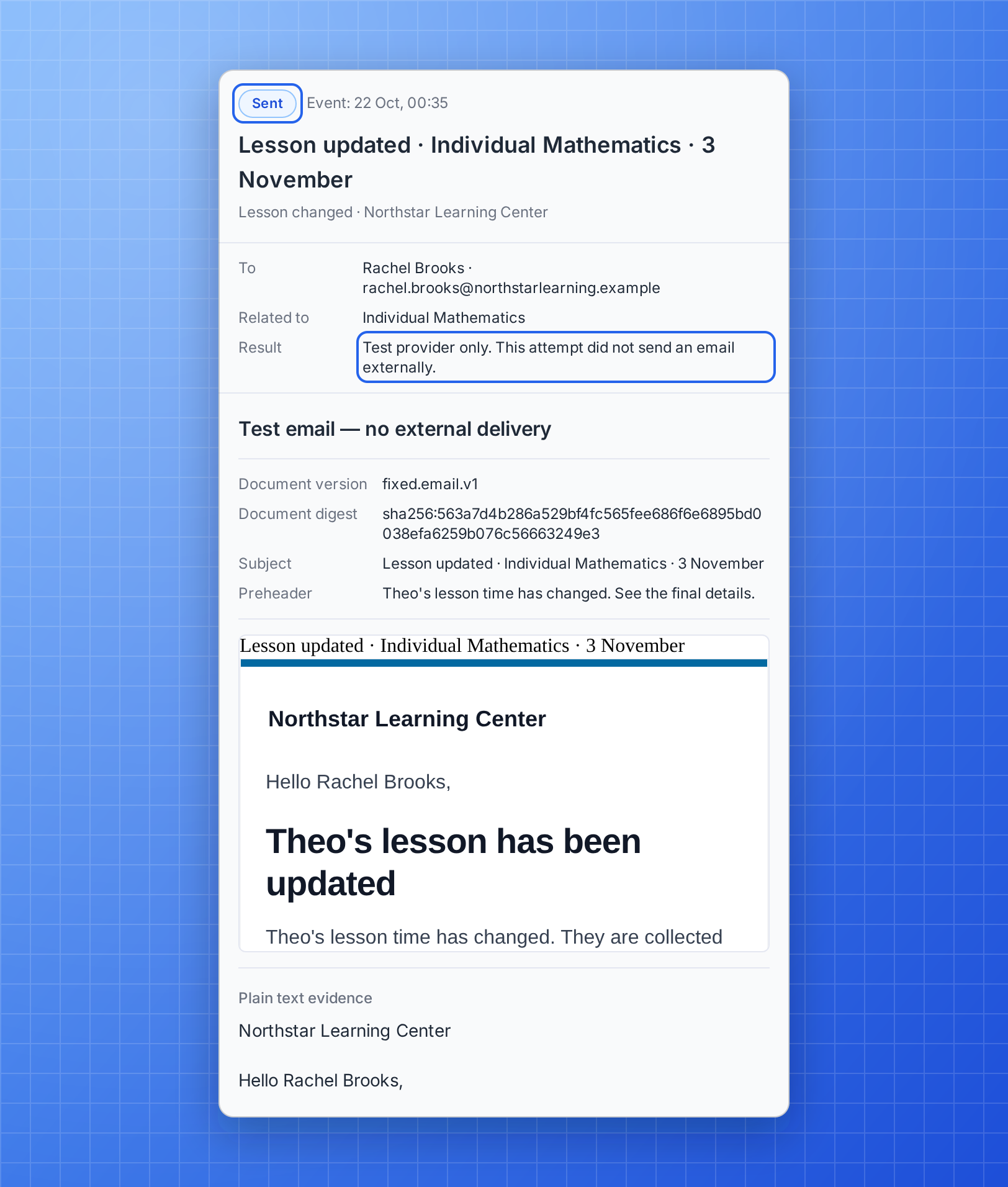
Email history is marked Beta and warns that delivery history may be incomplete or inaccurate. Confirm important changes with the recipient when you need assurance that the message reached them.
Common questions
Will the parent get an email when I move a lesson?
Keep Payers on under Email notifications in Review changes and check that the intended payer is named. After saving, check the matching Lesson changed record in Email history for its result.
Does the student automatically get notified?
Students starts selected in a time-change review. Switch Students off before saving unless the student should receive a separate email; the selection alone does not confirm delivery.
How do I turn off a lesson email?
In Review changes, switch off the bell beside the group you want to exclude under Email notifications before saving. This is the notification choice for that change.
Who is emailed when I move a lesson?
The recipients are chosen under Email notifications in Review changes. Keep Payers and Staff on to include the payer and affected teacher, and choose whether the student needs a separate email.
Does Sent mean the email was received or read?
No. Sent alone does not confirm receipt or reading; open the email's detail in Email history and check Result. For an important change, confirm with the recipient that the message reached them.