
Set your cancellation and makeup policy
Set cancellation windows, makeup expiry and no-show rules in Settings > Policies, then activate the policy for plans.
Last updated
To set cancellation and makeup rules in Tutorbase, open Settings > Policies and create a policy for Customer cancellation, School cancellation and No-show. Save and activate the policy to make the rules available for plans.
Before you start
Choose your school's agreed cancellation and makeup terms. The worked setup uses a 24-hour customer cancellation cutoff and a 30-day makeup expiry, with makeup only for timely customer cancellations. Substitute your school's terms so the policy matches the agreement with the payer.
Create the policy
Select your name to open the account menu.
Select Settings.

Select Policies.
Select New Policy. A blank policy opens with Customer cancellation selected.
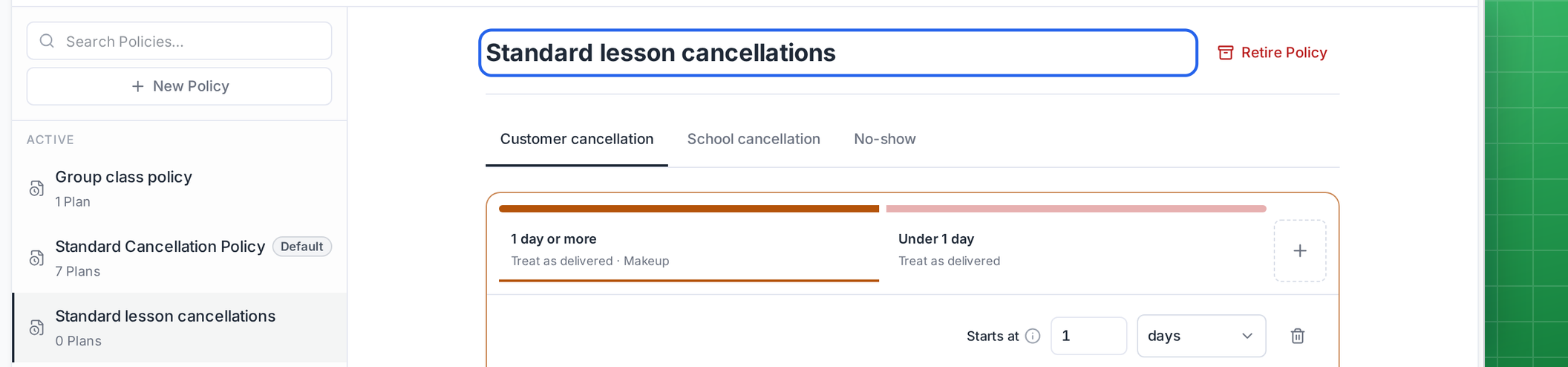
Set Policy name, for example “Standard lesson cancellations”. Use a descriptive name so staff can choose the correct policy when setting up a plan.
Set the cancellation and makeup rules
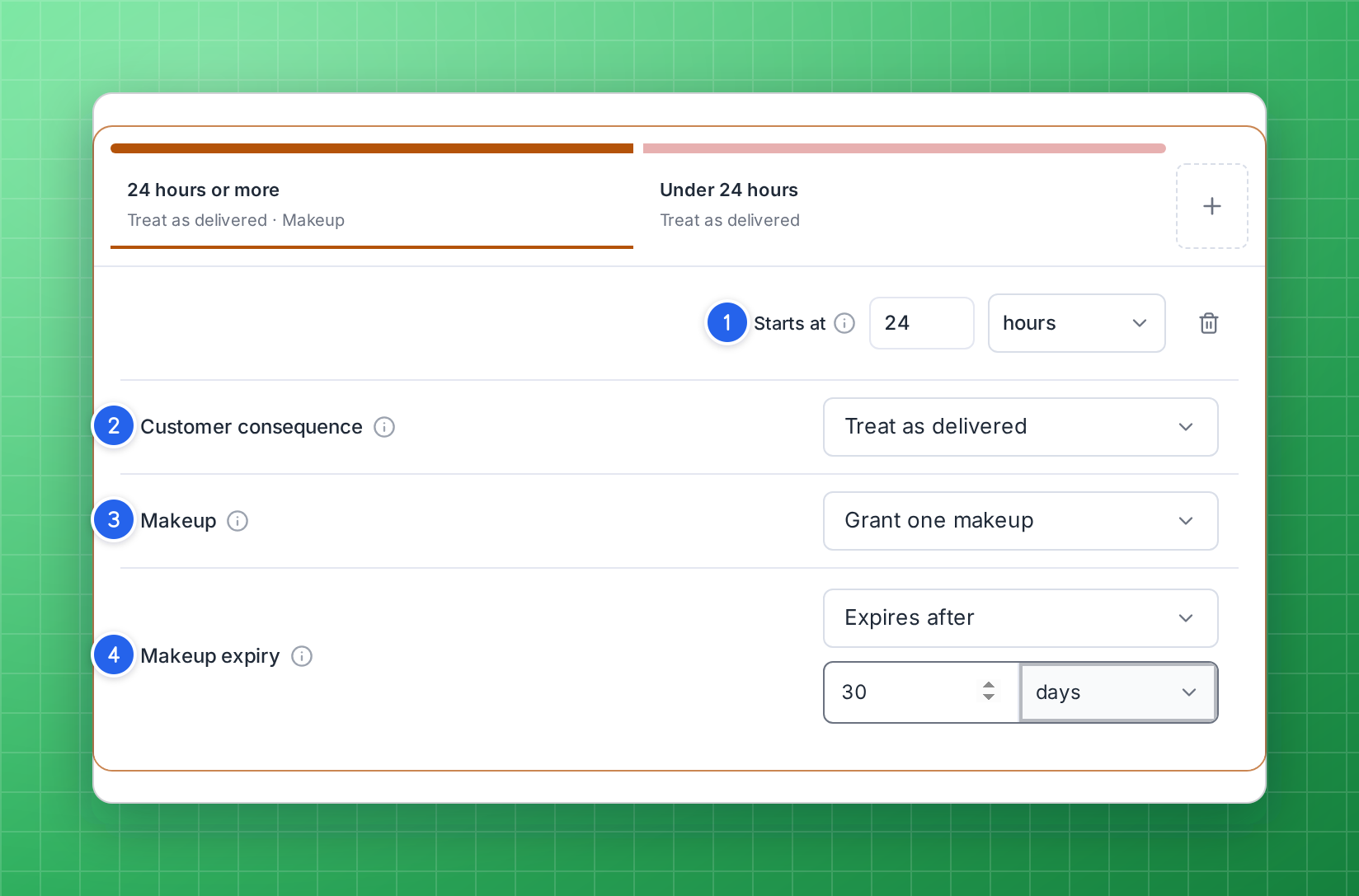
Under Customer cancellation, choose 24 hours or more.
Set the timely cancellation rule:
Under Starts at, keep 24 and hours. Use your school's agreed cutoff so the notice bands match the terms families receive.
Set Customer consequence to Treat as delivered. Choose the consequence in your agreement, rather than accepting the initial Free selection without checking it.
Set Makeup to Grant one makeup. Choose this when your terms promise a replacement lesson, so the policy records that promise.
Under Makeup expiry, keep Expires after, 30 and days. Choose the agreed rebooking period so the saved expiry matches your school's terms.
Choose Under 24 hours to review the late cancellation rule.
Keep Customer consequence as Treat as delivered and Makeup as No makeup. Keep this combination when your terms reserve makeup for cancellations with enough notice.
Select School cancellation.
Keep Customer consequence as Free and set Makeup to No makeup. Review both fields to match the school's cancellation terms: a new policy starts with Free and Grant one makeup, with a 30-day expiry.
Select No-show.
Keep Customer consequence as Treat as delivered and Makeup as No makeup. Keep this combination when your terms offer no replacement lesson for an absence without a recorded cancellation.
Select Save changes. The new policy is saved as a draft.
Select Activate. Activate the policy when its rules are ready for plans; a saved draft is not available for selection.
Use Add time window (+) if your agreement has more notice cutoffs, so each band has its own rule. The final, shortest-notice band has no editable Starts at cutoff.
After you activate the policy
The active policy is available when creating or updating a plan. Creating and activating a policy does not assign it to a plan; the new policy shows 0 Plans.
Choose Make default for new Plans only when the policy should be preselected for new catalog plans; leave the existing default for a policy intended for specific plans.
A saved 24-hour cutoff appears as 1 day or more and Under 1 day. The notice period remains one day.
Change an existing policy
Open Settings > Policies and select the policy. For an active policy, Save changes opens Save Policy changes?. Review the scope before confirming so you know which plans can use the changed rules: new or updated plans can use them when the policy is selected; existing plans and customer agreements keep their current rules. Select Keep editing to revise the rules, or Save changes to confirm.
Common questions
How do I change the late cancellation window?
In Settings > Policies, select the policy and open Customer cancellation. Choose the longer-notice band and set Starts at to the notice amount in hours or days; the shorter-notice band's label follows that cutoff.
Can each cancellation window have a different makeup rule?
Yes. In Settings > Policies > Customer cancellation, select each window and set Makeup. Choose Never expires only if your terms allow unlimited time to rebook; otherwise use Expires after with your agreed duration.
Where do I set school cancellation and no-show rules?
In Settings > Policies, select the policy, then choose School cancellation or No-show. Each has its own Customer consequence, Makeup and, when makeup is selected, expiry settings.
Can I enter a fixed no-show fee in the policy?
The No-show tab in Settings > Policies has no fee-amount field. Customer consequence lets you choose Free or Treat as delivered.
Is saving a new policy enough to use it on plans?
No. Save changes saves a new policy as a draft in Settings > Policies. Select Activate to make the policy available for plans.
Does changing a policy update existing customer agreements?
No. The Save Policy changes? confirmation in Settings > Policies says existing plans and customer agreements keep their current rules. Select the changed policy when creating or updating a plan to use those rules there.