
Choose a plan for each student in a group lesson
Choose a purchased plan for each student in a Tutorbase group lesson, then review and save each student's coverage.
Last updated
To choose plans (lesson packages) for a group lesson in Tutorbase, open the lesson in Calendar and choose Plan for each student who needs a change. Review and save the choices so each student uses their own purchased plan; one student's choice does not cover the whole group.
Before you start
Have the group lesson and each student's purchased plan ready. These steps change individual students' coverage in an existing group lesson, rather than setting a default for a weekly series.
For example, Felix Weber has bought Group Spanish · 8 lessons, but his group lesson has been left without plan coverage. The other students already have the correct plans. Choose Felix's purchased plan and keep the other students' choices.
Open the student's plan
Open the group lesson in Calendar. Keep a correct existing plan choice so you change only the students who need a correction.
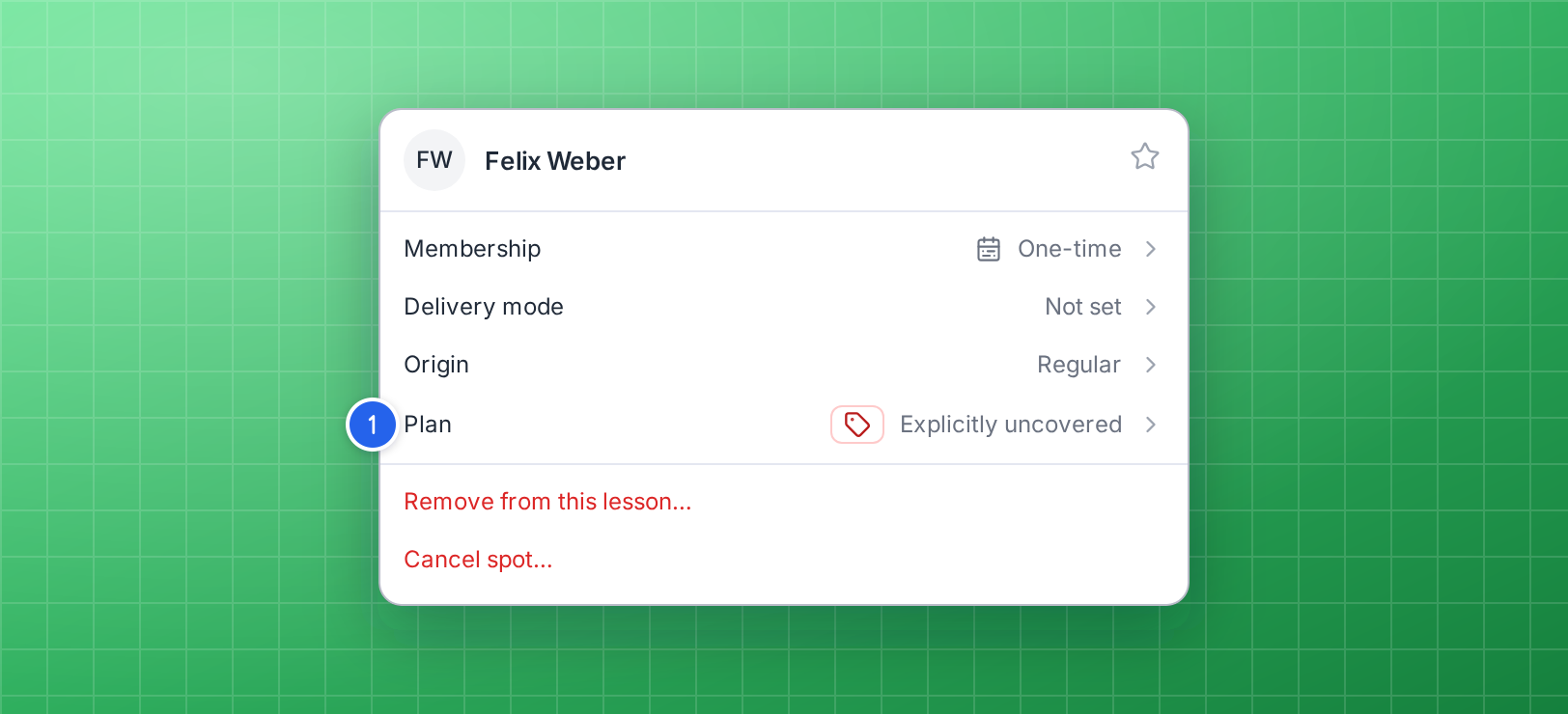
Select the student's name under Students. The student menu opens.
Choose Plan. The Plan panel opens for that student.
Choose the purchased plan
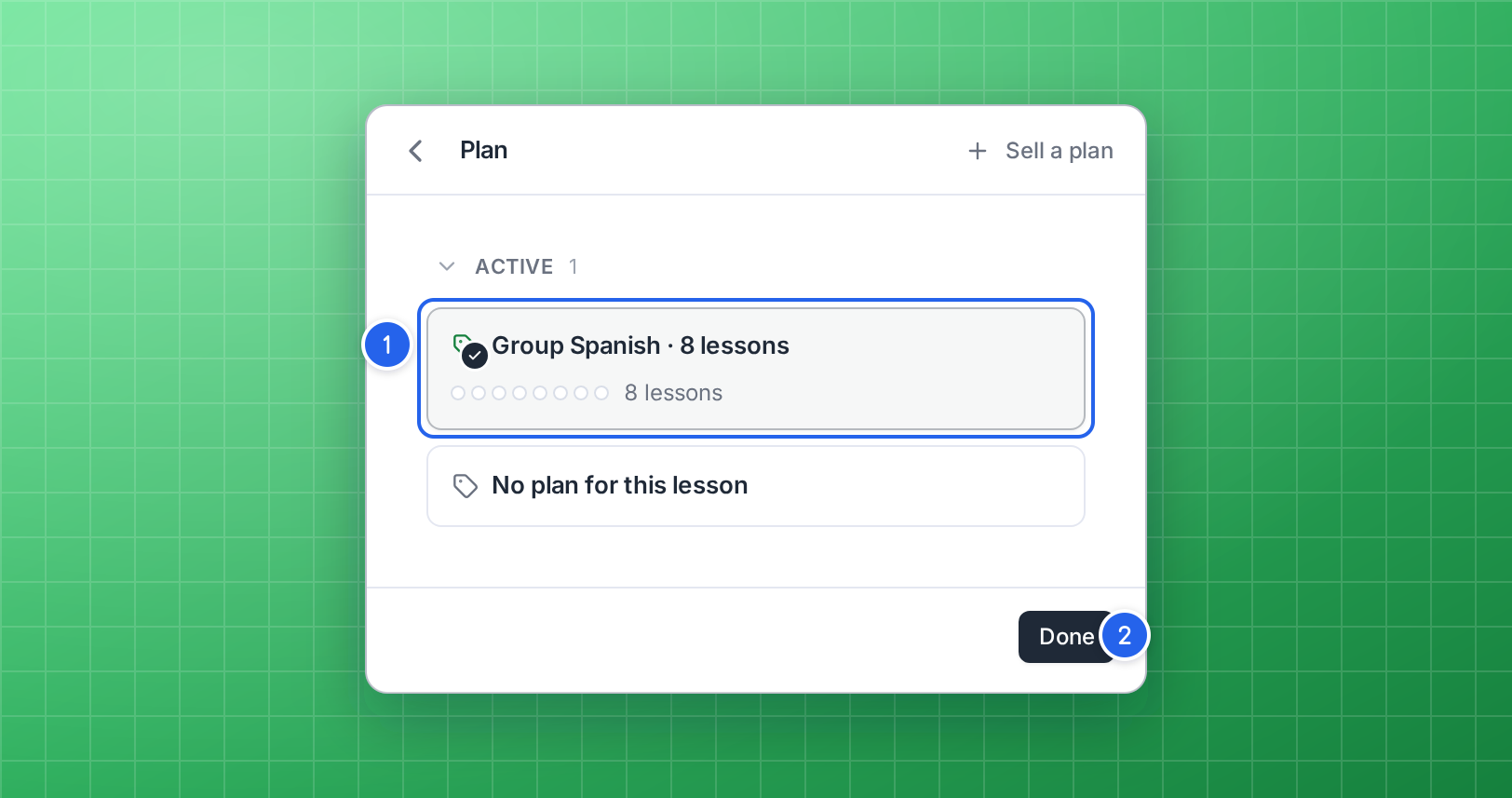
Choose the purchased plan under Active; for example, Group Spanish · 8 lessons. Choose the purchase intended for this student's group lesson so the lesson uses the right coverage. The selected plan gains a check mark.
Select Done. The student menu reopens with the new choice, but the change is not saved yet.
Press Escape to close the student menu.
Repeat the plan choice for any other student whose plan needs changing. Each student has their own Plan panel, even when several students bought a plan with the same name.
Choose No plan for this lesson only when you intend to leave that student's lesson without plan coverage; the choice does not make the lesson free or pay-as-you-go. A greyed plan cannot be chosen for this lesson.
Review and save the choices
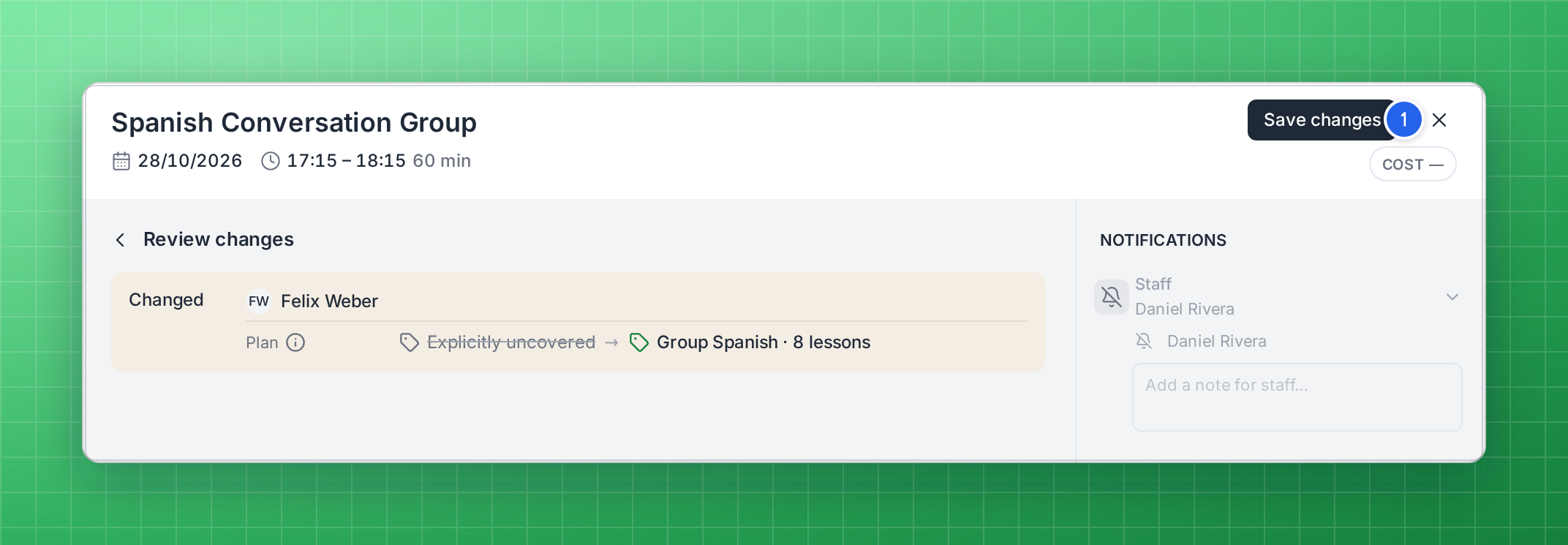
Select Review changes. Check the student name and the old and new Plan choices before saving.
Under Notifications, select Staff to expand the teacher's checkbox. Notify staff and the teacher's checkbox start switched on. For a routine coverage correction that requires no action from the teacher, clear Notify staff. Leave the optional Add a note for staff… message blank when no extra context is needed. Contact the teacher separately if they need to know about the coverage change.
Select Save changes to save the reviewed choice.
After you save
The changed student has the selected purchased plan. The other students keep their own plan choices. Open the lesson and check each student's Plan.
Choosing a plan does not finalize attendance: the students remain Expected.
Common questions
Does choosing one plan cover everyone in the group?
No. Open Plan for each student who needs a change in the group lesson and choose that student's purchased plan. Students can use plans with the same name while keeping individual choices.
Does Done save the student's plan choice?
No. Done returns to the student menu with the new choice. Press Escape to close the menu, select Review changes, then select Save changes to save the plan choice.
Can I leave just one student's lesson without a plan?
Yes. Choose No plan for this lesson in that student's Plan panel, then review and save the choice. The no-plan choice does not mean the lesson is free or pay-as-you-go.
What if the student needs a different purchased plan?
Choose another selectable purchase intended for the group lesson in that student's Plan panel. Greyed plans cannot be chosen for the lesson. If Sell a plan is greyed out, you cannot start a sale from that panel.
Does choosing a plan finalize attendance?
No. A plan choice changes the student's lesson coverage. Choosing the plan leaves the students Expected and does not finalize the group lesson.