
Leave a lesson without a plan
Choose No plan for this lesson, then review and save to leave a student’s lesson without plan coverage while keeping the lesson scheduled.
Last updated
To leave a student’s lesson without a plan (package) in Tutorbase, open the lesson in Calendar and choose No plan for this lesson under Plan, then review and save. The lesson stays scheduled with an explicit no-plan choice instead of a purchased plan.
Before you start
Open the scheduled lesson you want to change in Calendar. For example, a music school wants Amelia Brooks’s piano lesson to stay scheduled without using her purchased piano plan.
Keep a suitable purchased plan selected when the payer has bought coverage for the lesson. Choosing no plan records a deliberate coverage decision; decide how to charge for the lesson before making that choice. Setting a default plan for a weekly series is a different task.
Open the student’s plan
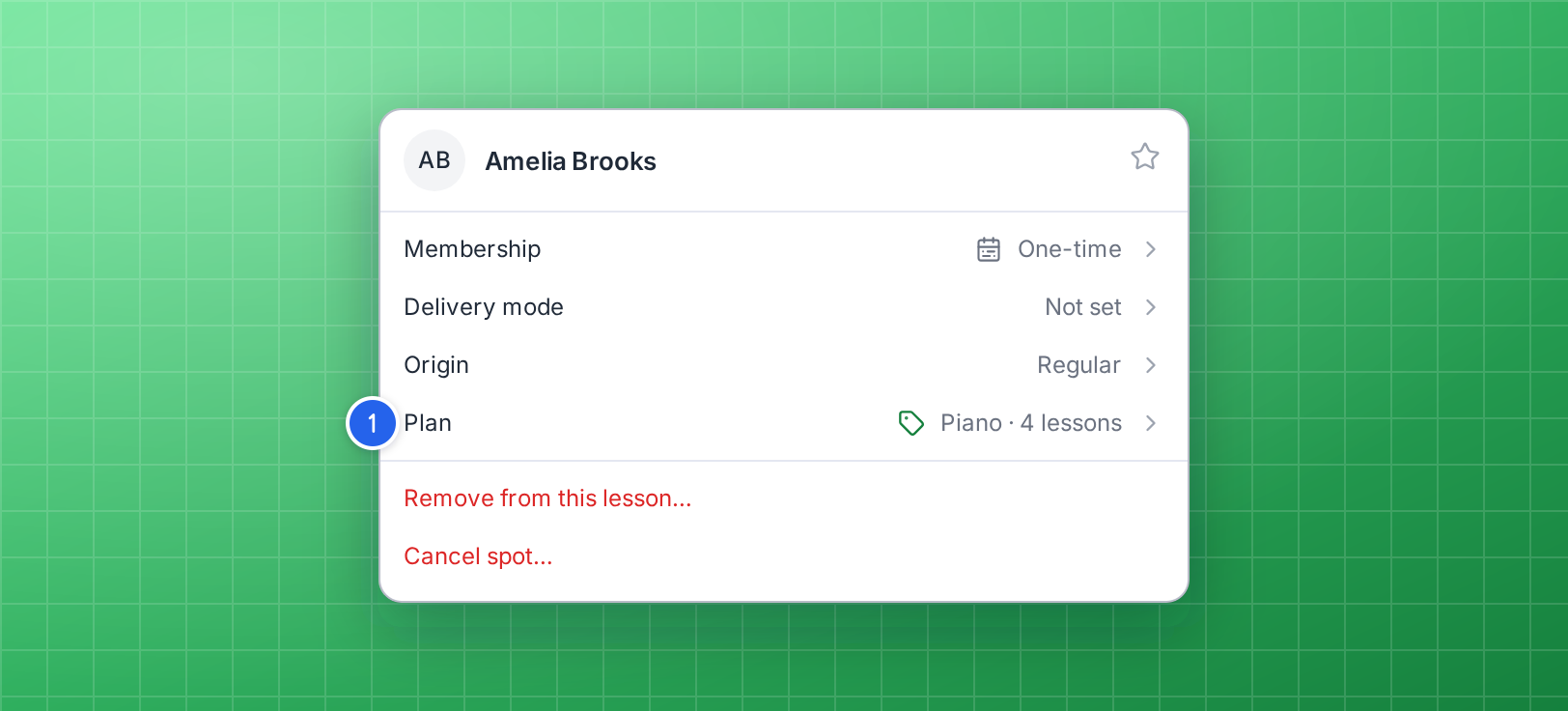
Under Students, select the student’s name.
Select Plan. The Plan panel opens.
Choose no plan
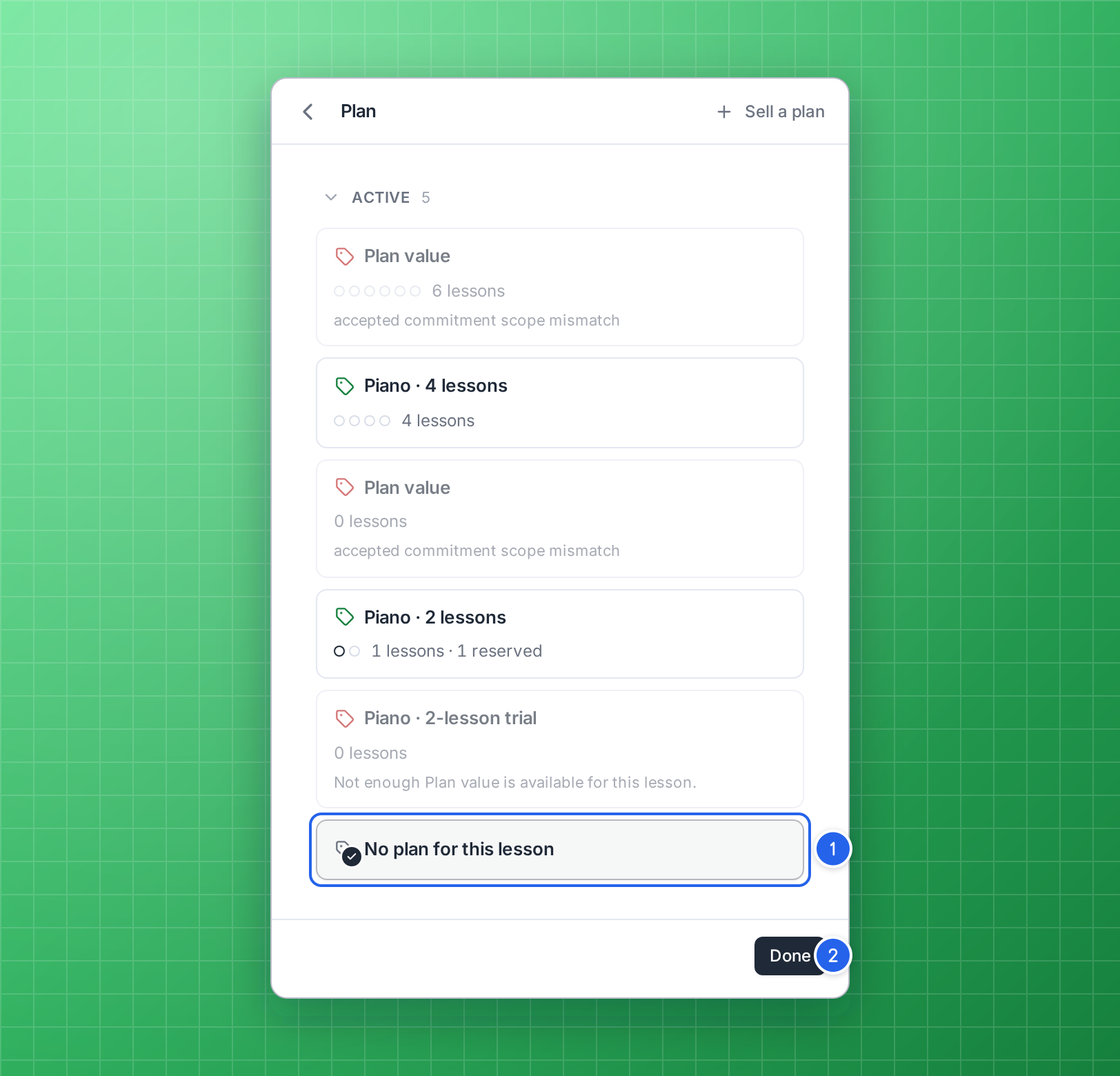
Choose No plan for this lesson. Choose this option only when a purchased plan should not cover the lesson, so the saved coverage matches your billing decision.
Select Done. The choice remains unsaved in the open lesson; Done returns you to the student menu.
Press Escape to close the student menu.
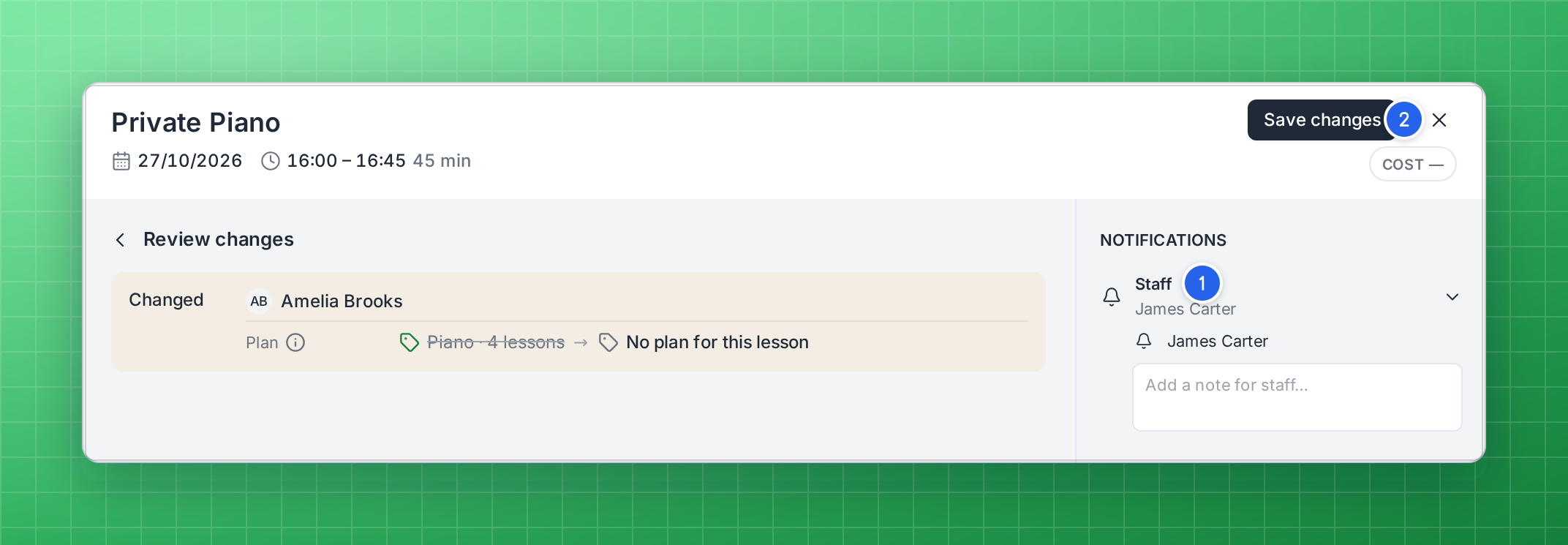
Select Review changes. The review shows the previous plan changing to No plan for this lesson.
Review and save the choice
Under Notifications, expand Staff. Both Notify staff and the teacher’s individual checkbox start selected. For a routine coverage correction, keep the existing staff selections. A change limited to choosing No plan for this lesson saves with both selected and adds no new Email history entry, so you do not need to change these selections to complete the correction. If the teacher needs to know about the coverage change, contact them separately. Clear both selections only if you want no staff recipient listed in the review.
Leave the optional Note for staff empty when no extra message is needed.
Select Save changes to save the plan choice.
After you save
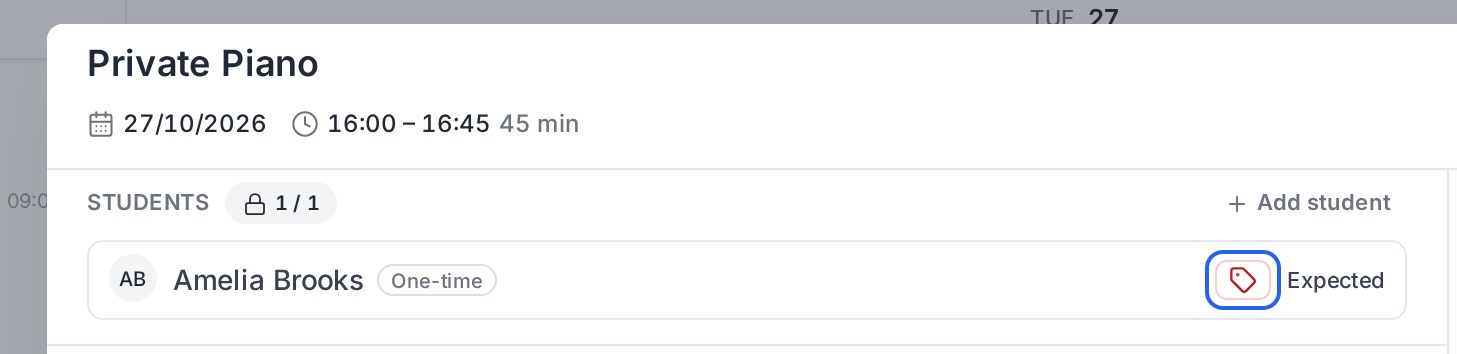
The lesson remains scheduled with the same student, time, service, teacher and location. The student has a no-plan marker, and No plan for this lesson is selected when you reopen the Plan panel.
No plan for this lesson records a coverage choice. The no-plan choice does not decide that the lesson is free, pay-as-you-go, paid or refunded.
A change limited to choosing No plan for this lesson adds no new entry to Email history, even with both staff notification controls selected.
Common questions
How do I stop a lesson using a purchased plan?
Before changing coverage, decide how to charge for the lesson. In the lesson’s Plan panel, choose No plan for this lesson and select Done. Press Escape to close the student menu, then select Review changes and Save changes to save the lesson without the purchased plan selected.
Does Done save the no-plan choice?
No. Done leaves the choice unsaved in the open lesson. Press Escape to close the student menu, then select Review changes and Save changes to save the no-plan choice.
Does no plan mean the lesson is free?
No. No plan for this lesson leaves the lesson without plan coverage. The no-plan choice does not set a price or decide that the lesson is free or pay-as-you-go.
Does choosing no plan cancel the lesson?
No. Choosing No plan for this lesson keeps the lesson scheduled with the student still enrolled.
Will the family receive an email about this change?
A change limited to choosing No plan for this lesson adds no new entry to Email history. The Staff notification choices still appear in Review changes; check the notifications whenever you save other lesson changes.