
Export a list as CSV
Download your Students, Payers, Staff or Payroll lists as a CSV file for Excel or Google Sheets, with every row that matches the list.
Last updated
To export a list in Tutorbase, open the list, narrow it with its search or filters and select Export CSV. You get a CSV file (a spreadsheet file for Excel or Google Sheets) with every row that matches the list's view, search and filters. The Students, Payers, Staff, Payroll documents and Pay items lists can be exported.
Before you start
Export from a computer. On a phone-sized screen the Students list shows no Export CSV.
For example, before the new term you check which of the Brooks family's students, Amelia and Theo Brooks, have their own email and phone recorded.
Export a People list
Under People, select Students. Payers and Staff have the same search and Export CSV.
Narrow the list to the rows you want: choose a saved view, type in Search in the saved-views row, or set Filters. For example, search for "Brooks": the count in the search box shows 2 students. Narrow the list first, because the file holds every row that matches. The file also holds every column the list shows, such as Billing and Status, so check a short file before you share it.
Select Export CSV, the download icon beside New student. The file downloads straight away to your computer. A Students export is named
students.csv; Payers and Staff givepayers.csvandstaff.csv.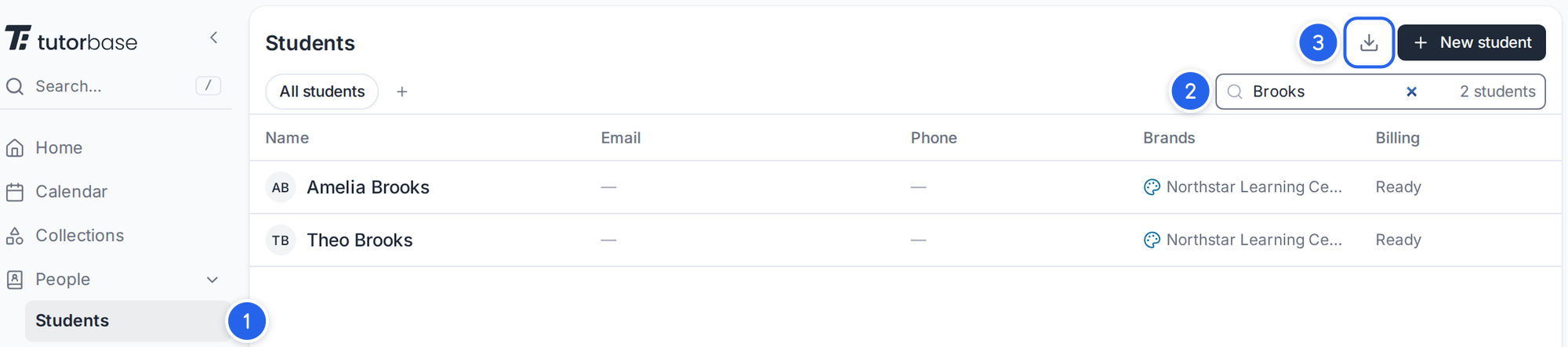
Export Payroll lists
Under Payroll, select Payroll documents or Pay items, narrow the list with its views or search, then select Export CSV. Payroll documents give payroll-documents.csv, with one row for each matching payroll document and its total and outstanding amounts. Pay items give pay-items.csv.
After you export
Every record that matches the list is in the file, including records further down the list that haven't loaded on screen yet. For example, the Brooks search gives a file with two rows, Amelia Brooks and Theo Brooks, with their Email and Phone cells empty because neither has their own recorded.
The file's first row holds the column names. In a People list that isn't grouped, the file has the columns the list shows, in the same order, starting with Name. Money columns are plain numbers, each followed by a currency column. For example, a Payers file has Balance with 0.00 and then Balance currency with USD.
Phone numbers start with an apostrophe, for example '+14155550121, so a spreadsheet keeps the plus sign instead of turning the number into a figure.
Common questions
Why does my export have fewer people than my school has? An export holds only the rows that match the list's saved view, search and filters. Clear the search or filters in the list to widen it before you select Export CSV.
What if my list has more than 1,000 rows? An export holds up to 1,000 rows. Above that, Tutorbase makes no file and shows This list has more than 1,000 rows. Narrow it with filters to export it. Export the list in parts instead: narrow it with a saved view, search or Filters until it has 1,000 rows or fewer, select Export CSV, then change the filter and export the next part.
Does the export include people who haven't loaded on screen? Yes. An export holds every row that matches the list, not only the rows loaded on screen.
Which columns go into a Students export? A Students export has the columns the Students list shows, in the same order. The + at the end of the column headings (Add column) lists the other columns the list can show, switched on for the columns shown. Payer is switched off at first, so a Students export has no payer column unless the list shows it.
Where does the export go? Export CSV downloads the file straight to your computer, for example as students.csv. Open the file with Excel or Google Sheets.
Can I export a list from my phone? No. On a phone-sized screen the Students list shows no Export CSV. Export from a computer.
Why do phone numbers in the export start with an apostrophe? Tutorbase writes an apostrophe before each phone number, for example '+14155550121, so the spreadsheet keeps the plus sign and the whole number.