
Add custom fields to student profiles
Create a custom student field in Tutorbase Settings, save an exam board on a student profile, and keep a Students view filtered by exam board.
Last updated
To add custom fields (extra profile information) in Tutorbase, open Settings > Profile fields, choose Students, and create the field. Then fill the field on a student profile and select Save changes. You end up with a reusable student field, an answer saved for that student and, if you want, a saved Students view filtered by that field.
Before you start
Sign in as the school owner and have an existing student profile ready. The worked example records Amelia Brooks's exam board using a field named Exam board, with AQA and Edexcel as its answers.
Choose information that is appropriate to show with a student profile: anyone who can see a student profile sees its custom fields. The creation form warns Don't store restricted information here.
Open the custom field form
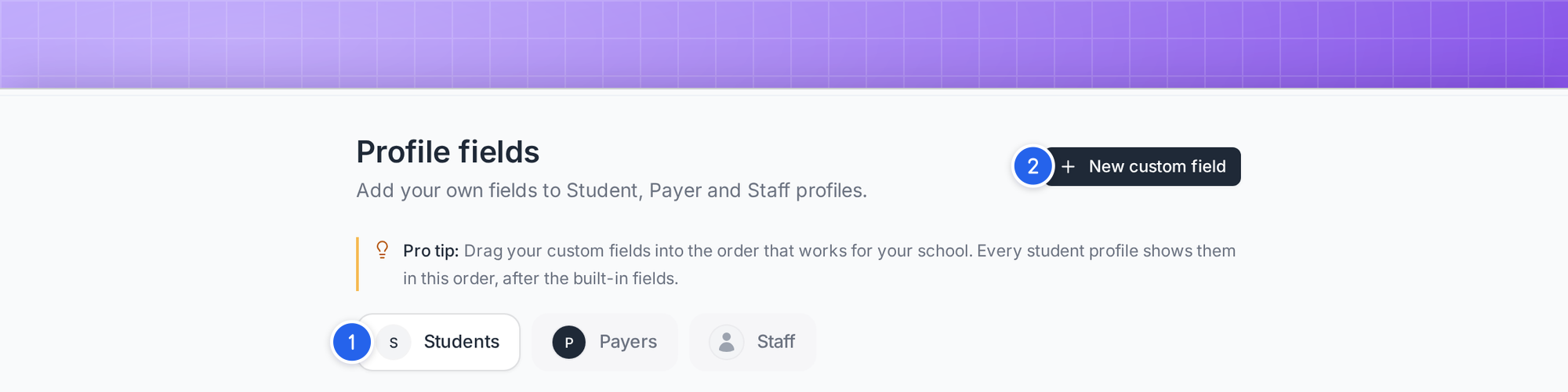
Open Settings from your account menu. Select Profile fields.
Choose Students. Choose Students for information about the student, such as their exam board.
Select New custom field.
Define the exam board field
- Set the field name to Exam board. Use a clear name so staff know which information to enter; field names can have up to 60 characters.
- Under Type, choose Single choice. Use Single choice for an exam board because each student needs one answer.
- In the box showing Add an answer, then press Enter, enter AQA and press Enter.
- In the same answer box, enter Edexcel and press Enter. Add the exam boards your school uses as separate answers so staff can choose consistently.
- Select Create field. A short Exam board created message appears, and Exam board is highlighted in the student profile preview. The preview shows example answers so you can see how the field will look; it doesn't change any profile.
Open the student's field
- Open People.
- Select Students.
- Choose the student, for example Amelia Brooks.
- Select Edit on the student profile.
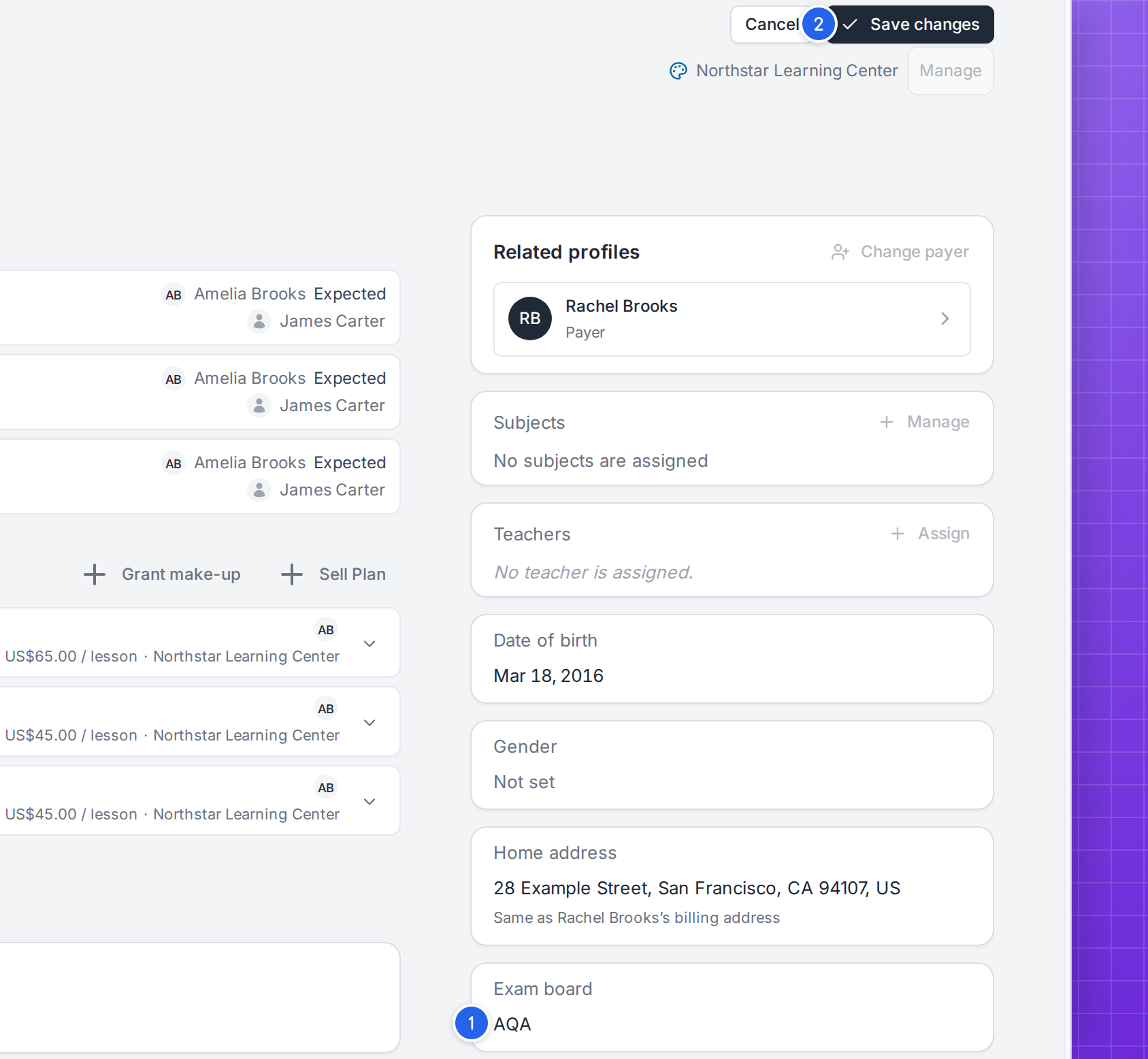
- Under Exam board, select Not set.
Save the student's answer
Choose AQA. Choose the student's actual exam board; use Edexcel when that is the student's board.
Select Save changes. Choosing an answer prepares the profile edit; Save changes saves the answer.
After you save the answer
The student profile displays the saved exam board. Other students have their own answers: for example, saving AQA for Amelia Brooks leaves Theo Brooks's Exam board at Not set.
Once a profile has a value for the field, Type is locked. Choose the type before you start filling the field on profiles.
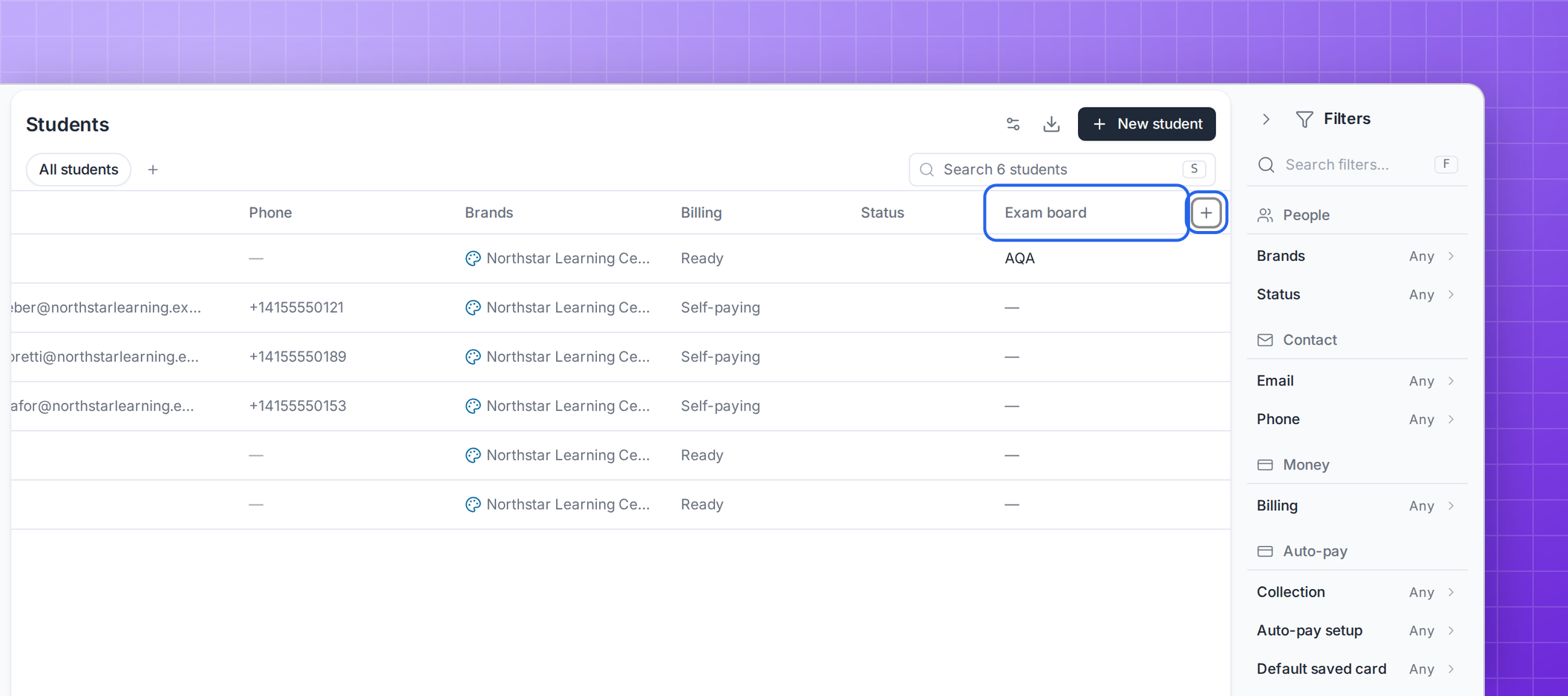
In Students, a new custom field is under Custom fields in Filters straight away, but starts switched off as a column, so a Students export leaves it out too. To show Exam board, select the + at the end of the column headings (Add column), then Exam board under Custom fields. For example, Amelia's answer appears as AQA; a student without an answer shows —.
Keep a view of students by exam board
Save a filtered Students list as a view to return to the same students later, for example everyone whose exam board is AQA.
- Open People.
- Select Students.
- In Filters, under Custom fields, select Exam board.
- Choose AQA, then press Esc to close the list. Students lists only students whose answer is AQA, for example Amelia Brooks.
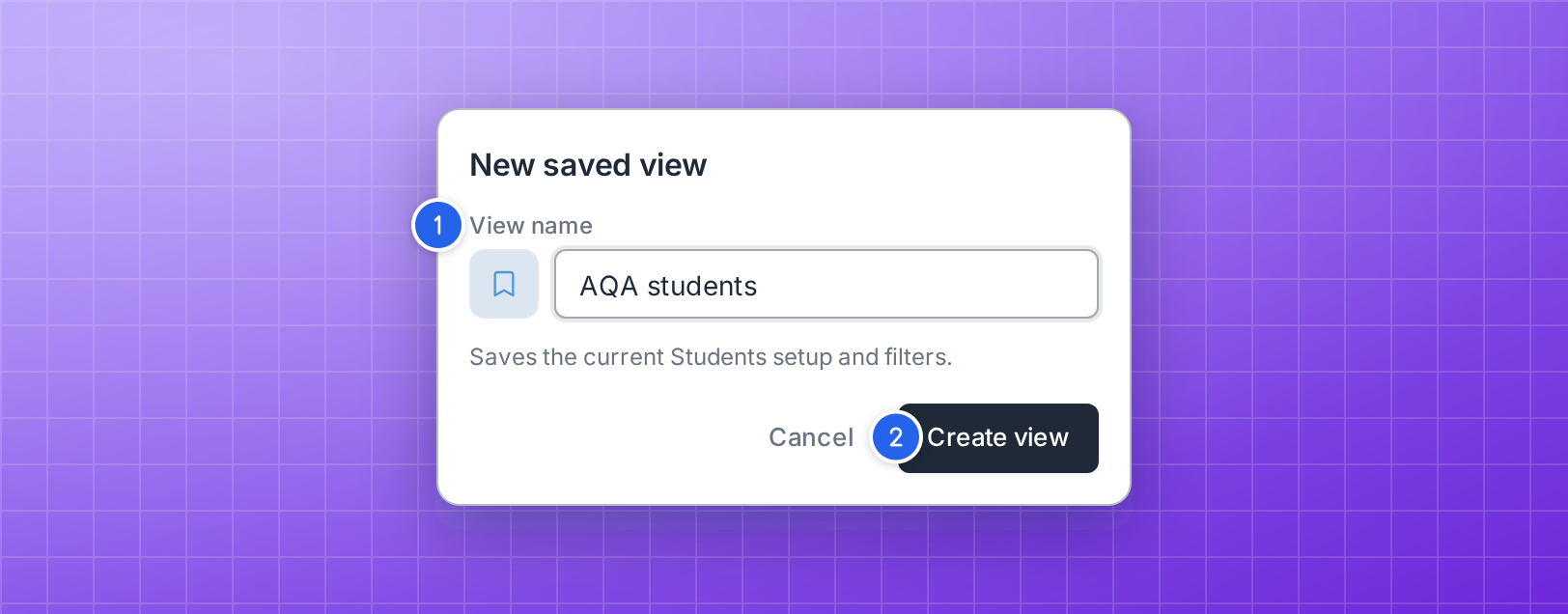
- Select the + at the end of the saved-views row. New saved view opens. The view saves the current Students filters, so filter first.
Name and save the view
Set View name, which starts as My view, to who the view lists, for example AQA students. A name that says who is listed helps you pick the right view later.
Select Create view. AQA students appears beside All students and is selected.
After you save the view
The saved view keeps its Exam board filter. When you open Students again, in the same browser or in another browser or device where you sign in, the selected view opens with its filter: for example, AQA students listing only Amelia Brooks. Select All students to list every student again.
Common questions
How do I add custom fields for extra student information?
Open Settings > Profile fields, choose Students, and select New custom field. Set the field's name and type, complete any answers needed by the type, and select Create field.
How do I record a student's exam board?
Create an Exam board field with Single choice and the exam boards your school uses. Open the student under People > Students, select Edit, choose the student's answer, then select Save changes.
Does choosing an answer save the student profile?
No. Choose the answer in the student profile's edit session, then select Save changes to save the answer.
Why does a student field say Not set?
Not set means the student has no answer for that custom field. Saving an answer for one student does not fill the same field for another student.
Can I save a list of students by exam board?
Yes. In People > Students, choose an answer under Filters > Custom fields > Exam board, select the + at the end of the saved-views row, name the view and select Create view. The saved view keeps the filter in another browser or device where you sign in.
Can I change the field type after entering an answer?
No. Type is locked once a profile has a value for the custom field. Choose the field type in Profile fields before entering answers on student profiles.