
Import students and payers from a spreadsheet
Import students and payers into Tutorbase from a CSV or Excel file, check every row first, fix skipped rows and undo an import if needed.
Last updated
Open Settings > Import to upload a spreadsheet, match its columns and check the rows. New students are added with their payers and nobody is emailed.
Before you start
Sign in as the school owner. Put one student on each row of a CSV or Excel (.xlsx) file, with the student's payer on the same row. In an Excel workbook, only the first sheet is read. A file can have up to 5,000 rows and 10 MB. Download a sample file on the Import page gives a template.
To import answers into a custom field (extra profile information), such as an exam board, first create the field and its answers in Settings > Profile fields.
The worked example imports the Patel siblings, an adult learner, and Noah and Ella Kim, whose parent Jordan Kim has no email or phone.
Upload the spreadsheet
Open Settings from your account menu.
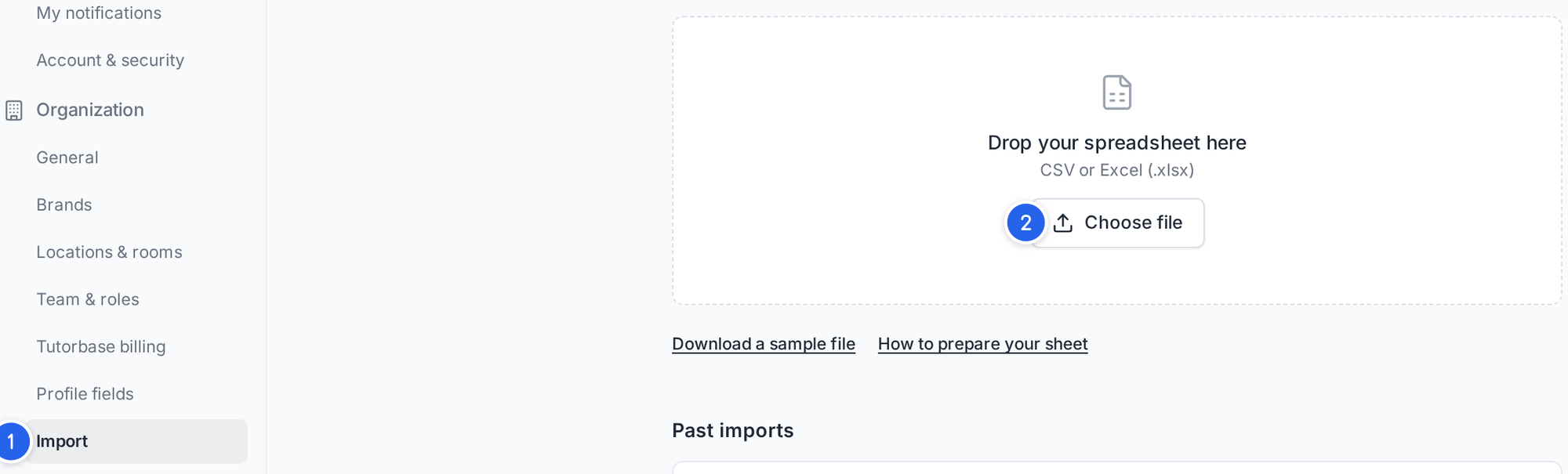
Under Organization, select Import.
Select Choose file and choose your spreadsheet. Match columns opens, with one row per column.
Match the columns
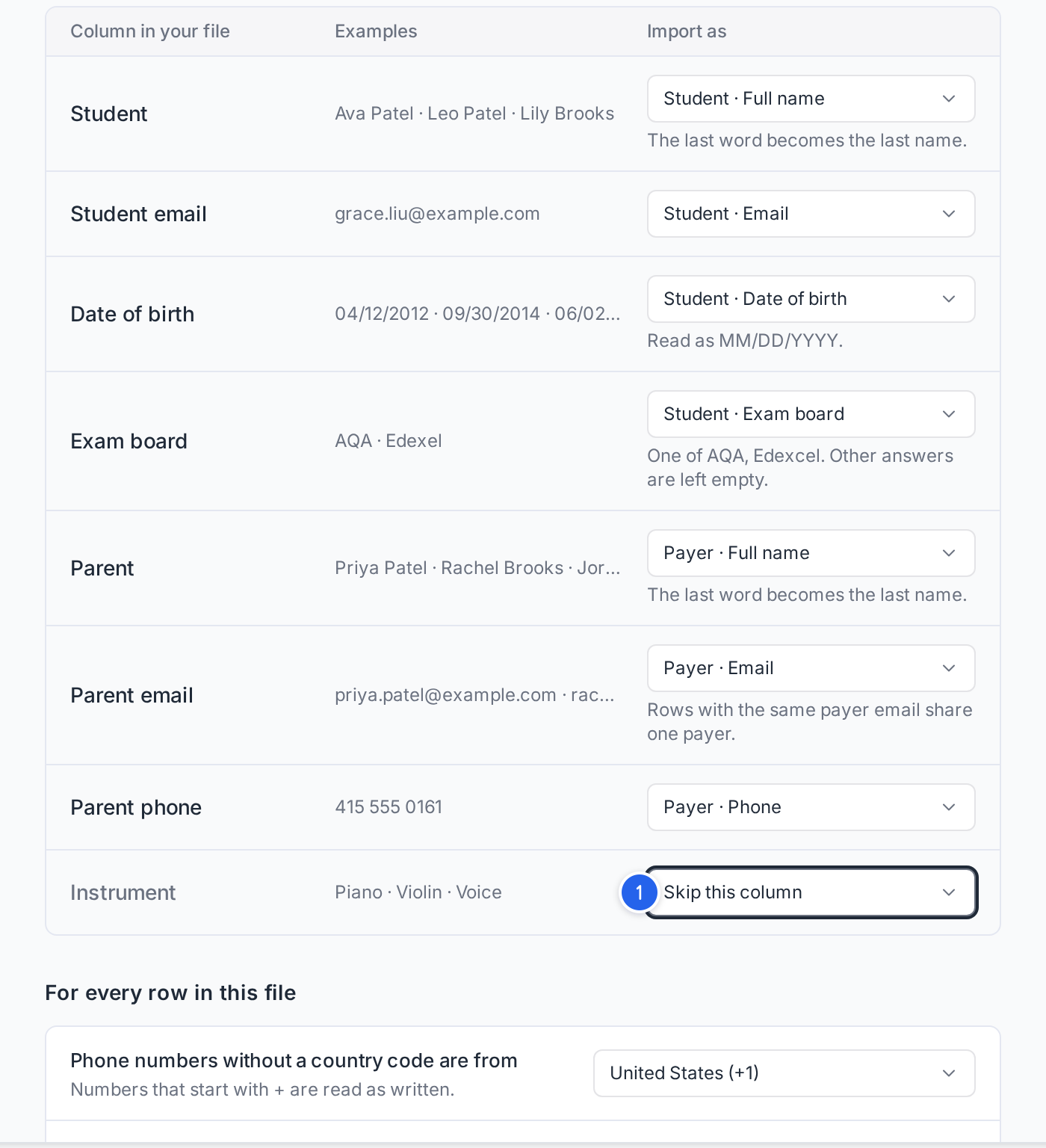
Under Import as, check the field guessed from each column's header and correct any wrong guess. Keep Skip this column for a column with no matching field, such as Instrument.
Choose how every row is read
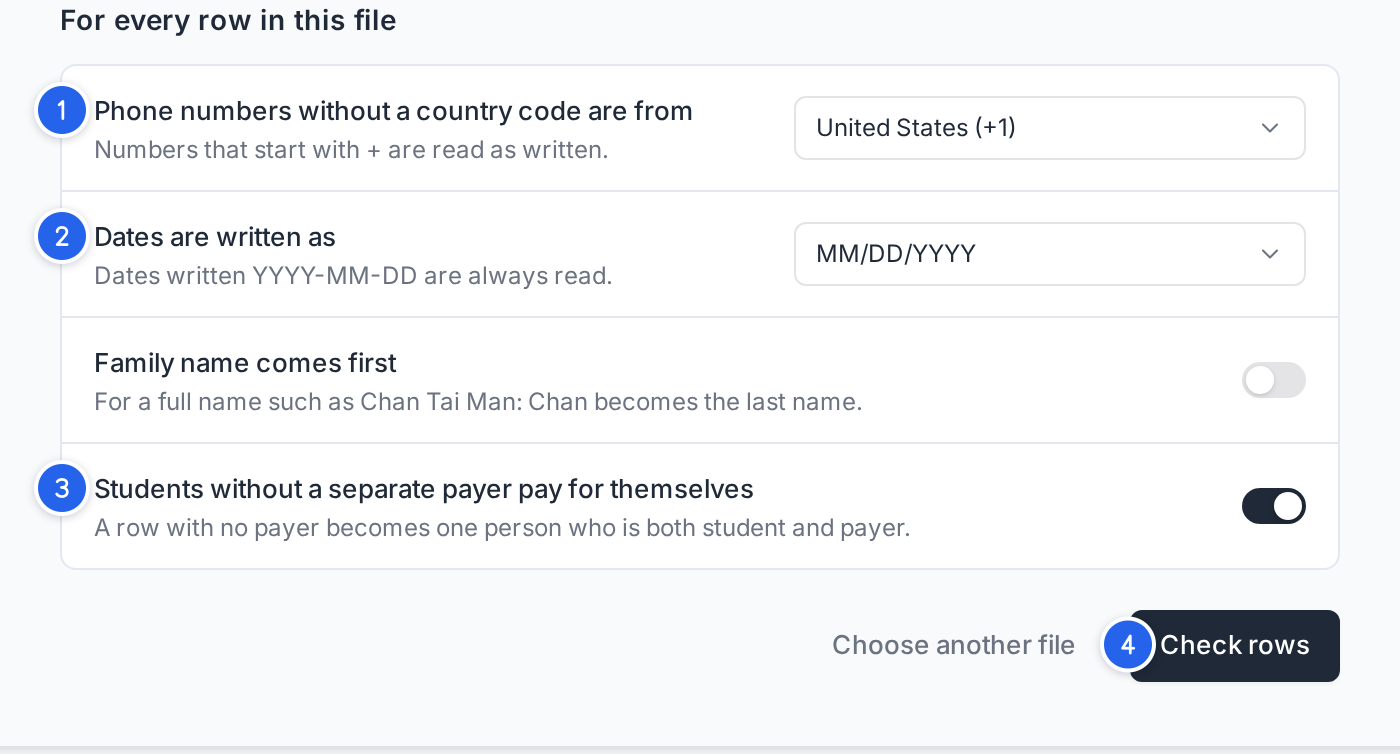
Under For every row in this file, switch on Family name comes first only for names written family name first, such as Chan Tai Man.
Set Phone numbers without a country code are from to the country most of your numbers belong to, because numbers without + are read as that country's.
Set Dates are written as to the order your file uses. It starts with your school's format, and a date that doesn't fit the order makes its row skipped.
Switch on Students without a separate payer pay for themselves when rows without a payer are adult learners. When it's off, those students are added without a payer and can't be invoiced until one is added.
Select Check rows. Nothing is imported yet.
Check the rows
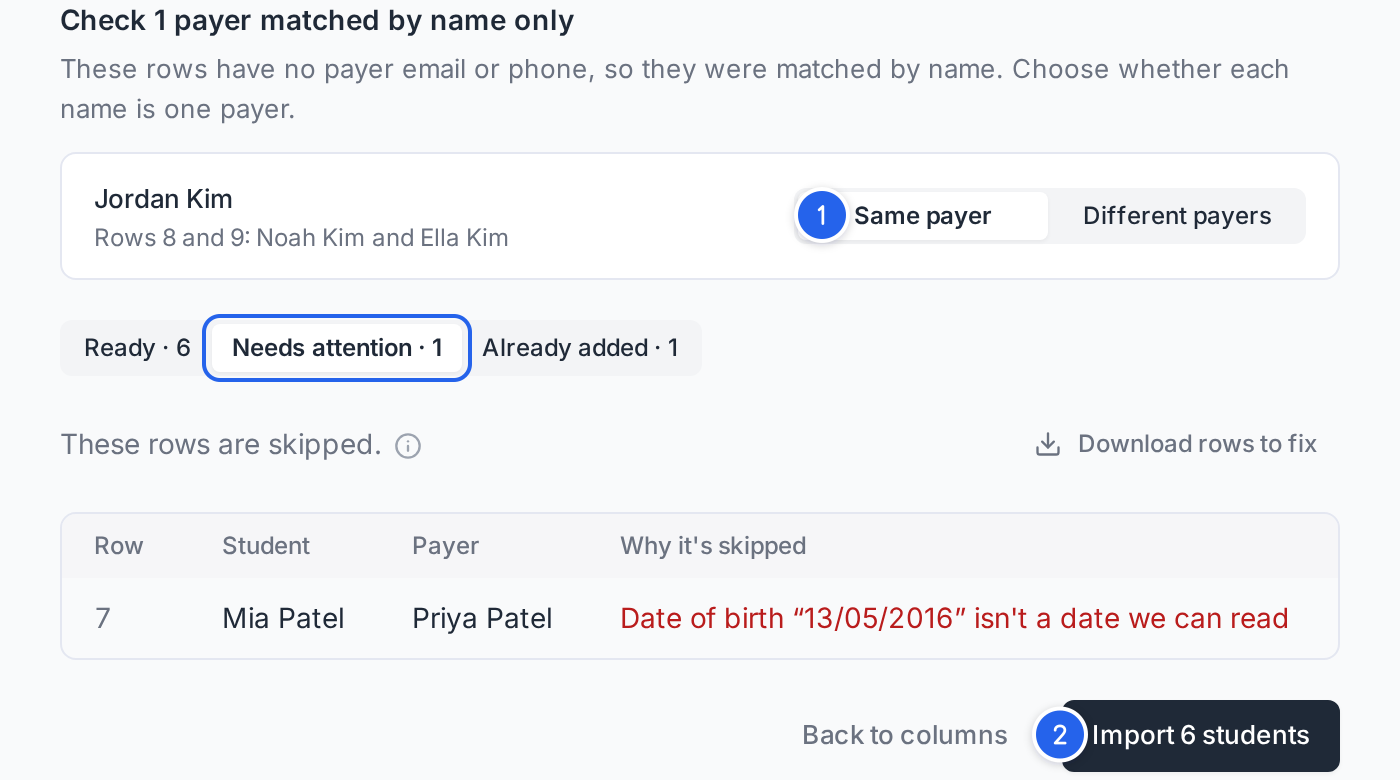
Check rows sorts your rows into three tabs and opens on Needs attention when a row has a problem:
- Needs attention: skipped rows. Why it's skipped says what to fix.
- Already added: students already in your school, for example with the same name and payer. Only their empty custom fields are filled.
- Ready: rows to import. Rows sharing a payer email share one payer, and a payer already in your school with that email is reused. An unreadable custom field answer is left empty.
Under Check 1 payer matched by name only, choose Same payer or Different payers for each name. Choose Same payer only when you know they're one family, because their students then share one payer. Import waits for every choice.
Select the import button, for example Import 6 students.
After you import
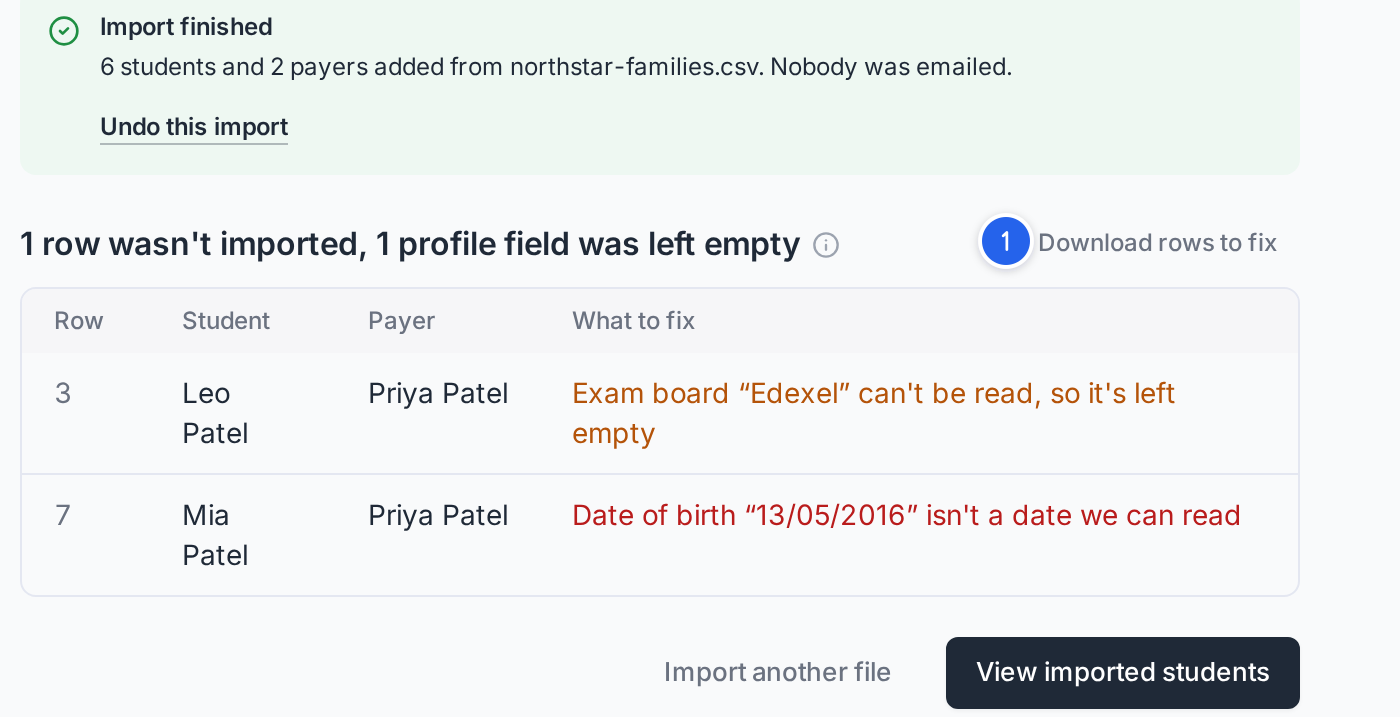
If a connection problem interrupts the import, select Continue import to check its progress and finish the same run. Import finished says how many students and payers were added and that nobody was emailed. View imported students opens Students listing only the students it added. To fix the skipped rows:
Select Download rows to fix. The file holds the skipped rows and rows whose custom field answer couldn't be read, in your own columns, plus What to fix.
Correct each row in that file.
Upload the corrected file on the Import page and check Match columns again, because its choices start over. What to fix is set to Skip this column.
Select Check rows. Students already added are skipped; only their empty custom fields are filled, for example Leo Patel's exam board.
Select the import button, for example Import 1 student.
Uploading the whole corrected spreadsheet also adds only what is missing, once you choose Same payer for each name-only payer you already imported; until then, that family is listed under Ready.
Undo an import
Undo removes the students and payers the import added. Reused payers and fields filled on existing students stay. Undo is available on a finished import that added people, while nothing else in Tutorbase uses those people, such as a lesson, plan, charge, invoice, or a student added later to an imported payer. Import finished also offers Undo this import when available.
Under Past imports on the Import page, select the three-dot button beside the file name.
Select Undo this import.
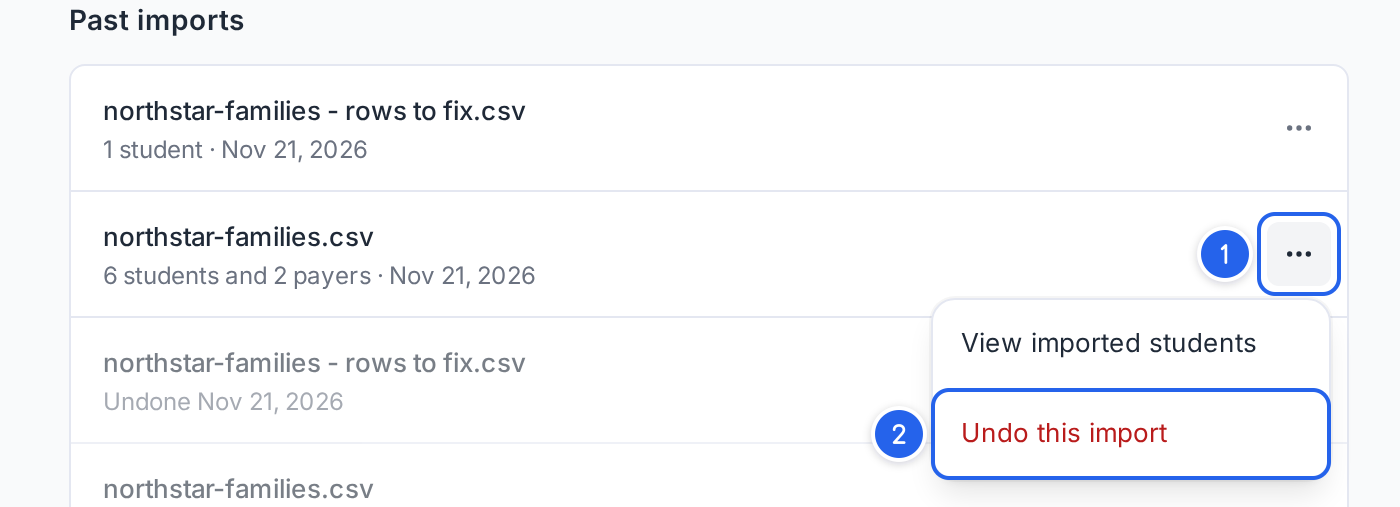
Select Undo import. Import undone says who was removed. When the people are in use, Import not undone appears and nothing is removed. If a later import added a student to one of its payers, undo the later import first.
Common questions
Will families get an email when I import them?
No. Importing sends no email.
What happens if I upload the same spreadsheet twice?
Check rows lists students already in your school under Already added and skips them. For a payer matched by name only, choose Same payer so the family isn't added twice.
My spreadsheet is too large. What can I do?
Split it into files of up to 5,000 rows and 10 MB and import them one by one. If a smaller Excel workbook still shows This file is too large, split the first sheet into smaller files. Excel compresses the data and its mapped cells can be larger than the file.