
Create a student and choose who pays
Create a student in Tutorbase, link an existing or new payer, choose self-paying, or save before you know who pays.
Last updated
To create a student and choose who pays in Tutorbase, open People > Students > Add student, enter the learner's details, and choose the payer (the person responsible for payment). You end up with a student profile linked to the chosen payer, or with billing setup left unfinished if you do not yet know who pays.
Before you start
Have the student's name ready and decide who will pay. For a sibling, check whether the parent already has a payer record so you can reuse that payer.
For example, create a profile for a sibling joining an existing family at a school with one Brand.
Open the student form
Under People, select Students.
Select Add student. The Create student form opens.
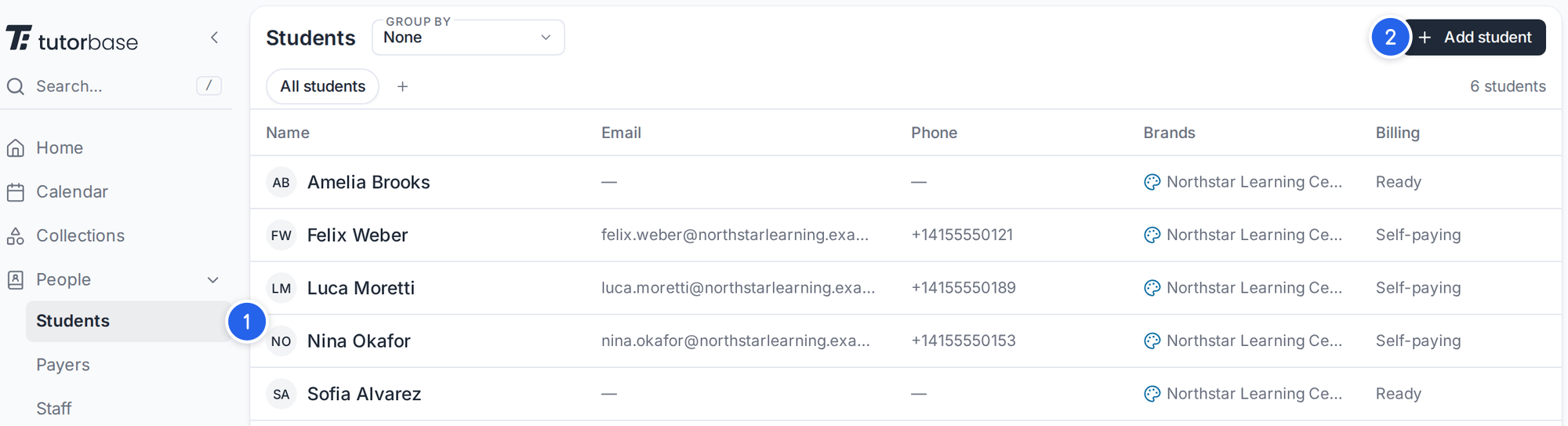
Enter the student details
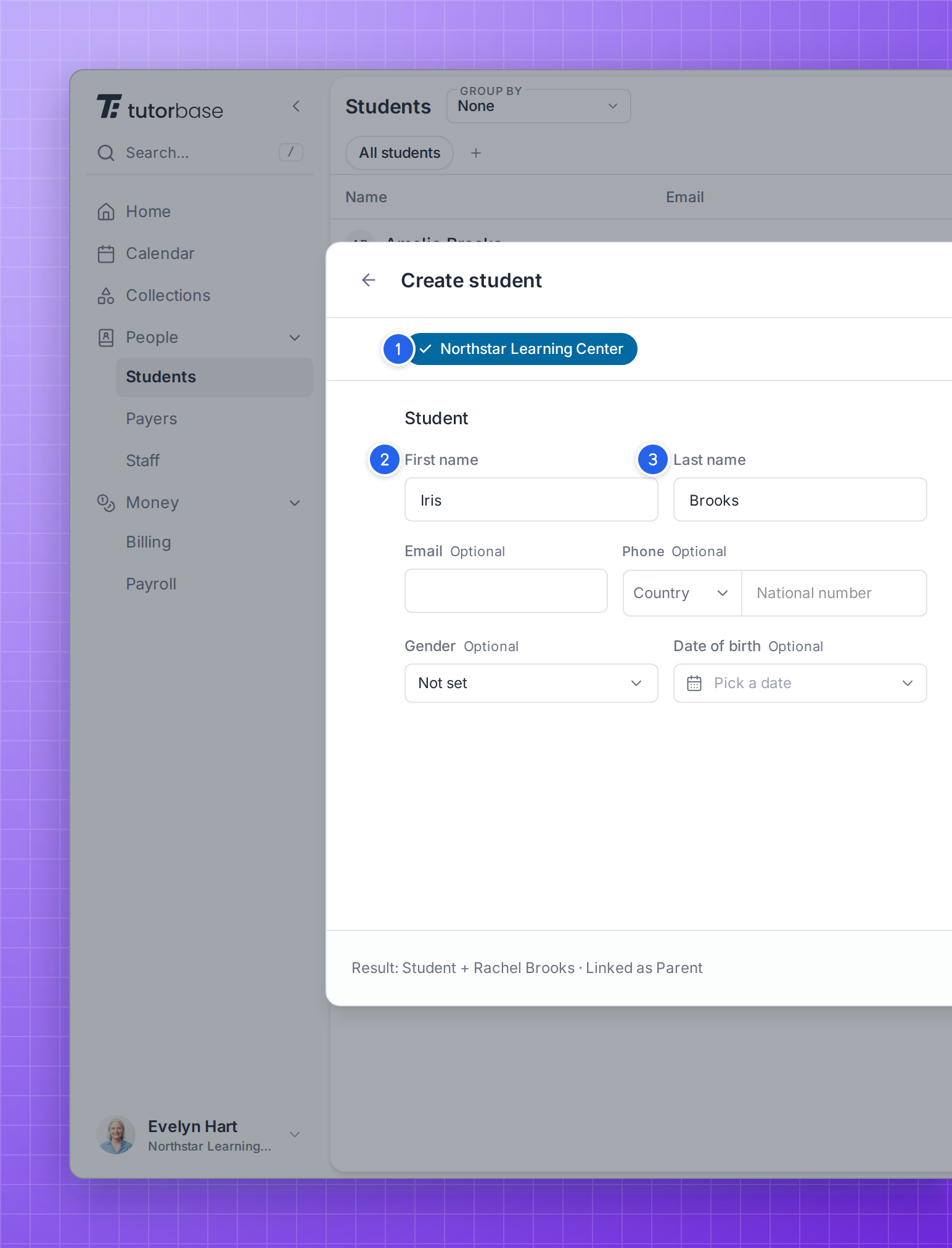
Set the student's profile fields:
- Select your school's brand, for example Northstar Learning Center. At least one Brand must be selected, even when your school has only one.
- Set First name to the student's given name.
- Set Last name to the student's family name.
Email, Phone (including the country), Gender and Date of birth are optional; use the student’s own contact details and leave unknown values blank or Not set.
Choose who pays and save
For a sibling, reuse the existing payer so the family keeps one payer record. Choose the responsible payer now whenever you know who will pay.
Choose the payer option
Make the payer choice under Who pays? before selecting Create student:
| Choice | When to choose it | What to complete or expect |
|---|---|---|
| New payer | The responsible person does not already have a payer record. | Enter the payer's First name and Last name, then choose Relationship to student. Email, Phone and Salutation are optional; enter supplied contact details and leave unknown details blank or Not set. |
| Self-paying | The student pays their own bills. | Use the student's details. Tutorbase creates student and payer profiles for the same person. |
| Existing | The responsible person already has a payer record, such as a sibling's parent. | Search for and select the payer, then choose Relationship to student. |
| Create without a payer | You do not yet know who pays. | The saved profile shows Billing not ready; free activities continue, but anything requiring payment needs a payer. |
New payer is selected when the form opens. Switch to Existing for an existing family, or Self-paying for a student who pays for themselves, before filling payer details.
Link an existing payer
Under Who pays?, select Existing.
Search for the payer by name, email or phone, then select the correct payer. For example, select Rachel Brooks for a sibling whose parent already pays for other students.
- Under Relationship to student, choose Parent, Guardian or Other to describe the payer's relationship to the student. For the sibling example, choose Parent.
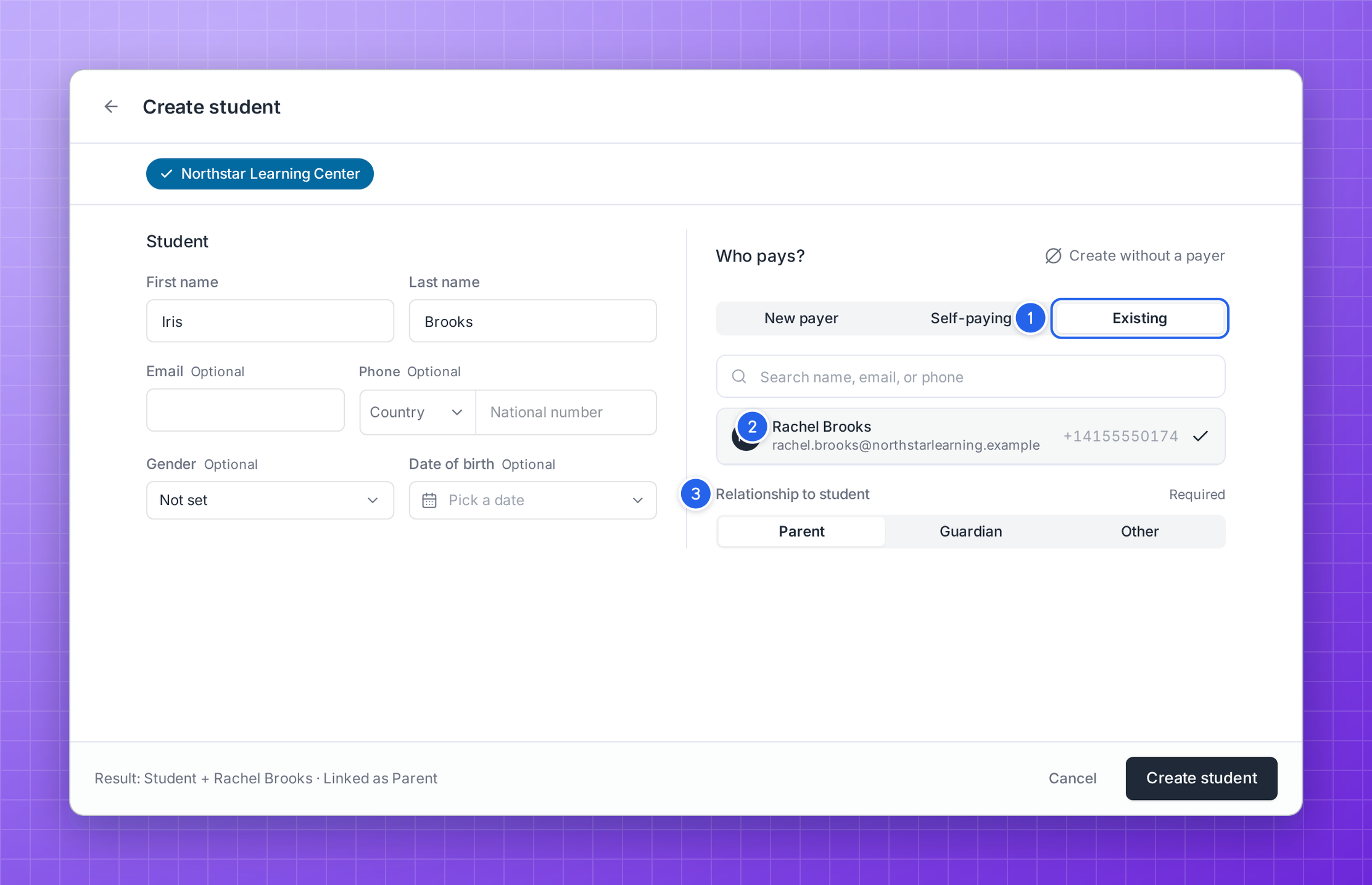
Select Create student. The success message confirms the student was created and names the existing payer and chosen relationship.
Select the button that opens the new student, for example Open Iris Brooks. The student's related profiles show the linked person as Payer.
After you create the student
When you choose a payer, the saved student profile shows the payer under related profiles. The payer profile also lists the new student. A self-paying student appears in both Students and Payers as the same person.
Creating the student leaves the student with no active plan. Select Sell Plan on the student profile when you are ready to set up lesson coverage. Tutorbase sends no welcome message or login invitation when you create the student.
Common questions
How do I create a new student?
In Tutorbase, open People > Students > Add student. Select the brand, enter the student's details, choose who pays, then select Create student.
How do I create a sibling without creating another parent record?
In Create student, choose Existing under Who pays?, select the parent's payer record, and choose Parent under Relationship to student. Select the payer explicitly rather than relying on the student's surname.
Can a student pay for themselves?
Yes. In Create student, choose Self-paying under Who pays? to create student and payer profiles for the same person.
What should I do about a duplicate student warning?
If the student already exists, select Cancel and open that student from Students. Choose Keep both only when you have confirmed these are different people who share contact details.
Can I create a student before I know who pays?
Yes. Choose Create without a payer as described in the payer-option table.
Does creating a student create a plan?
No. A newly created student's profile has no active plan, even when the payer already has plans for siblings. Select Sell Plan on the student profile to set up coverage separately.