
To see who pays for a student's lesson in Tutorbase, open the lesson in Calendar and look at the plan icon beside the student, or select the student and read the Plan row. To find lessons that still need a payment decision, select the Needs payment decision view in Calendar.
What payment status means
Each student in a lesson has a payment status: which plan pays for their lesson, and whether it can. A plan is what the payer bought, such as a pack of lessons. A student whose status is No plan chosen, No plan or Not paid needs a payment decision before the lesson can be finalized.
Where to see a student's payment status
Open the lesson in Calendar. Beside each student is a plan icon. Hover over it to see the plan name and the status, for example Group Spanish · 8 lessons and Not paid · Outside the plan's dates.
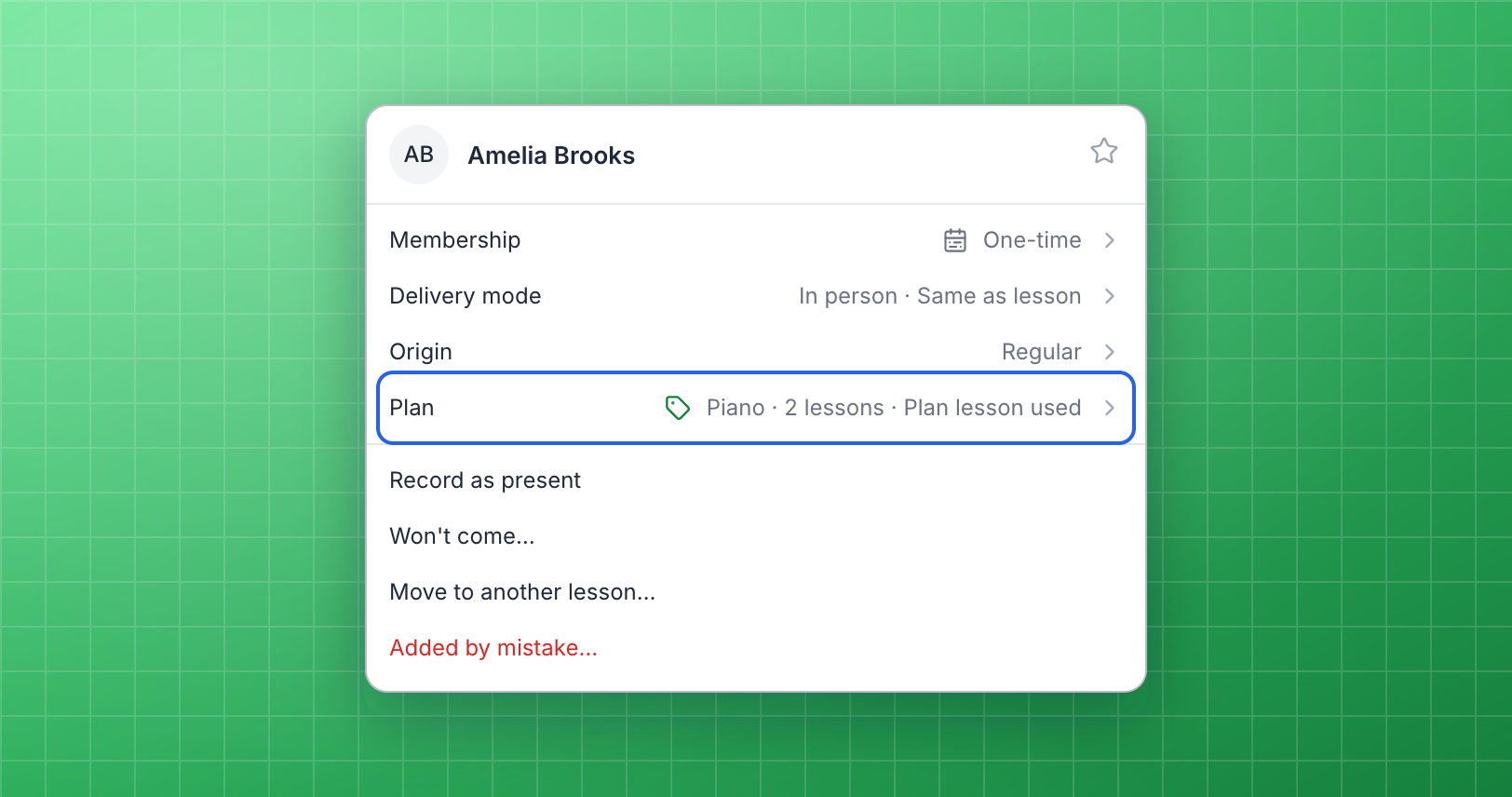
Select the student's name to open the student menu. Its Plan row shows the plan name and the status together, for example Piano · 2 lessons · Plan lesson used.
What each status means
| Status | Meaning | What to do |
|---|---|---|
| Plan lesson used | A lesson from this plan is set aside for this lesson. It doesn't say whether the payer has paid for the plan. | Nothing. |
| No plan chosen | Nobody has chosen a plan for this student's lesson. The hover reads Choose a plan, or make this lesson free. | Choose a plan, or make a payment decision. |
| No plan | Someone chose No plan for this lesson for this student. It doesn't make the lesson free. | Make a payment decision. |
| Not paid | The student's plan can't pay for this lesson. The reason follows, for example Not paid · Outside the plan's dates when the lesson is before the plan starts. | Make a payment decision. |
| Will charge | Someone chose Charge as extra. The hover shows the price, for example US$25.00 charged when completed. | Nothing. The lesson is charged when it is finalized. |
| Free | Someone chose Free. The hover shows the reason they entered. | Nothing. |
| Charged | The lesson was finalized and charged. The hover reads Charged on the next invoice. | The charge waits in Billing > Charges > Waiting to be billed until you put it on an invoice. |
| No charge | The lesson was finalized as free. The hover shows No charge and the reason. | Nothing. |
Find lessons that need a payment decision
- Open Calendar.
- Select Needs payment decision, next to Needs finalization. Calendar shows only lessons where a student needs a payment decision, and the filter Needs payment decision appears.
- Move to another week to check other dates.
On these lessons' tiles, the plan icon reads 1 student needs a payment decision when you hover over it. Lessons whose students all have a plan that can pay don't appear in the view.
Calendar keeps the view you chose the next time you open it. Select All lessons to see every lesson again.
Make the payment decision
Choose a plan the payer has bought that can pay for the lesson whenever there is one, so the lesson uses what the family already paid for. Choose Charge as extra or Free only after deciding how the school bills this lesson. Open the lesson, select the student, then Plan. Edit lesson opens on the student's Plan panel. Choose Charge as extra, when it is offered, or Free with a reason, select Done, press Escape to close the student menu (the decision isn't saved yet), then select Review changes and Save changes. Saving a payment decision sends no email. A decision covers only that lesson: for example, Sofia Alvarez's next lesson still needed its own decision.
Common questions
What does Not paid mean on a lesson?
Not paid means the student's plan can't pay for this lesson, for example because the lesson is outside the plan's dates. It doesn't say whether the family has paid an invoice. Choose Charge as extra or Free in the student's Plan panel before you finalize the lesson.
Does Plan lesson used mean the family has paid?
No. Plan lesson used means a lesson from the student's plan is set aside for this lesson. It doesn't show whether the payer has paid for the plan.
What is the difference between No plan chosen, No plan and Not paid?
No plan chosen means nobody has chosen a plan for the student's lesson. No plan means someone chose No plan for this lesson. Not paid means a plan was chosen but it can't pay for this lesson. All three need Charge as extra or Free, or a plan that can pay, before the lesson is finalized.
Does Will charge mean the family has been invoiced?
No. Will charge means the lesson will be charged when it is finalized. The charge then waits in Billing > Charges > Waiting to be billed until you put it on an invoice.
Can I charge or waive a lesson from the Needs payment decision view?
No. The Needs payment decision view only finds lessons. Open the lesson and choose Charge as extra or Free in the student's Plan panel.