
See lessons as a continuous Schedule list
Use Calendar's Schedule view to read lessons as one list by day, filter it to one teacher, save it as a view, and know its 12-month limit.
Last updated
To see lessons as one continuous list in Tutorbase, open Calendar and choose Schedule under View. You get the lessons in date order, grouped by day, and more dates load as you scroll, so you can read several weeks without moving week by week.
Before you start
Schedule sits beside Day and Week on the Main calendar. The Staff and Location calendars offer Day only.
For example, Daniel Rivera, the Spanish teacher, asks for time off. Before you answer, you list every lesson he teaches from next Monday on and keep that list to check again later.
Open the Schedule list
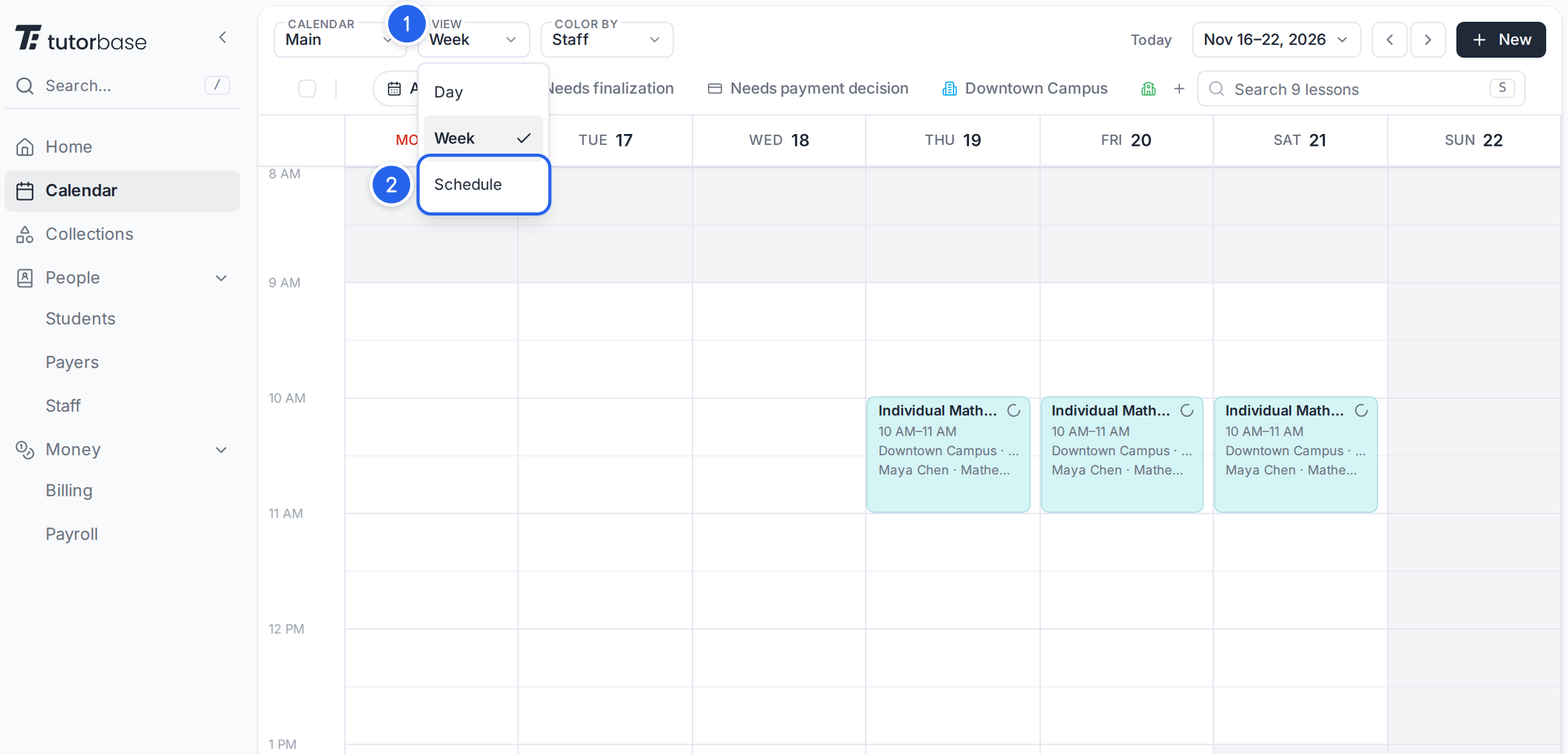
Open Calendar, then open the View selector.
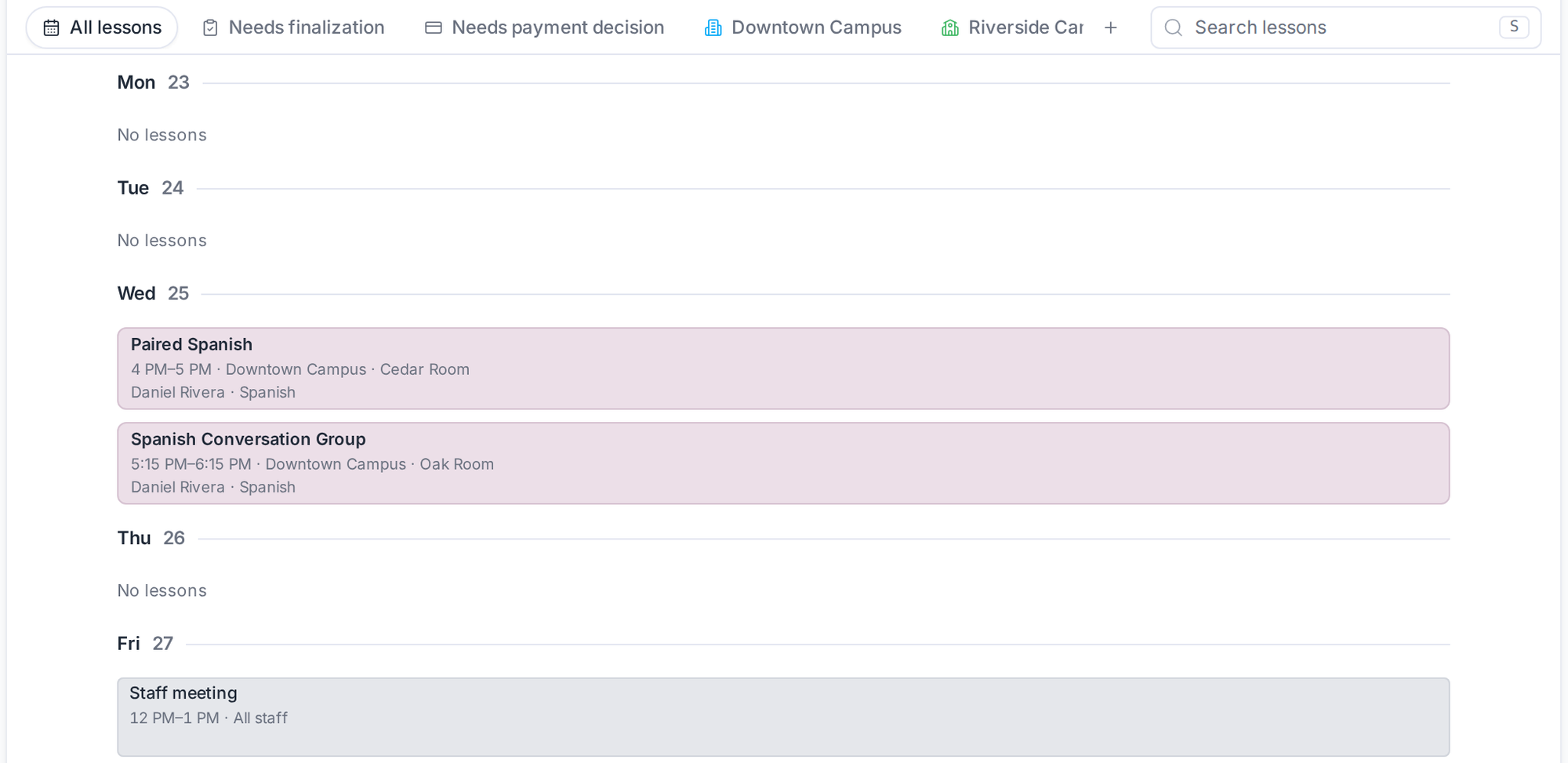
Choose Schedule. The calendar becomes a list: each day has a heading, its lessons and blockers follow in time order, and a day with nothing scheduled shows No lessons. Choose Schedule when you need to read lessons in order across days or weeks; keep Day or Week when you need to compare times side by side.
Select the displayed date. Choose Calendar date opens.
Choose the first date you want to see, because the list continues forward from there. The list moves to that date; earlier dates are above it.
Show one teacher's lessons
- Under Filters, select Staff.
- Choose the teacher the question is about, for example Daniel Rivera, because an unfiltered list mixes every teacher's lessons.
- Press Escape to close the Staff panel. The list keeps only that teacher's lessons.
Read the list
Scroll down to load later dates and scroll up to load earlier ones. When there are no more lessons in one direction, the list shows End of schedule at the bottom or Beginning of schedule at the top.
Select a lesson in the list to open its details, as you would from Day or Week.
Save the list as a view
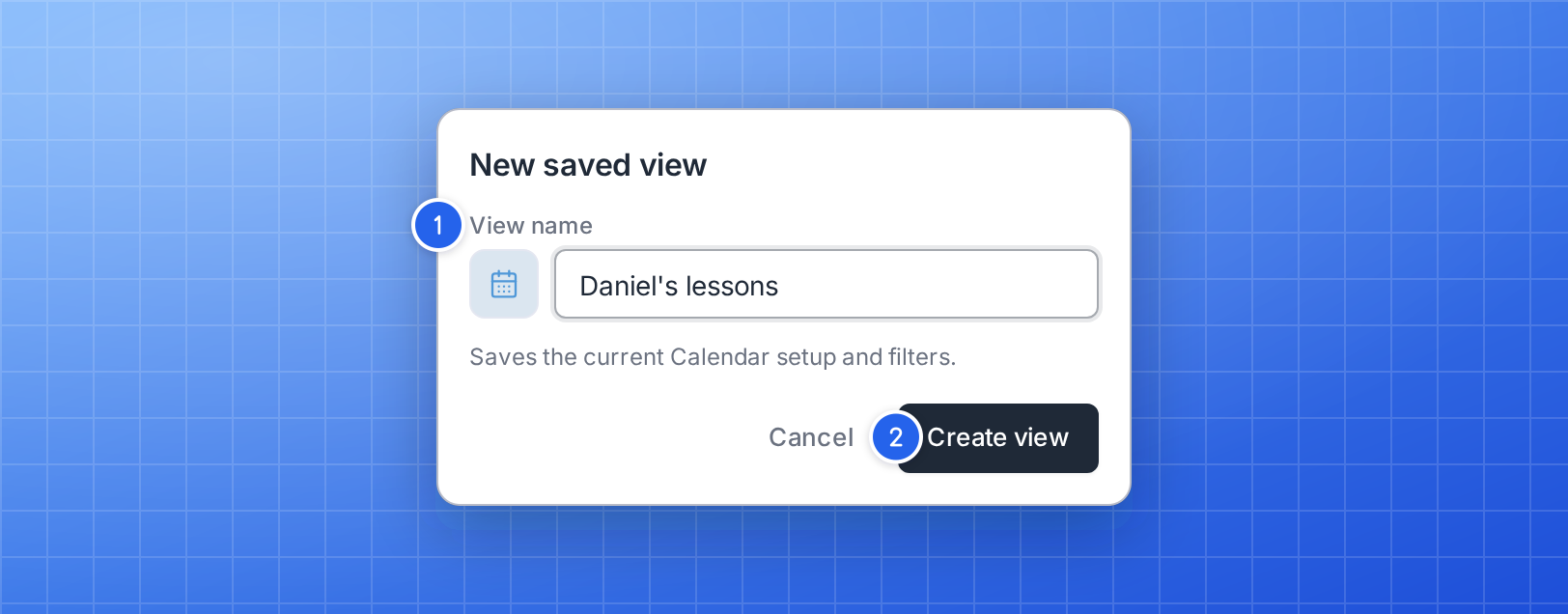
Select New view, the plus button at the end of the saved views. New saved view opens. When you select Create view, it saves the current Calendar setup and filters.
Under View name, replace My view with a name for the question the list answers, for example Daniel's lessons, so you recognize it among your saved views.
Select Create view. The new view appears in the saved-views row.
After you save the view
The saved view keeps Schedule and its filters. Select it in the saved-views row to open the same list again. The view does not keep the start date you chose, so choose the date again when you need a particular week.
Saving a view does not change any lesson.
Good to know
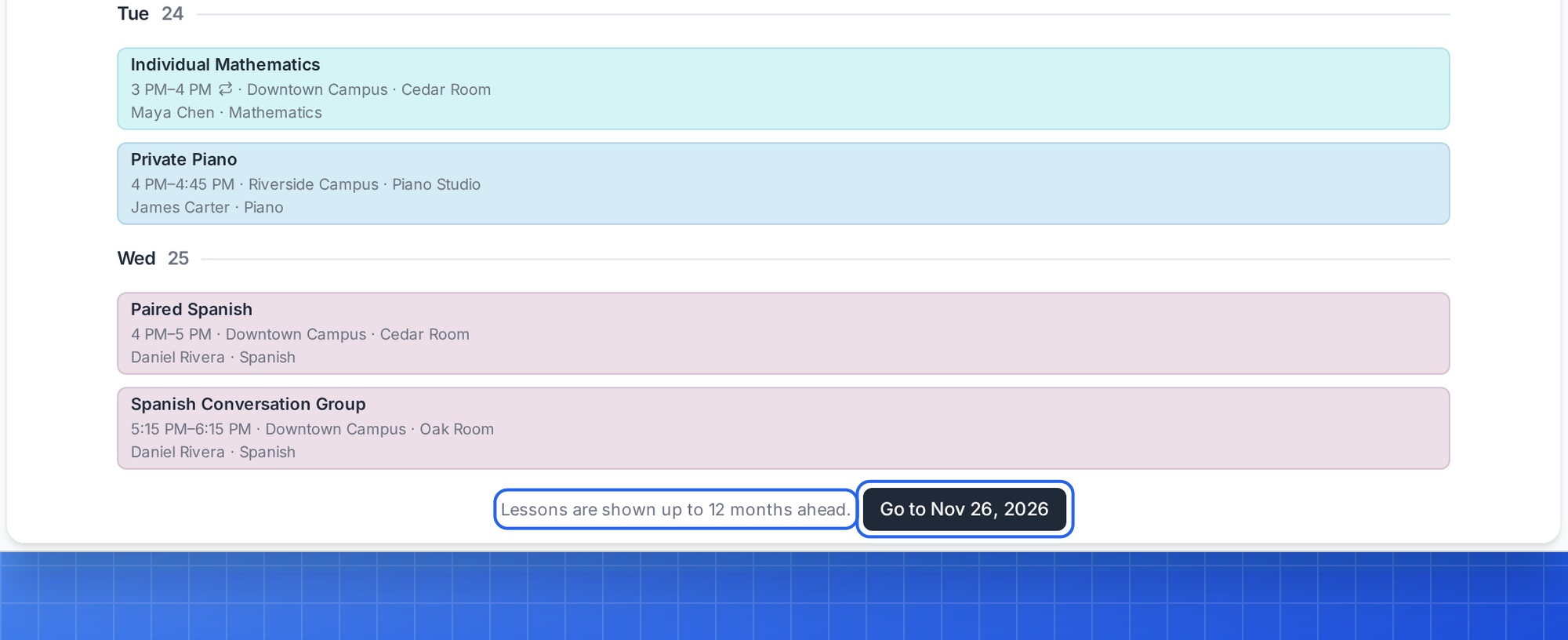
The list shows lessons up to 12 months after the date it was opened at or moved to. At that point it shows Lessons are shown up to 12 months ahead. next to a Go to button with the next date. Select Go to to continue the list from that date.
Changes other people make to lessons appear the next time the Schedule list loads, for example when you scroll to load more dates or open the view again. The open list does not update by itself.
Common questions
Where is the list view of lessons?
Open Calendar, make sure the Calendar selector shows Main, and choose Schedule under View. The Schedule list shows lessons in date order, grouped by day.
Why can't I find Schedule under View?
Schedule is offered on the Main calendar only. The Staff and Location calendars offer Day only, so switch the Calendar selector to Main to see Schedule.
How far ahead does the Schedule list show lessons?
The Schedule list shows lessons up to 12 months after the date it was opened at or moved to. At that limit, select the Go to button to continue the list from the next date.
Can I save a Schedule list for one teacher?
Yes. In the Schedule list, choose the teacher under Filters > Staff, then select New view, enter a View name and select Create view. The saved view keeps Schedule and the filters, but not the start date.
Can I cancel several lessons from the Schedule list?
No. The Schedule list offers no selection. To cancel several lessons at once, choose Week under View.