
Move a student to another class
Move a student's regular class or swap one lesson, choose how any unpaid lesson is paid, review the money effects and recipients, then save both sides together.
Last updated
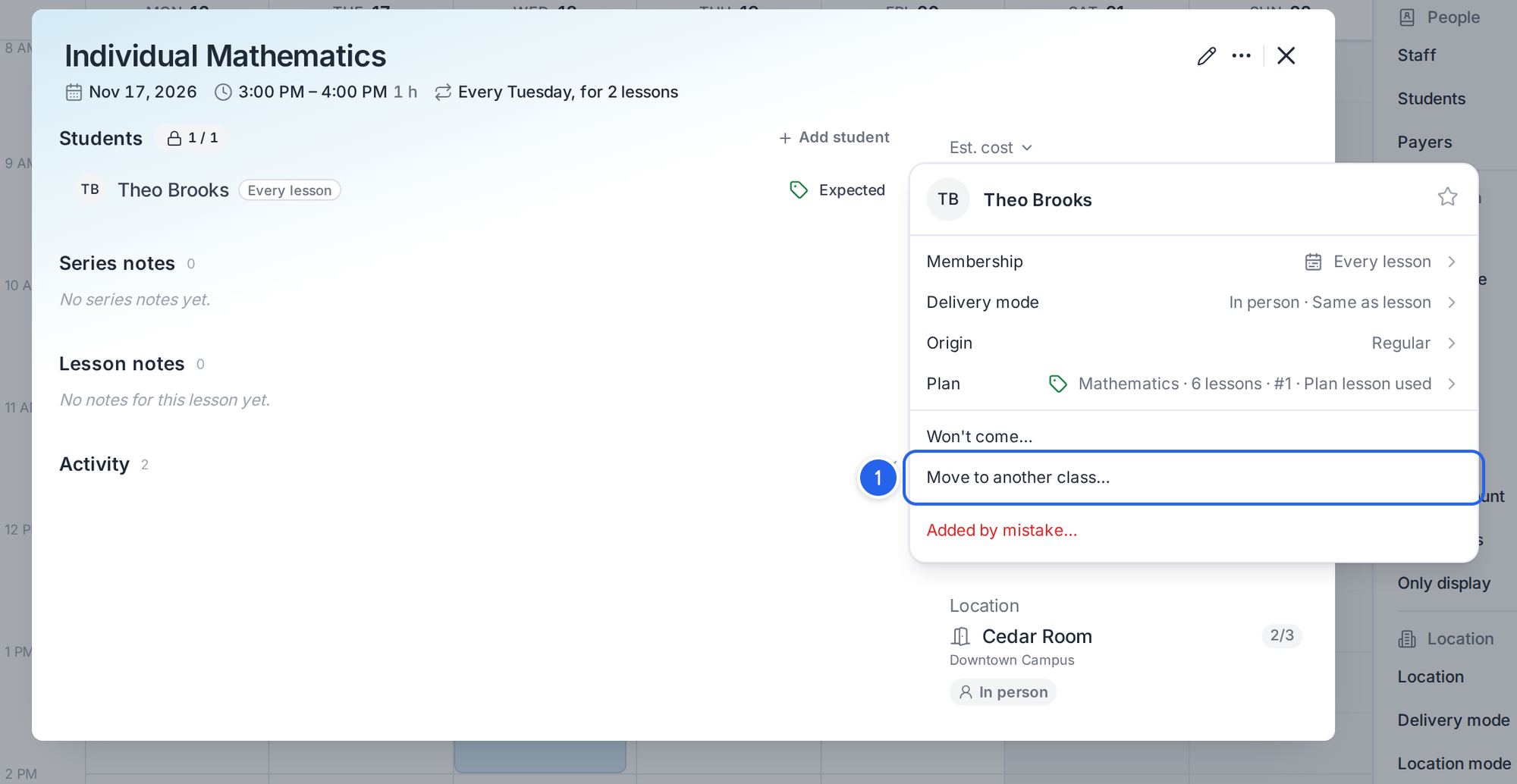
To move a student to another class in Tutorbase, open the student's lesson in Calendar, select the student, then choose Move to another lesson…. You can change the regular class or replace just one lesson, with both sides saved together.
Before you start
Agree the new class, time and teacher with the family. These steps use an Owner account and an existing plan for the current class.
For example, Theo Brooks changes his Tuesday Individual Mathematics class to Wednesday Mathematics. An independent one-lesson swap replaces his Thursday lesson with an earlier Mathematics practice lesson. To record a miss without a replacement, use Won't come… instead.
Open Move
In the student menu, select Move to another lesson…. The Move panel opens beside the student; nothing is saved yet.
Choose the lessons and class
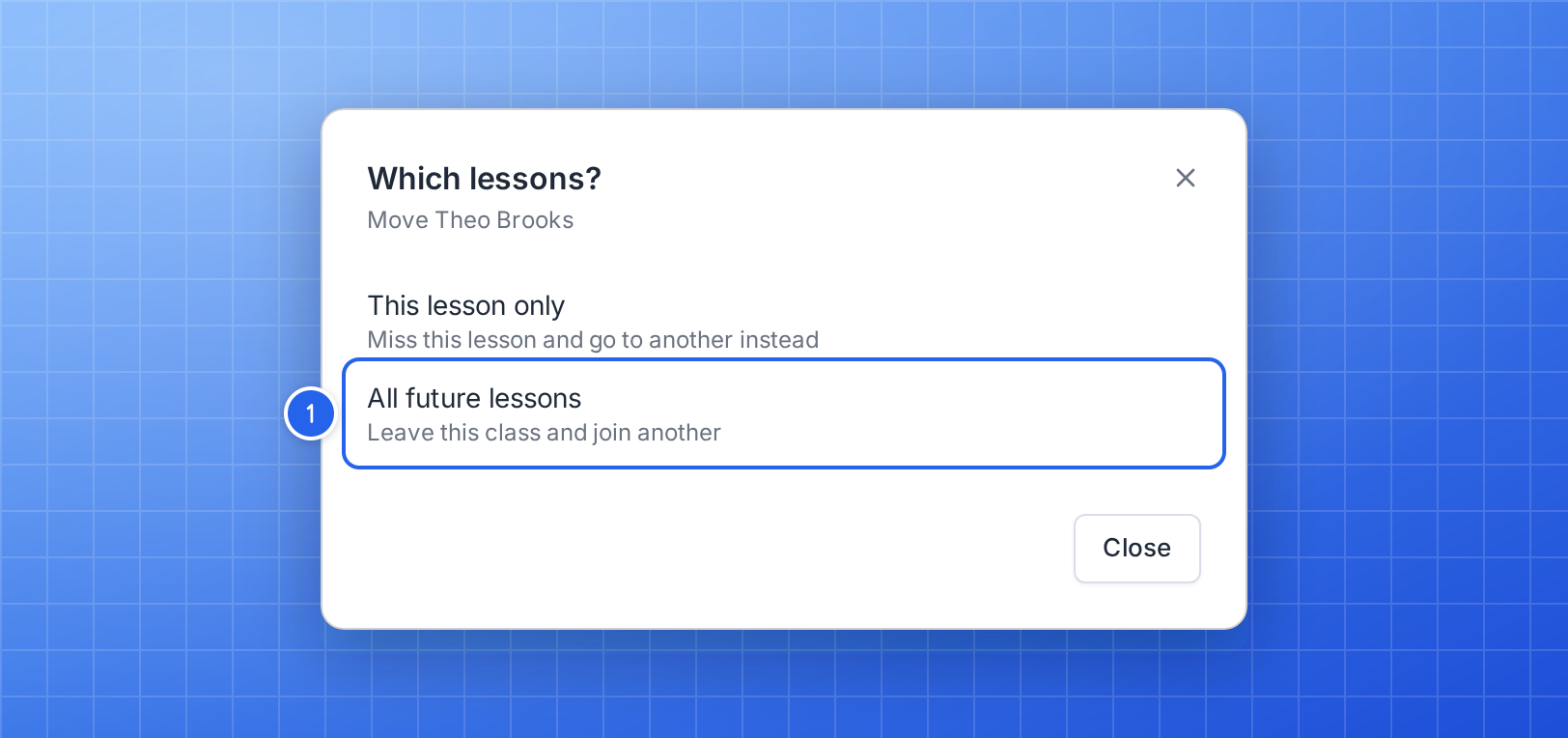
At the top of the panel, choose All future lessons for a regular class change: the student leaves the old class from the selected lesson and joins the new class from its first lesson that is not cancelled, on or after the selected lesson’s date. Cancelled lessons are skipped. Check the joining date under Next lesson in Review. Choose This lesson only for one replacement so the regular class continues. Neither is chosen for you.
Find the agreed class or lesson: search by name, or filter by day, time of day and Seats left. Rows show day, time, teacher, student count and seats left, colored by room; a full class shows Full and can still be chosen.
For This lesson only, the usual Won't come settings open for the lesson being missed. Keep Charge as attended, with a make-up when offered, because its make-up pays for the replacement; another outcome can leave the replacement unpaid. Set Shown on the roster as absent and Spot after cancellation as for any Won't come, then select Continue.
Choose how the student pays
If the move leaves a lesson without payment, How [student] pays opens before Review. Choose Charge as extra when an extra charge is agreed, Free with a reason for an agreed waiver, or Decide later when the school will follow up; that lesson stays unpaid. Then select Done.
Sell a plan opens a sale in a new tab. Tutorbase checks again when you return, but the sale may leave the lesson on its earlier plan and still unpaid. A completed sale stays saved if you cancel Move, so sell only a plan the family wants independently of the move.
Check the changes and recipients
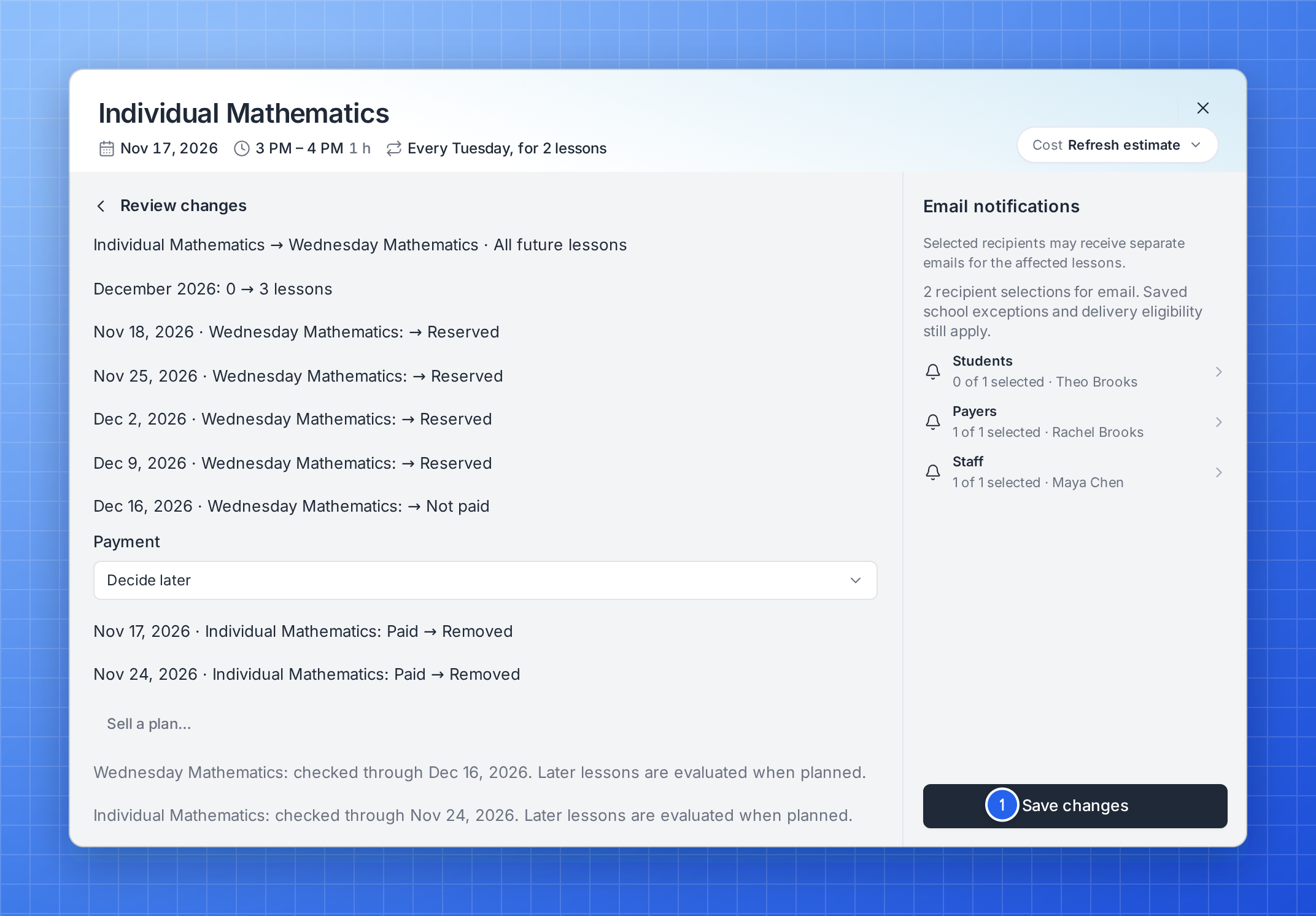
- In Review changes, check the class change under Changed, with Next lesson showing the student's next lesson in the old class and their first lesson in the new one, and the payment results under Money effects: lessons per month, each affected lesson and the payment you chose. Money effects also names the dates through which each class was checked. Monthly lesson counts explain the change; use the payment results to decide what still needs paying. If Review finds a lesson that is newly unpaid, it names that lesson; select Choose how [student] pays to decide it.
- Under Email notifications, keep the intended payer and teacher selected when they need the change messages. Clear a recipient only when the school has agreed not to email them. In the example, the payer and teacher start selected; the student has no email address and starts unselected.
Save the move
If the swap cancels the last expected student's place in a private lesson, Tutorbase also cancels that original lesson and discards other pending edits to it. The replacement booking is still saved. Check those original-lesson edits before saving.
Select Save changes after checking the money effects and recipients. Tutorbase saves the departure and new booking together.
After you move
A regular class change carries the old class's standing plan instruction into the new class. For example, Theo's Wednesday membership uses his existing Mathematics plan; the lesson left unpaid after Decide later still needs follow-up.
A one-lesson swap records the original cancellation and a One-time replacement. The original class's later bookings continue. For example, Theo's earlier practice lesson is paid by the cancellation's make-up, and the Thursday private lesson is canceled because he was its only student.
Tutorbase records separate messages for the affected lessons according to the recipients selected in Review. Check Email history for their status.
Common questions
Can the replacement happen before the missed lesson?
Yes, as long as the replacement has not started yet. Move lists only lessons still ahead, earliest first, and can use a make-up as soon as the cancellation is accepted; the original lesson does not need to be finalized first.
Why is a class missing from Move?
Move lists classes from services covered by the student's plan for the current class, within the same Brand. Check that plan and the destination's service before choosing another class.
Does a listed replacement guarantee payment?
No. A lesson the move leaves unpaid opens How [student] pays first, and Review changes shows every payment result under Money effects before Save changes.
Does Decide later make the lesson free?
No. Decide later saves the move while leaving that lesson unpaid for follow-up.
Does a move refund already paid lessons?
No. Moving a student does not refund already paid lessons or end the purchased plan. Paid lessons left unused stay on the plan under its terms. Confirm any requested refund with the school lead before promising money back.