
Cancel a student's place in one lesson
Record Won't come for one student, keep the applicable cancellation outcome, review recipients and save the cancellation.
Last updated
To cancel a student's place in one Tutorbase lesson, open the lesson in Calendar, select the student, then choose Won't come…. Review the cancellation and save it in Edit lesson. Other expected students keep their bookings.
Before you start
Check the student, lesson date and time. These steps use an Owner account and a one-time place in a private group. For example, Nina Okafor cannot attend one Spanish Conversation Group lesson, and her plan's Policy gives a free cancellation.
Use Move to another lesson… when the student needs a replacement lesson. Canceling the school's whole lesson is a different task.
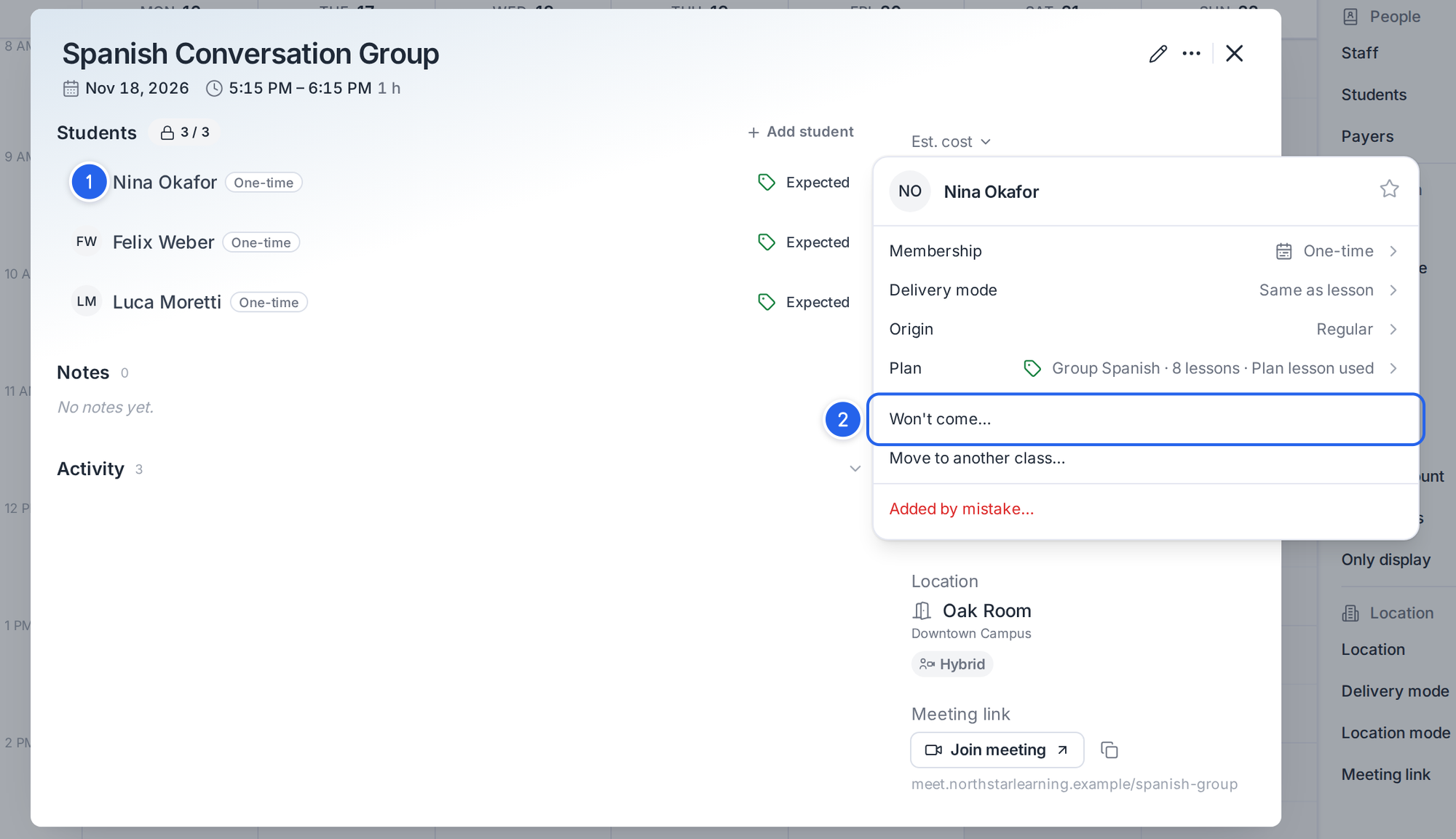
Choose Won't come
Under Students, select the student's name. The student menu opens.
Select Won't come…. The cancellation editor opens for that student.
Set the cancellation
Reason (optional) can record context for staff.
Choose the cancellation settings:
- Keep Shown on the roster as absent at Yes so the teacher sees the missed place. Choose No only when the school wants the canceled student hidden from the roster.
- Under What they pay, keep the Cancellation policy outcome marked Suggested for an ordinary cancellation because it follows the agreed terms. Choose another window only for agreed terms; it saves as Chosen by staff. Show more options reveals staff choices for an agreed exception.
- Under Spot after cancellation, keep Release within eligible group so another eligible student can take the unused place. Choose Keep for Nina only when the school intends to hold that original place.
- Select Save. The cancellation is not saved yet: Edit lesson shows the pending change.
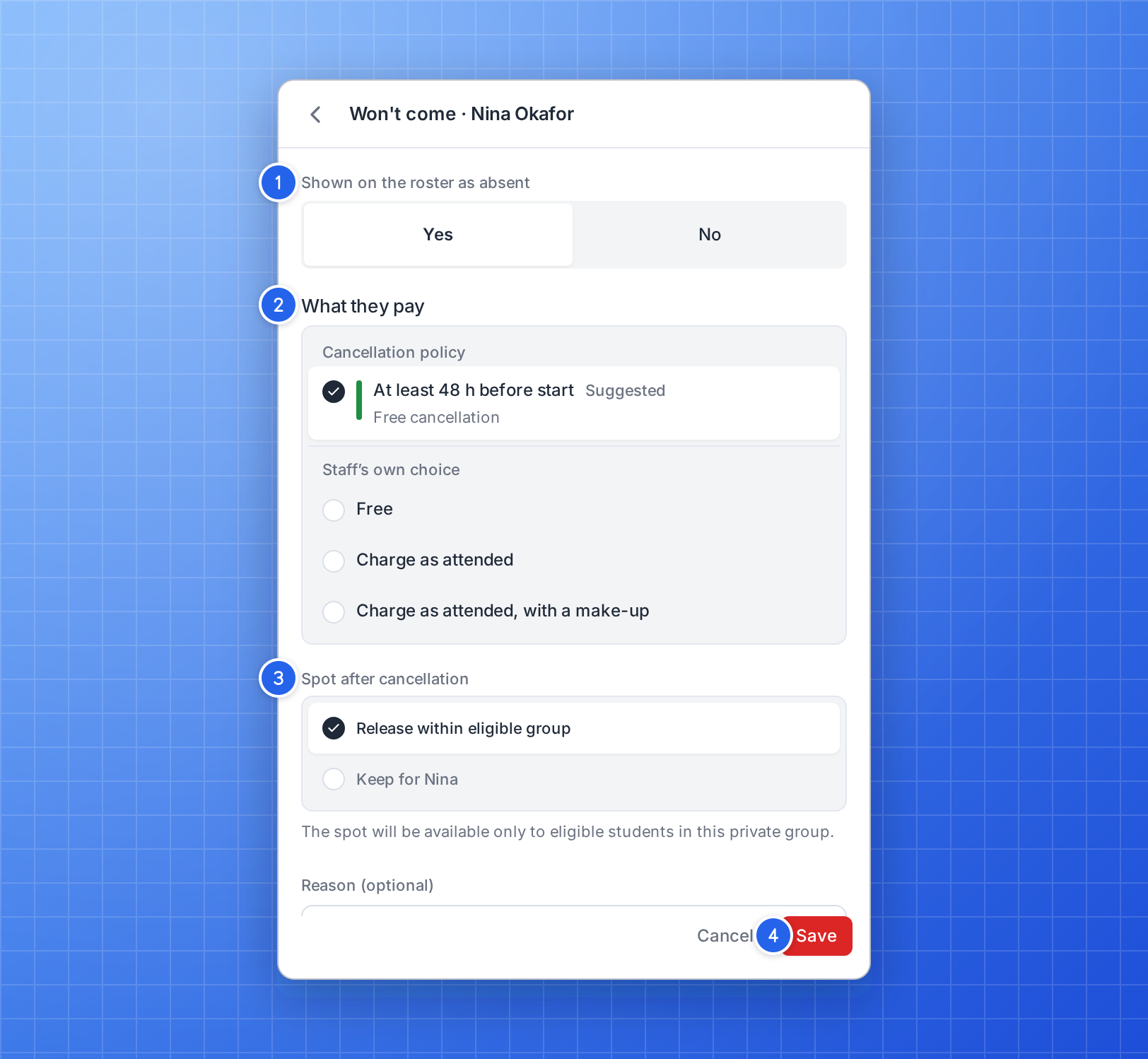
The example's suggested outcome is Free cancellation, with no make-up. The staff choice Charge as attended, with a make-up is an exception that keeps the original lesson charge and grants a make-up; choose an exception only on terms the school agreed.
Review and save
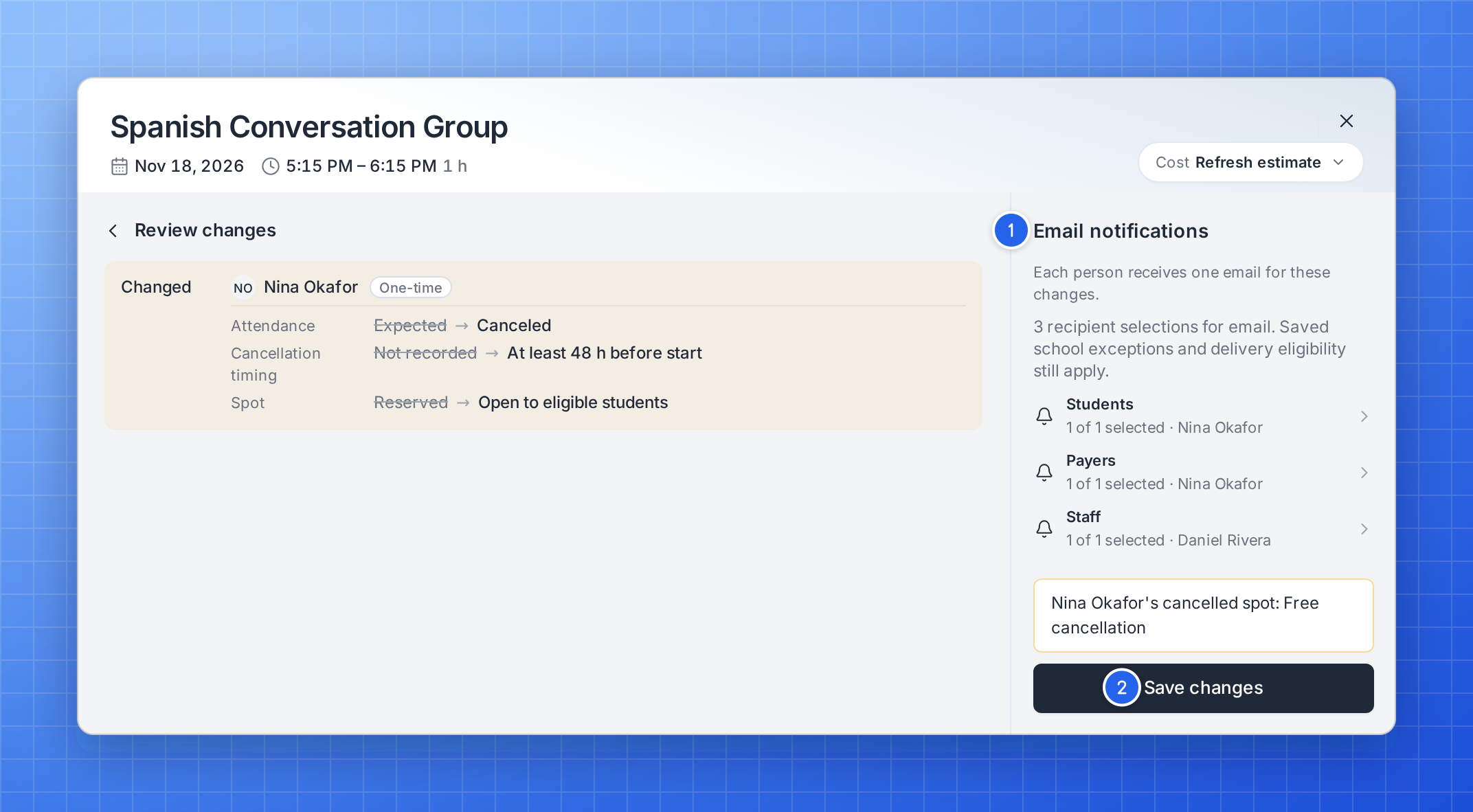
Select Review changes. Check the attendance, cancellation timing and spot result.
Check the recipients and save:
- Under Email notifications, keep the affected student or payer and teacher selected when they need the cancellation message. Clear a recipient only when the school has agreed not to email them. In the example, the student, payer and staff groups start selected.
- Select Save changes.
After you cancel
The student's place shows Canceled, and the student menu offers Coming after all. Cancellation history records who accepted the cancellation and its payment outcome. For example, Nina's group lesson stays scheduled with its other expected students, and her Paired Spanish booking is unchanged.
The outcome controls the cancellation charge and whether a make-up is granted. For example, Nina's Free cancellation has no cancellation charge and grants no make-up.
Tutorbase records the cancellation messages for the selected people. A self-paying student selected under both student and payer receives one message for the change. Check Email history for the message status.
When the student is coming after all
Before finalization, choose Coming after all or add the canceled student back, then select Save changes. The cancellation stays in history.
The roster shows Expected with an amber asterisk. Hover or tap it to see Changed before the lesson, the earlier status, whether the family was emailed, and who changed it back and when.
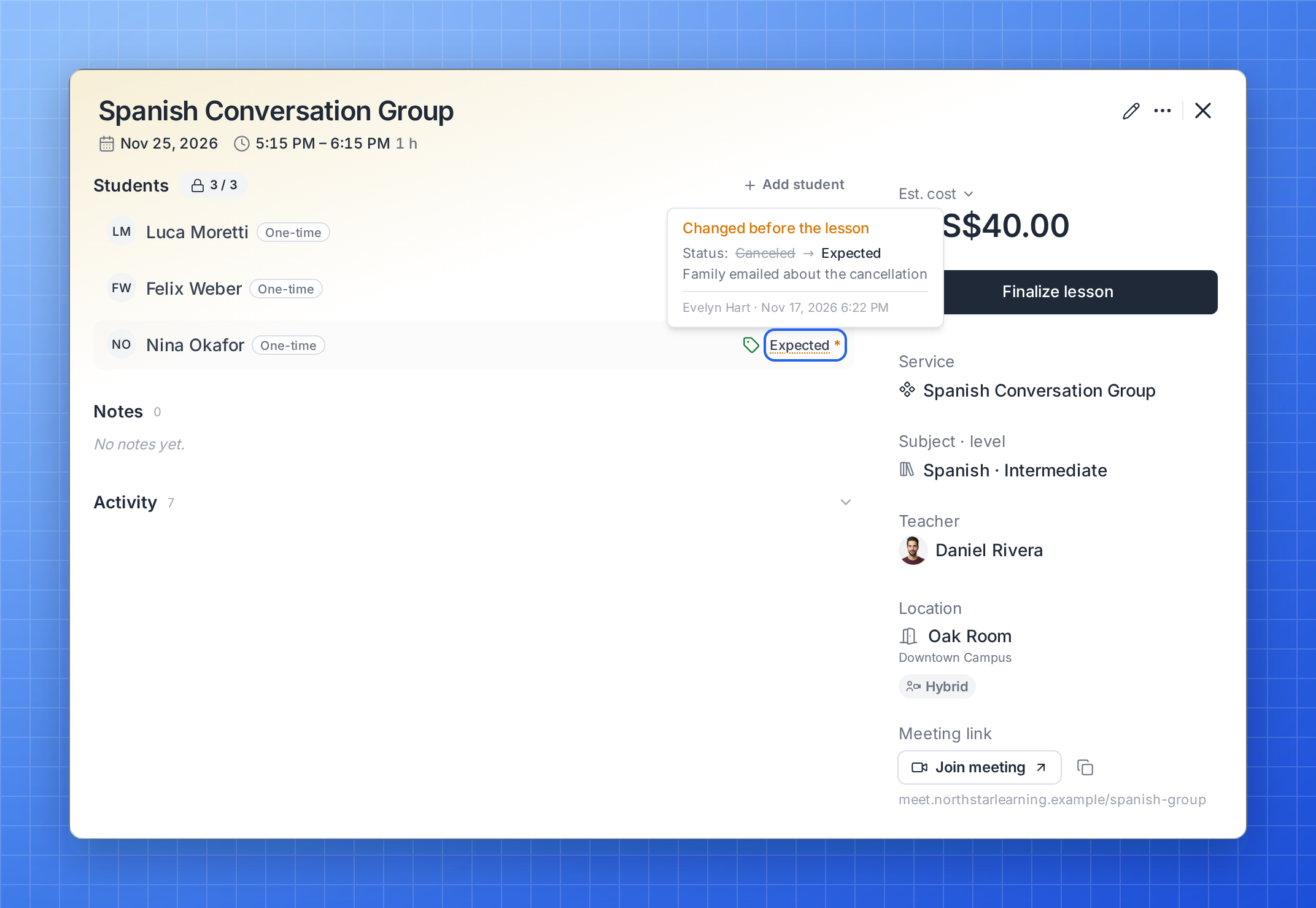
If the family was emailed about the cancellation, Review offers them a withdrawal message under Email notifications. Whether they start selected follows Lesson changes > Student added.
Correct unresolved billing after finalization
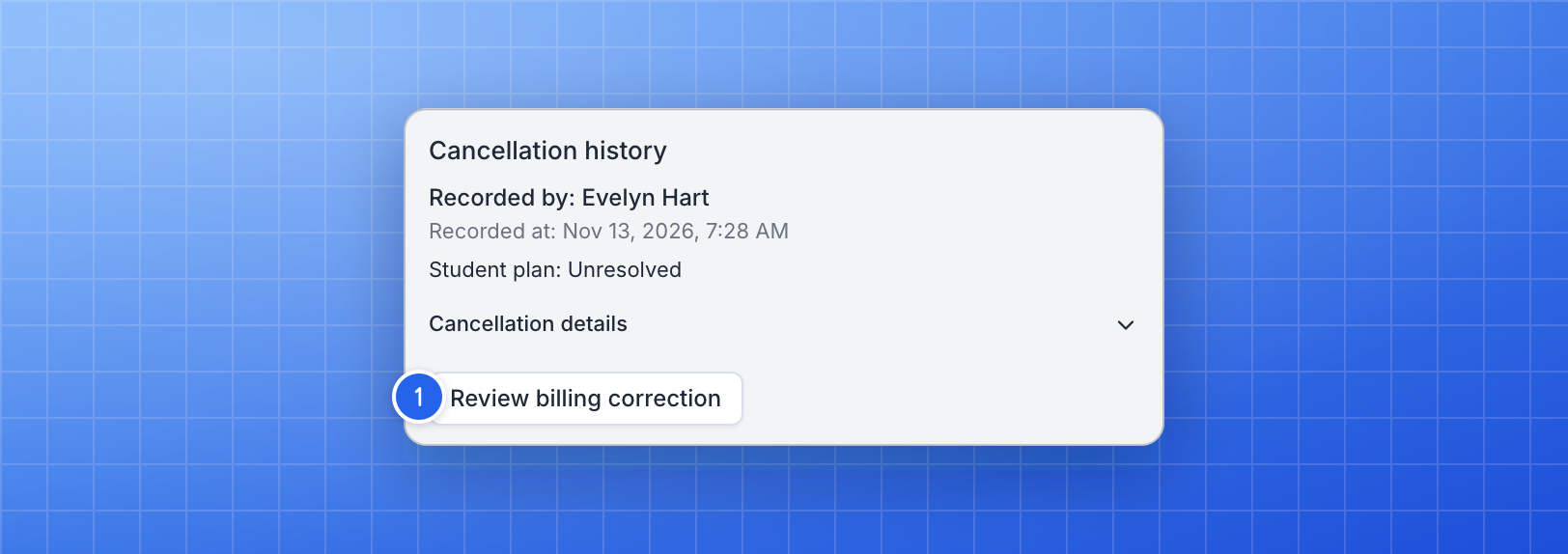
In a finalized lesson, open the student's Cancellation history and select Review billing correction, if offered.
Under Adjustment, keep Charge payer for an agreed fee the payer owes. Choose Credit payer for an agreed amount payable back to the original payer. Enter the positive Amount and a Reason.
Select Review adjustment and check the payer and total.
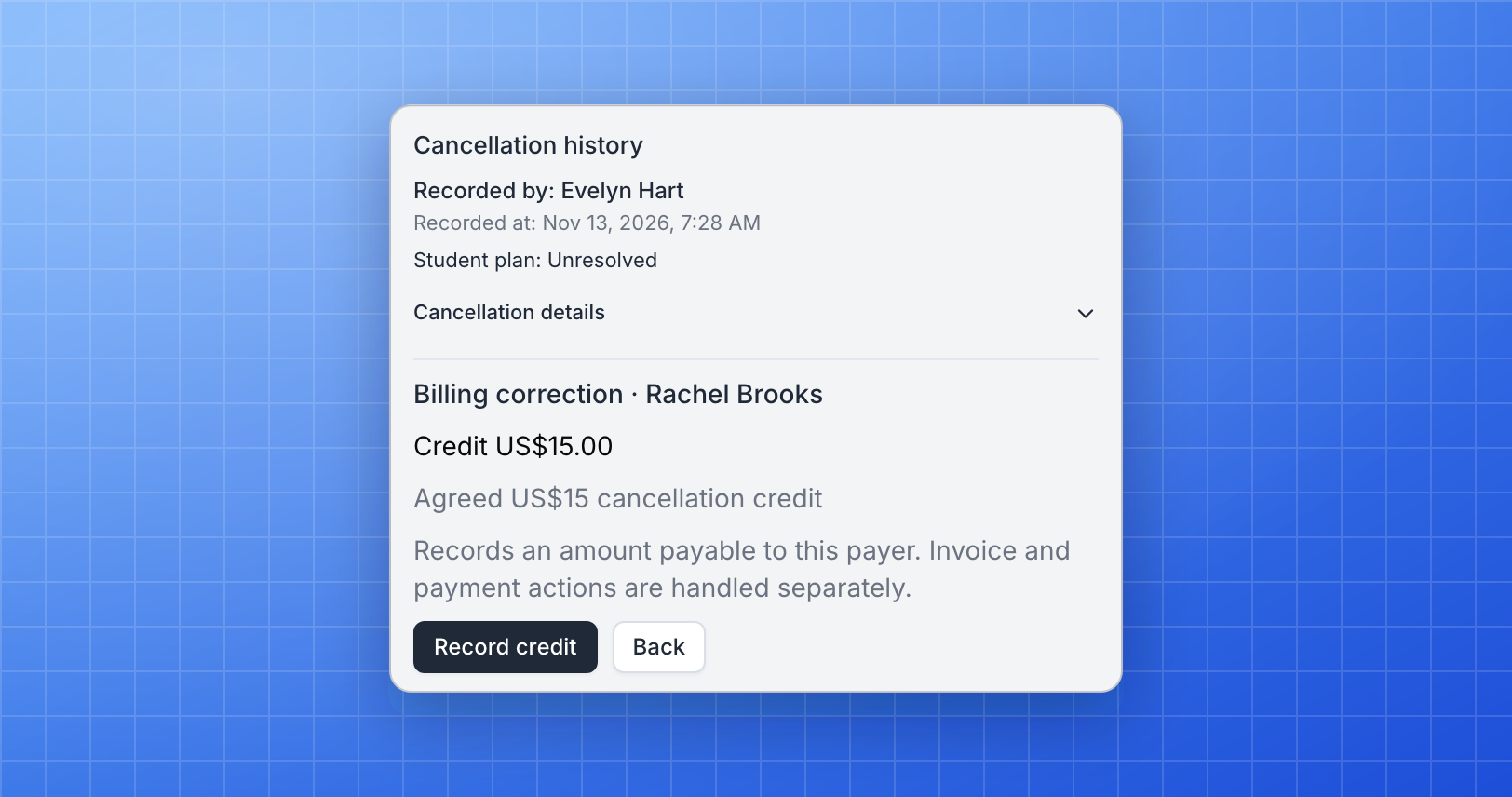
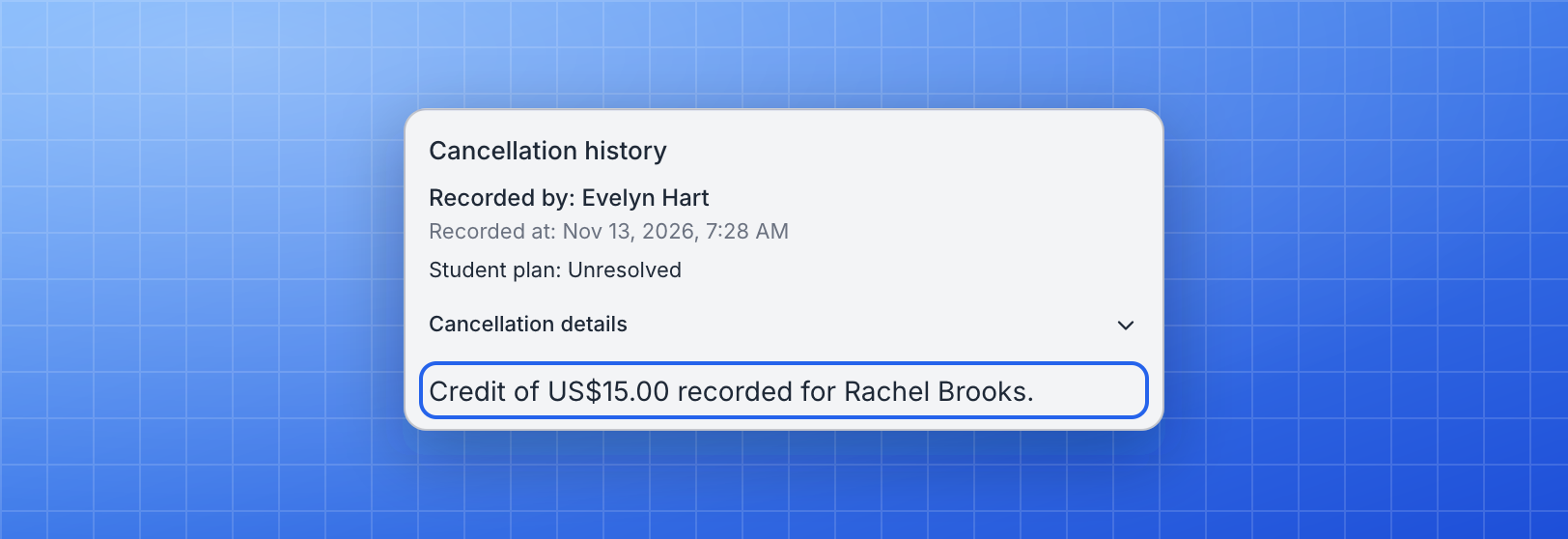
Select Record charge or Record credit. Cancellation history shows the recorded amount and payer.
Recording the correction does not publish an invoice or transfer money. Arrange any invoice change or refund through the school's billing process.
Common questions
Can I use a make-up immediately?
Yes, if the accepted cancellation grants one. The make-up is usable when the cancellation is accepted; the original lesson does not need to be finalized first.
When does the make-up become usable?
The make-up becomes usable when Tutorbase accepts the cancellation. Check the make-up's dates and service before choosing a replacement; the original lesson's date is not a requirement to wait until then.
Does Keep for reserve a make-up?
No. Spot after cancellation controls the original place. What they pay determines whether the cancellation grants a make-up.
Does cancelling one place cancel the class?
The lesson stays scheduled while other students remain expected. Canceling the last expected student's place in a private lesson also cancels that lesson. Fees and lesson-credit use are accepted at Save. Future plan credits keep the charge waiting until granted; an unfundable seat appears in Needs payment decision. A teacher with no pay agreement for that date appears in Payroll with the canceled lesson and Review Pay agreement. A teacher whose pay agreement can't work out the canceled lesson's pay, for example because it has no rule for canceled lessons, also appears in Payroll, with what the agreement is missing and Review Pay agreement. Either way the cancellation is saved, and the teacher's pay is worked out once the agreement is added or changed.
Does Free cancellation confirm a refund?
No. Free cancellation describes the cancellation charge. Confirm any requested refund with the school lead before promising money back.