
Find a lesson in the Calendar and open its details
Find an existing lesson by date in the Calendar, switch between Day and Week, and open the lesson details.
Last updated
To find a lesson (a class or session) in Tutorbase, open Calendar, choose Main in the Calendar selector, choose Day under View, select the date, then select the lesson tile. The Calendar is your schedule; lesson details identify the students, teacher, service and location.
Before you start
Before answering a family's question about a lesson, have the expected date and teaching context ready. Confirm the student, time and location (the room) in the lesson details before making another booking.
Where to find the lesson
- Open the Calendar selector.
- Choose Main. Start with Main and the expected date before making another booking, to reduce the risk of creating a duplicate.
- Open the View selector.
- Choose Day when you know the date, because one day gives you fewer lessons to check.
- Select the displayed date. Choose Calendar date opens.
- Choose the lesson's expected date so you search the correct period. The Calendar shows the selected day.
- Select the matching lesson tile. Match the title, time, location and subject, then confirm the student in the details; Calendar tiles do not necessarily include the student's name.
What the view and details show
Day shows one date. Choose Week under View when you need to look across several days together. In Day view, changing the displayed date changes which lessons you can find in the Calendar.
The lesson details show the student's name under Students, the date and time, Service, Subject · Level, Teacher and Location. Check these together before deciding that you have found the right lesson.
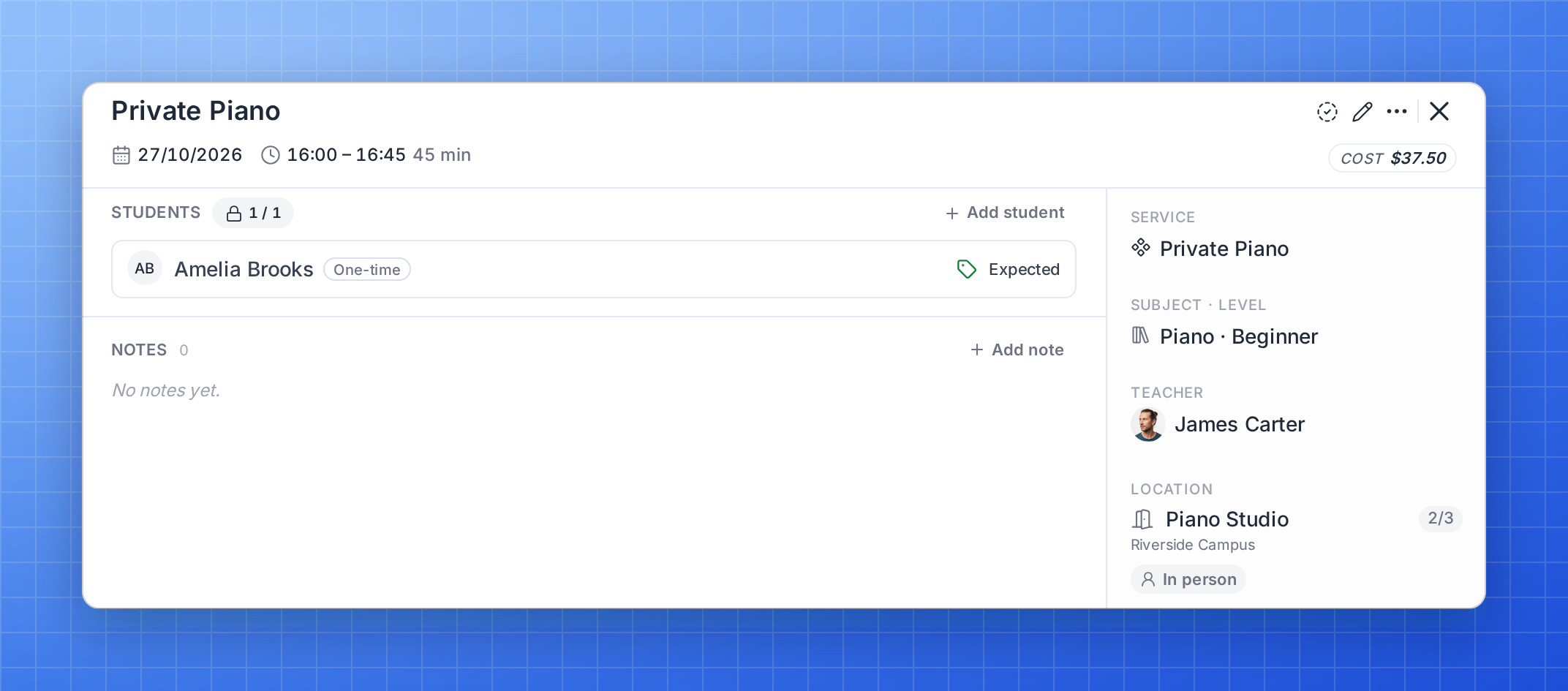
Select Close to return to the Calendar.
Common questions
Where is my lesson in the Calendar?
Open Calendar, choose Main, and choose Day under View. Select the displayed date and choose the lesson's date, then look for the lesson's title, time, location and subject.
How do I switch to Day view?
In Calendar, open View and choose Day to focus on one date. Select the displayed date when you need a different day.
Why can't I find a lesson?
Check the date displayed in Calendar before creating another lesson. Choose Day under View, then select the displayed date to choose another day. For a broader search, choose Week under View to look across several days.
How do I open lesson details?
Select the lesson tile in Calendar. The details show the student's name under Students, along with the date, time, service, subject, teacher and location. Select Close to return to the Calendar.
How do I check that I opened the right student's lesson?
In the lesson details, check the name under Students and confirm the date, time, teacher and location. The Calendar tile's title does not necessarily name the student.