
Cancel one lesson
Cancel one lesson from Calendar, review its consequences, and choose who receives the cancellation update.
Last updated
To cancel a whole lesson (class or teaching session) in Tutorbase, open the lesson in Calendar, select More actions > Cancel lesson, review the consequences and notification groups, then confirm with Cancel lesson. The lesson retains its history; following lessons in a weekly series stay scheduled.
Before you start
Open the scheduled lesson in Calendar. Check the lesson's date, time, student and teacher before cancelling. Cancel the whole lesson when teaching will not happen; changing one student's attendance is a different task.
For example, cancel Theo Brooks's weekly Individual Mathematics lesson because Maya Chen is ill. Record the reason “Teacher is ill; this lesson will not take place.”
Open the cancellation review
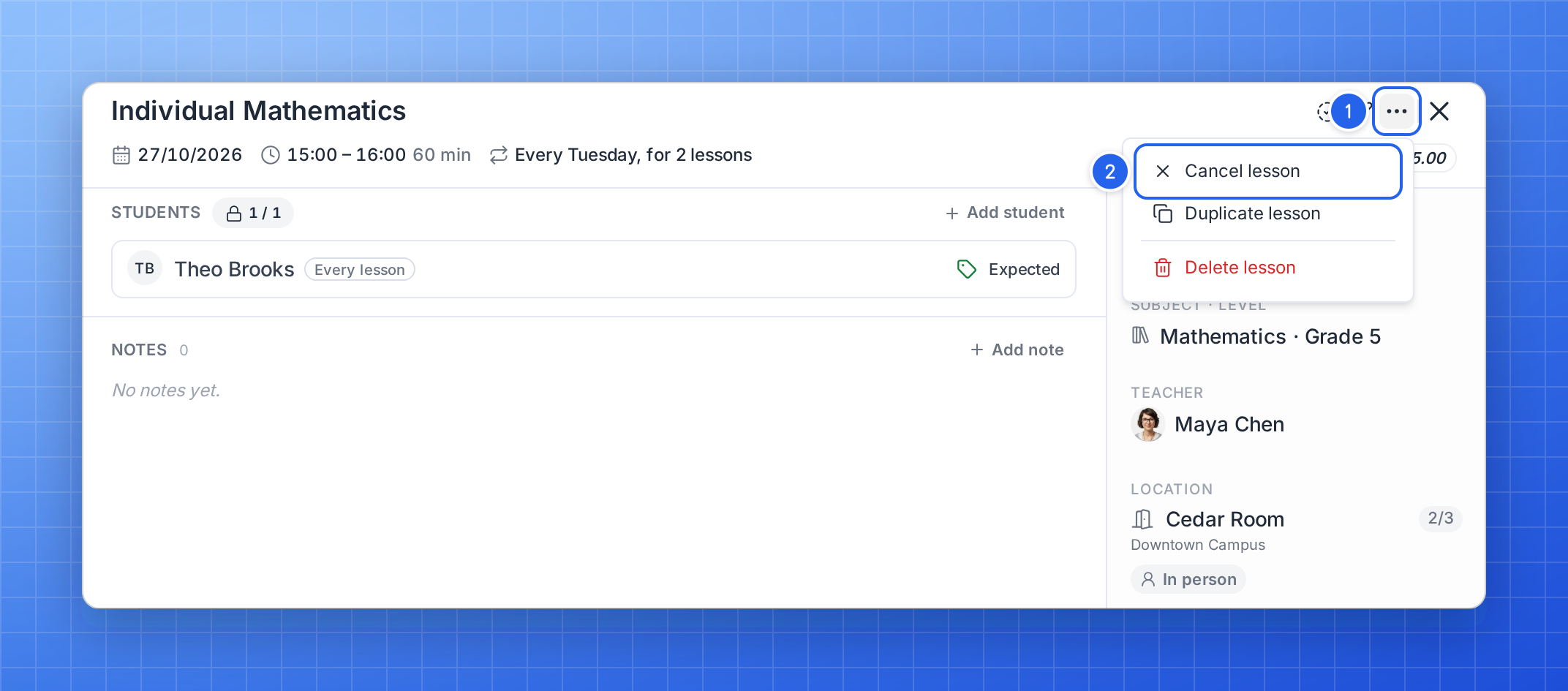
Select More actions, the three-dot button in the lesson details.
Select Cancel lesson. Review cancellation opens; the lesson has not been cancelled yet.
Review the consequences
Under Apply to, the scope is fixed at This lesson only. The lesson, roster, series, notes and earlier history are retained.
Check Owner consequences before confirming. When the review shows that the plan reservation will be released and no teacher pay is due, cancelling frees the plan coverage held for that lesson and leaves no teacher pay due for that lesson. Do not treat the displayed decisions for the selected lesson as a promise of a refund or a fixed number of returned plan lessons. Proceed only if those consequences match the cancellation your school intends; select Back to lesson to leave the review without cancelling if they do not.

Reason (optional) records why the lesson will not happen. Add a short factual reason so staff can understand the cancellation later in Activity.
Choose who to notify and cancel
- Under Notifications, check the listed names. Payers, Students and Staff start selected. Keep the affected payer and teacher selected to request cancellation updates so they can change their plans; clear a group if your school has already contacted those people. Keep Students selected when the student also needs an update, or clear the group to avoid requesting a separate student email. Selecting a group does not supply a missing email address.
- Select Cancel lesson to save the cancellation.
The cancellation review selects whole notification groups. There are no individual recipient checkboxes or custom message fields on this path.
After you cancel
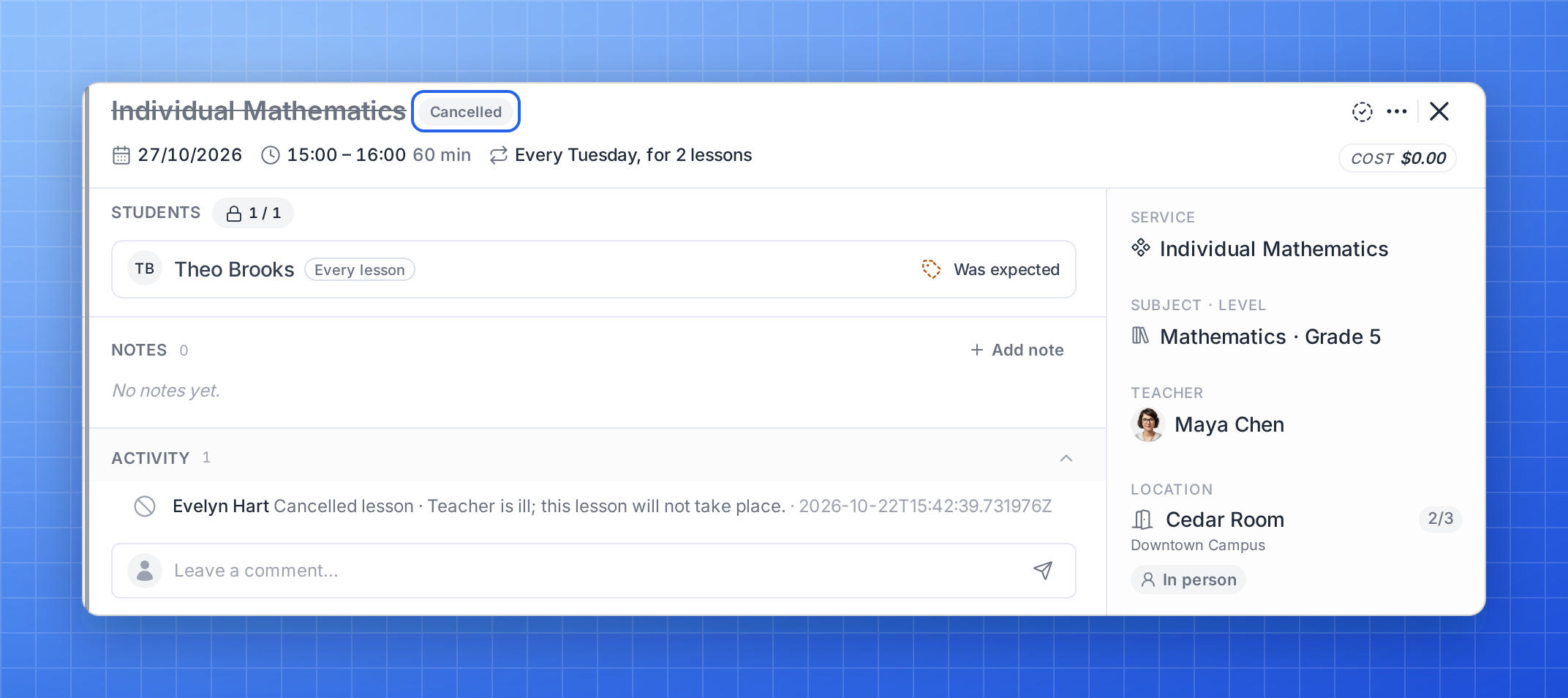
The lesson shows Cancelled, and the student's previous Expected status becomes Was expected. Cancelling the whole lesson does not record attendance or mark the student as a no-show. The following weekly lesson keeps its time, teacher and student.
Open Activity in the lesson details to see the cancellation and its reason.
Check cancellation email records in Settings > Email history. A student without an email address can show Not sent even when Students was selected. An email-history status is not a guarantee of delivery to an inbox.
Common questions
Can I cancel just this week's lesson?
Yes. Review cancellation applies to This lesson only. The following lesson in the weekly series stays scheduled.
Does cancelling a lesson mark the student as a no-show?
No. Cancelling the whole lesson shows Cancelled on the lesson and Was expected for the student. Cancellation does not record attendance.
What should I choose when a teacher is sick?
If the whole teaching session will not happen, open the lesson in Calendar and select More actions > Cancel lesson. Review Owner consequences, record an optional reason and choose the notification groups before selecting Cancel lesson to save.
Does cancelling a lesson delete its history?
No. Cancellation retains the lesson, roster, series, notes and earlier history. Open Activity in the lesson details to see the cancellation reason.
Who receives a cancellation update?
The groups selected under Notifications determine the requested recipients. Check the listed names before saving and the resulting records in Settings > Email history; a student without an email address can show Not sent.