
Run online lessons with meeting links and join links
Save each teacher's Zoom, Google Meet or Teams link once. Families and teachers join every online lesson from one join link that never changes.
Last updated
To run online lessons in Tutorbase, save each teacher's meeting link (a Zoom, Google Meet, Teams or other video call address) on their Staff profile, then set each lesson's delivery to Online or Hybrid. The lesson uses the teacher's link, and every student and teacher joins from one personal join link that stays the same for every lesson.
Before you start
Create the meeting in Zoom, Google Meet or Teams first: Tutorbase stores the address, it does not create meetings. Use one long-lived link per teacher, such as a Zoom personal room. In the examples, Daniel Rivera teaches Nina Okafor Spanish online.
Save a teacher's meeting link
Open People > Staff and the teacher's profile.
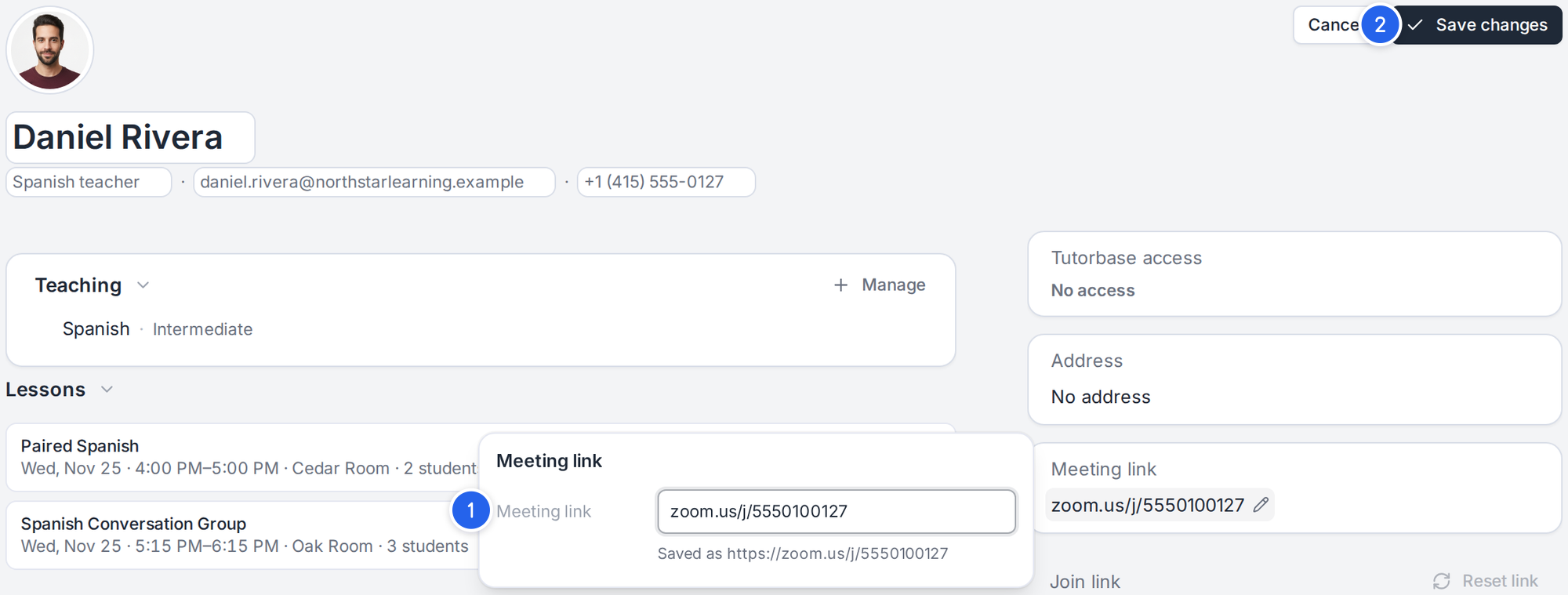
Under Meeting link, select Add. The profile switches to editing and the Meeting link box opens.
Set the link:
- Paste the teacher's link into Meeting link. An address without
https://is saved with it; anhttp://address shows Use a link that starts with https://. - Select Save changes.
- Paste the teacher's link into Meeting link. An address without
The profile then shows the address and the app, for example Zoom. Once lessons use the link, the profile also counts them, for example Used by 1 upcoming online lesson.
Make a lesson online
In the lesson editor, under Location, select In person to open Delivery mode, then choose Online, or Hybrid for a lesson that is both in the room and online. A new Online lesson starts on its teacher's link: Meeting link names whose link it is, for example Daniel Rivera’s link. No location is needed for an Online lesson.
In the saved lesson, Meeting link shows a Join Zoom button (named after the app), a copy button, the address and whose link it is.
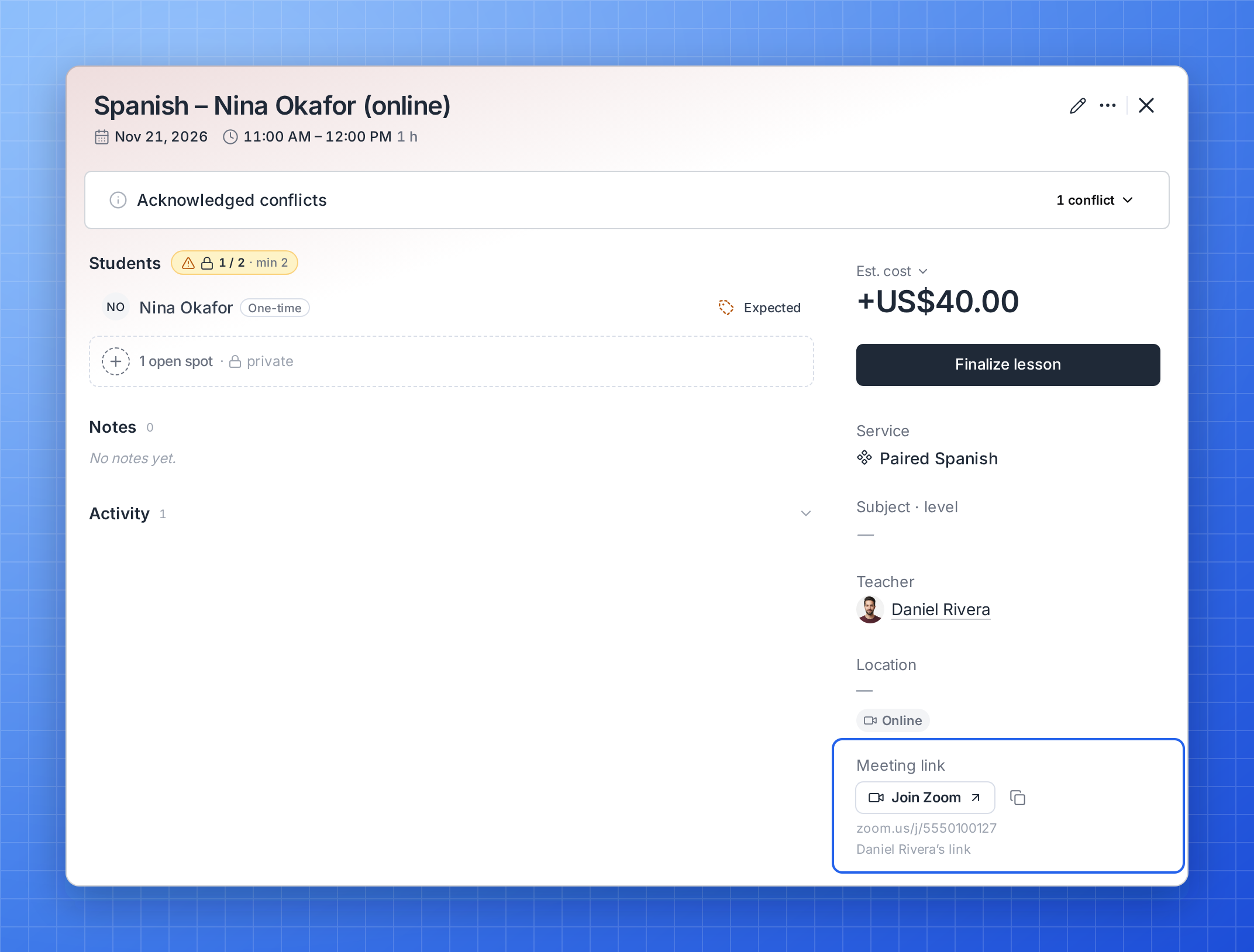
Keep lessons on the teacher's link, so each address is typed once, on the teacher's Staff profile. A lesson with its own link shows that address without a teacher's name.
Send families their join link
Each student has one join link for all their online lessons at your school. Lesson emails carry it: the New lesson email for an online lesson has a Join online line with the student's join link, and the teacher's email has the teacher's own join link. These emails show the join link, not the meeting address.
To send the join link now, for example to a family with existing lessons, open the student's profile from People > Students.
Under Join link, select Email.

The confirmation names who gets the email. Select Send email.
Tutorbase emails a Join online message with the link; check delivery in Settings > Email history. To send the link yourself, select the link to copy it.
Reset a join link
Reset a join link when it reached the wrong person.
- On the student's profile, under Join link, select Reset link.
- In the confirmation, select Reset link.
The old link stops working at once: it opens This join link no longer works, which asks the family to contact the school. Send the new link with Email or copy it. A teacher's own join link is on their Staff profile and has its own Reset link.
What families and teachers see
The join link opens a page with the school's name, without signing in. On the day of the lesson it names the student, teacher, time and app, with Join lesson, which opens the meeting, and says the teacher will let the student in from the waiting room.
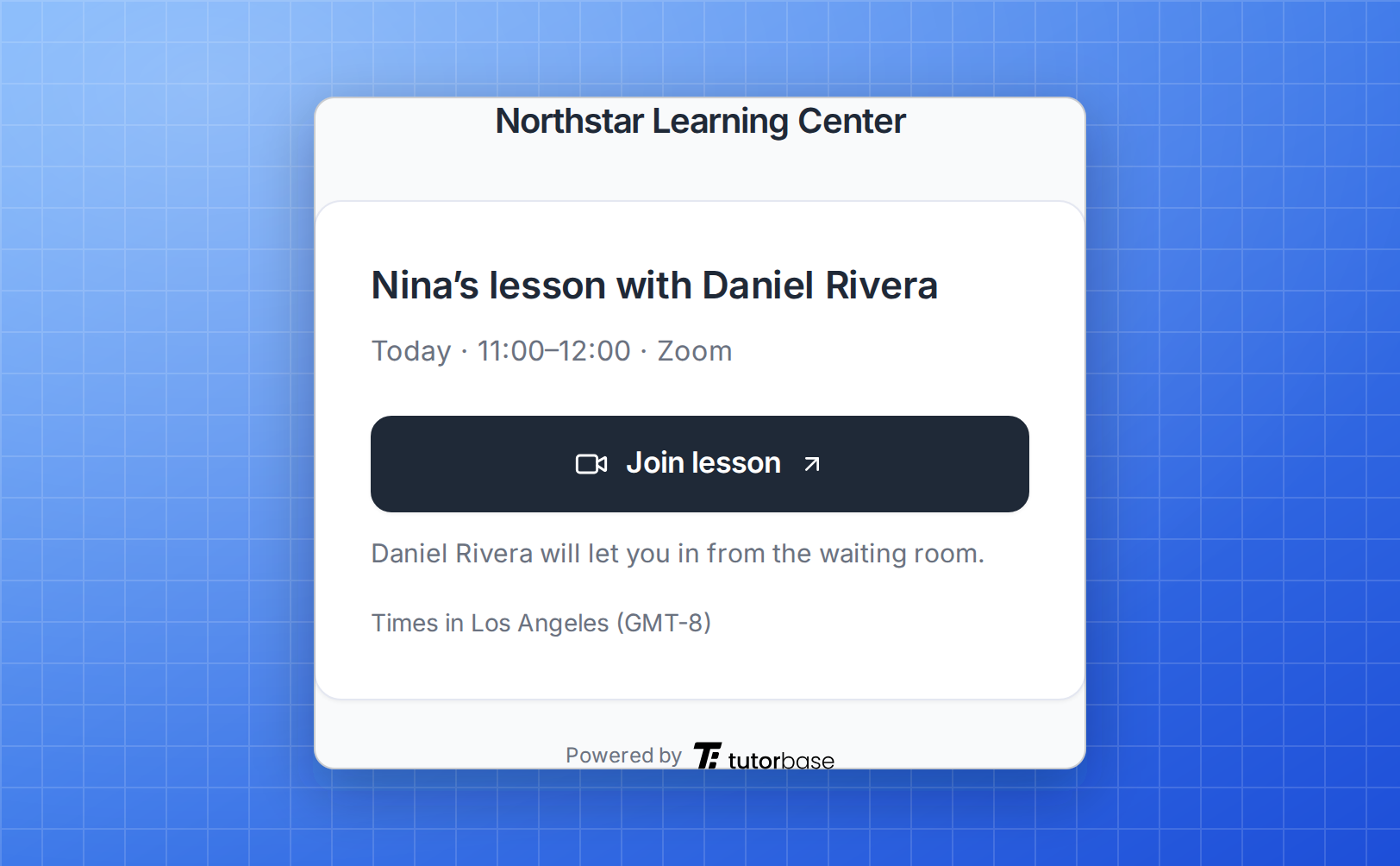
A teacher's join link lists the teacher's lessons for the day, each with Join lesson and the students' first names only.
Good to know
- Keep the waiting room switched on in Zoom and Google Meet. A teacher's link is the same for all their lessons, so the waiting room lets the teacher admit only the students of the current lesson.
- Join links work without signing in, so treat a join link like a key.
Common questions
Do families need a Tutorbase account to join?
No. The join link opens the lesson page without signing in.
Does the join link change for every lesson?
No. A student's join link stays the same for every online lesson at your school until staff reset the join link on the student's profile.
Does Tutorbase create the Zoom or Google Meet meeting?
No. Create the meeting in the meeting app, then paste its link into Meeting link on the teacher's Staff profile.
Can families join before the day of the lesson?
No. Join lesson appears on the join page on the day of the lesson.
Do lesson emails show the Zoom address?
No. The New lesson email carries the student's join link on a Join online line, not the meeting address.