
Move one lesson in a weekly series without moving the others
Change one weekly lesson's time in Tutorbase, choose This lesson only, and save without moving the other lessons.
Last updated
To move one lesson in a weekly series in Tutorbase, open the lesson from Calendar, change its time, choose This lesson only in Review changes, then select Save for this lesson. Only the chosen lesson moves; the other lessons keep their usual time. A weekly series is a set of recurring lessons.
Before you start
Choose the date that needs a different time. For example, move a private weekly mathematics lesson from 15:00–16:00 to 16:00–17:00, keeping its date, student, teacher and location (the room).
Open the lesson
Open Calendar.
Under View, choose Day.
Select the calendar date and choose the day of the lesson you need to move.
Open the lesson. Confirm the date, teacher and student in the lesson details.
Select Edit lesson, the pencil icon.
Change the time
Select the date and time under the lesson's title. Date & time opens.
Set the time in this order:
Check Date and keep the selected day for a time-only change.
Under Start, set the new start time, for example 16:00.
Check End. The end follows the existing duration; for a one-hour lesson starting at 16:00, the end becomes 17:00.
Keep Repeat on the existing weekly pattern. The scope of this edit is chosen in the review, so you do not need to change the weekly rule.
Select outside Date & time to dismiss the panel.
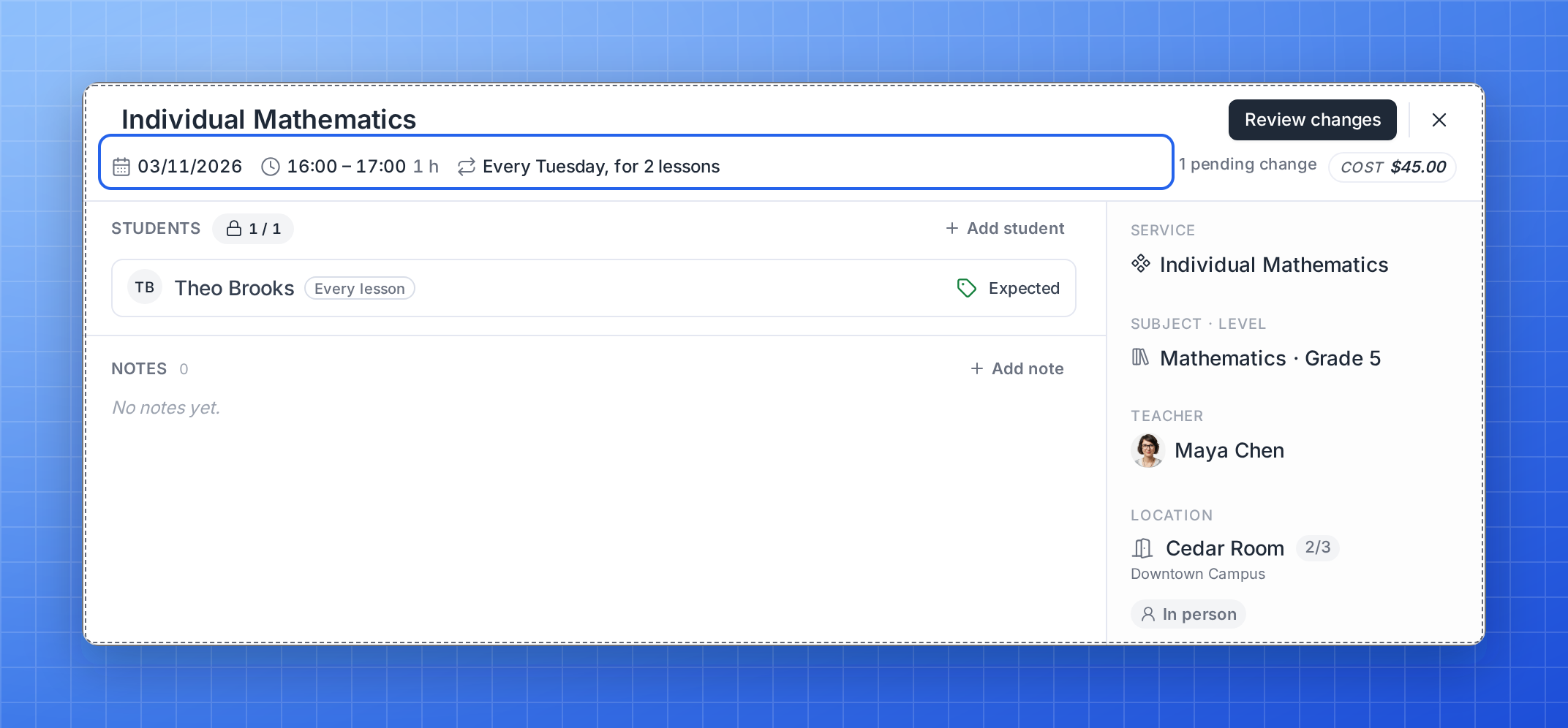
Select Review changes. The change is not saved yet: the scope and email choices open.
Save only this lesson
Under Apply to, choose This lesson only. Check that the date is the lesson you intend to move.
Under Email notifications, choose who gets the time-change email. Students, Payers and Staff are selected by default. Keep Payers and Staff selected to email the family and teacher; switch off Students unless the student should receive a separate email. Switch off a group if you do not want that group emailed.
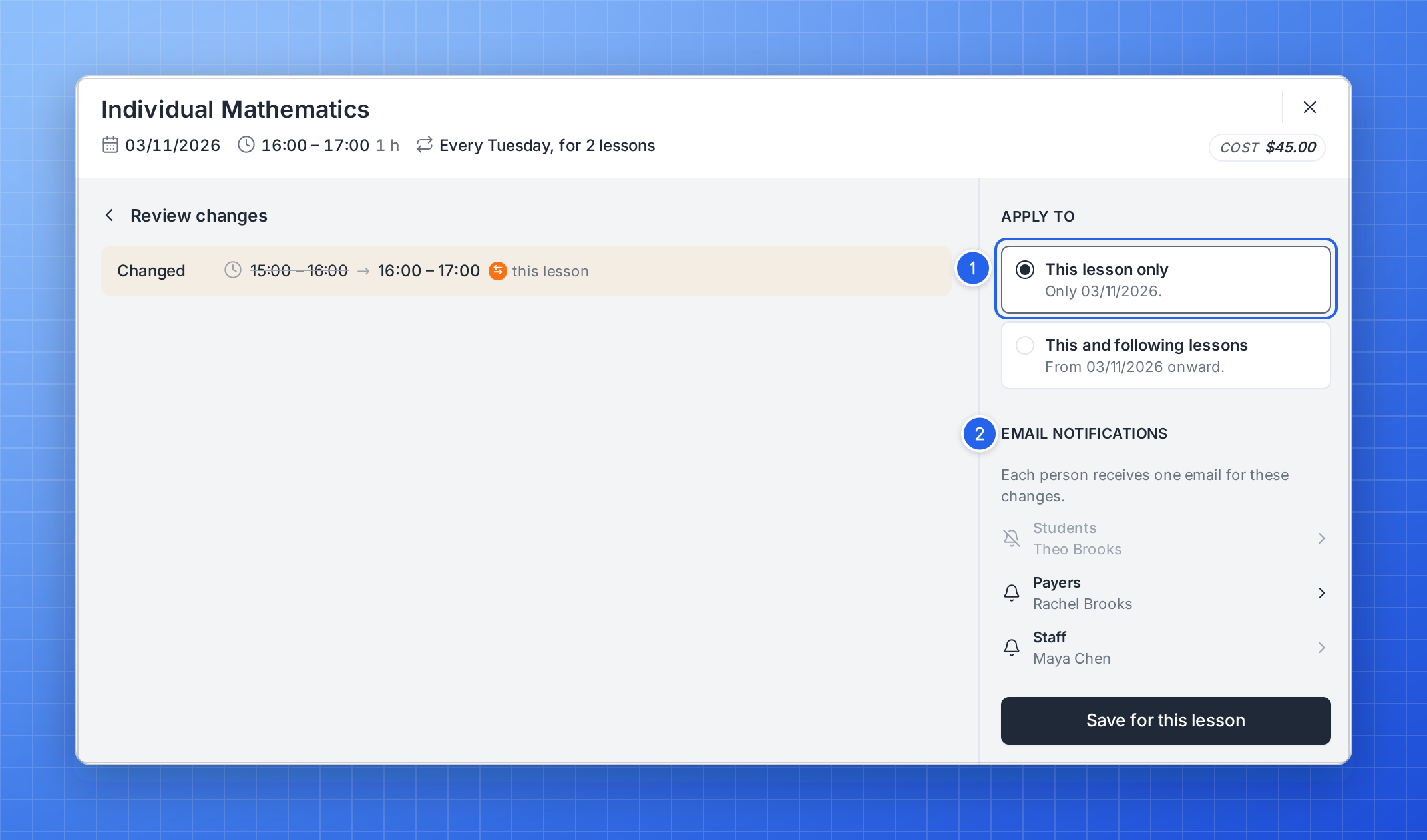
Optional: Select Payers or Staff to check the named recipients and add a message, for example in Add an optional message for payers…. No personal message is needed for a simple time change.
Select Save for this lesson.
After you move the lesson
The chosen lesson appears at the new time in the Calendar. The other lessons in the series keep their usual time. The student remains in the weekly series. The lesson details retain the weekly pattern, and the Calendar keeps the Recurring series icon. The student's row still says Every lesson.
With Payers and Staff selected, Email history in Settings shows a Lesson changed entry for each recipient. Email history is marked Beta; confirm important delivery outcomes separately.

Common questions
How do I move just one lesson in a recurring series?
Open the lesson from Calendar, select Edit lesson, and change the start time in Date & time. In Review changes, choose This lesson only, check Email notifications, then select Save for this lesson.
Can I reschedule only this week's lesson?
Yes. For a different time on the same day, open the lesson on that date and choose This lesson only in the review. The other lessons in the weekly series keep their usual time.
Do I need to change Repeat to move this lesson only?
No. Keep Repeat on the existing weekly pattern. Choose This lesson only under Apply to in Review changes to limit the time change.
Will the family get an email when I move a lesson?
Payers is selected by default under Email notifications. Keep Payers selected for a time-change email to the payer, or switch Payers off before saving to exclude the payer.
Does moving one lesson remove the student from the series?
No. Choosing This lesson only changes the selected lesson's time. The student remains in the weekly series.
I saved, but the Calendar still shows the old time. Should I save again?
Refresh Calendar and check the lesson's time before attempting another edit.